


Studio Developer Manual / Version 2401
Table Of ContentsExt JS is a JavaScript library for building interactive web applications. It provides a set of UI widgets like panels, input fields or toolbars and cross-browser abstractions (Ext core).
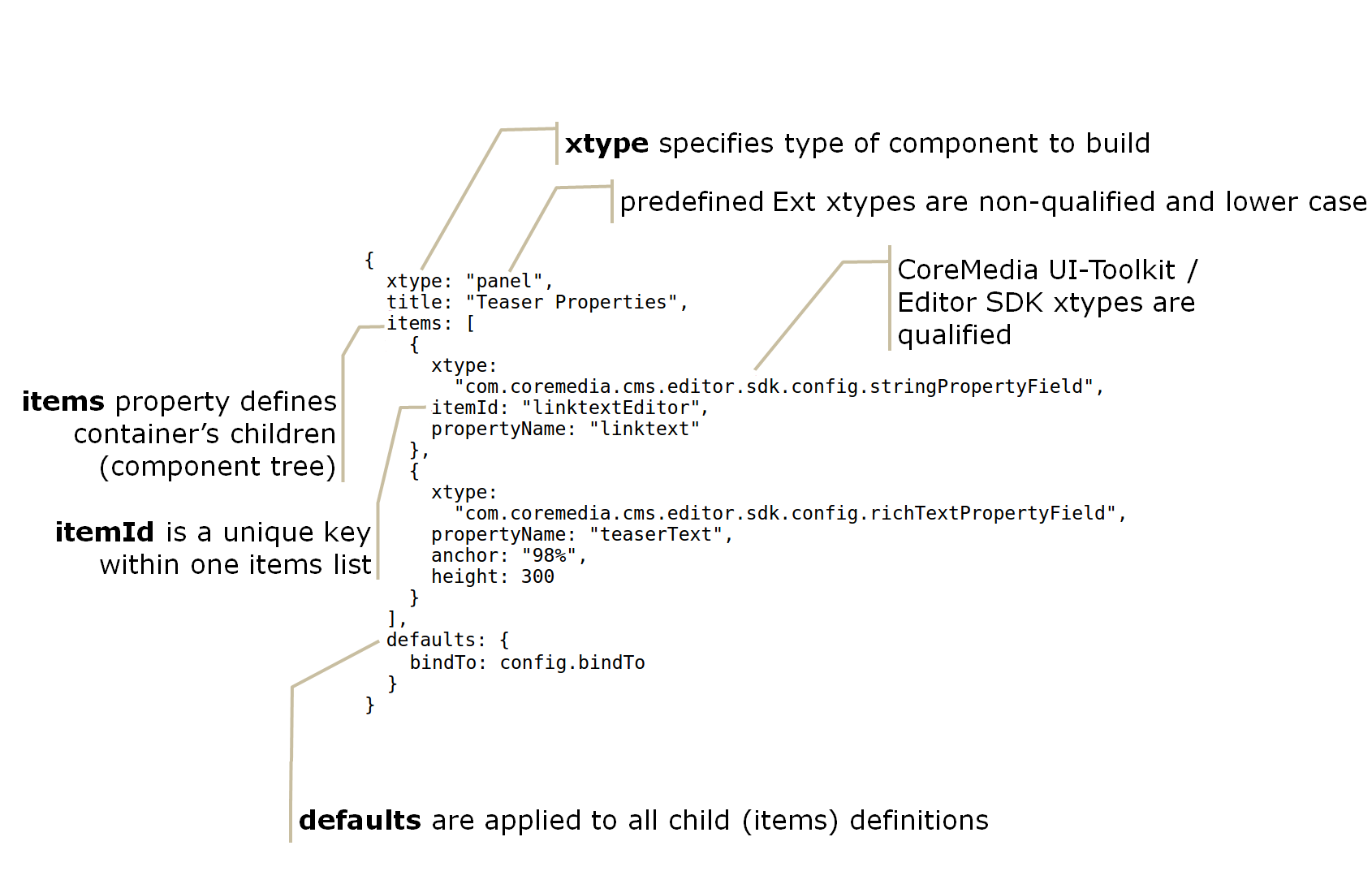
CoreMedia Studio uses Ext JS (Classic Toolkit) on the client side. With plain Ext JS, widgets are defined in JSON format as displayed in the following example:
{
 xtype: "panel",
 title: "Teaser Properties",
 items: [
  {
   xtype:
    "com.coremedia.cms.editor.sdk.config.stringPropertyField",
   itemId: "linktextEditor",
   propertyName: "linktext"
  },
  {
   xtype:
    "com.coremedia.cms.editor.sdk.config.cke5RichTextPropertyField",
   propertyName: "teaserText",
   anchor: "98%",
   height: 300
  }
 ],
 defaults: {
  bindTo: config.bindTo
 }
}
Example 5.1. Ext JSON
The above code example defines a component of xtype "panel" with two
property editors for editing a string and a richtext
property, respectively. The xtype of the surrounding panel, like that of all Ext JS
components, is a simple string without a namespace prefix. The xtype of a
plain Ext JS component is, in most cases, the name of the component class, in all lowercase
characters.
The property editors shown above are CoreMedia Studio components,
that are based on plain Ext JS components, but add Studio-specific functionality. Their
xtype is a qualified name. See
Section 5.2, “Ext TS: Developing Ext JS in TypeScript” for details.
Instead of the xtype attribute
you can also use the xclass attribute,
which uses the fully qualified class name of the component.
The optional itemId property can be understood as a per-container id which
identifies the component uniquely within its container. Note that itemIds are not
to be confused with DOM element ids or Ext JS component ids which are unique within the entire
application.
When developing CoreMedia Studio extensions, you don't need to use
the Ext JS xtype and memorize or look up all possible xtype
values and their supported configuration properties. Instead, you're encouraged to specify components
using the much more convenient and type-safe Config notation that takes advantage
of TypeScript's type checking and IDE support. It is available from CoreMedia's Jangaroo project.
The example below shows the Studio TypeScript code corresponding to the Ext JSON from above:
import Config from "@jangaroo/runtime/Config";
import Panel from "@jangaroo/ext-ts/panel/Panel";
import StringPropertyField from
  "@coremedia/studio-client.main.editor-components/sdk/premular/fields/StringPropertyField";
import RichTextPropertyField from
  "@coremedia/studio-client.main.editor-components/sdk/premular/fields/richtext/RichTextPropertyField";
import PropertyField from
  "@coremedia/studio-client.main.editor-components/sdk/premular/PropertyField";

Config(Panel, {
  title: "Teaser Properties",
  items: [
    Config(StringPropertyField, {
      itemId: "linktextEditor",
      propertyName: "linktext"
    }),
    Config(RichTextPropertyField, {
      propertyName: "teaserText",
      anchor: "98%",
      height: 300
    })
  ],
  defaults: Config<PropertyField>({
    bindTo: config.bindTo
  })
})
Example 5.2. Ext JSON in TypeScript
As you can see, the xtype properties with string values are replaced by
importing the corresponding component class and using the (also imported) Jangaroo utility function
Config with the component class and a corresponding configuration
object. Each component class defines a Config type which the given configuration object must match.
Calling the Config function with a component class adds the corresponding
xtype at run-time, calling it with just a configuration object, like in the
example for the value of defaults, only takes care of the type check.
For details, see Section 5.2, “Ext TS: Developing Ext JS in TypeScript”.
The following sections describe Ext JS components, plugins, and actions in more detail.
Ext JS-specific examples of advanced components are available on the official Ext JS examples page. The full Ext JS API documentation is also available at sencha.com.
