Using KIO Co-Pilot
Get productive with KIO Co-Pilot in your workflow.
Welcome to the CoreMedia KIO Co-Pilot user manual. Learn how simple it is to use KIO Co-Pilot, CoreMedia’s AI integration.
Opening KIO Co-Pilot
In the bottom right corner of CoreMedia Studio you will find the round KIO icon, which opens KIO Co-Pilot.
You can open or close the KIO chat window by clicking the KIO icon or using the keyboard shortcut Ctrl + Alt + Shift + K on Windows/Linux, or Cmd + Option + Shift + K on macOS.
The KIO shortcuts are listed in the User Studio Preferences under the section Preferences > Shortcuts > KIO.
|
The provided shortcut might not be available due to conflicts with browser shortcuts, browser extensions, or your specific browser and operating system. |
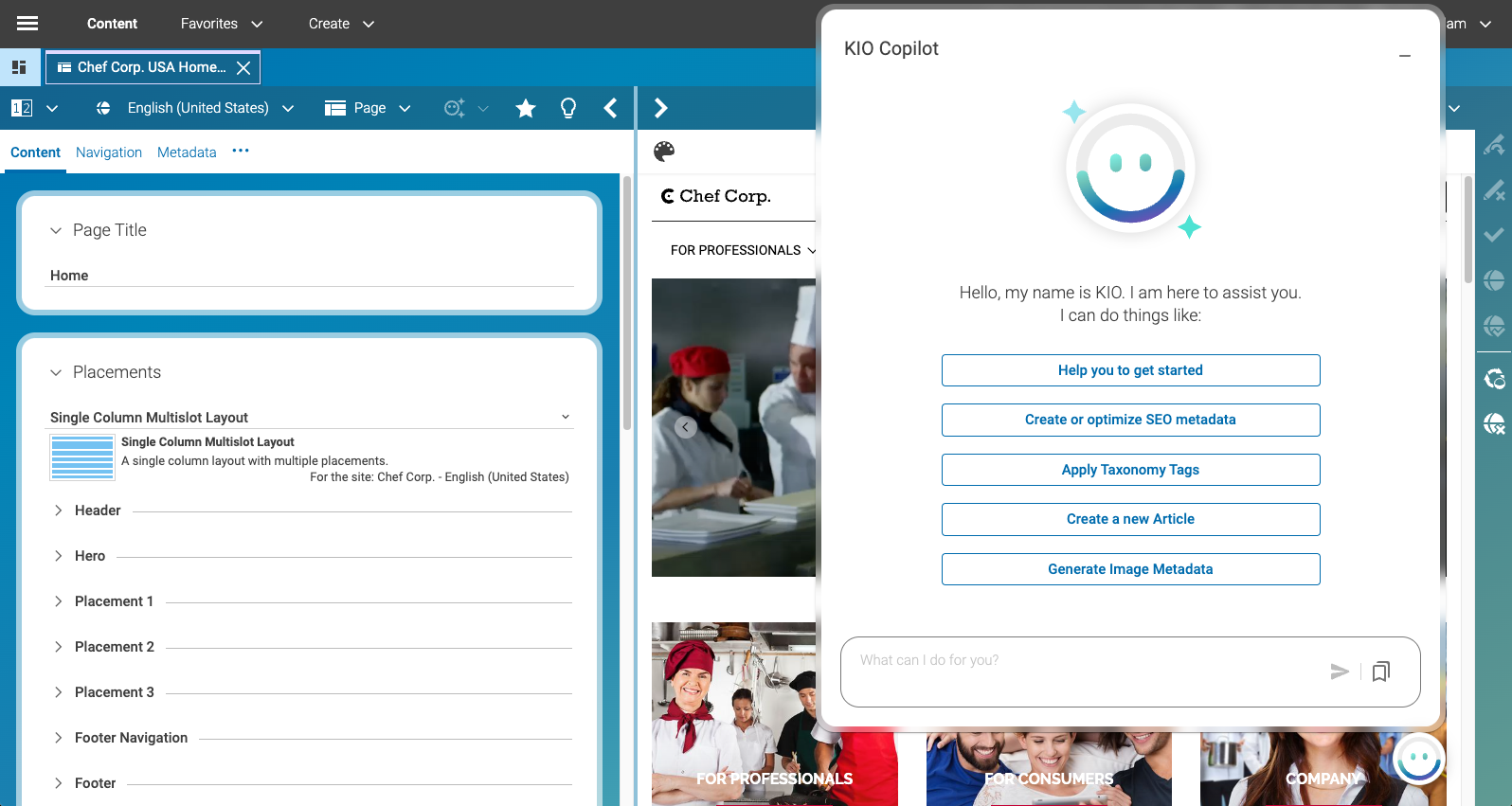
You can start by asking KIO anything. Or you can refer to very specific content in your CMS.
KIO can use Tools to interact with other systems. By default, it is equipped with a
set of Tools that enable it to interact with Content Cloud and
Engagement Cloud. Just ask KIO Which tools are available? and KIO will list all available tools and what they can do.
Tools are small applications tailored towards a simple task, such as reading, writing, or copying content, interpreting images, and so forth. KIO is also aware of content metadata, such as content and property types, which gives it the necessary context to perform content operations on behalf of the logged-in user.
You can simply enter a prompt yourself or click on a few ready-made prompts. Not sure where to begin? Just ask KIO anything that comes to your mind, or click on Help you to get started.
In the following, you’ll find helpful topics that explain the core concepts behind KIO, what it knows, what it can and cannot do, and tips for navigating the interface and using it effectively.
Studio Context
As soon as you start working with KIO Co-Pilot, it knows the context you have opened in CoreMedia Studio. This is transferred to the KIO backend and used for corresponding operations.
This context includes the following information:
-
The logged-in Studio user
-
All read and write operations performed by KIO are also carried out in their name. KIO can therefore only access content for which the logged-in user also has access rights.
-
Also, selected settings from the user’s Preferences are evaluated, such as the Preferred Site to determine the base folder for creating new documents.
-
-
The active content opened in the foreground (Opened Tab)
-
When an operation is to be performed on a content item and KIO has no other information about the content to which this operation should apply to, KIO always uses the currently opened content.
-
However, it is also possible to explicitly refer to this content in the prompt by using phrases like "current content" or "active content".
-
-
Currently selected items in the Studio Library
-
It is also possible to perform bulk operations on a series of content items. To refer to the currently selected items in the Studio Library, you can use phrases like "for the currently selected items".
-
An example would be the following prompt "Optimize SEO for the currently selected items".
-
|
KIO will not publish any changes or delete content. So, you are still in control, regarding your live site. |
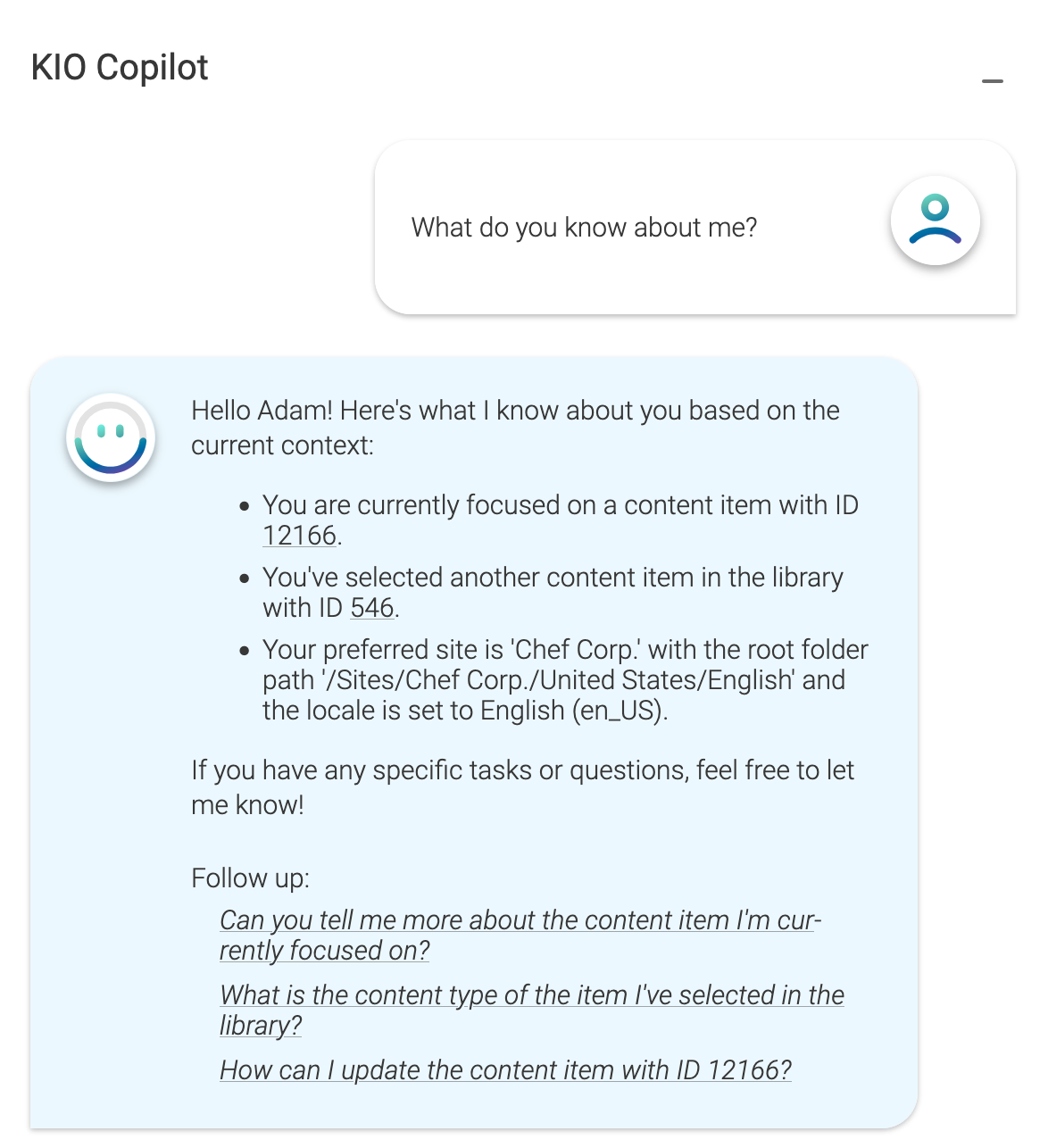
You can also ask KIO the following question "What do you know about me?" to find out what information KIO has about you. You can then use these phrases specifically in requests.
Link Behavior
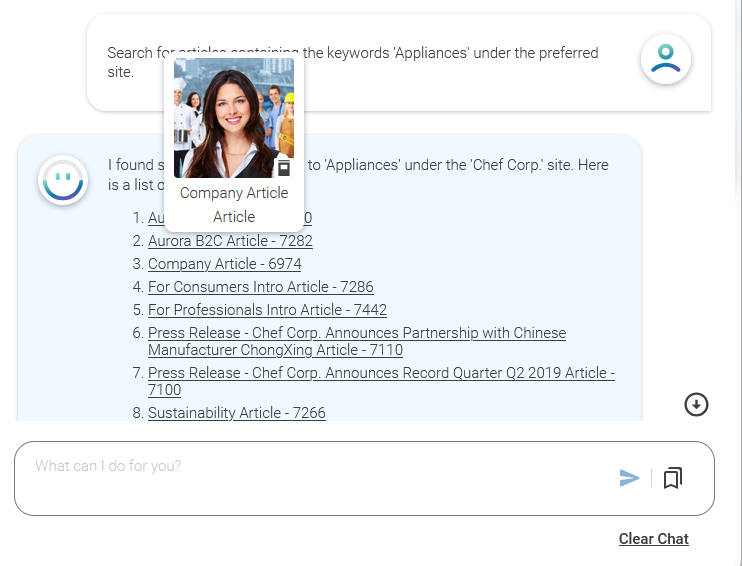
For some prompts (for example, "Search for articles containing the keyword 'Appliances' under the preferred site.") you will get links to content items or folders in KIO’s answer. KIO validates the links. If a link is valid, you can click the link to open the content or folder in Studio. If you hover over the link, you will see a thumbnail of the content, so that you have a better idea, what the content contains. The thumbnail will either show an image, if present in the content, or the content type icon. In also shows the name and type of the content item.
If a link is not valid (missing permissions, content is deleted etc.) it will be shown as crossed out. The thumbnail will also show, that the content is not available.
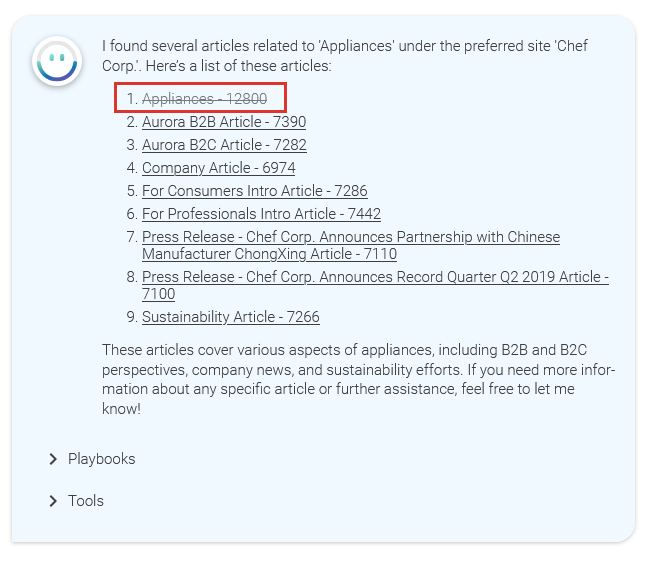
KIO keeps track of the links it displays in its answers. This means that if a content item included in an answer gets unavailable in the meantime or vice versa, you will see the new state, when opening KIO again.
Applying Content Changes
By default, KIO would directly create or change content if it was requested in your prompts. This would be done in your name, the logged-in user, within the scope of your rights. A new version of the documents would be created for each change. The created version(s) can be found as usual in the System tab of the opened content.
These changes can be very extensive and far-reaching. In principle, there are no limits (of course, it depends on the set of rights of the logged-in user).
Enforcing Confirmation for Content Changes
If you do not want to automatically apply content changes by KIO, you can enforce KIO to first ask for confirmation before making changes.
You can configure this behavior in the KIO Settings menu (see KIO Settings). Open the sidebar, navigate to Settings, and toggle the Auto Apply Content Changes option to control whether KIO applies changes directly or asks for confirmation first. By default, this option is enabled.
Changed/Created Content (Versions)
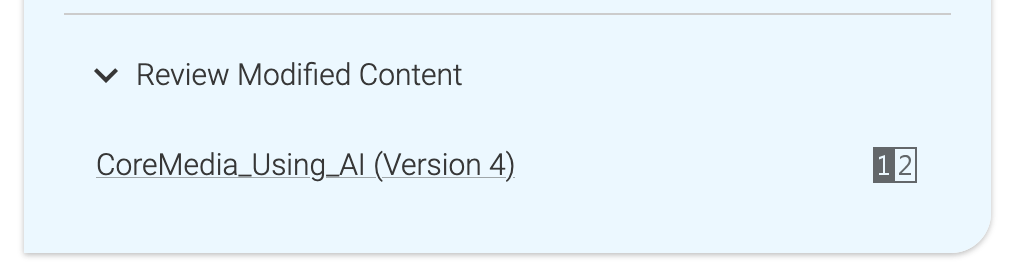
As soon as KIO processes a prompt and creates or changes content, these changes are listed in the section Review Modified Content below the response. The section can be expanded.
You can click directly on content to open it in the tab, or you can jump directly to the diff view of the changes made. Note, that only changes compared to the latest version can be displayed here.
Follow-up Questions (Suggestions)
By default, KIO shows up to three suggestions for follow-up requests under each response. These can be clicked and lead to another request to KIO. If these suggestions fit, you can easily navigate to the next information.
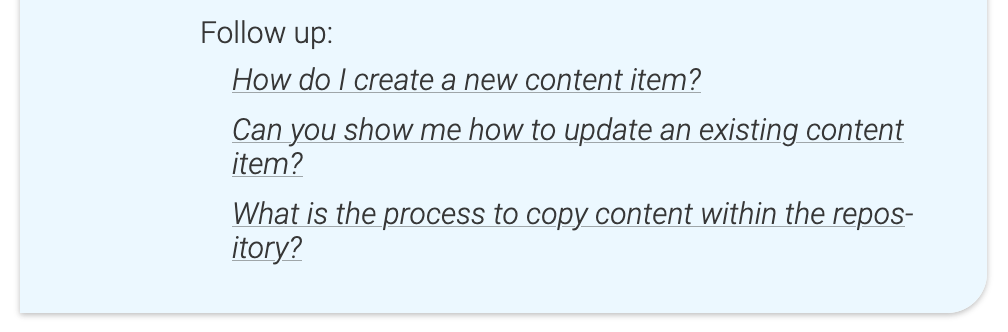
There are also situations where no follow-up questions are displayed. This is the case, for example, when KIO requires a decision or selection from the user, and the user should focus on the selection. There are also some situations where KIO does not find meaningful follow-up questions in which case none are displayed.
Turning off Suggestions
The generation of suggested follow-up questions can be turned off. After all, the generation consumes additional AI resources (tokens, time) and if you do not need these suggestions, you can turn them off.
You can toggle this feature in the KIO Settings menu (see KIO Settings). Open the sidebar, navigate to Settings, and disable the Enable Suggestions option to stop generating follow-up questions. By default, this option is enabled.
Saved Prompts
Each prompt submitted to KIO can be saved, so that it can be executed again at a later time. This can be useful to support recurring tasks. Since the prompt can refer to the current context (for example, the document opened in the tab, the selected items in the Library), it can be useful to apply a prompt to a different context.
An example of this would be rounding off an article, automatically adding keywords, creating a teaser text based on the article text, or generally filling in all SEO properties.
You can save any submitted prompt, by clicking on the following icon below the prompt.
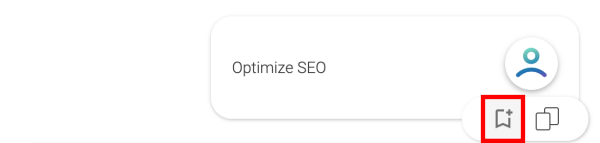
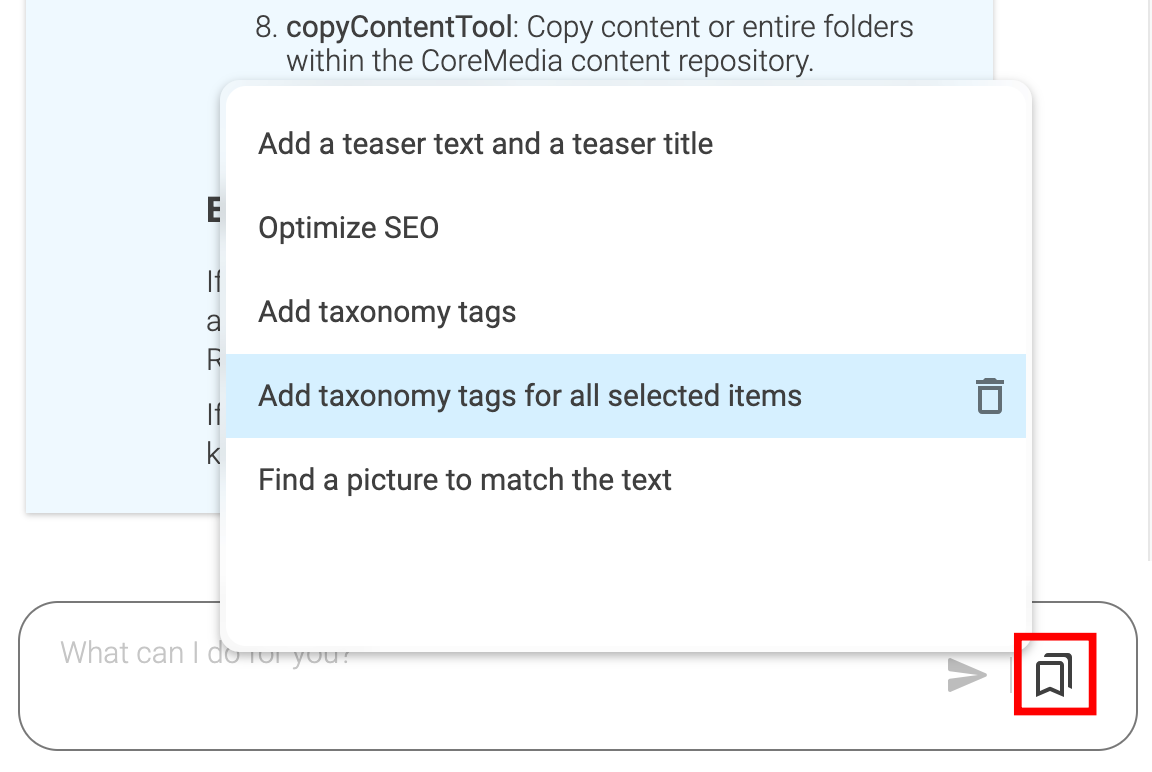
This saves the prompt and adds an entry to the popup menu next to the prompt input field to execute this prompt again at a later time. These saved prompts can also be removed from there by clicking the garbage can icon.
Global Prompts
The "Saved Prompts" presented in the previous section are an example of prompts that can only be executed in the opened KIO Co-Pilot. They are essentially quick access to prompts that can then be executed interactively again (for example, with a changed context). As already mentioned, each user can expand their own list with prompts that are helpful for their work.
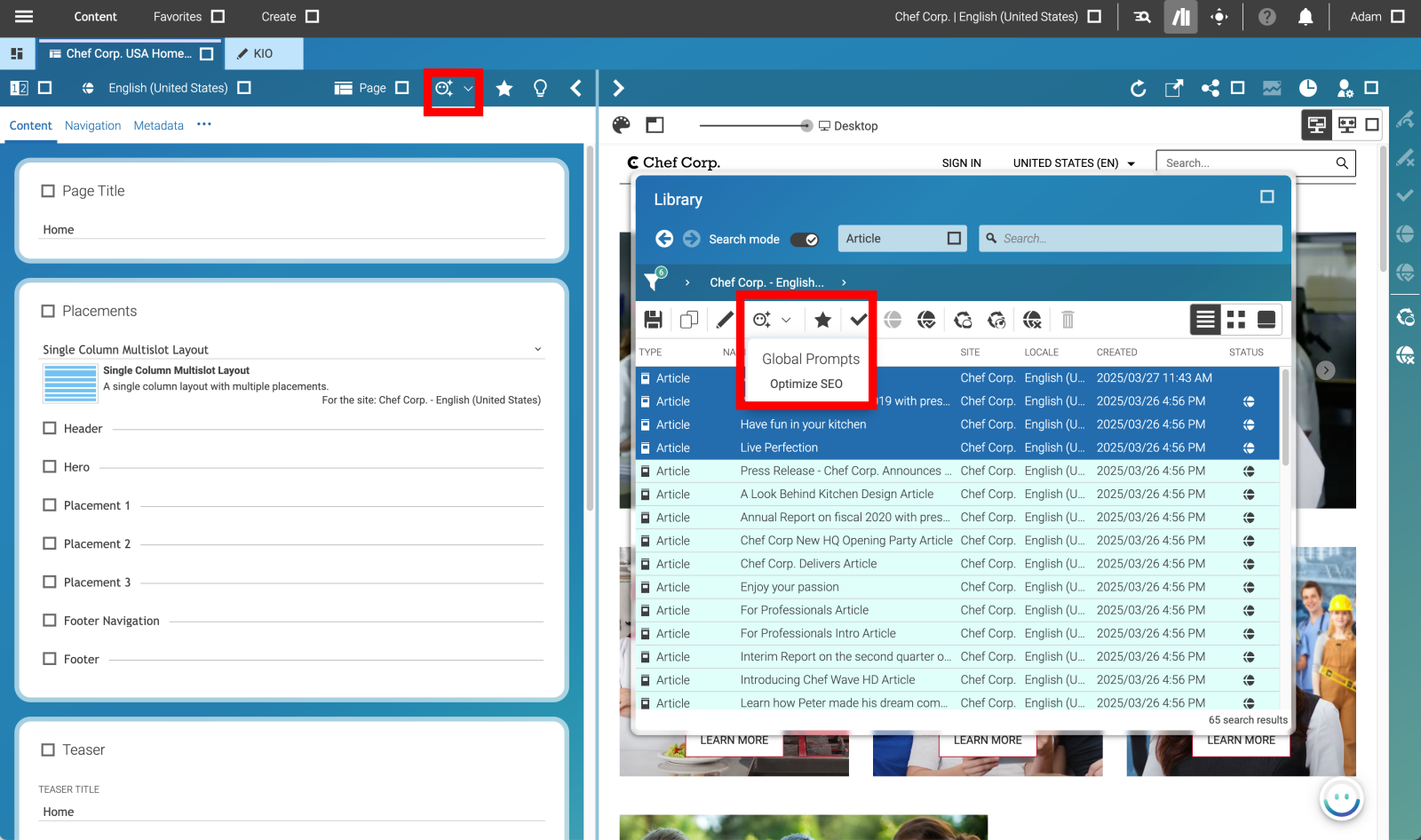
In contrast, you have "Global Prompts" that appear as toolbar items (in the Document Toolbar or/and in the Studio Library). These are prompts intended to work on individual open documents or a list of documents (selected in Studio Library).
These "Global Prompts" work like "Saved Prompts" with the difference that they are started from a Studio toolbar and not in KIO Co-Pilot and that they are accessible for all users. But you can even view them in the chat history of KIO Co-Pilot and follow the execution.
This list of global prompts can be maintained and expanded by a system administrator in the KIO settings. Initially, the list of global prompts is empty, so you will only see grayed out toolbar items.
A good example of such a prompt is "Optimize SEO". This should be applicable to both individual documents and a list of documents (multi selection in Studio Library).
To create such a list of "Global Prompts" add a Settings document named KIO either in the global
Settings folder (/Settings/Options/Settings/) or in a site-specific Settings folder below your
site folder. The following figure shows the structure of the Settings document.
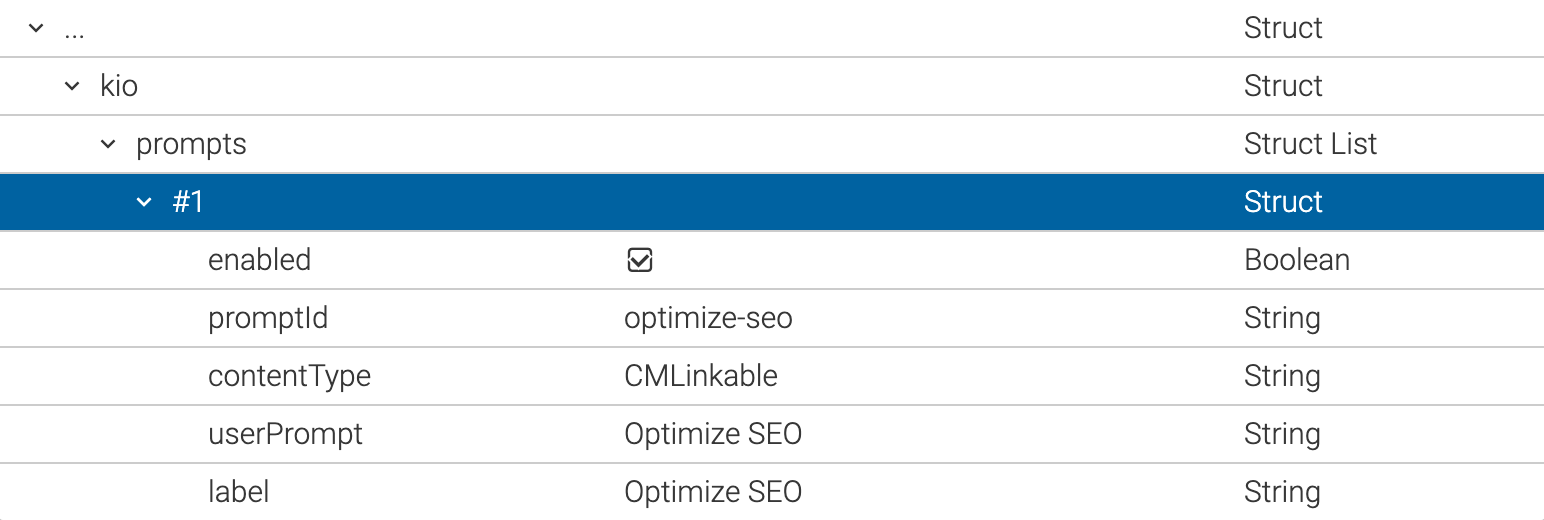
The contentType value specifies which content type this prompt should be displayed for.
The userPrompt defines the actual prompt sent to KIO.
The label is just the display name in the toolbar item.
As a result, you will get a toolbar item in the Document toolbar (if you have opened a document of type Linkable in a tab) or in the Studio Library (if you have only selected documents of the Linkable type).
KIO Settings
The KIO Co-Pilot window includes a sidebar with a settings menu that allows you to configure user-specific preferences directly within the KIO interface.
To open the sidebar, click the sidebar icon (hamburger menu) in the top-left corner of the KIO Co-Pilot window.
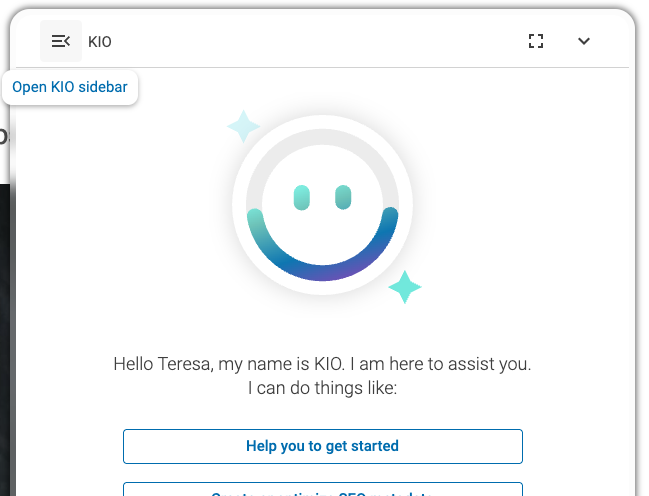
The sidebar provides two navigation items:
-
Chat: Returns to the KIO chat view.
-
Settings: Opens the settings page where you can configure general copilot behavior and preferences.
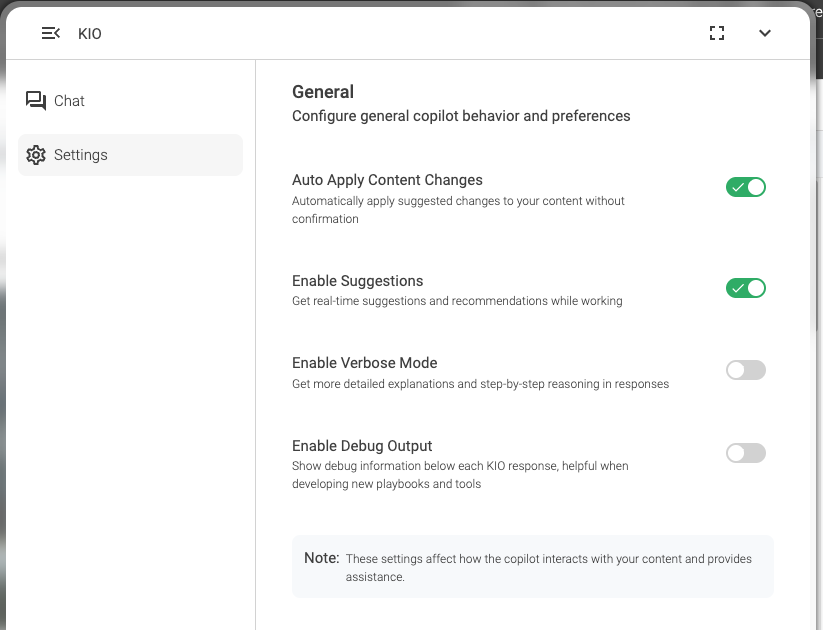
The settings page shows a General section with the following options:
-
Auto Apply Content Changes: Automatically apply suggested changes to your content without confirmation. When enabled, KIO will create or change content immediately. When disabled, KIO will ask for your confirmation before making any changes. Default: enabled.
-
Enable Suggestions: Get real-time suggestions and recommendations while working. Disabling this option saves AI resources (tokens, time). Default: enabled.
-
Enable Verbose Mode: Get more detailed explanations and step-by-step reasoning in responses. Default: disabled.
-
Enable Debug Output: Show debug information below each KIO response, helpful when developing new playbooks and tools. Default: disabled.
|
These settings affect how the copilot interacts with your content and provides assistance. |
Changes made in the KIO Settings menu are stored per user and take effect immediately.
Deleting History
The chat history in KIO Co-Pilot is always sent completely to KIO. This affects the results, as more context can lead to longer prompts or reduced accuracy.
Sometimes, it is better to delete the history before starting a new topic to avoid confusing the AI and consuming unnecessary resources (tokens, time).
Delete the history using the delete button below the prompt input field.
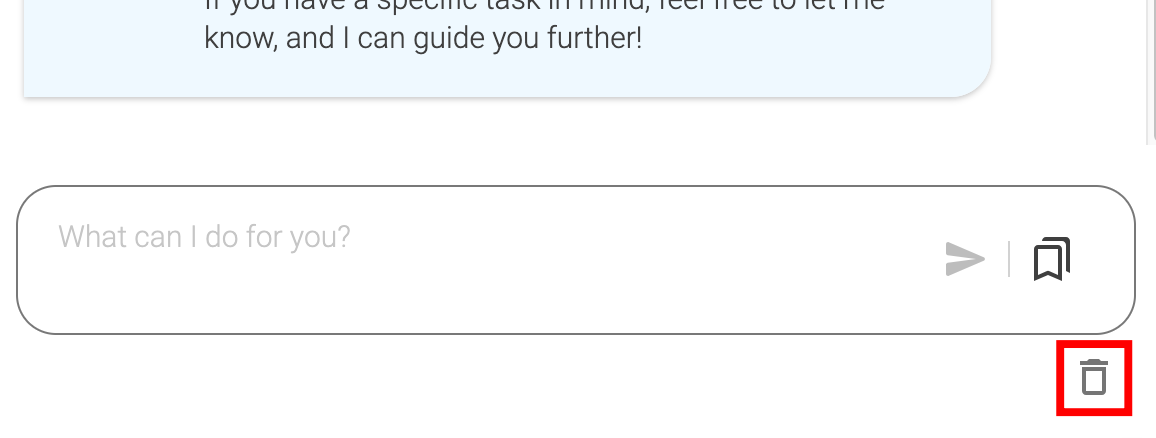
|
Deleting chat history ensures cleaner context and more accurate answers when starting new topics. |
Tips & Tricks for Prompt Engineering
Prompt engineering can significantly improve your interactions with LLMs. Here are some practical tips to get better results:
-
Be clear and specific: Define your request precisely to reduce ambiguity in the response.
-
Use examples: Providing a few examples helps the model understand the expected format or style.
-
Set context when needed: Why, how, and for whom?
-
Delete chat history when switching context: When you switch context and work on a new topic, press the Clear Chat button to avoid confusion and save tokens.
-
Iterate and refine: Start with a simple prompt, then tweak wording based on the responses you get.
-
Limit scope: Focus each prompt on a single task or question to avoid mixed or confusing results.
-
Experiment with phrasing: Small changes in wording can have a big impact on the quality of output.
-
Avoid overly long prompts: Keep prompts concise but informative to help the model focus on what matters.
-
Define the output format: For example, "Summarize in 250 words".
-
No need to be polite: "Thank you" is useless, you simply waste time and tokens.
Do’s & Don’ts
-
Do: Keep prompts clear, focused, and concise.
-
Do: Give context or examples when needed.
-
Don’t: Ask multiple unrelated questions at once.
-
Don’t: Rely on vague or ambiguous wording.