Adding a Website KPIs Widget
Learn how to add a Website KPIs widget to monitor the performance of your website.
Prerequisites
Before you start:
-
Ensure that you have version 12.2506.0.0 or later of the Content Studio.
-
Ensure that Native Personalization Plugin is installed.
-
Log in to Content Studio and open the Dashboard.
Related link: Dashboard
Steps
1. Add the Website KPIs widget
-
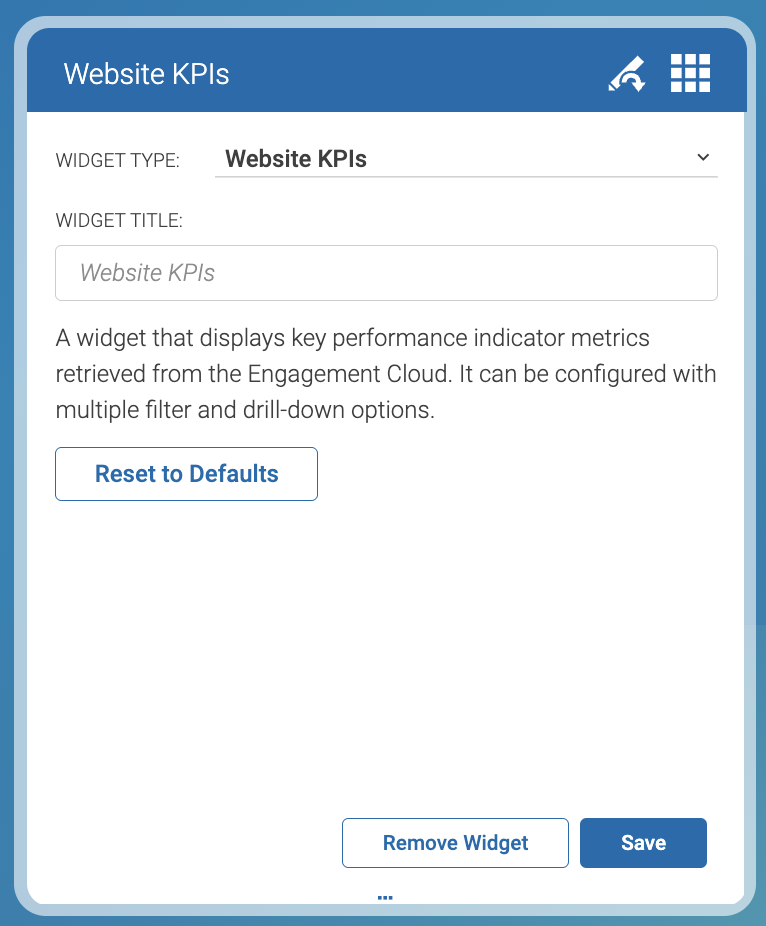
In the top right corner of the dashboard, click + Add Dashboard Widget.
-
Enter a title in the WIDGET TITLE field. Give meaningful names.
For example,Chef Corp Weekly Visitors. -
Click 💾 Save.

Content Studio adds the Website KPIs widget to the dashboard. The
dashboard now shows the Website KPIs widget with title
Chef Corp Weekly Visitors.
TIP In the bottom of the Website KPIs widget, click Fullscreen to maximize the Website KPIs widget.
2. Define the data period
In the top-left corner of the Website KPIs widget, click Last 30 Days.
For example, select Last Month to view metrics for August 2025.
3. Select the website
-
In the top-right corner of the Website KPIs widget, click the dropdown menu on the left of + Filter.
-
Select the website. For example,
Chef Corp. (English(United States)). -
In the bottom of the Website KPIs widget, click Save.
Result
The Website KPIs widget saves your settings. You can sign out and back in without losing them.
In this example, the widget shows metrics for
Chef Corp (English, United States) in August 2025. You can click
each metric to change the data displayed in the chart.
The chart bellow shows the number of Sessions per day in August 2025.

The chart below shows the number of Page Requests per day in August 2025.
