[
  "https://github.com/CoreMedia/content-hub-adapter-rss/releases/download/v2.0.5/content-hub-adapter-rss-2.0.5.json",
  "https://github.com/CoreMedia/content-hub-adapter-youtube/releases/download/v2.0.6/content-hub-adapter-youtube-2.0.6.json",
  "https://github.com/CoreMedia/feedback-hub-adapter-imagga/releases/download/v2.0.3/feedback-hub-adapter-imagga-2.0.3.json",
  "https://github.com/CoreMedia/pendo-plugin/releases/download/v2.2.0/pendo-tracking-plugin-2.2.0.json",
  "https://github.com/coremedia-contributions/perso-plugin/releases/download/v1.0.1/perso-plugin-1.0.1.json"
]Installing the Native Personalization Plugin
Last updated 17 minutes ago
Installation of the Native Personalization plugin in Content Studio.
Table of Contents
The Native Personalization plugin connects CoreMedia Studio with the Engagement Cloud. You can examine the metrics of your pages directly in CoreMedia Studio or create new segments, for example. See the other articles in this section for more information on how to use the plugin.
Prerequisites
To install and configure the plugin you need the following prerequisites:
-
CMCC v.12.2506.0.0 system or higher.
-
Access to the CoreMedia contributions repository on GitHub. If you do not have access, contact the CoreMedia Support.
-
Engagement Cloud account with a Webcare ID. Contact the CoreMedia Support for a password and the tag URL.
-
CoreMedia tag already added to your website as described in CoreMedia Tag documentation.
-
Blueprint workspace or Studio Client workspace ready.
Steps
1. Adding the Native Personalization Plugin to Studio Client
This Studio Plugin includes a Studio Client customization. It extends the CoreMedia Studio UI with new analytics and personalization features and connects to the Engagement Cloud.
To bundle this plugin with your application Docker images, you can provide plugin-descriptors in the
plugin-descriptors directory or reference them as URLs in plugin-descriptors.json in the CoreMedia Blueprint workspace.
-
Find the latest Native Personalization Plugin release on GitHub: coremedia-contributions/perso-plugin/releases.
-
Copy the URL of the file
perso-plugin-x.y.z.jsonto the clipboard. -
Go to
workspace-configuration/plugins. -
Add the URL of the plugin-descriptor to the
plugin-descriptors.jsonfile.For example:
-
Execute
mvn generate-resources. -
Commit the changes.
-
Build the
studio-clientapplications.
2. Configuring the Engagement Cloud Connection
The Content Studio core contains the functionality to connect to the Engagement Cloud. This is required for the Native Personalization plugin and the CMEC p13n-adapter-cmec extension to work. You can use Spring properties to configure the Studio Server at start time or use a settings content item in Studio to configure the most important Engagement Cloud connection properties in Studio for each site.
In Engagement Cloud Integration Properties chapter in the Deployment manual you will find the available properties. Most of the properties are optional, and have sensible default values. Configure at least the following properties:
-
cmec.default-password: The password for the Engagement Cloud connection. If you do not have the password, ask the support. -
cmec.default-webcare-id: The Webcare ID for the Engagement Cloud connection. -
cmec.default-region: The region for the Engagement Cloud connection, for example,we1for the first European region. -
cmec.enabled: Set this property totrueto enable the Engagement Cloud connection.
You can also use the "by-site" properties to configure the Engagement Cloud connection for each site root page that uses Engagement Cloud.
Alternatively, you can configure the password, webcare ID, and region in a settings content item in Studio. This content item can be linked from all site root pages that use Engagement Cloud. See Configuration in the Personalization Hub manual for more information.
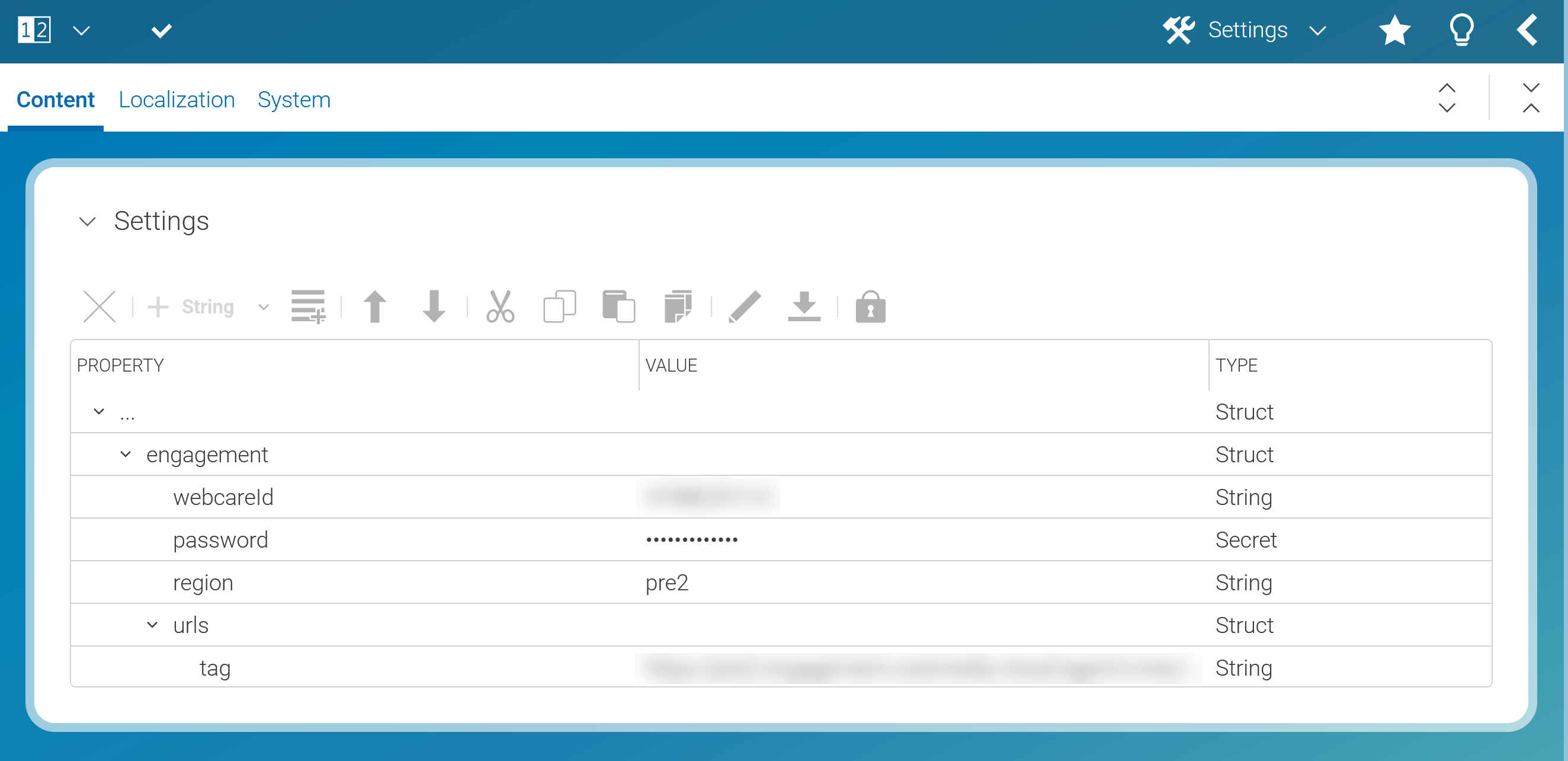
Figure 1. Configure the EC connection
If you are missing some of the property values, contact the CoreMedia Support.
3. Configuring User Groups
To see data from the Engagement Cloud in Content Studio, and to create segments in Engagement Cloud, you need to map user groups from Content Cloud
to specific Engagement Cloud groups. To do so, you can use the properties cmec.group-mapping.cmec and cmec-group-mapping.cmcc (see
Engagement Cloud Integration Properties)
as Spring properties at start time.
Configuring User Groups for Viewing Metrics
To view metrics in Content Studio, you need to map at least one user group from Content Cloud to the Engagement Cloud group ec-viewer.
Set the following Spring properties and replace <ContentCloudGroupName> with the name of the user group in Content Cloud that you want to map to the Engagement Cloud group:
cmec.group-mapping.cmcc.staff=<ContentCloudGroupName>
cmec.group-mapping.cmec.staff=ec-viewer
Keep in mind that staff is only an ID and is case-insensitive. You can use any other ID as well.
Configuring User Groups for Segment Management
In order to manage segements in Engagement Cloud, you need to map at least one user group from Content Cloud to the Engagement Cloud group ec-manager. The ec-manager group also includes the permissions of the ec-viewer group, so users in this group can also view metrics.
Set the following Spring properties and replace <ContentCloudGroupName> with the name of the user group in Content Cloud that you want to map to the Engagement Cloud group:
cmec.group-mapping.cmcc.admin=<ContentCloudGroupName>
cmec.group-mapping.cmec.admin=ec-manager
Keep in mind that admin is only an ID and is case-insensitive. You can use any other ID as well.
Mapping Multiple Groups
In both cases, you can map multiple groups to the same Engagement Cloud group. Simply use multiple lines with different IDs, for example, by adding a sequence number:
cmec.group-mapping.cmcc.admin1=<OtherContentCloudGroupName>
cmec.group-mapping.cmec.admin1=ec-viewer
Now, you can start the Studio Server and Studio Client applications. The Native Personalization plugin is now available in CoreMedia Studio, and you will see the metrics tabs and widget in the Studio UI.
Is this page useful?