Optimize Editing Forms - CMCC 12
Last updated 17 minutes ago
As with every powerful CMS, the complexitiy of available functions can be overwhelming. This how-to explains how you can optimize CoreMedia Studio editing forms based on Best-Practices and Experience
 What you will learn
- What are common challenges?
- How you and your partners can customize Studio forms
- How to remove fields from the form definitions
- How to hide unneeded tabs
 Prerequisites
- A working Login to CoreMedia Studio
 Target Audience
This guide is for Implementation Partners, Consultants, Customer Success Managers, Editors.
Table of Contents
Introduction
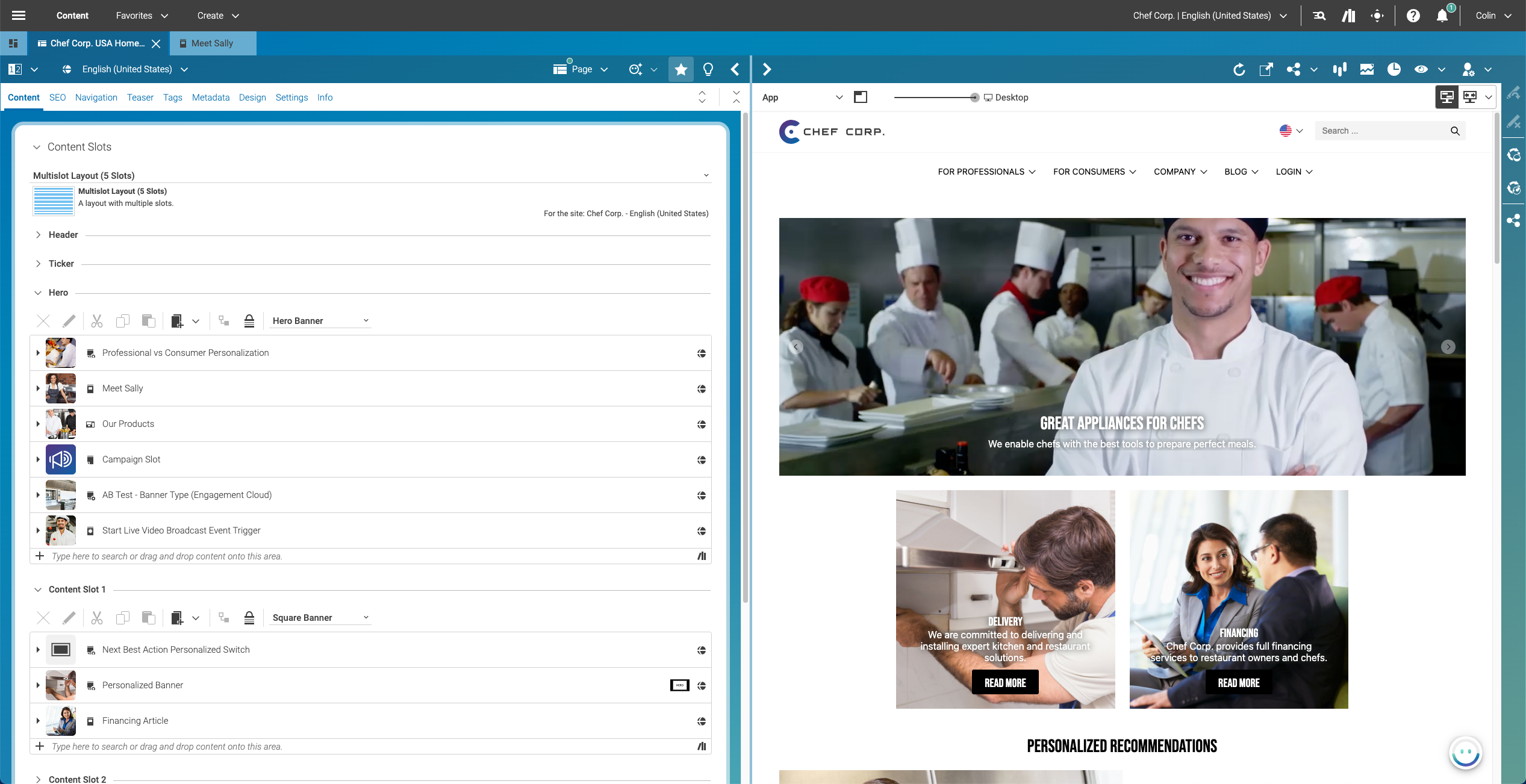
CoreMedia Studio is a flexible application that allows system integrators and customers to customize it for their specific needs. It serves both technical power users and casual users who engage with the system less frequently. These different user levels require thoughtful interface and workflow design.
However, the focus often leans toward technical functionality, leaving business users' experience as a secondary concern. Prioritizing an intuitive interface ensures efficiency and ease of use for all users.
Figure 1. Core Media Studio
Challenges
The CoreMedia Blueprint provides a well-balanced default setup for Studio editing forms, covering general use cases. However, it may not fully meet the specific needs of all customers, especially casual business users. As a result, some users might struggle to leverage CoreMedia Studio’s full potential. Based on experience, common issues include:
-
The Content type model does not reflect the customer’s domain
-
Content forms are packed with “Properties” - resulting in a negative user experience
The Content Type Model Does Not Reflect the Customer’s Domain
The CoreMedia Blueprint provides a ready-to-use content type model, but predefined types may not always align with your domain. For example, "Article" can mean different things to a media company and a luxury fashion brand. This misalignment can cause confusion and slow adoption of CoreMedia’s content management system.
Content Forms Are Packed With “Properties” – Resulting in a Negative User Experience
When you use the default CoreMedia Blueprint content forms without customization, you might leave business users with an interface that doesn’t fit their needs. The predefined data fields may include irrelevant information, overwhelming casual users with excessive and poorly organized options.
Example: The “Augmented Category” Form
The Augmented Category form is designed to enrich category and product pages with content. By default, the Content tab includes a variety of data fields and cards to support this purpose.
To access all elements, users may need to scroll extensively, which can make orientation challenging - especially when both editable and informational fields are shown together in one place.
In addition, the following aspects may be worth adjusting for improved usability:
Customizing these elements helps streamline the editing experience and ensures the interface better supports the needs of different user groups.
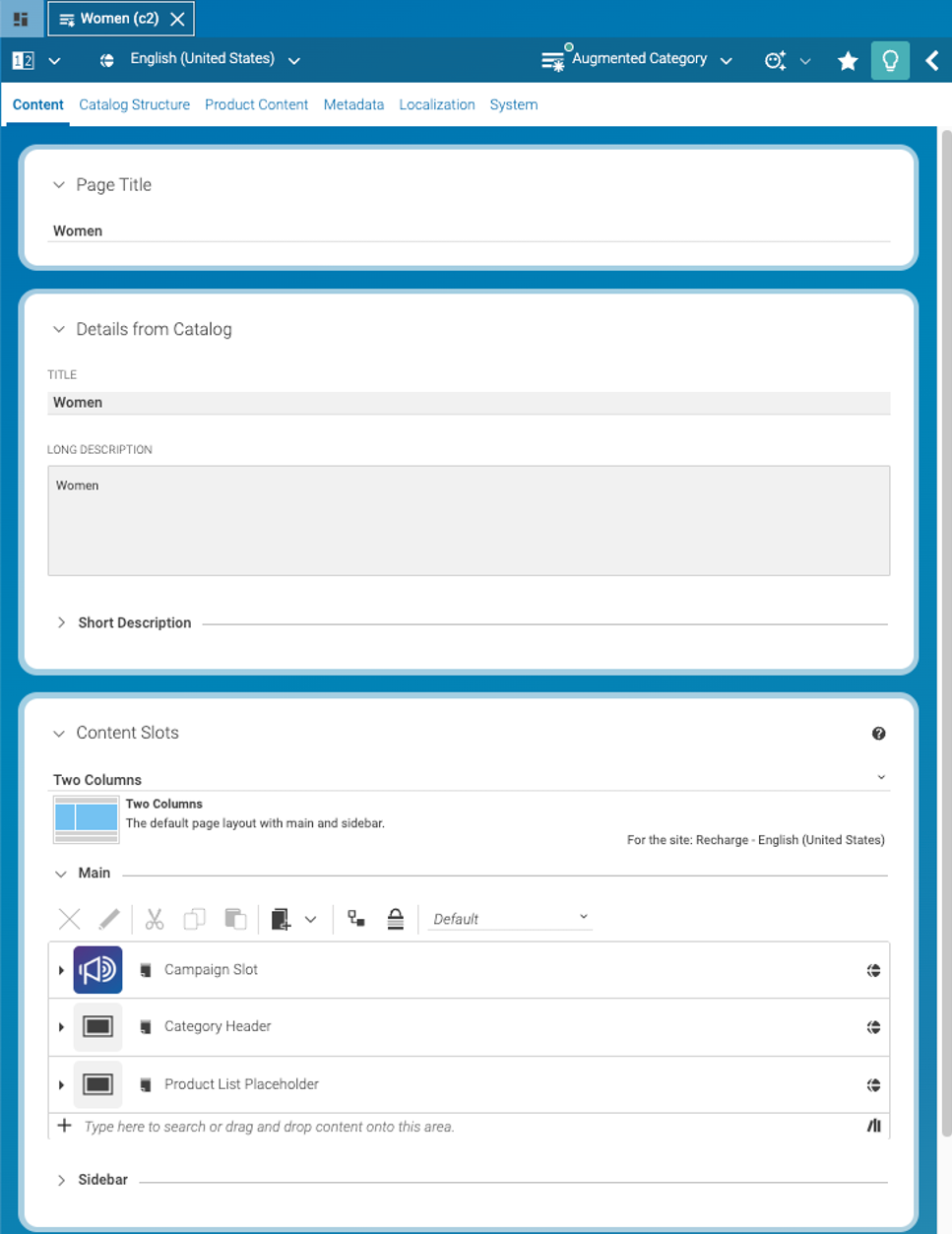
Figure 2. Form for Augmented Category
The Solution
There are different ways to solve the above challenges. Here are three main approaches that help make CoreMedia Studio more intuitive for a specific customer.
1: Use Terminology That’s Clear to Business Users in Studio Components
As a technical implementor you should always keep the business user - especially non-technical ones - in focus. Engineers often tend to use highly technical terms when communicating with business users. This becomes particularly problematic in user interfaces, where it’s essential to use language that is clear and intuitive to business users when referring to various panels and controls.
Over the past 20 years, a specific technical vocabulary has become standard among engineers in the CoreMedia context. However, this terminology is not always helpful for business users - especially those outside of Germany. Below are some of the most common terms and suggestions for more business-friendly alternatives:
| Do not use… | Use instead… |
|---|---|
Document |
Content Item |
Document Type |
Content Type |
Document Form |
Content Form |
Property |
Field or Data Field |
Property group |
Card |
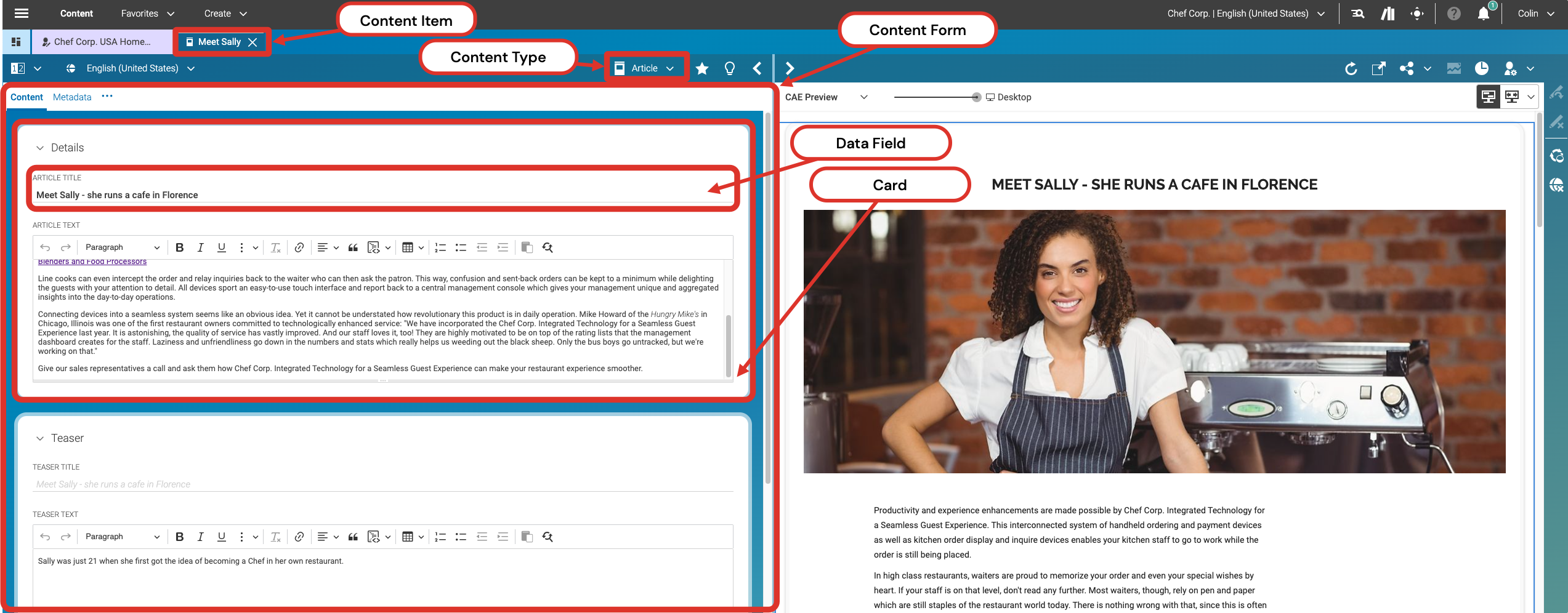
Figure 3. CoreMedia Studio Wording
2: Adapt Editing Forms to Provide More Guidance and Structure
Even though the Blueprint provides ready-to-use editing forms, it is best practice to adapt these forms in every project to meet your users' specific requirements. Fortunately, customizing editing forms is supported in the same way customers typically adapt rendering templates to deliver a pixel-perfect experience to their end users.
The following four steps should be considered in your project:
-
Create customer-specific content types which match to the day-to-day work and domain of the customer.
-
Remove obsolete fields from editing forms. Not all fields provided by the standard CoreMedia Blueprint are needed by all customers. In this case, simply remove the corresponding fields from the form definitions. The CoreMedia Studio Developer Manual gives an overview on how to customize content forms here: https://documentation.coremedia.com/cmcc-12/artifacts/2412.0/webhelp/studio-developer-en/content/CustomizingForms.html
-
Optimize ordering and grouping of fields on content forms. CoreMedia Studio allows you to group fields on cards and to organize cards across separate tabs. Think about what fields are most often used for each content type. Typically, the most important fields should be directly reachable when opening the content. Less frequently needed fields can perhaps be “hidden” on less visible tabs and cards.
-
Adapt the labels to meet your users’ wording. Users often have their own specific way to name content items on their websites. Going the extra mile and adapting content type names and labels will improve usability of CoreMedia Studio for that specific client.
|
Adapting content type names and labels to match your users’ domain language can greatly enhance usability. However, keep in mind that deviating from CoreMedia’s default terminology may lead to disconnects with out-of-the-box training materials, demos, reference systems, or existing technical documentation and backend structures. Consider maintaining a clear internal mapping or documentation to bridge this gap. |
The general procedure to localize CoreMedia Studio is described here: https://documentation.coremedia.com/cmcc-12/artifacts/2412.0/webhelp/studio-developer-en/content/LocalizingLabels.html . The section “Override Standard Studio Labels” explains how to adapt already existing standard labels.
3: Dynamically Limit Form and Component Visibility
In addition to customizing editing forms in terms of wording and structure, Studio offers further capabilities to improve the user experience. The goal is to display only as many tabs, cards, and fields as truly necessary.
Auto-Hide
The auto-hide (or progressive disclosure) feature was introduced in Studio to help keep the user interface clean and focused. It automatically hides content tabs that aren’t currently needed. Users can reveal hidden tabs by hovering over the expand button within the content area. This reduces visual clutter:

Figure 4. All tabs displayed
It’s possible to adapt the auto-hide feature in the preferences dialog by selecting or deselecting the option ”Always Show Advanced Tabs in Forms”.
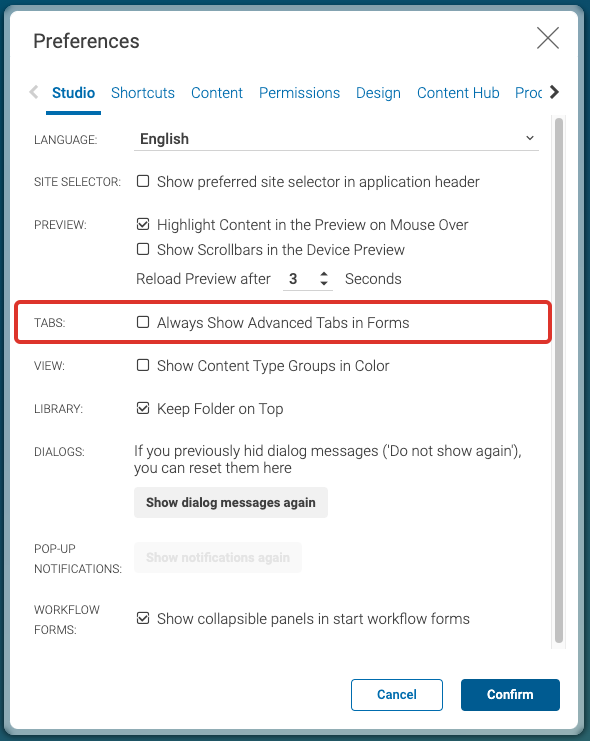
Figure 5. Where to find the auto-hide feature in Preferences
The auto-hide feature can be enabled for any content tab with a simple configuration.
Just set the corresponding flag
in the tab definition to true, as shown below:
Config(TeaserDocumentForm, {
  title: CustomForms_properties.Tab_Teaser_label,
  itemId: "customTeaserTab",
  autoHide: true,
  items: [
    Config(PropertyFieldGroup, {
      title: CustomForms_properties.PropertyFieldGroup_teaser_label
      // ...additional config
    }),
  ],
  plugins: [
    // e.g., new MyPlugin()
  ],
});
User-Group-Specific Editing Forms
To accommodate different user groups, CoreMedia Studio allows you to restrict the visibility of form components based on group membership. In a typical scenario, business users may be categorized as either power users - who are highly familiar with the system - or casual users, who create or edit content only occasionally.
Since these groups have different needs when interacting with the editing interface, CoreMedia Studio provides
the OnlyIf plugin, which dynamically adapts editing forms based on the user’s group membership.
The following example, taken from the CMArticleForm, shows how to display the System tab only for users in
the power-user and administrator groups.
Config(CMArticleForm, {
  items: [
    Config(DocumentForm, { title: BlueprintTabs_properties.Tab_content_title /* ... */ }),
    Config(DefaultExtraDataForm),
    Config(MultiLanguageDocumentForm),
    // Config(CMArticleSystemForm),
  ],
  plugins: [
    Config(OnlyIf, {
      isAdministrator: true,
      isMemberOf: "power-user",
      then: Config(AddItemsPlugin, {
        items: [ Config(CMArticleSystemForm) ]
      }),
    }),
  ],
});
User-Specific Editing Forms
Every user can individually adapt the provided forms using the standard CoreMedia Studio feature called Configure Form.
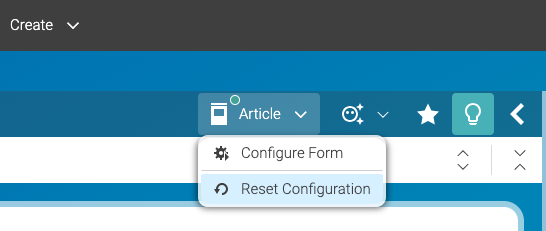
Figure 6. Every user can start an individual form configuration
The Configure Form button opens a configuration window that allows users to deselect specific tabs or cards individually. (As mentioned above, we prefer to refer to these elements as cards rather than properties.)
This feature helps streamline the interface, enabling users to create a more focused and personalized editing environment that fits their specific needs.
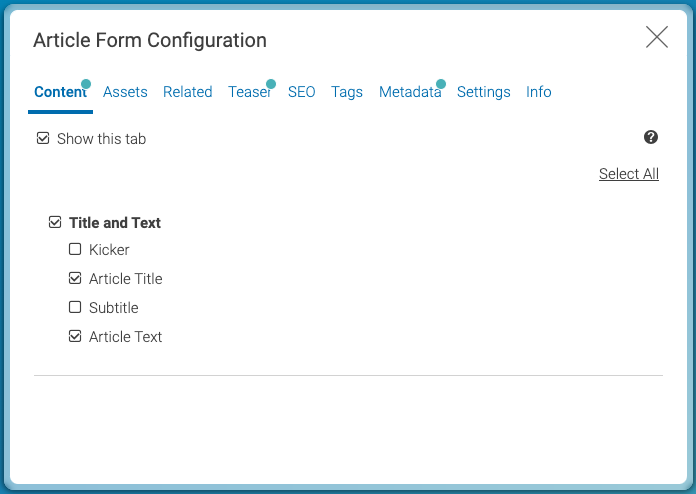
Figure 7. Standard feature to configure a form individually
Conclusion
Customizing editing forms in CoreMedia Studio helps make content creation easier, faster, and more intuitive for everyone working with the system. By actively taking control and making a few individual adjustments, users can focus on the tasks that matter most - without being distracted by unnecessary complexity.
This can also reduce needs for training, minimize content errors, and support higher content quality from the start. With fewer mistakes to fix, teams save time and gain confidence in their daily work.
Adapting CoreMedia Studio to (your!) specific needs isn’t just a nice-to-have - it’s a smart investment. It helps everyone get more done with less effort.
Is this page useful?