Optimize Editing Forms - CMCC 13
Last updated 10 minutes ago
Select a version:
- CMCC 13
- CMCC 12
This how-to explains how to optimize CoreMedia Studio editing forms based on best practices and real-world experience.
Table of Contents
Introduction
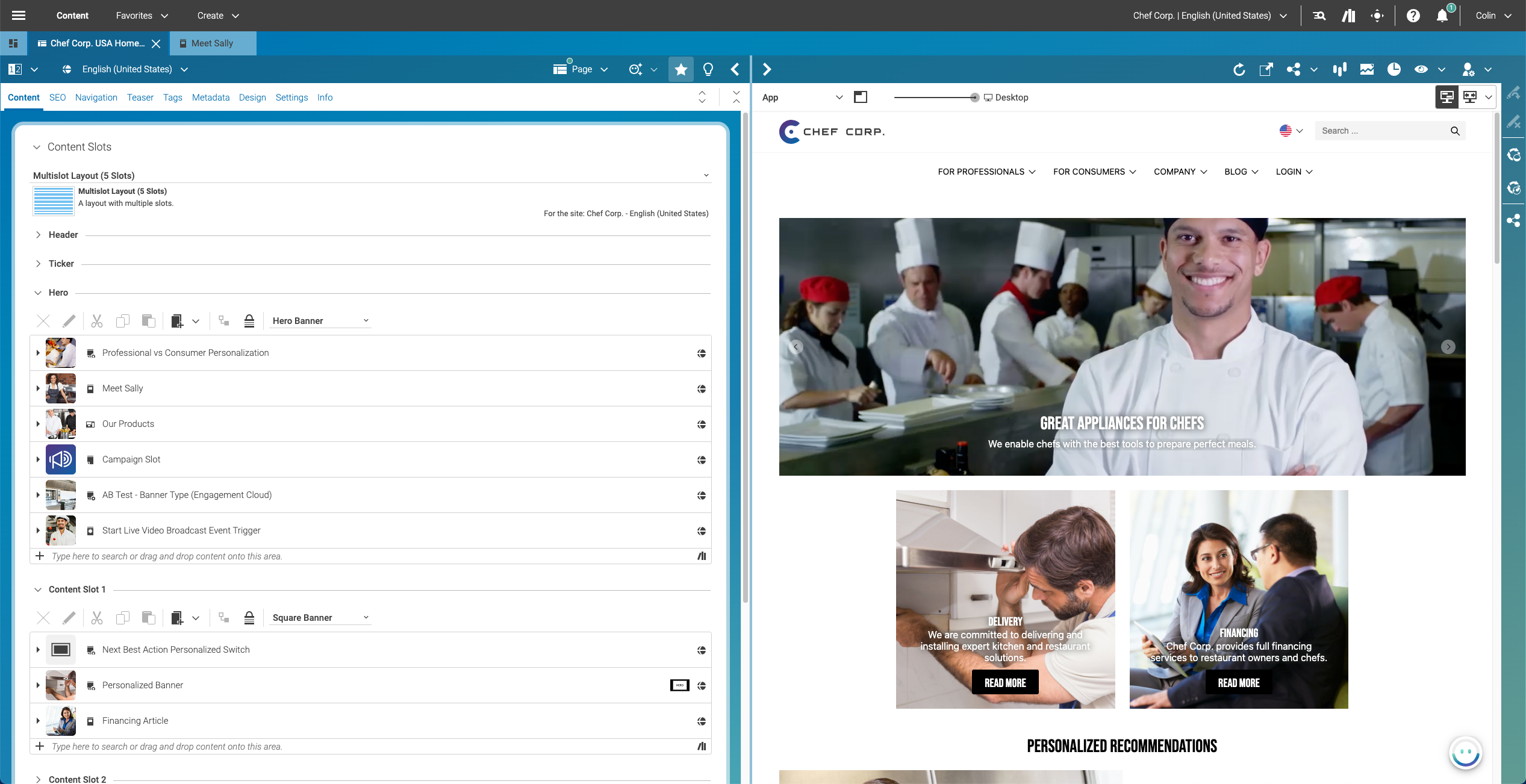
CoreMedia Studio is a flexible application that system integrators and customers can customize for their specific needs. It serves both technical power users and casual users who interact with the system less frequently — and both groups require thoughtful interface design.
In practice, the focus often leans toward technical functionality, leaving the business user experience as an afterthought. Prioritizing an intuitive interface benefits all users.
Figure 1. Core Media Studio
Challenges
The CoreMedia Blueprint provides a solid default setup for Studio editing forms that covers general use cases. However, it may not fully meet the needs of all customers — particularly casual business users. Common issues include:
-
The content type model does not reflect the customer’s domain.
-
Content forms are packed with "Properties," resulting in a poor user experience.
The Content Type Model Does Not Reflect the Customer’s Domain
The Blueprint provides a ready-to-use content type model, but predefined types may not align with your domain. For example, "Article" means something different to a media company than to a luxury fashion brand. This misalignment can cause confusion and slow adoption.
Content Forms Are Packed With "Properties" – Resulting in a Negative User Experience
When Blueprint content forms are used without customization, business users face an interface that doesn’t fit their needs. Irrelevant data fields and poor organization overwhelm casual users and reduce efficiency.
Example: The "Augmented Category" Form
The Augmented Category form is designed to enrich category and product pages with content. By default, the Content tab includes numerous data fields and cards, requiring extensive scrolling — especially when editable and read-only fields appear together.
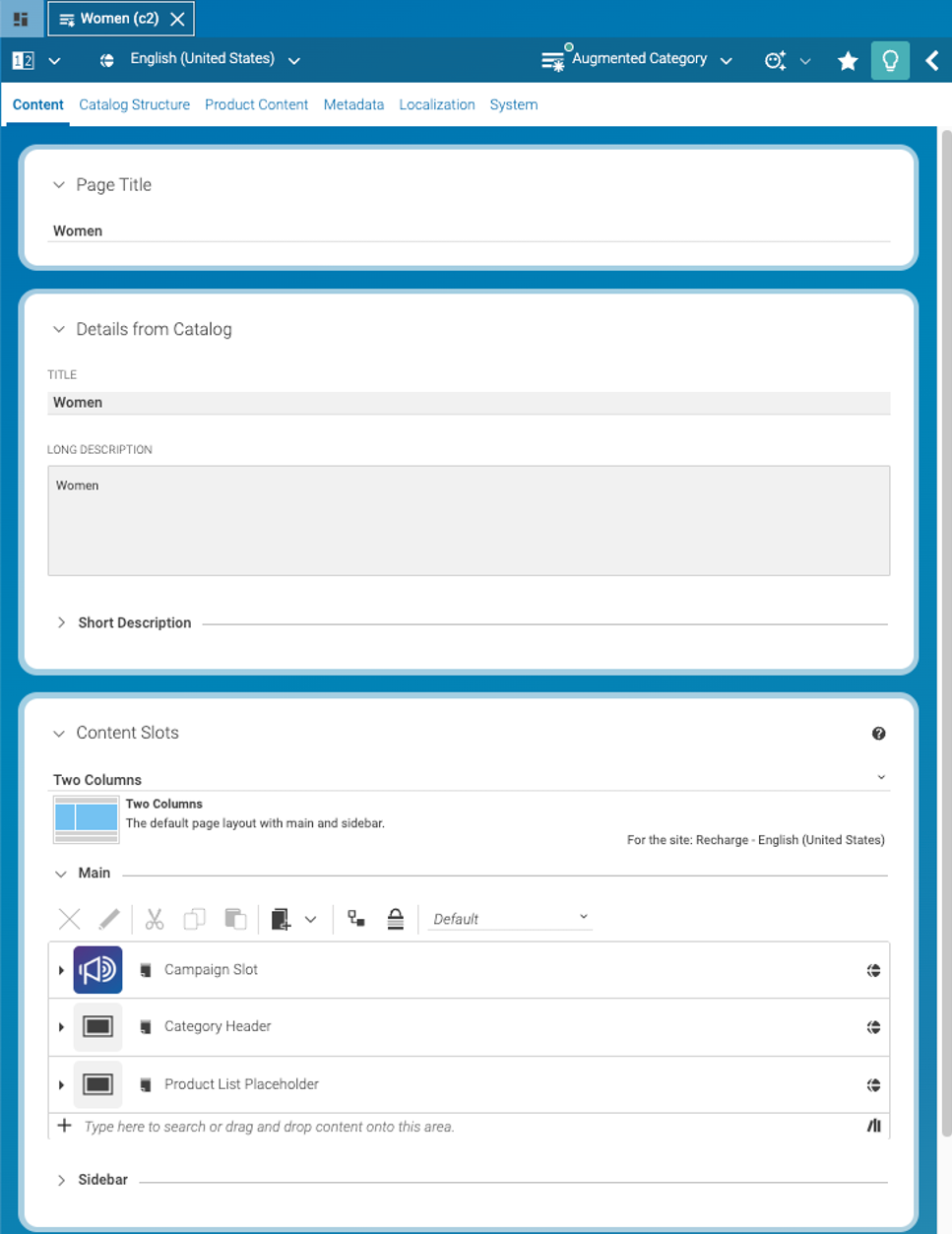
Figure 2. Form for Augmented Category
The Solution
Three main approaches make CoreMedia Studio more intuitive for your users.
1: Use Terminology That’s Clear to Business Users
Engineers often use technical vocabulary that is unfamiliar to business users. This is particularly problematic in user interfaces. Over many years, a CoreMedia-specific vocabulary has emerged that is not always helpful — especially for users outside of Germany. Below are the most common terms and their more user-friendly alternatives:
| Do not use… | Use instead… |
|---|---|
Document |
Content Item |
Document Type |
Content Type |
Document Form |
Content Form |
Property |
Field or Data Field |
Property group |
Card |
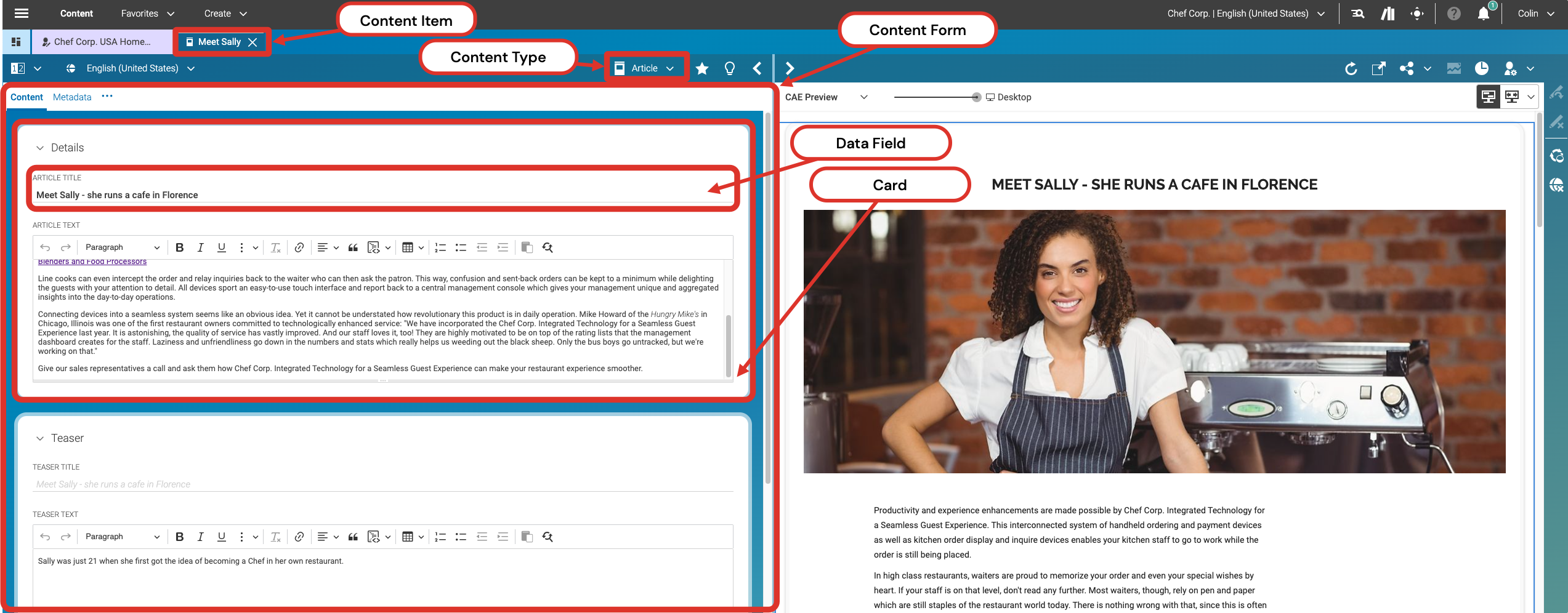
Figure 3. CoreMedia Studio Wording
2: Adapt Editing Forms to Provide More Guidance and Structure
Customizing editing forms is best practice in every project. It works the same way as adapting rendering templates for a pixel-perfect end-user experience. Consider these four steps:
-
Create customer-specific content types that match the customer’s domain and daily work.
-
Remove obsolete fields. Not every Blueprint field is needed by every customer. See the CoreMedia Studio Developer Manual for details on customizing content forms.
-
Optimize the ordering and grouping of fields. Place the most important fields where they are immediately visible; move less-used fields to secondary tabs or cards.
-
Adapt labels to your users' language. Using domain-specific terminology improves usability for that specific client.
|
Adapting labels to match domain language greatly enhances usability. Keep in mind, however, that deviating from CoreMedia’s default terminology may create disconnects with out-of-the-box training materials, demos, and documentation. Maintain a clear internal mapping to bridge this gap. |
The general procedure for localizing CoreMedia Studio is described here. The section "Override Standard Studio Labels" explains how to update existing standard labels.
3: Dynamically Limit Form and Component Visibility
Beyond wording and structure, Studio offers features to display only what is truly necessary.
User-Group-Specific Editing Forms
CoreMedia Studio allows you to restrict the visibility of form components based on group membership. Business users are typically categorized as power users (highly familiar with the system) or casual users (who create or edit content occasionally).
The OnlyIf plugin dynamically adapts editing forms based on the user’s group. The following example from CMArticleForm shows how to display the System tab only for users in the power-user and administrator groups:
Config(CMArticleForm, {
  items: [
    Config(DocumentForm, { title: BlueprintTabs_properties.Tab_content_title /* ... */ }),
    Config(DefaultExtraDataForm),
    Config(MultiLanguageDocumentForm),
    // Config(CMArticleSystemForm),
  ],
  plugins: [
    Config(OnlyIf, {
      isAdministrator: true,
      isMemberOf: "power-user",
      then: Config(AddItemsPlugin, {
        items: [ Config(CMArticleSystemForm) ]
      }),
    }),
  ],
});
User-Specific Editing Forms
Every user can personally adapt their forms using the built-in Configure Form feature.
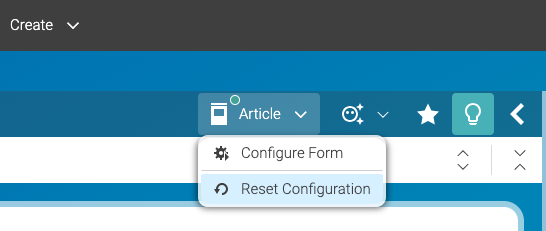
Figure 4. Every user can start an individual form configuration
The Configure Form dialog lets users deselect specific tabs or cards to create a more focused editing environment.
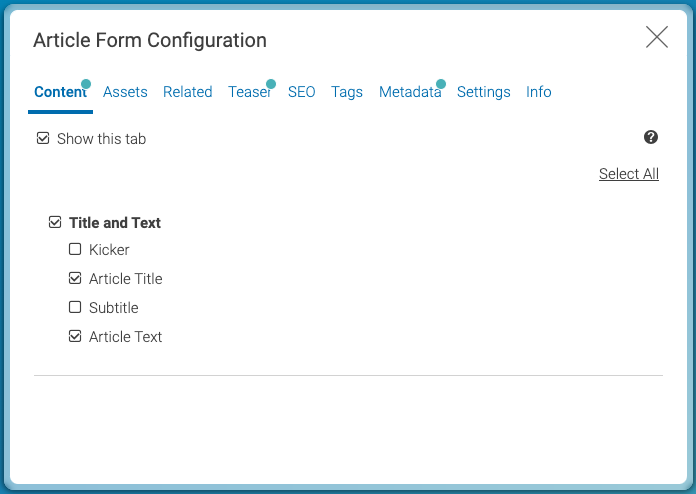
Figure 5. Configure a form individually
See the Studio User Manual for more details.
Conclusion
Customizing CoreMedia Studio editing forms makes content creation easier, faster, and more intuitive for everyone. A few targeted adjustments — better terminology, streamlined forms, and dynamic visibility controls — allow users to focus on what matters without being overwhelmed by unnecessary complexity.
The result: less training effort, fewer content errors, and higher-quality output from day one.
Select a version:
- CMCC 13
- CMCC 12
Is this page useful?