 What you will learn
- Learn how to create a new page
- Learn how new pages are added to the navigation
- Learn how to create a new page from a predefined template
 Prerequisites
- A working Login to CoreMedia Studio
 Target Audience
This guide is for Editors, Administrative Users.
Table of Contents
Introduction
In CoreMedia Content Cloud, a new navigation node is called a Page. A Page is a content item that provides the frame for your content to be rendered the way you choose. It comes with a set of predefined layouts and defines its place in the site navigation.
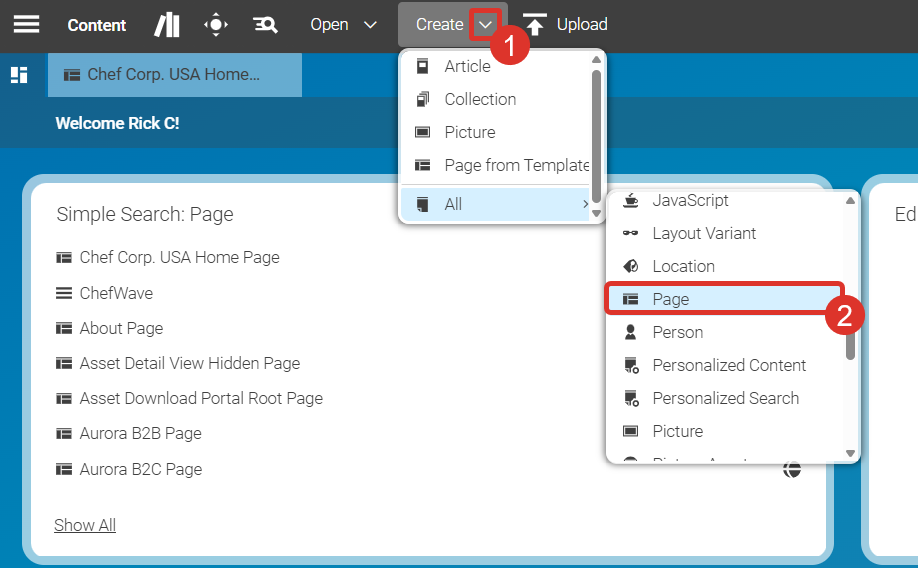
There are two ways to create a new Page in CoreMedia Studio. Both start by opening the Create dialog in the header bar. Here you have the option to create an empty new Page or use a predefined template as a starting point.
|
A Page must have a unique URL. Therefore, two pages in the same navigation path cannot share the same URL segment. You can define the URL segment in the Metadata tab after creating the Page. |
Figure 1. Create Content Menu
Steps
Create a New Empty Page
-
Open the Create dialog and choose All > Page as shown above (steps 1 and 2). The creation window will open.
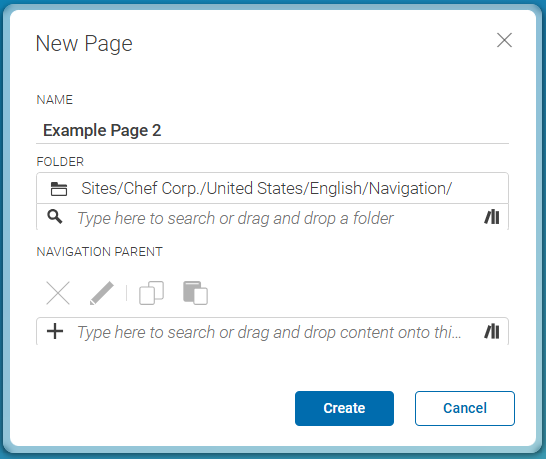 Figure 2. Create Page Window
 -
Fill in the properties of the dialog with the appropriate values as described below.
-
Name: Enter the name of the Page content item you want to create.
-
Folder: Enter the folder where you want to create the Page. If the folder does not exist, you will be asked whether it should be created.
-
Navigation Parent: The parent Page of the current Page. This defines the position of the Page in the navigation structure. This field must be filled in before you can select the Page layout.
-
-
Click Create to create the new Page.
The new Page will open and is integrated into the navigation structure. The placements in the Placements tab initially inherit the settings of the parent Page. You can now replace them with your own content.
-
Add your content to the Page.

Create a Page from Template
Another option is to create a new Page using one of the predefined Page templates for your site.
-
Open the Create dialog and choose Page from Template. The Page from Template creation window will open.
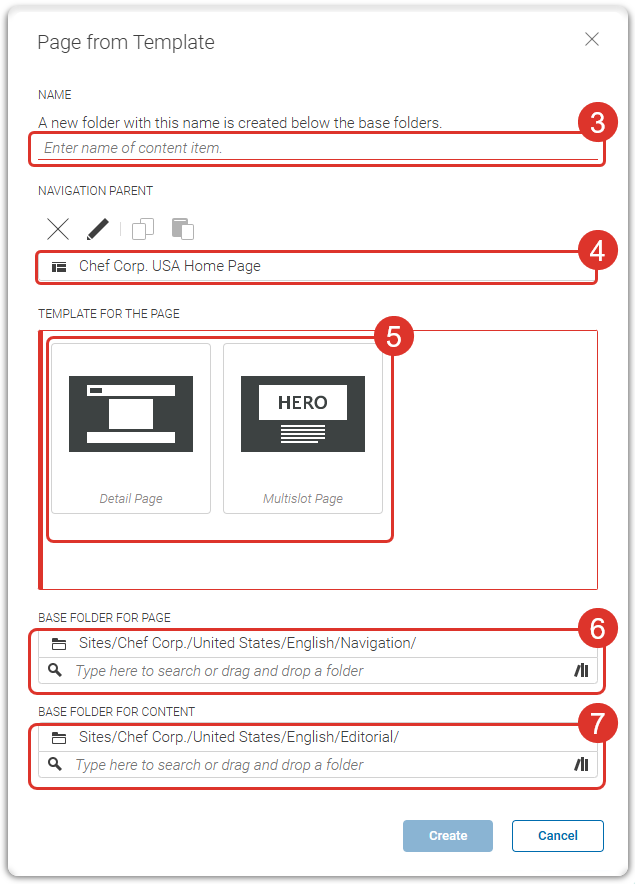 Figure 3. Create Page from Template
 -
Fill in the properties of the dialog with the appropriate values as described below.
-
Name [3]: Enter the name of the Page content item you want to create. The name will also be used for the folder created inside the base folders.
-
Navigation Parent [4]: The parent Page of the new Page. This defines the position of the Page in the navigation structure.
-
Template for the Page [5]: The available templates for the active site.
-
Base Folder for Page [6]: The base folder for the new Page. A new folder with the name entered above will be created inside this base folder. This folder must not already exist. By default, the base folder follows the navigation path of the active site, appended with the name entered above.
-
Base Folder for Content [7]: The base folder where linked editorial template content will be copied to. A new folder with the name entered above will be created inside this content base folder. By default, the content base folder follows the editorial path of the active site, appended with the name entered above.
-
-
Click Create to create the new Page from the predefined template.
-
Add your content to the Page. Open the new Page in CoreMedia Studio, navigate to the Placements tab, and start adding content items. You can further configure the Page layout and metadata in the respective tabs.

Is this page useful?