


Blueprint Developer Manual / Version 2401
Table Of ContentsIntroduction
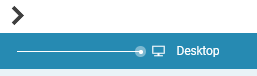
CoreMedia Studio's preview features a slider tool. The
slider tool was build to let the user choose between devices with different resolutions in order
to let the preview perform a responsive transformation of the page in the preview window. This
means, that the preview will show the page as if it was to be viewed on a device with a
different resolution than a "conventional" desktop display (that is a mobile device for
instance).
Configuration of preview CAE
In order to enable the responsive slider functionality, you have to enable the use of
metadata tags within the FreeMarker templates. These tags are used for
communication between the CAE and CoreMedia Studio in order to
exchange meta information about the previewed page. (See CoreMedia Studio Developer
Manual for more details about metadata tags). The following listing illustrates the
enabled setting within the file
cae-preview-app/src/main/resources/application.properties:
cae.preview.metadata-enabled=true

Note
The settings for the responsive slider can also be configured for each theme individually. Therefore, they are assigned in the theme's settings Json files. For more information see Frontend Developer Manual.
Integration of metadata tags in FreeMarker templates
The following list illustrates the use of metadata tags in the
Page.body.ftl template.
<#ftl strip_whitespace=true>

  <#-- responsive design slider information for studio -->
    <#assign sliderMetadata={
            "cm_preferredWidth": 1281,
            "cm_responsiveDevices": {
    <#-- list of the devices.
    naming and icons see: BlueprintDeviceTypes.properties
    the default icons are in studio-core, but you can define
    your own style-classes in slider-icons.css.
    -->
    <#-- e.g. iphone4 -->
      "mobile_portrait": {
      "width": 320,
      "height": 480,
      "order": 1,
      "isDefault": true
      },
    <#-- e.g. iphone4 -->
      "mobile_landscape": {
      "width": 480,
      "height": 320,
      "order": 2
      },
    <#-- e.g. nexus7 -->
      "tablet_portrait": {
      "width": 600,
      "height": 800,
      "order": 3
      },
    <#-- e.g. ipad -->
      "hybrid_app_portrait": {
      "width": 768,
      "height": 1024,
      "order": 4
      },
    <#-- e.g. nexus7 -->
      "tablet_landscape": {
      "width": 960,
      "height": 540,
      "order": 5
      },
    <#-- e.g. ipad -->
      "hybrid_app_landscape": {
      "width": 1024,
      "height": 768,
      "order": 6
      }
    }
  }
/>
To introduce new devices with even different resolutions, simply extend the content of the file appropriately.
Configuration in Studio
The configuration in Studio has to be made in the appropriate bundle files. The following
listing shows the content of the file
apps/studio-client/modules/studio/blueprint-forms/src/main/joo/com/coremedia/blueprint/studio/BlueprintDeviceTypes.properties.
      Device_mobile_portrait_icon=Resource(key='channel_mobile_portrait', bundle='com.coremedia.icons.CoreIcons')
      Device_mobile_landscape_icon=Resource(key='channel_mobile_landscape', bundle='com.coremedia.icons.CoreIcons')
      Device_tablet_portrait_icon=Resource(key='channel_tablet_portrait', bundle='com.coremedia.icons.CoreIcons')
      Device_tablet_landscape_icon=Resource(key='channel_tablet_landscape', bundle='com.coremedia.icons.CoreIcons')
      Device_notebook_icon=Resource(key='channel_notebook', bundle='com.coremedia.icons.CoreIcons')
      Device_desktop_icon=Resource(key='channel_desktop', bundle='com.coremedia.icons.CoreIcons')
      Device_hybrid_app_portrait_icon=Resource(key='channel_tablet_portrait', bundle='com.coremedia.icons.CoreIcons')
      Device_hybrid_app_landscape_icon=Resource(key='channel_tablet_landscape', bundle='com.coremedia.icons.CoreIcons')

      Device_mobile_portrait_text=Mobile
      Device_mobile_landscape_text=Mobile
      Device_tablet_portrait_text=Tablet
      Device_tablet_landscape_text=Tablet
      Device_notebook_text=Notebook
      Device_desktop_text=Desktop
      Device_hybrid_app_portrait_text=Hybrid App
      Device_hybrid_app_landscape_text=Hybrid App
      Device_desktopMode_text=Desktop
The configuration, which is relatively straightforward, consists of two parts. The top part of the configuration deals with the appropriate icons, that will be displayed for the according device type in the slider. The bottom part defines the text, that will be shown next to the slider. This configuration can be extended to introduce new device types with new device icons. For configuring the device icons, perform the following step:
Declare a new class for the configured icon name in the file
apps/studio-client/modules/studio/blueprint-forms/src/main/resources/META-INF/resources/joo/resources/css/slider-icons.css.
