Creating A/B Tests
Learn how to create an A/B test from a variant to compare content performance.
Create an A/B test to compare the performance of one or more variants against a baseline. An A/B test splits visitor traffic between the baseline and the variants according to a configurable ratio and measures the outcome against a defined goal.
You can either create an empty A/B test and assign variants to it later, or create an A/B test directly from a variant. The latter is the most common approach, as it automatically links the A/B test to the variant and its baseline. You can add further variants as additional challengers at any time before the test is started.
Steps
1. Create the A/B test
You can create an A/B test in several ways. Choose the option that best fits your workflow.
Empty A/B test (without baseline and variant)
Use this option when you want to configure the test first and assign content later.
-
From the Create menu in the Header toolbar, select A/B Test.
-
Alternatively, select the A/B Tests node in the Library tree view and click the + icon.
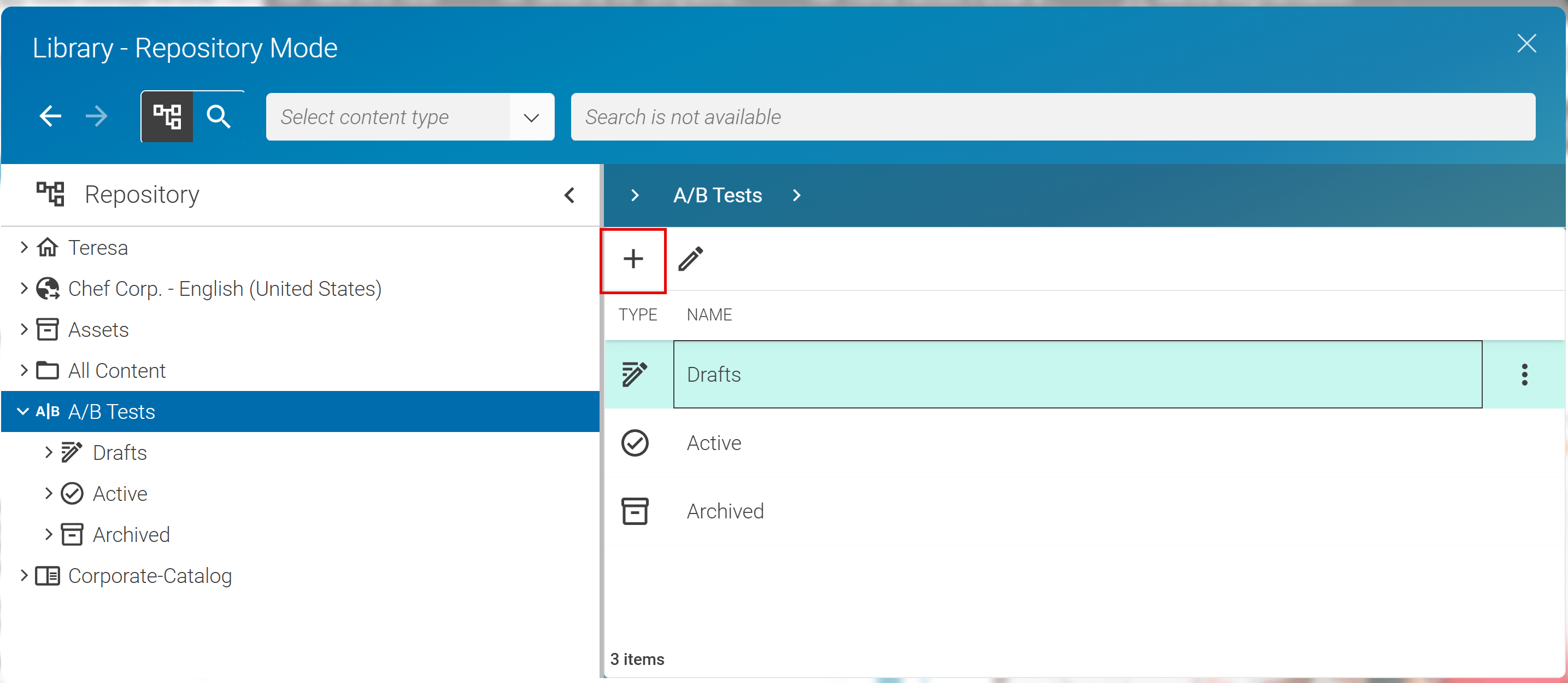
In both cases this creates directly a new A/B test that is automatically opened in the Form view

Pre-filled A/B test (with baseline and variant)
Use this option to create a ready-to-configure A/B test in one step.
-
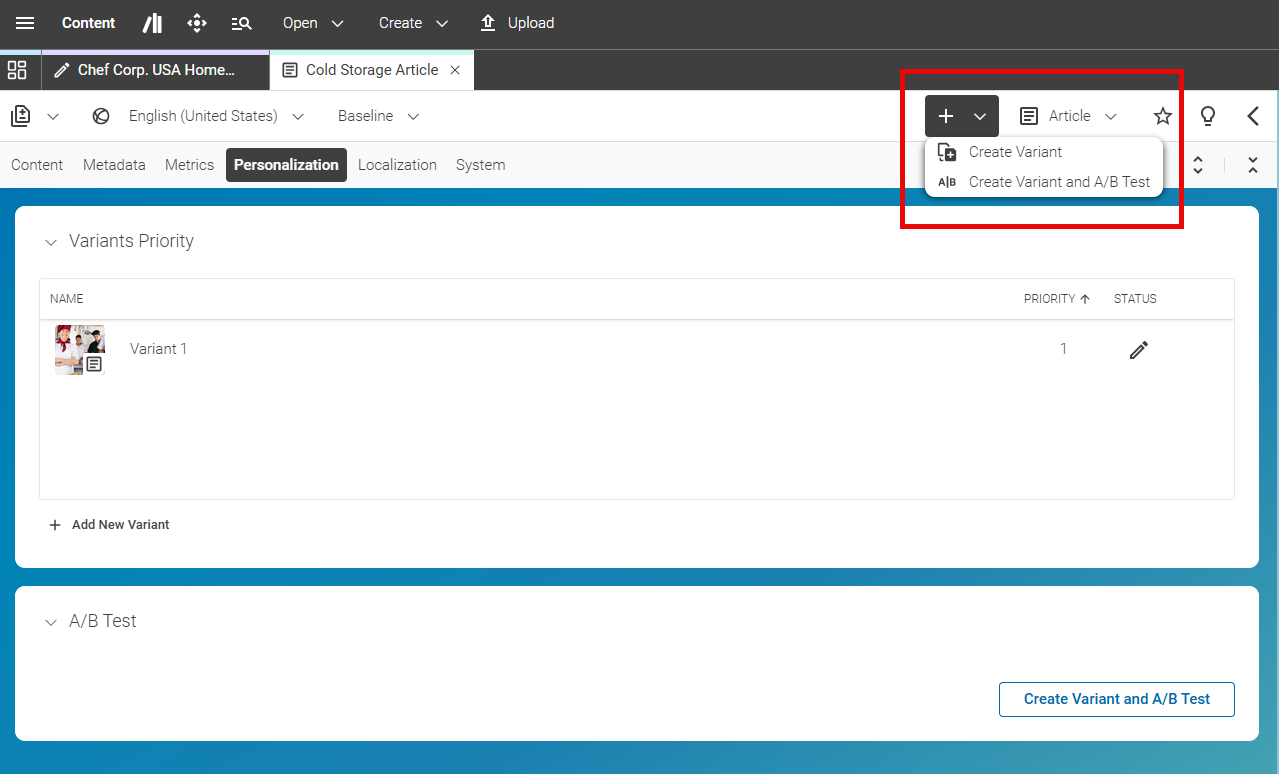
In the baseline content item, open the + menu in the toolbar and select Create Variant and A/B Test or simply click Create Variant and A/B Test in the A/B Test field. This creates a new variant and an A/B test with both the baseline and the variant already assigned.
-
Alternatively, open an existing variant. In the Personalization tab, click Create and Assign A/B Test in the A/B Test field. This creates an A/B test pre-filled with this variant and its baseline.
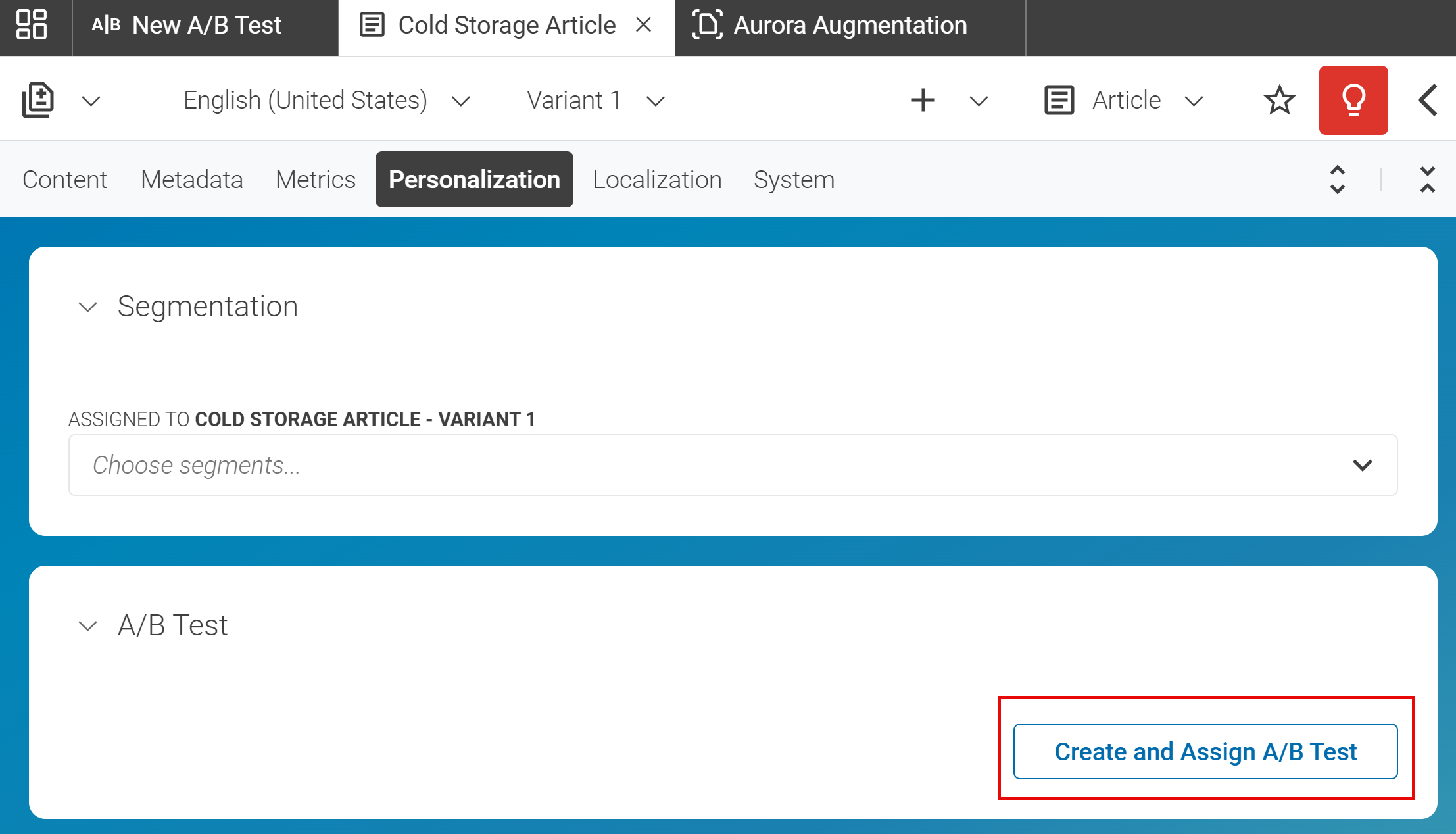


| In all cases, give the A/B test a meaningful name in the A/B Test Name field. |
2. Assign a variant to an empty A/B test
When you have created an empty A/B test, you need to assign a variant to it. If you created a pre-filled A/B test, skip this step.
Simply search in the search field of the A/B Test Cases field or drag a variant from the Library into the field. The Control and Challenger field are automatically filled with the baseline and the variant of the content item, respectively. You can rename the fields for better clarity.
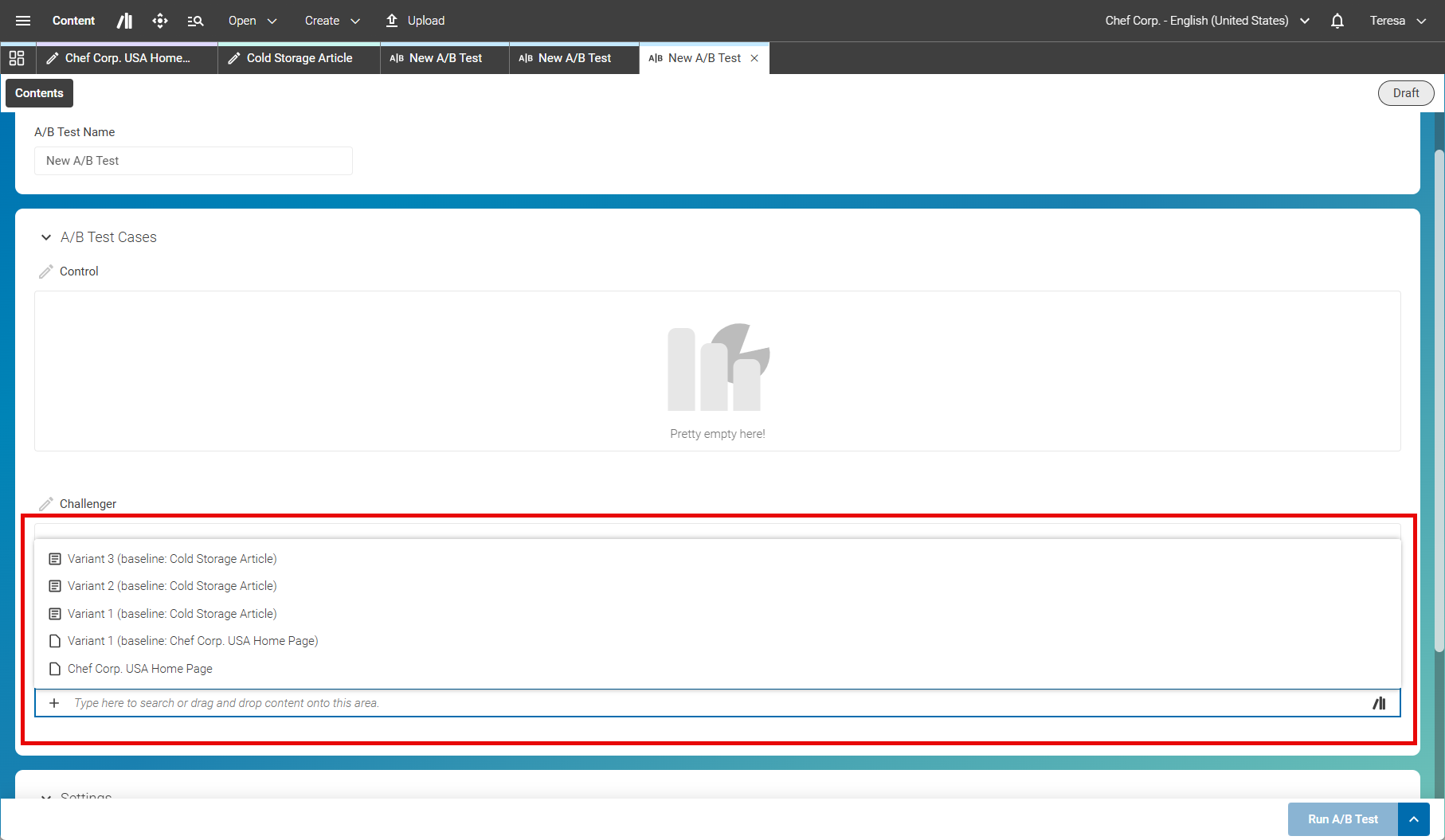
To compare more than one variant against the baseline, click Add Test Case to add another challenger and assign a further variant to it. You can add as many challengers as you need. The default traffic distribution is adjusted automatically to split traffic evenly across the baseline and all challengers (see 1. Configure the traffic split).

3. Configuring the A/B Test
You configure the A/B Test in the _Settings_field of the A/B test Form view.
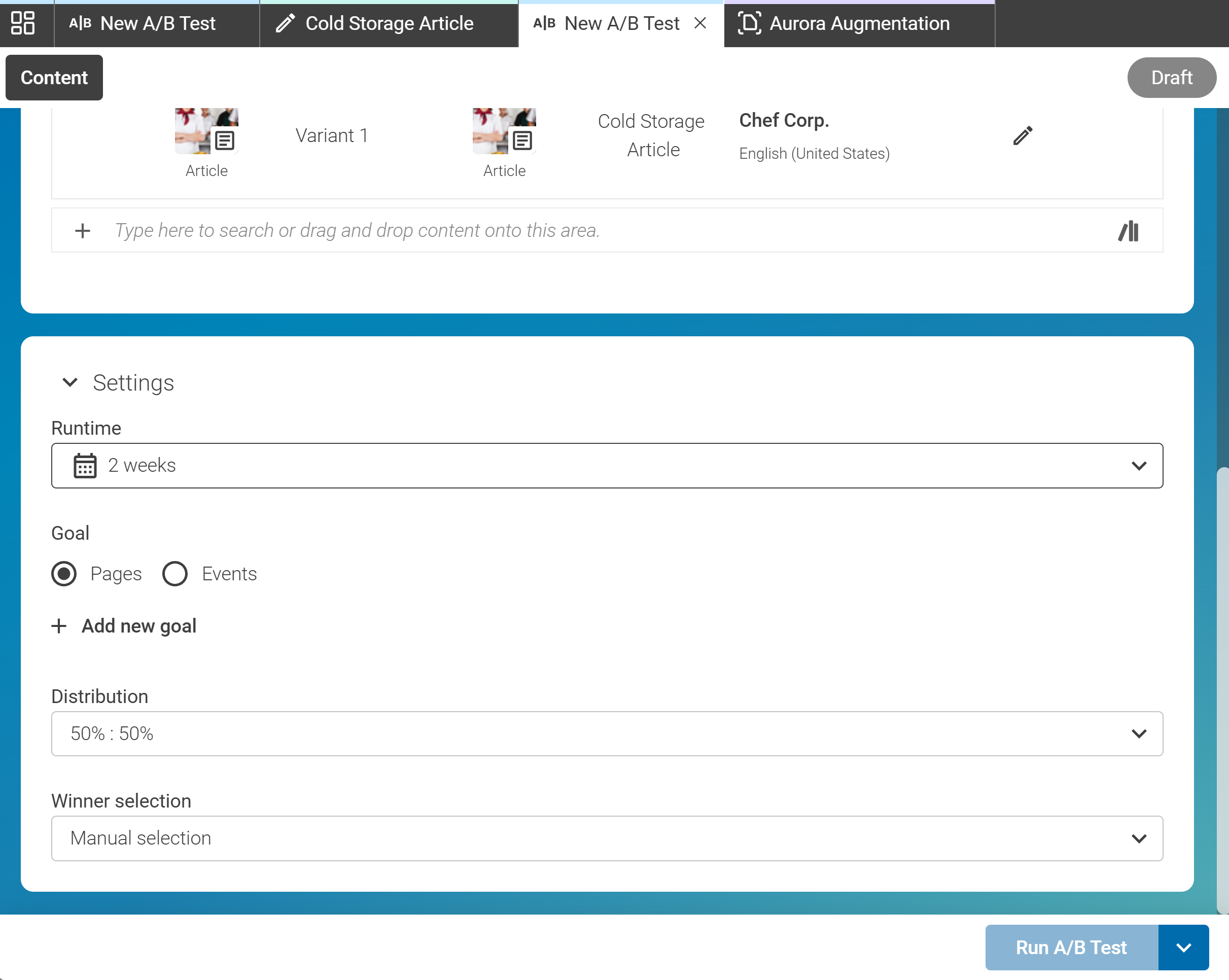
1. Configure the traffic split
-
Set the ratio for how traffic is distributed between the baseline and the variants. With a single variant this is a two-way split, for example
50/50to split traffic evenly, or70/30to show the baseline to 70% of visitors and the variant to 30%. When you add more challengers, the split covers all test cases — for example,33% : 33% : 33%for a baseline and two variants. By default, the traffic is distributed evenly across all test cases; adjust the ratio if you want to weight them differently.
5. Define the goal
A goal defines what counts as a success for the A/B test. The goal is tracked across the entire session of each visitor who is assigned to a variant. This means the goal does not have to be triggered immediately — as long as it occurs at any point during the visitor’s session, it is counted for the respective variant.
-
Select the goal type:
-
Pages — a specific page that the visitor reaches during the session. This can be a page directly linked from the variant (for example, opened by clicking an image) or any other page on your site. As long as the visitor views this page within their session, it counts as a conversion for the variant.
-
Events — a specific interaction event that occurs during the session. As long as the event is triggered within the session, it is counted for the variant. Events are managed in the Engagement Cloud.
-
The actual measurement of goals is performed by the Engagement Cloud.
6. Set the runtime
-
In the Settings field, define how long the A/B test should run. For example,
2 weeks.
7. Choose the winner selection method
-
Select how the winner is determined:
-
Manual — you review the results and select the winner yourself.
-
Automatic — the system selects the winner automatically once the test concludes, based on the defined goal.
-
4. Start the A/B test
-
Review all settings.
-
Click Run A/B Test. You can only start the test once the baseline and variant content are published and the test is fully configured. When you hover over the button you will get an explanation what is missing. After starting, the A/B test cannot be edited anymore.
Result
After starting the test, Content Studio splits the traffic according to the configured ratio. The A/B test appears as a dedicated entry in the Library tree view under the A/B Tests node.
Note: A/B tests are not regular content items. They are transient objects managed by the Engagement Cloud but are displayed and managed in Content Studio as if they were content items.