Configuration: Multi-Dimensions Metrics Panel

Last updated 18 minutes ago

Description of the properties of a metrics panel.

Tab Properties

Accordion: General

Field Description

PANEL NAME

Required - Name of the panel. For example, Visits and Visitors.

REFRESH RATE

Select the time interval between refreshes of the data in the panel.

One of the following:

  • Never - The panel never refreshes the data.

  • 5 minutes - The panel refreshes the data every five minutes.

  • 10 minutes - The panel refreshes the data every ten minutes.

Accordion: Dimension 1

Field Description

SOURCE OF DATA

Required - Select the source that that contains the data that you want to display in the dimension. For example, Visits+
Default value: Contacts.

One of the following:

  • Broadcast - Contacts

  • Canned Messages

  • Chatbot

  • Chatbot - Stats

  • Contact Center Activity

  • Contacts

  • Contacts - Attempts

  • Contacts - Sales

  • Content

  • Conversions

  • Ecommerce

  • Events

  • IVR

  • IVR Nodes

  • Leads

  • Onsite Campaigns

  • Outbound Campaigns - Actions

  • Outbound Campaigns - Email

  • Outbound Campaigns - Push

  • Outbound Campaigns - Push - Actions

  • Outbound Campaigns - SMS

  • Outbound Campaigns - Voice

  • Visitors

  • Visits

  • Voice Stats

PERIOD

Select the type of period. One of the following:

  • Use dashboard period - Uses the same time period as the one defined in the dashboard that contains the panel that you are configuring.

  • Configure specific period - Allows the configuration of a time period different from the one defined in the dashboard. Click in This Month to select a different period.

    One of the following:

    • Last Hour

    • Last 24 Hours

    • Today

    • Yesterday

    • Current week

    • Last Week

    • Last 7 Days

    • Last 30 Days

    • This Month

    • Last Month

    • Last Three Months

    • Custom

PERIOD DATE FIELD

Select the date to define the period. This field depends on the data source that you have selected.

The period date field is the type of date used to calculate the period. For example, if the data source is Contacts, the period date field by default is Date and time of contact. In this case, it means that the period to which the data displayed in the panel refers uses the date and time of the contact.

For example, if the period of the panel is This Month, it means that the data displayed in the panel refers to the contacts that took place this month.
SHOW VARIATION RATE

One of the following:

  • YES - Shows the variation rate of the metric.

  • NO - Does not show the variation rate of the metric.

COMPARISON PERIOD

One of the following: * Use previous period - Uses the same time period as the one defined in the dashboard that contains the panel that you are configuring. * Configure specific period - Allows the configuration of a time period different from the one defined in the dashboard. Click in This Month to select a different period.

Tab Rules

Button Description

Add

Click to add a new rule to the panel.

Dimension 1

Drop-down list that contains the dimensions available in the panel and to which the rule applies. Select a dimension to define the rule.

Note that different dimensions with different data sources might have different fields to build the rules. This means that, even though the panel contains the same metrics from different dimensions, the presented values might be different.

Add condition

Click to add a new condition to the rule.

Add group

Click to add a group of conditions.
Groups work as parenthesis in a mathematical expression. Contact Center and Analytics Studio (CCAS), first evaluates conditions inside the group and then combines the result with other conditions outside the group.

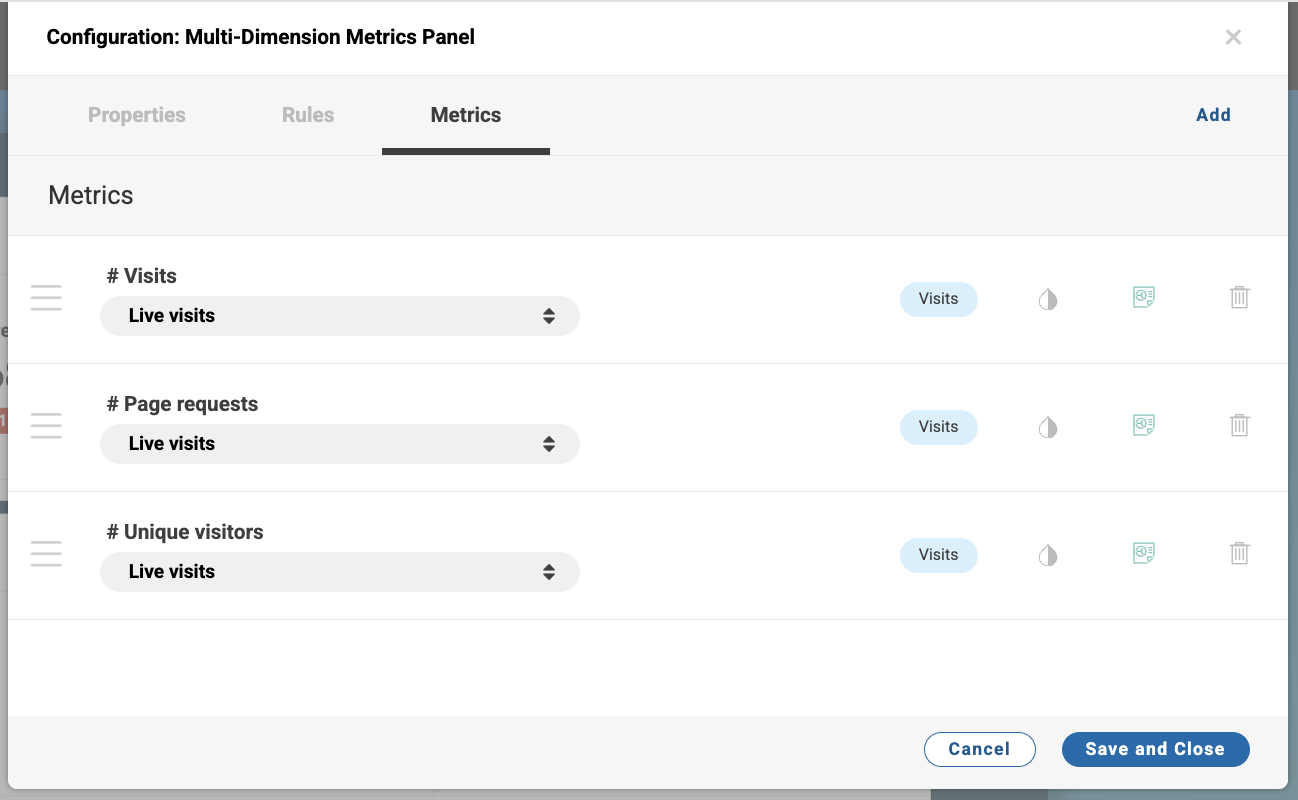
Tab Metrics

configuration metric panel metrics

Icons Description

# Visits, # Pages Requests, # Unique Visitors

Name of the metrics that you want to view in the panel. To add more metrics, click the Add button.

Live visits

Name of the rule applied to the metric.

columns-hide

Name of the dimension to which the metric belongs.

columns-hide

Click to invert the color of the change rate.

columns-hide

Click to hide the column. For example, click the icon to hide the column to take a print screen and, then, click again to make the column visible for you daily operations.

columns-delete

Click to remove the column from the tab Columns and from the panel after clicking button Save and Close.

Copyright © 2026 CoreMedia GmbH, CoreMedia Corporation. All Rights Reserved.Privacy | Legal | Imprint
Loading...