Uploading New Audio Files
Last updated 10 minutes ago
Learn how to add audio files to Contact Center and Analytics Studio.
Table of Contents
Prerequisites
-
Have a user with login in CoreMedia Contact Center and Analytics Studio with permission to use the Audio App.
-
Have an audio file smaller than
16Mband of one of the following types:-
.mp3 -
.wav
-
Overview
Audio files are files with music or voice that you can associate with team skills. You can add new audio files to Contact Center and Analytics Studio. Files must have format .mp3 or .wav and cannot exceed 16Mb in size.
Steps
1. Open the app Audios
-
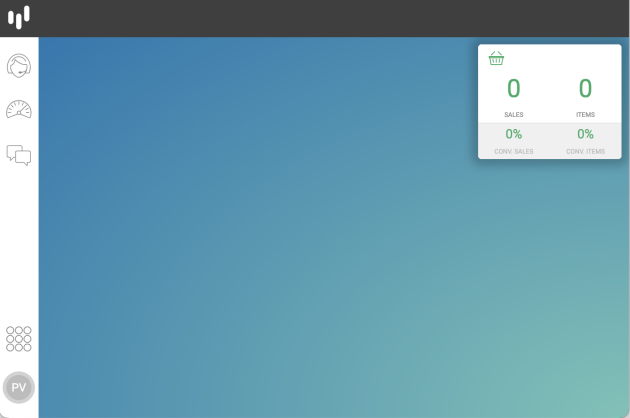
In the bottom left corner of Contact Center and Analytics Studio desktop, click icon App (
 )
)

-
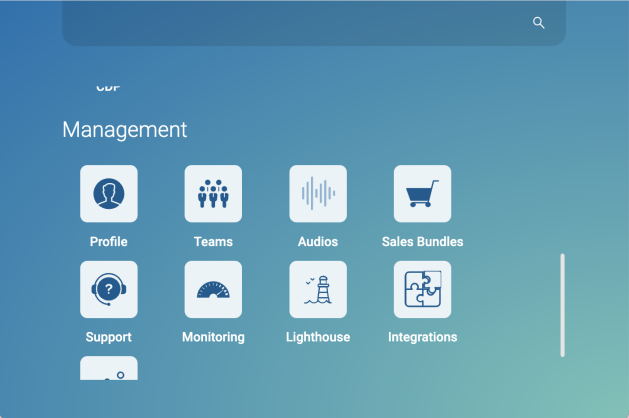
Scroll down until you find section Management.

-
Select Audios to open app Audios.

2. Add a new audio file
-
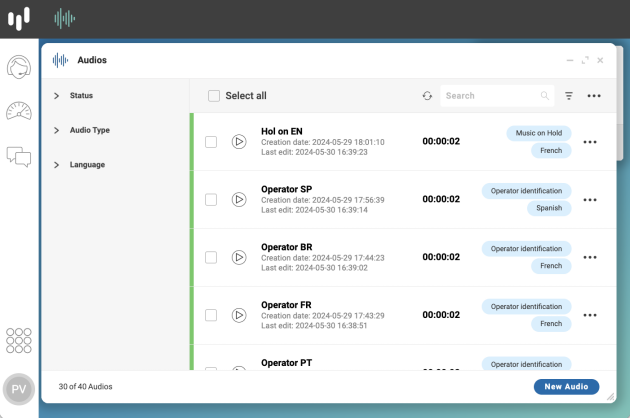
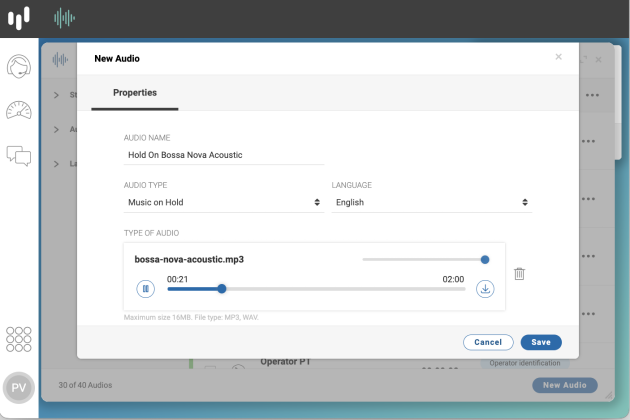
In the bottom right corner of app Audios, click button New Audio.

-
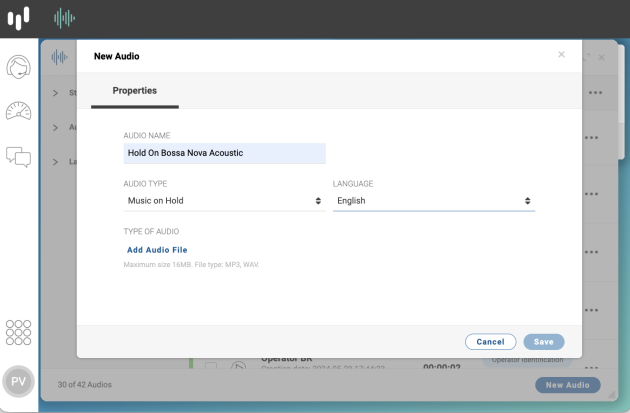
AUDIO NAME: Use something meaningful. Avoid names like
music 1. For example,Hold On Bossa Nova. -
AUDIO TYPE: Select the type of audio. For example,
Music on Holdto use the audio as on hold music in voice calls. -
LANGUAGE: Select the language. For example,
English.
-
-
In section TYPE OF AUDIO, click button Add Audio File and upload the audio file.

-
In the bottom left corner of form New Audio, click button Save.
Notes:
By default, app Audios activates all audios after adding them to the list of audios.
You can associate activated audios to team skills.
Reference: Audio.
Result
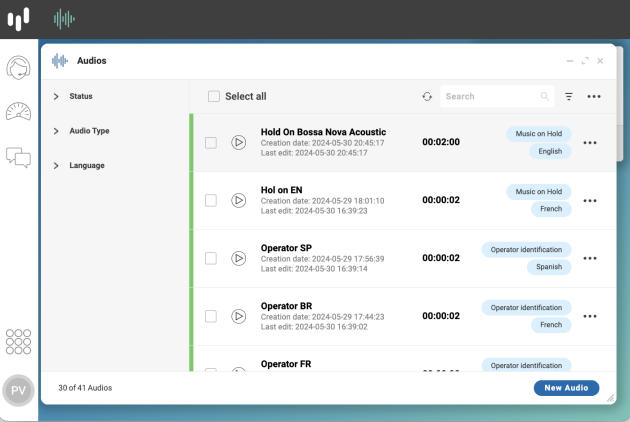
After saving, the app Audios adds the new audio to the audio list. You can now edit the audio, associate the audio to a skill in a team, or deactivate the audio.
To deactivate an audio, the audio cannot have associations.
Is this page useful?