Editing a User
Edit users to update information, change groups, change teams, or reset the password.
Prerequisites
-
Have a user with:
-
Permissions to use the Contact Center and Analytics Studio (CCAS).
-
Group
ManagerorSupervisor.
-
-
Have the user logged in to the CCAS.
Steps
1. Open app Teams
-
In the bottom left corner of CCAS desktop, click icon App (
 )
) -
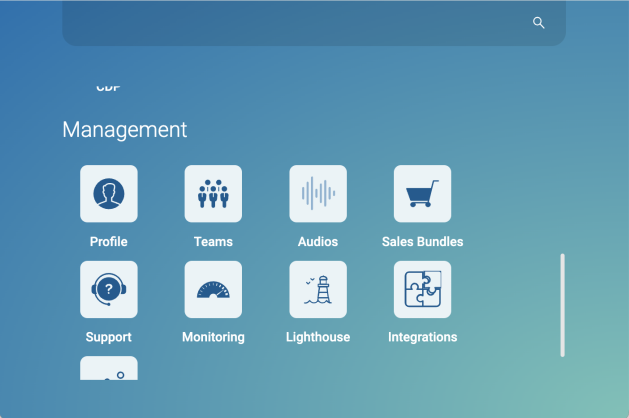
Scroll down until you find section Management.
-
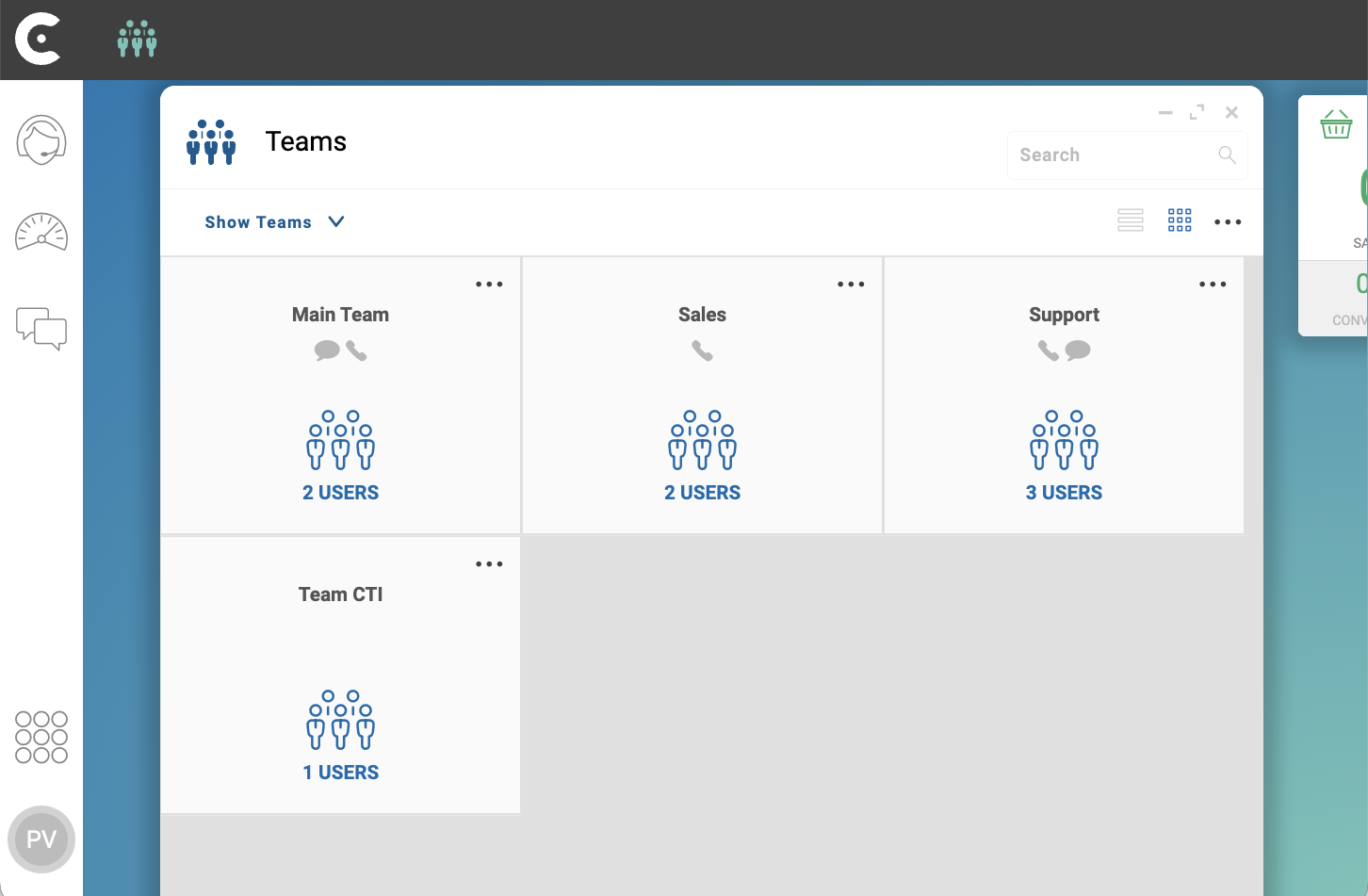
Select Teams to open app Teams.
2. Open the user
-
In the top left corner of app Teams, click Show Teams
-
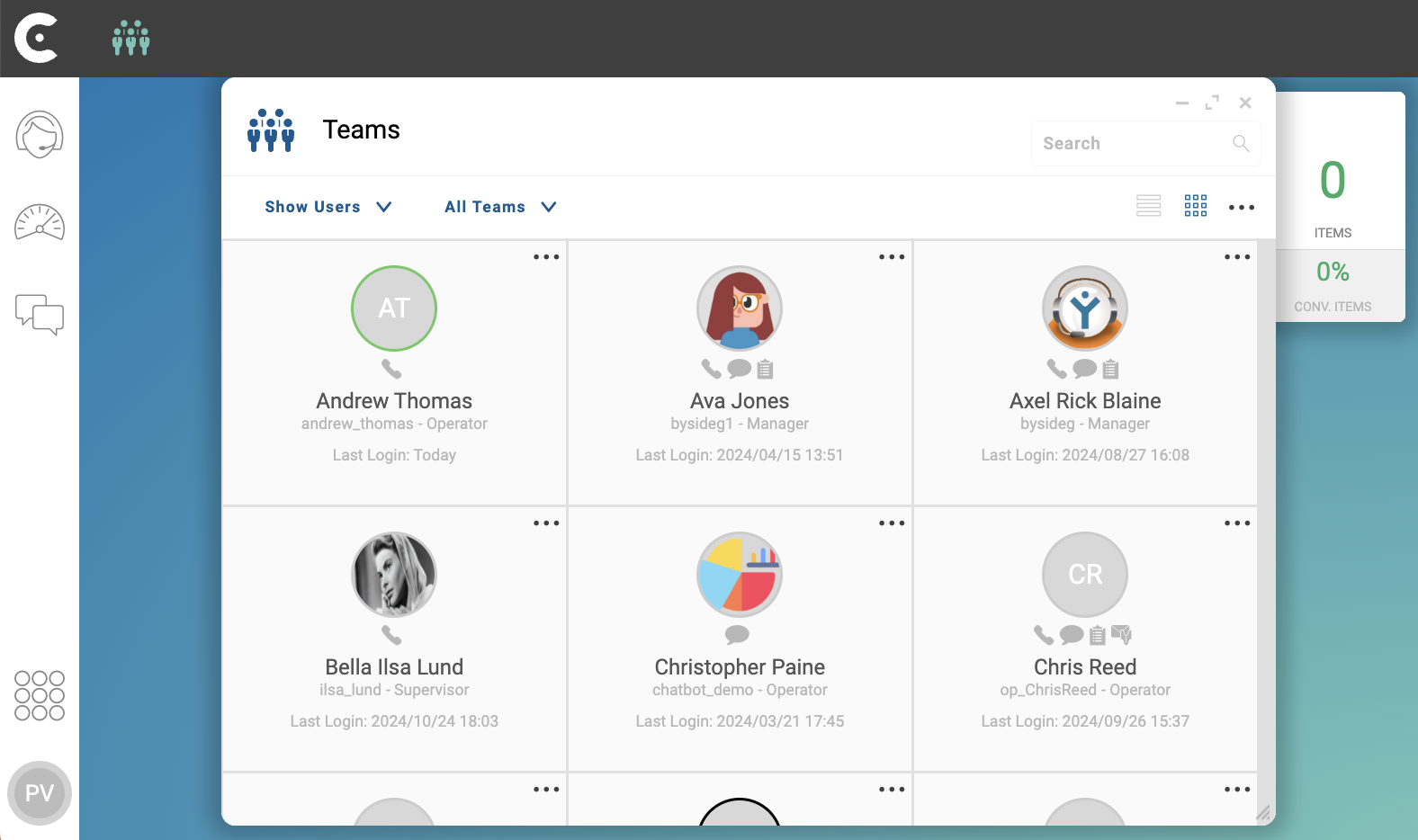
From the dropdown menu, select SHOW USERS.
The grid of users appears.
3. Edit the user
-
Locate the card of the user in the user grid. You can use the search box on the top right corner.
-
Do one of the following:
-
In the top right corner of the user card, click … and select EDIT from the dropdown menu.
-
Click on the user card to open the user.
-
-
Change the necessary fields.
-
In the top right corner, click button Save.
You cannot change the USER IDENTIFIER. If you need to change the USER IDENTIFIER, delete the user and create a new one.
Reference: Users.
Result
After selecting Save, CCAS saves the new information of the user.