Resetting the User Password
Reset a user password and force password change in the first login.
Prerequisites
-
Have a user with permissions to use the Contact Center and Analytics Studio.
-
Have a user that belongs to the
Supervisorgroup.
Steps
1. Open app Teams
-
In the bottom left corner of Contact Center and Analytics Studio desktop, click icon App (
 )
) -
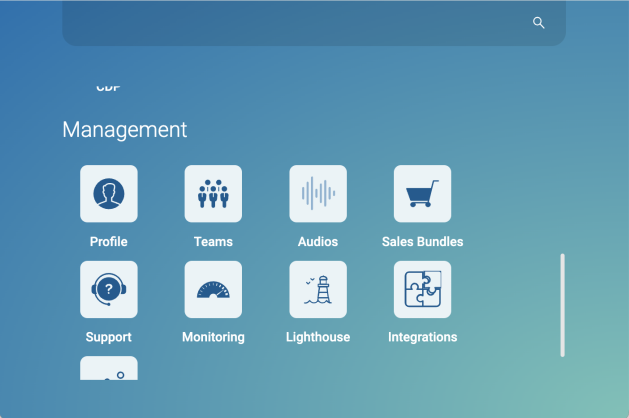
Scroll down until you find section Management.
-
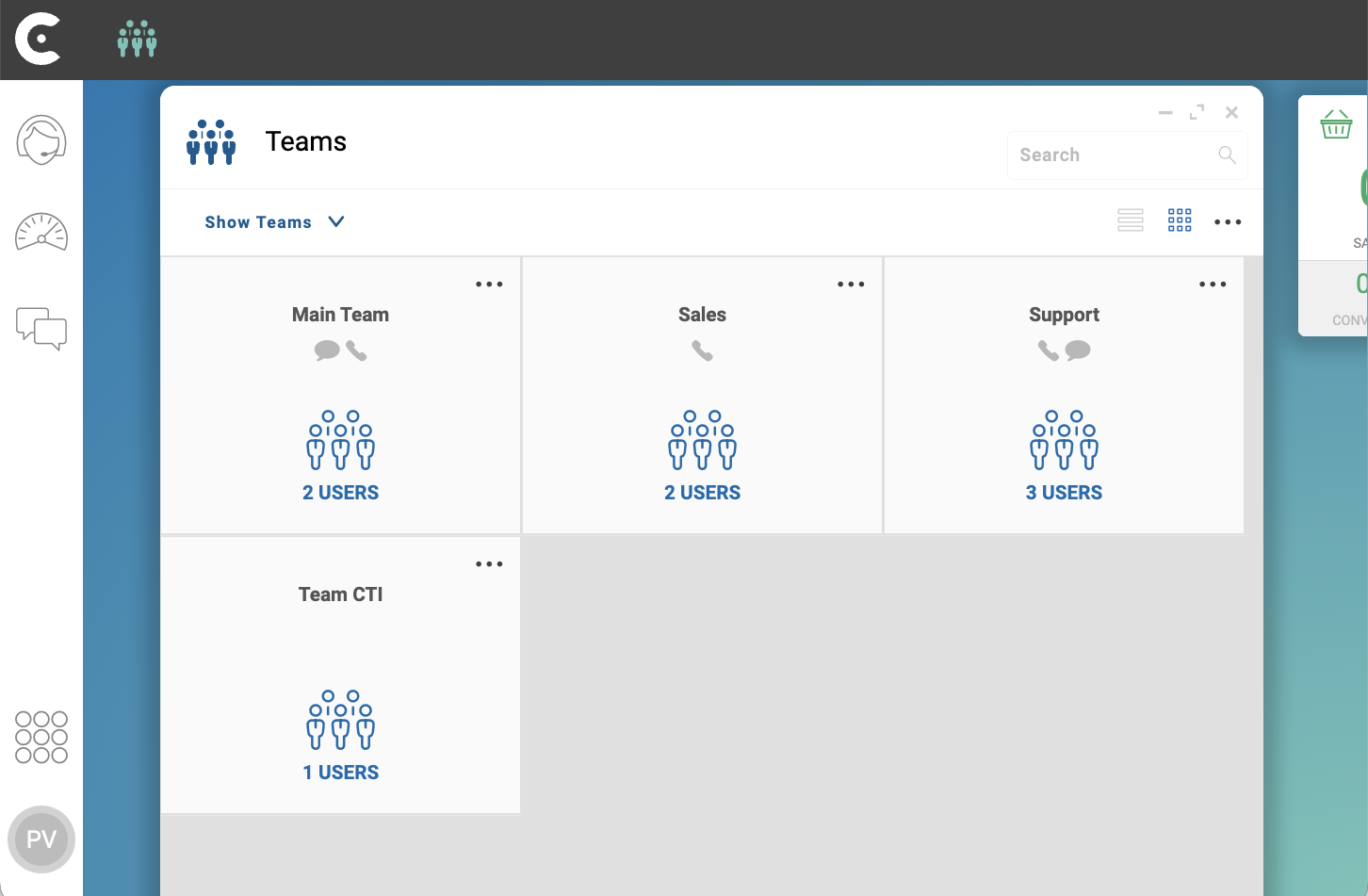
Select Teams to open app Teams.
2. Open the user
-
In the top left corner of app Teams, click Show Teams
-
From the dropdown menu, select SHOW USERS.
The grid of users appears.
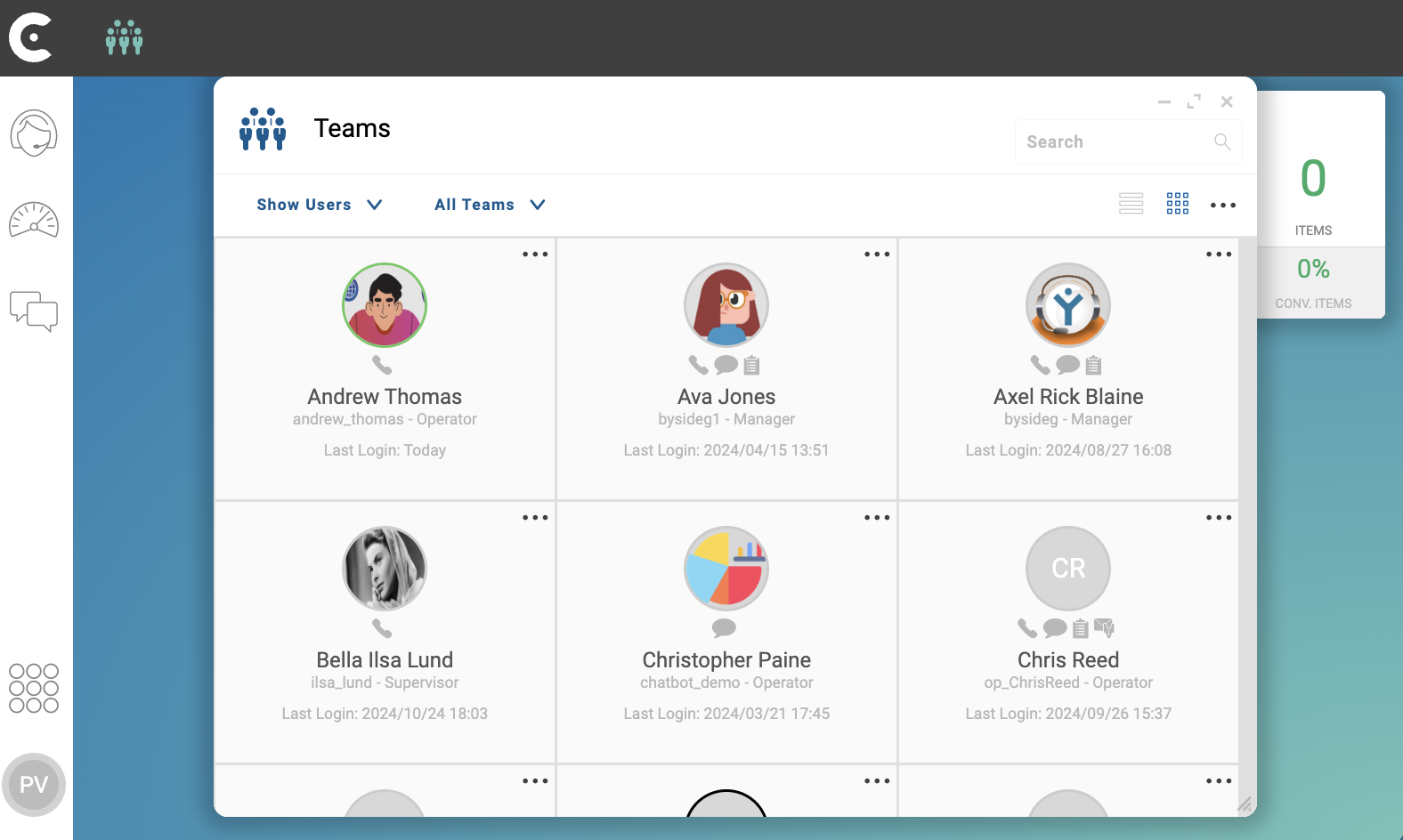
Click on the user card. For example, click on the card of user Andrew Thomas.
3. Reset the password
-
On the General tab, scroll down until you find fields PASSWORD and REPEAT PASSWORD.
-
Click button Generate.
-
Re-enter the generated password in field REPEAT PASSWORD.
-
-
Open accordion Backoffice.
-
On FORCE CHANGE PASSWORD ON NEXT LOGIN, select
Yes.
In the top right corner of the new user screen, click button Save.
Reference: Users.
Result
After clicking button Save, send the new password to the user. The user will be prompted with a dialogue box to change the password the next time the user tries to login.