Updating the User Photo
Learn how to update a user photo.
Prerequisites
-
Have a user with permissions to use the Contact Center and Analytics Studio.
Steps
1. Open app Teams
-
In the bottom left corner of Contact Center and Analytics Studio desktop, click icon App (
 )
) -
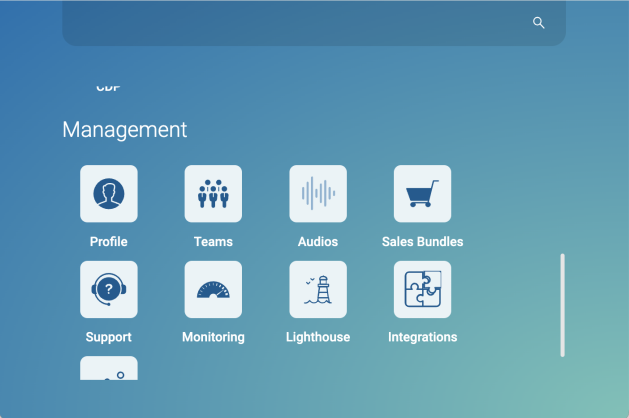
Scroll down until you find section Management.
-
Select Teams to open app Teams.
2. Open the user
-
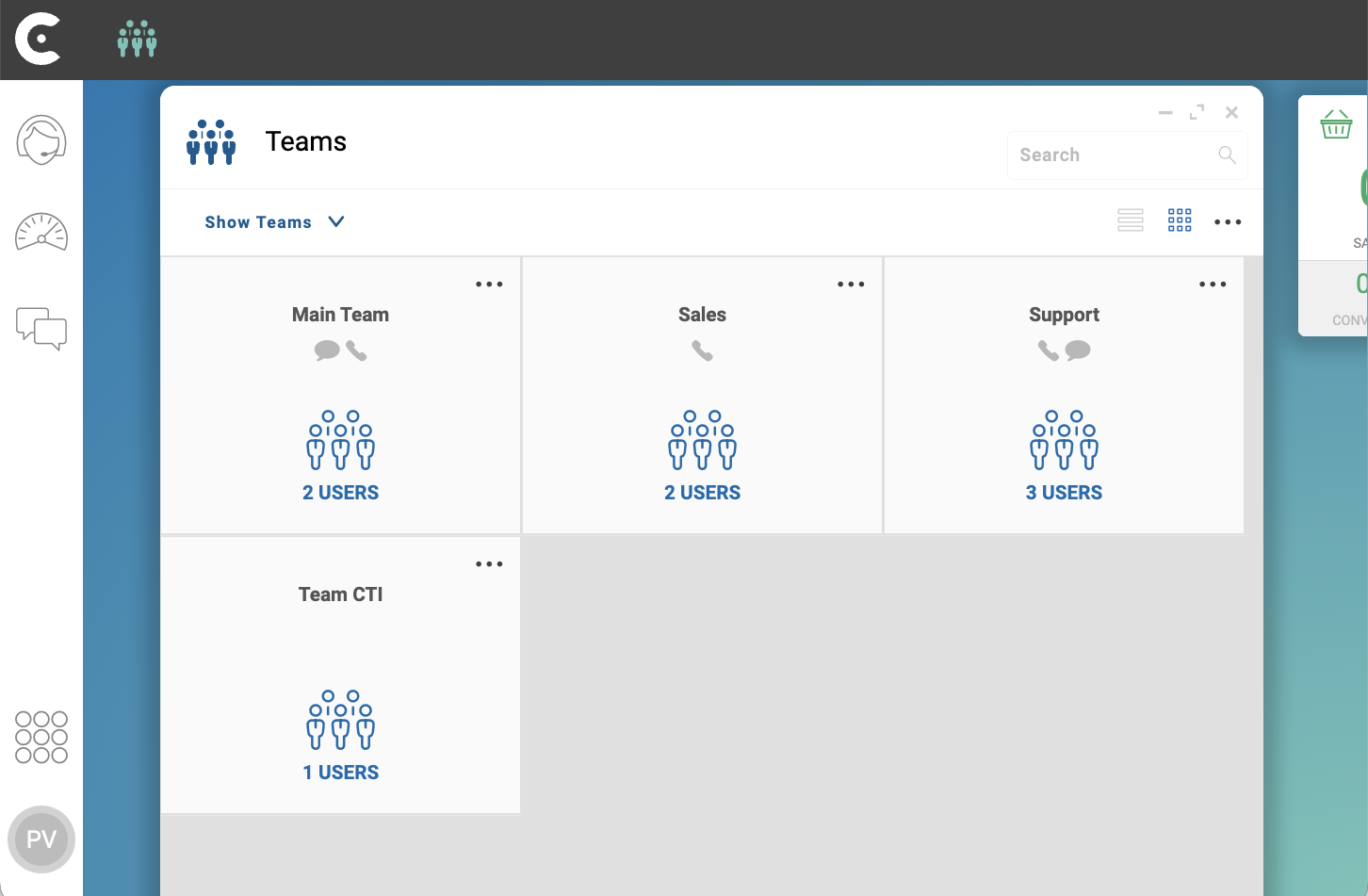
In the top left corner of app Teams, click Show Teams
-
From the dropdown menu, select SHOW USERS.
The grid of users appears.
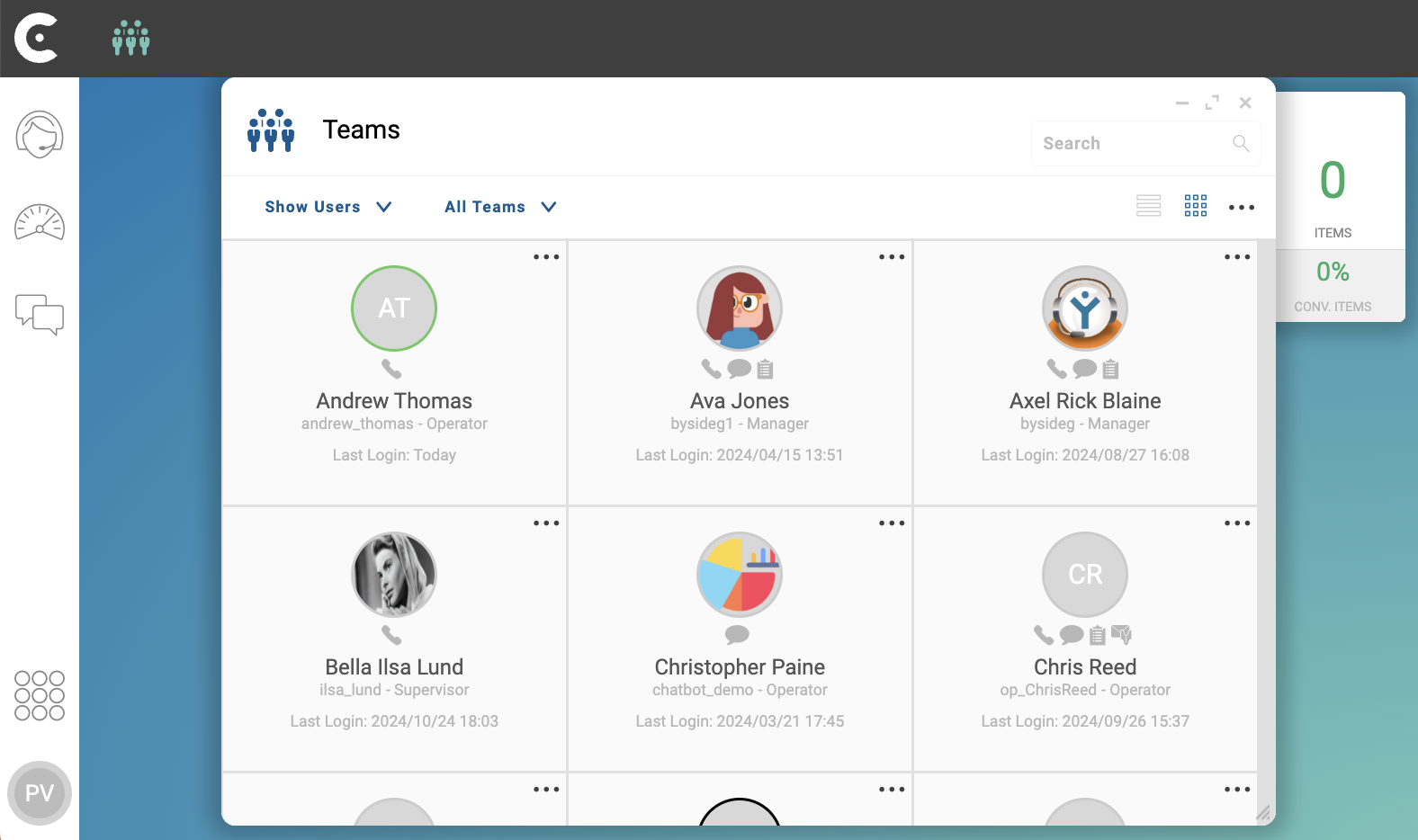
Click on the user card. For example, click on the card of user Andrew Thomas.
3. Change the user photo
-
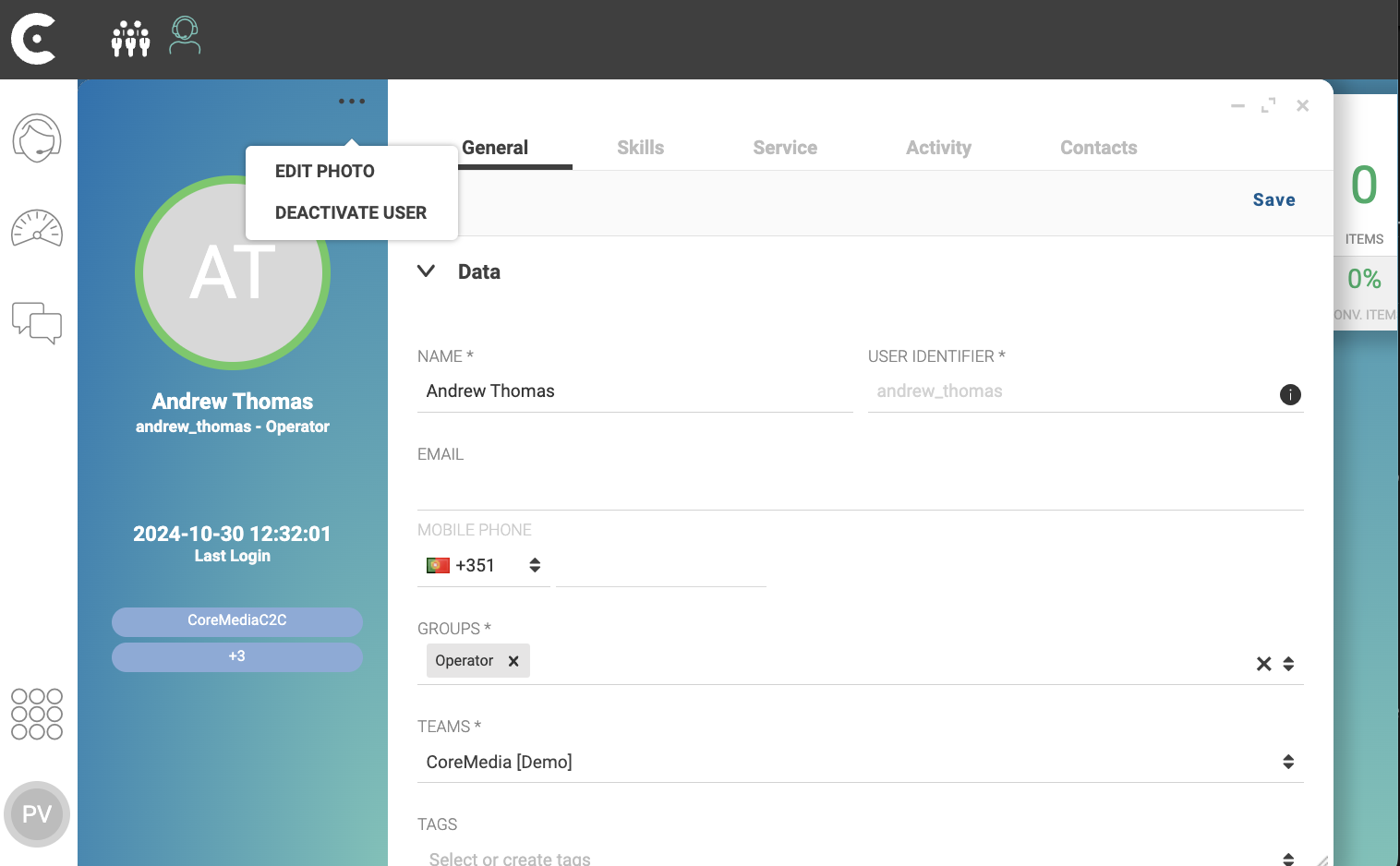
In the top left of the user screen, above the user photo placeholder, click …
-
From the dropdown menus, select EDIT PHOTO.
-
Select the user photo from your computer.
In the top right corner of the new user screen, click button Save.
Result
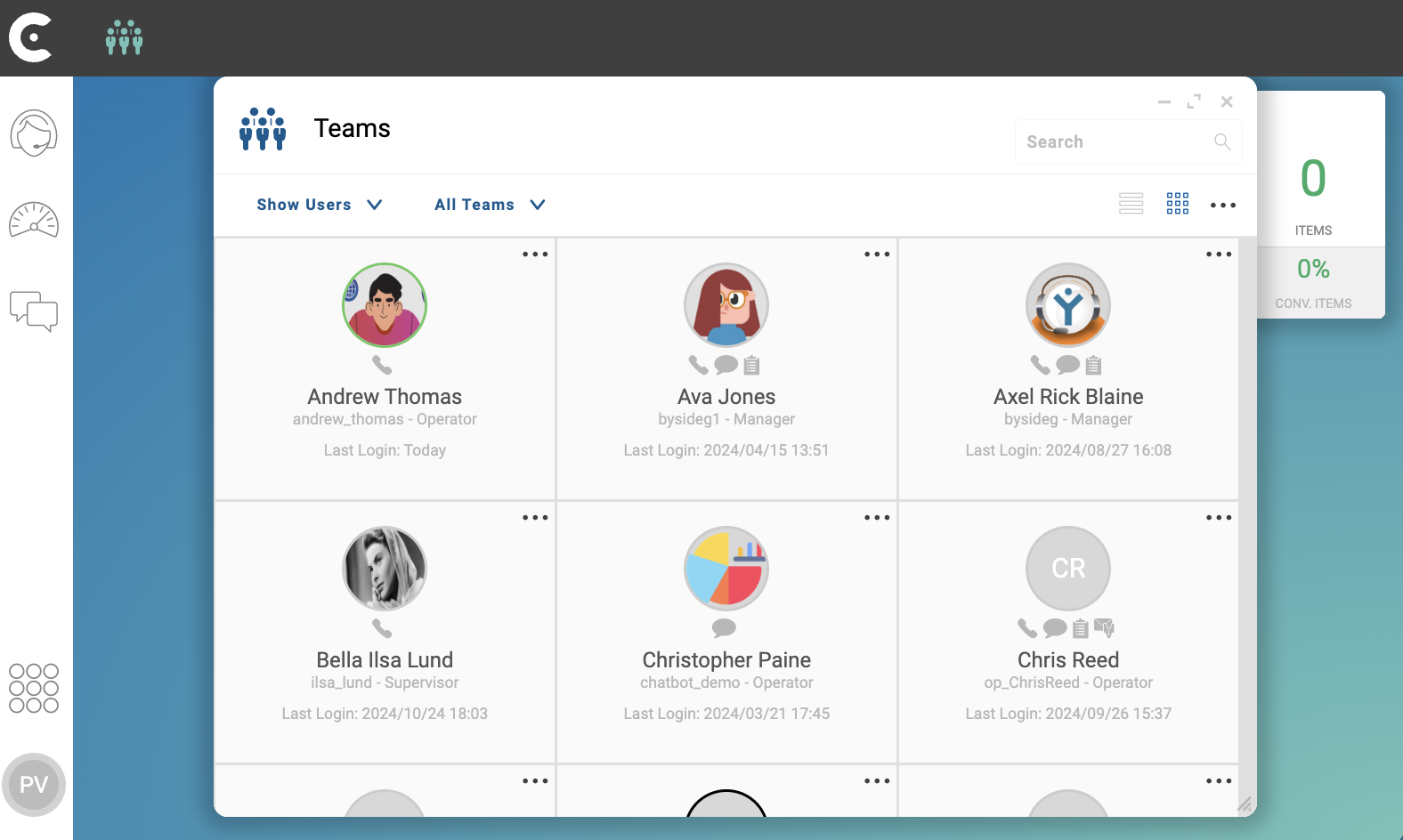
After clicking button Save, Contact Center and Analytics Studio uploads the user photo.
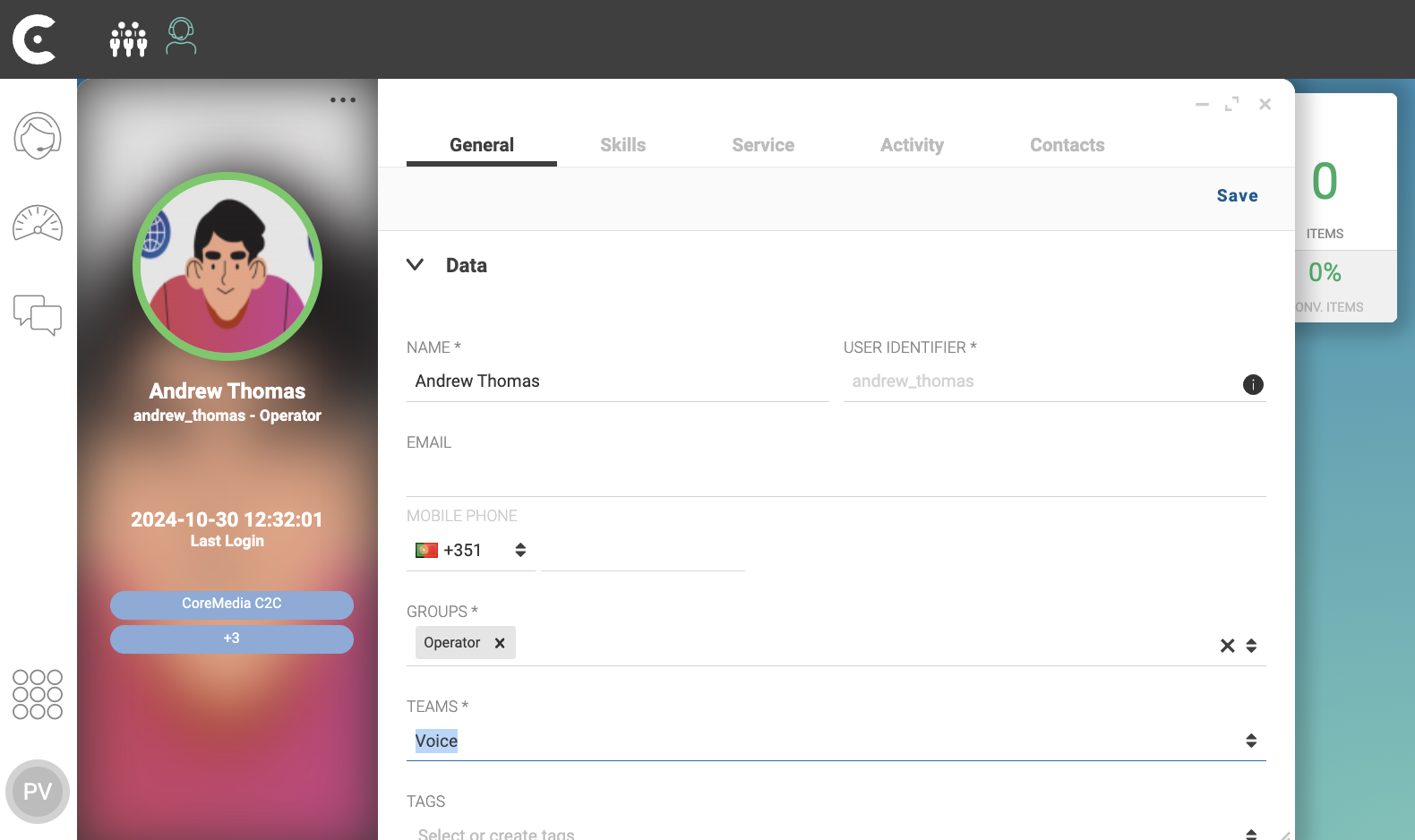
You can also view the photo of the new user also in the user grid.