Viewing Users
Learn how to display a grid or a list of users.
Prerequisites
-
Have a user with permissions to use the Contact Center and Analytics Studio.
Steps
1. Open app Teams
-
In the bottom left corner of Contact Center and Analytics Studio desktop, click icon App (
 )
) -
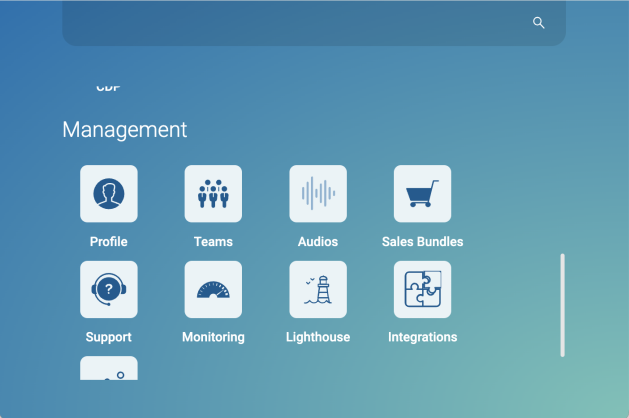
Scroll down until you find section Management.
-
Select Teams to open app Teams.
2. Show users
-
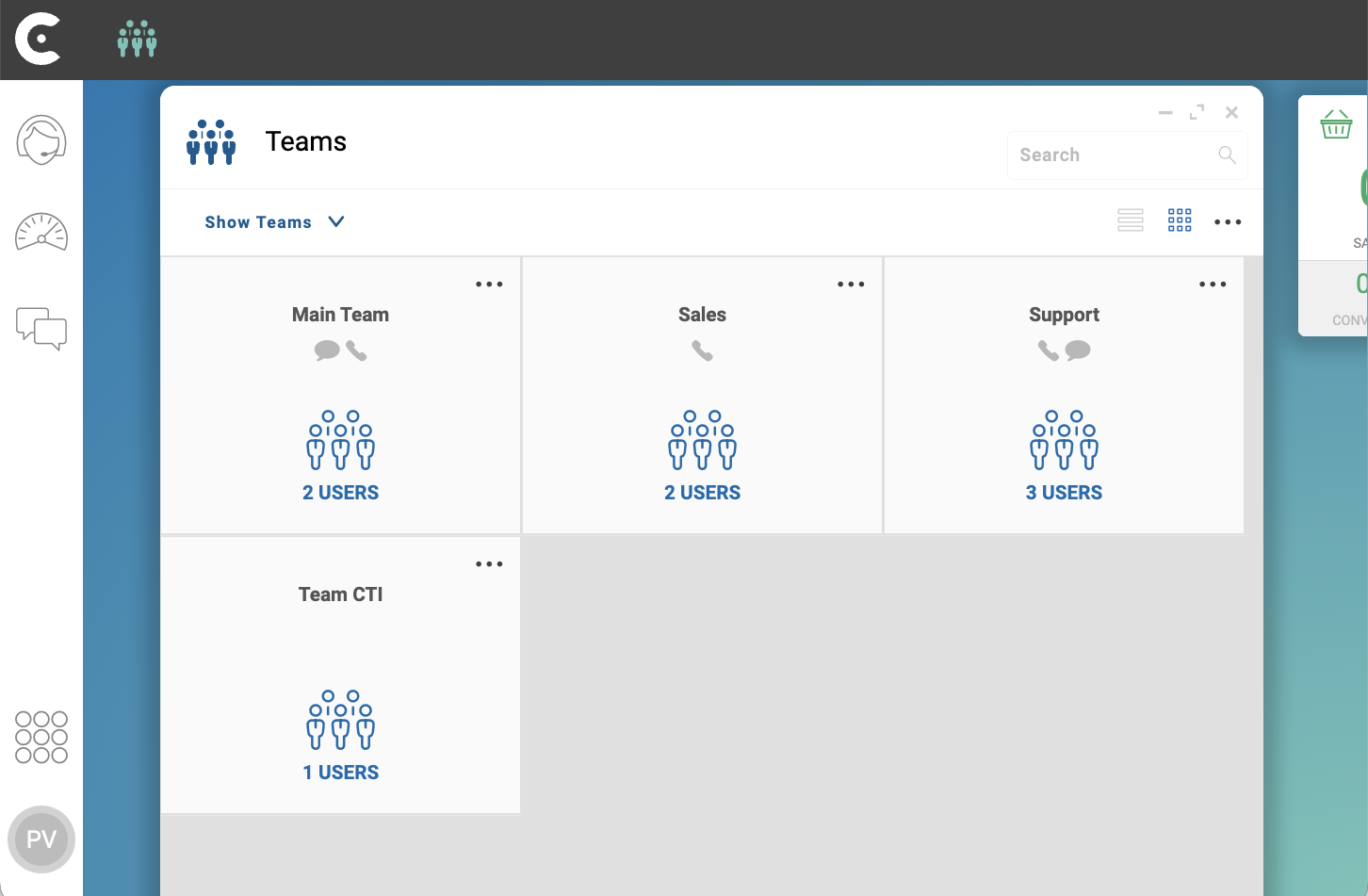
In the top left corner of app Teams, click Show Teams
-
From the dropdown menu, select SHOW USERS.
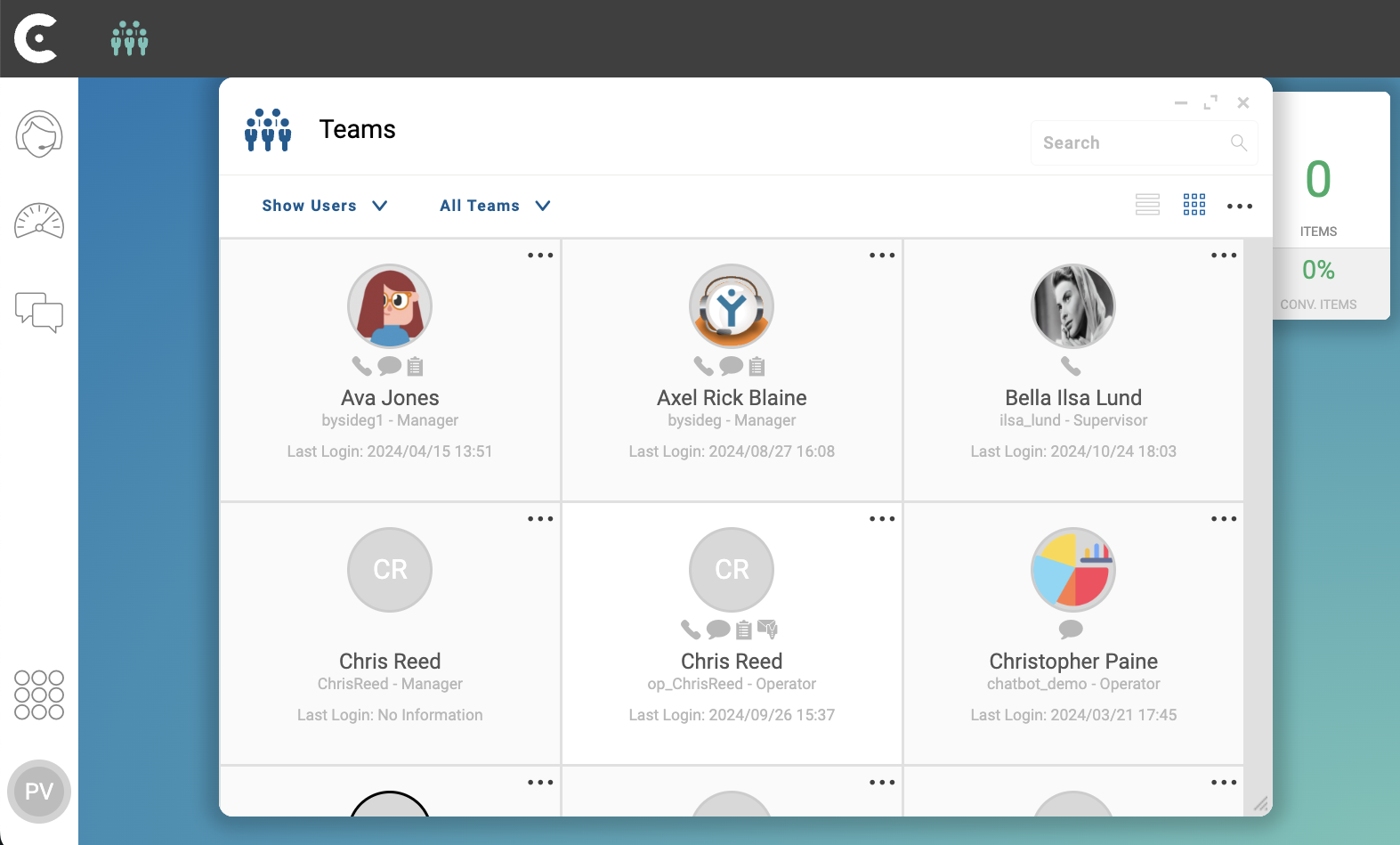
The grid of users appears.
Result
After clicking button SHOW USERS, Contact Center and Analytics Studio shows the grid of users.
The client can login to the Contact Center and Analytics Studio using the credentials.
For each user, the user card displays:
-
The user photo. The user photo appears as follows:
-
If the user is active and working, the user photo appears with a green border.
-
If the user is active and not working, the user photo appears with a gray border.
-
If the user is deactivated, the user photo appears with a black border.
-
-
The user name. For example,
Ava Jones. -
The user skill types. For example,
Voice,Chat, andForm. The user skill types mean that the user can work in campaigns that need these type of skills. -
The user identifier that the user needs to login. For example,
bysideg1. -
The user group. For example,
Manager. -
The date and time of the last login.
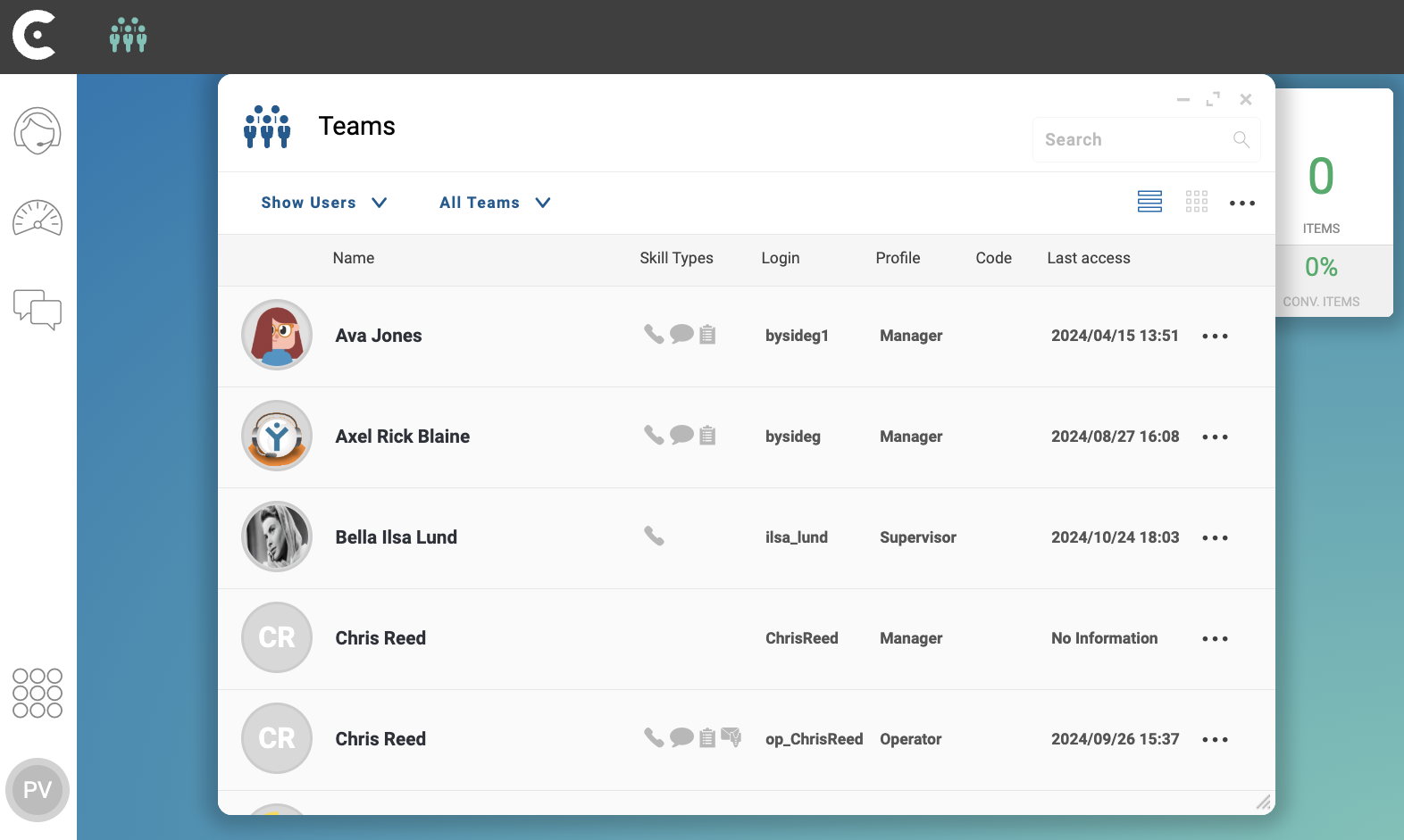
TIP: To view a list of users instead of a grid of users, on the top left corner of app Teams, click on the hamburger menu.