Adding a Passive Element
Learn how to add a passive element to an onsite campaign. Configure and active the passive element.
Prerequisites
Before you start:
-
Log in to Engagement Studio with a user that has role
Manager. -
Create an Onsite Campaign.
-
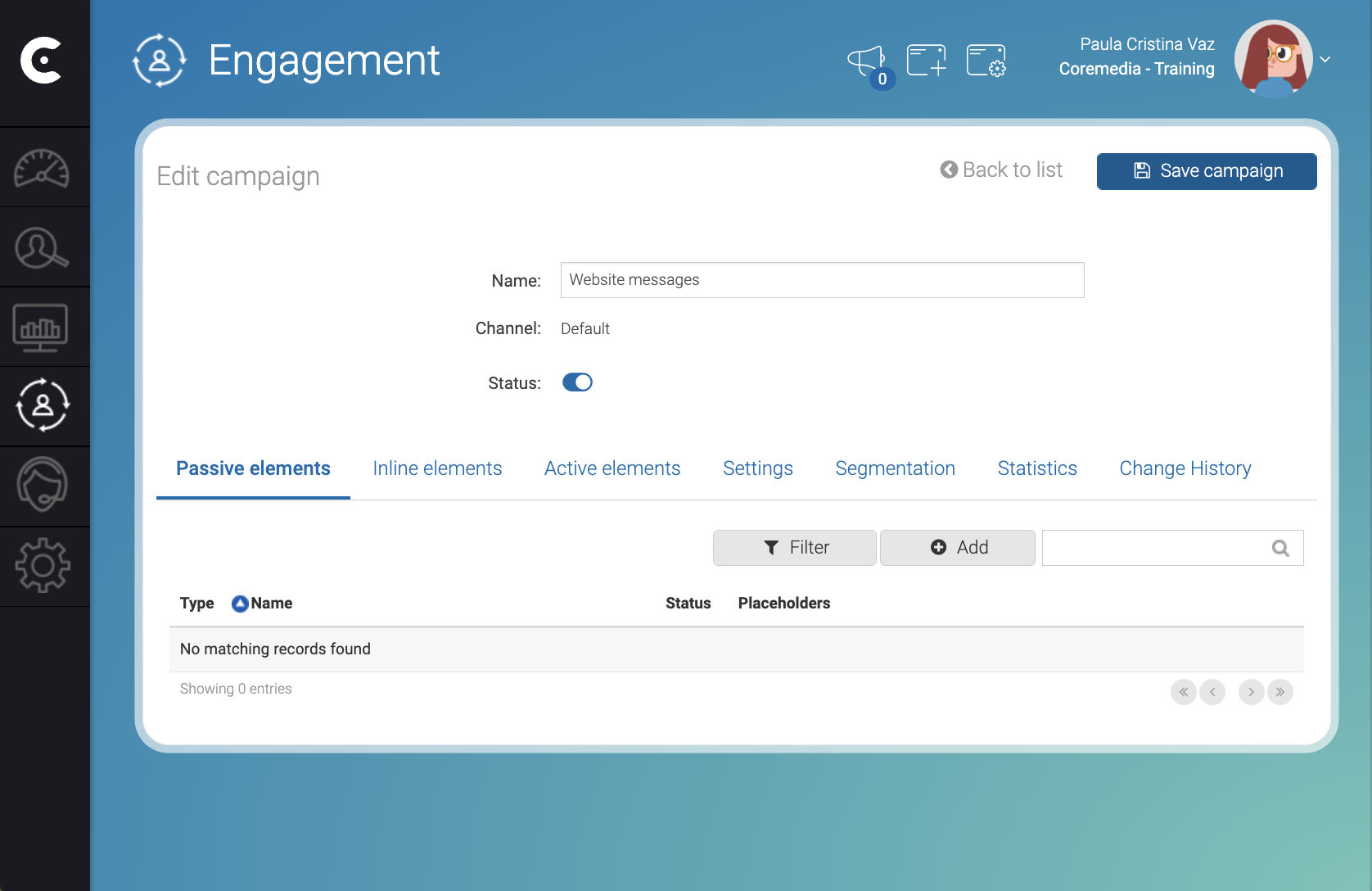
In the Engagement page, 0pen the Onsite Campaign.
Steps
1. Create the passive element
In the Passive elements tab, proceed as follows:
-
Click Add.
The Add Element window opens. -
Select the type of passive element that you want to add to your website. For example,
Custom content. -
Configure the element. For example, name the passive element
Call out. -
In the bottom of the window, click Accept.
2. Create a placeholder
In the Passive elements tab, proceed as follows:
-
In the left side of passive element, click ⚙️.
-
From the dropdown menu, select Manage placeholders.
The Manage placeholders associated to Element window opens. -
In the Manage placeholders associated to Element window, click Add placeholder.
The Add placeholder window opens. -
In the Add placeholder window, fill the following fields:
-
Name: Write the name of the placeholder. For example,
Call out placeholder for banner.
-
-
Click Save.
3. Associate the placeholder to the passive element
In the Manage placeholders associated to Element window, proceed as follows:
-
Click -Select placeholder-.
-
Select the placeholder. For example,
Call out placeholder for banner. -
In the bottom right corner of the window, click Accept.
4. Add the placeholder script to the website
In the Passive elements tab, proceed as follows:
-
In the top right corner of the Edit campaign window, click Save campaign.
-
Click
</>that appears next to the placeholder name, between 🔧 and ⚙️.
The HTML Code of the placeholder window opens. -
Copy the HTML code of the placeholder.
-
Paste the HTML code of the placeholder in the pages of your website where you want the passive element to appear.
Note that the pages with the placeholder must also have the tag.
To define where a placeholder with the passive elements appears, click 🔧 to open the Edit specific Element options in Placeholder widow.
Result
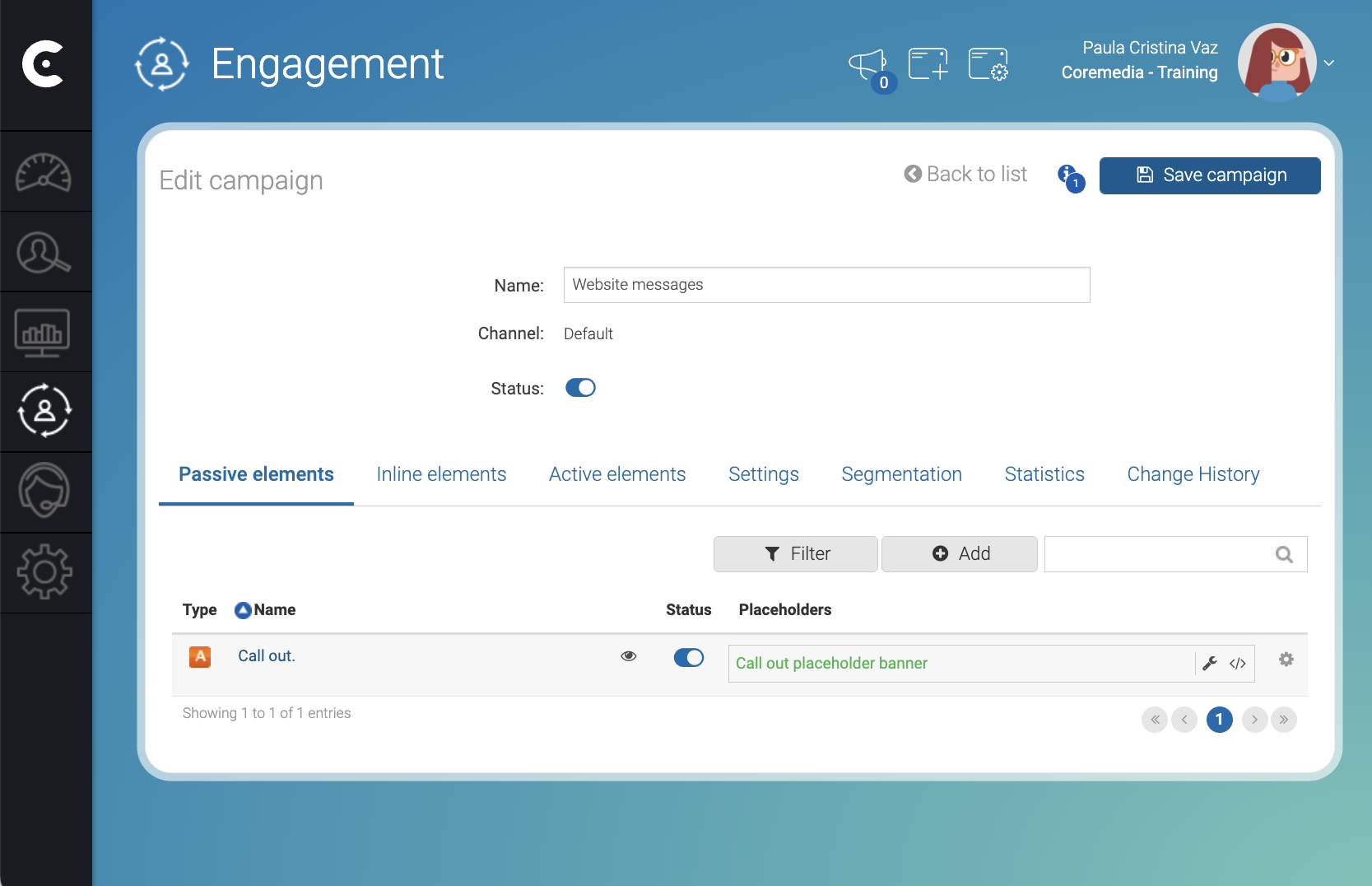
After finish step 3, the element and the placeholder appear listed in Passive elements tab as follows.
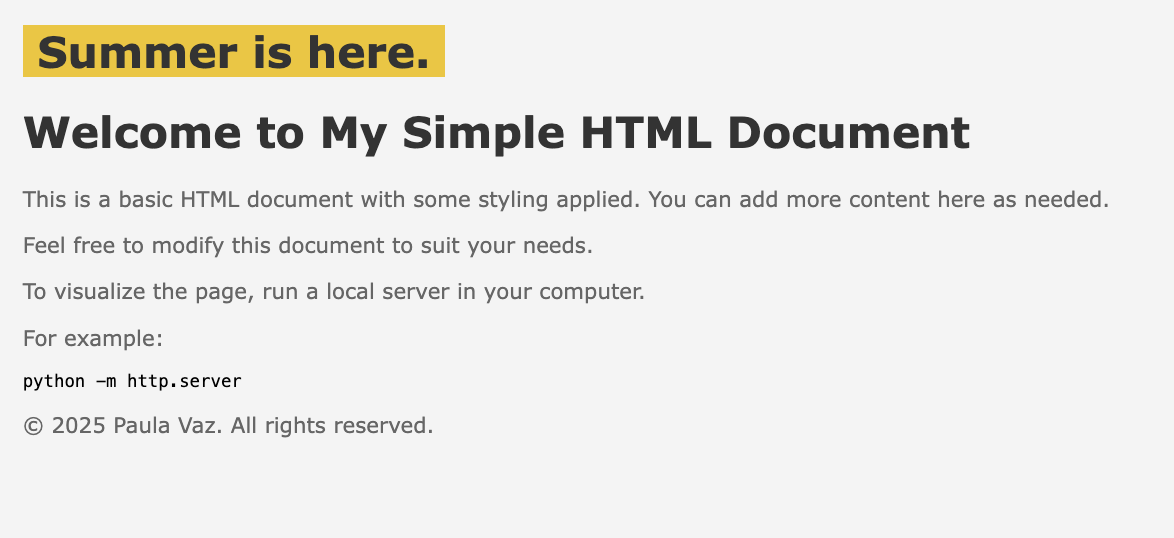
After you add the placeholder code to the a page with the CoreMedia Tag, the placeholder with the passive element appears in your website.
In the following example, we added the placeholder HTML code to the
beginning of the body of a test page with a custom content element that
contains the colored text Summer is here.
Troubleshooting
-
If the passive element does not appear in the site, ensure that the campaign, the placeholder, and the active element are active.