Segmenting a Campaign
Select the pages in your site where the campaign elements should appear.
Prerequisites
Before you start:
-
Log in to Engagement Studio with a user that has role
Manager. -
Create an Onsite Campaign.
-
In the Engagement page, open the Onsite Campaign.
Steps
-
In the Engagement page, open the Onsite Campaign.
1. Activate segmentation
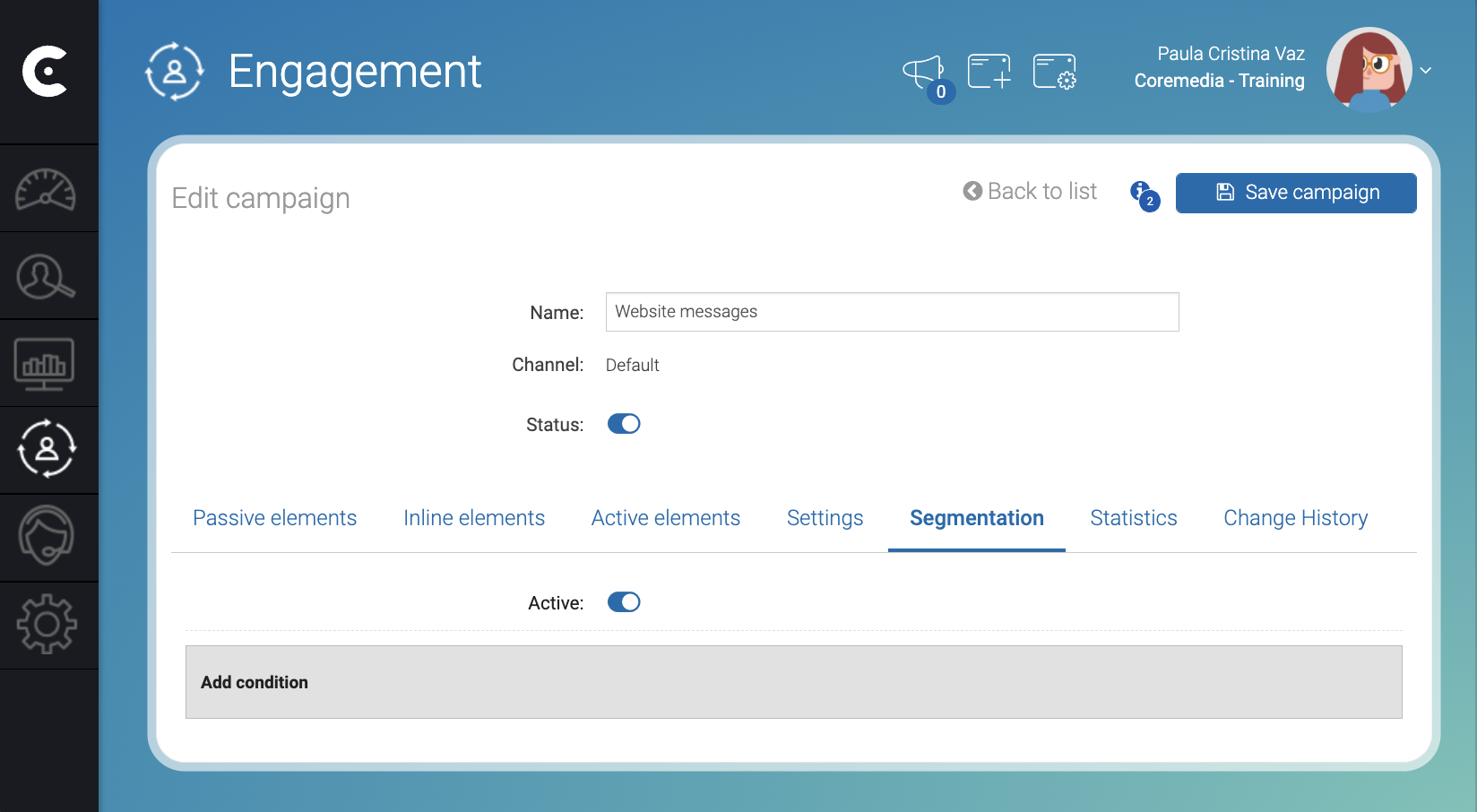
In the Segmentation tab, slide the Active switch to activate segmentation.
Add condition appears.
2. Add segmentation conditions
-
Click Add condition.
-
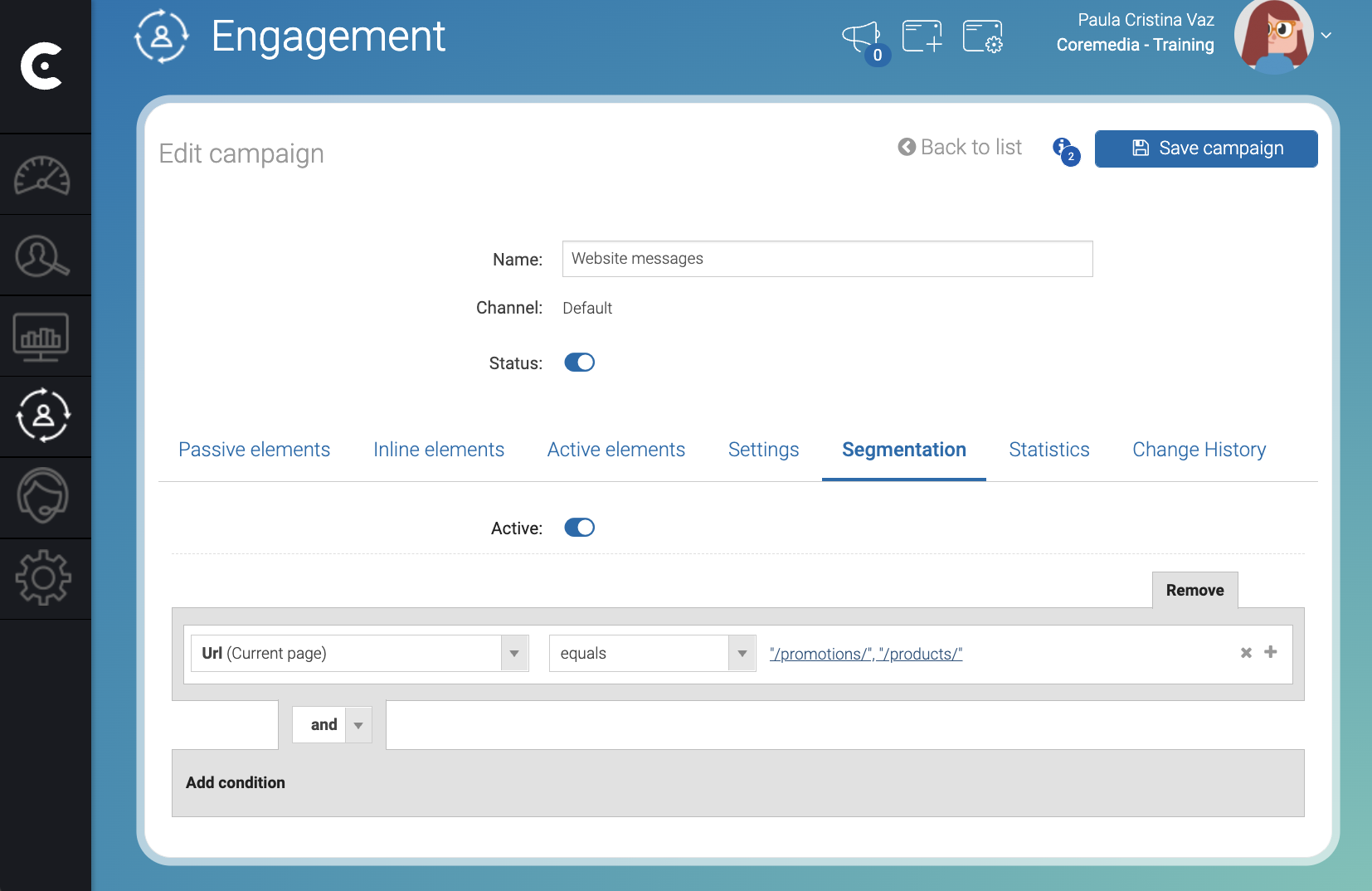
In the Select new field dropdown, select a campaign field. For example,
Url. -
In the
equalsdropdown, select the operation. For example,contains. -
Click [Click to set] to define the value. For example,
/promotions/and/products/. -
Click Save campaign.
Result
After you click Save campaign, you can see the segmentation rule in
the Segmentation tab. You will see the active and passive elements in
the pages with /promotions/ or /products/ in the URL.
Note that Segmentation also affects analytics of the campaign.