Adding a Survey to a Campaign
Learn how to add a survey to a campaign.
Prerequisites
Before you start:
-
Have a user with:
-
Permissions to use the Engagement Studio.
-
Group Supervisor or Manager.
-
-
Have a user logged in to Engagement Studio.
-
Open Engagement Studio while following this how to guide.
-
Have a survey created.
Related videos:
Steps
1. Open the onsite campaign
-
Click on icon
 in th left side menu of Engagement Studio.
 -
Select Campaigns from the left side menu to open the Engagement page.
-
Select a campaign. For example,
User feedback campaign.
2. Add a the survey as an active element
-
Click tab Active elements.
-
Add an active element of type
Inline survey. -
Enter the element information:
-
Name: Write the name of the survey. Use meaningful names. For example,
User feedback. -
Active: Slide the switch to the right to activate the survey.
-
Choose survey: Select the survey to present in the page from the dropdown. For example,
User feedback.
-
-
Click Accept in the right bottom corner of the Configure Element window.
3. Add a the survey as a passive element
-
Click tab Passive elements.
-
Add an passive element of type
Inline survey. -
Enter the element information:
-
Name: Write the name of the survey. Use meaningful names. For example,
User feedback. -
Active: Slide the switch to the right to activate the survey.
-
Choose survey: Select the survey to present in the page from the dropdown. For example,
User feedback.
-
-
Click Accept in the right bottom corner of the Configure Element window.
-
Associate a placeholder to the passive element.
Result
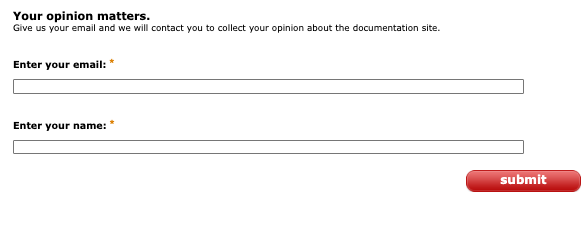
After adding the survey to the onsite campaign, activate the campaign and view the survey in your website.