Exporting Data from a Survey
Learn how to add a survey to a campaign.
Prerequisites
Before you start:
-
Have a user with:
-
Permissions to use the Engagement Studio.
-
Group Supervisor or Manager.
-
-
Have a user logged in to Engagement Studio.
-
Open Engagement Studio while following this how to guide.
-
Have created a survey.
Related videos:
Steps
1. Open the survey answers
-
Click on icon
 in th left side menu of Engagement Studio.
 -
Select Surveys from the left side menu to open the Engagement page.
-
Click the name of your survey in the Surveys Answers list panel. For example,
User Feedback.
If you can’t see the Surveys Answer list panel, click ➕ Add in the left bottom corner of the Engagement page and add a Surveys Answer list panel.
2. Export the survey answers
-
Click Export list in to left top corner of tab Survey answers.
-
Select the format of the answers list from the dropdown. For example,
CVS.
Result
After you select CSV, Engagement Studio generates the file to
download and asks you where do you want to store it. Store the
downloaded file and open it with a spreadsheet.
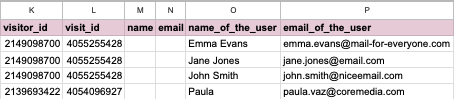
The downloaded file contains the survey answers along with other information related to the visitor.