Assigning Segments to Variants
Learn how to assign visitor segments to a variant for personalized content delivery.
Assign visitor segments to a variant so that visitors in a specific segment see the variant instead of the baseline content. You can assign multiple segments to a single variant, and you can control the priority of variants when segments overlap.
Prerequisites
-
Have at least one variant created for a baseline content item.
-
Have at least one segment defined in the Engagement Cloud. See Creating Segments from a Template or Creating Segments with Rules.
Steps
1. Open the variant
-
Open the variant content item — either from the Library or by clicking the variant in the Personalization tab of the baseline.
2. Open the Personalization tab of the variant
-
Open the variant content item.
-
Select the Personalization tab from the tab bar.
3. Assign segments
-
In the Segmentation section, open the Choose segments… dropdown.
-
Select one or more segments or profiles from the list. The dropdown shows all segments and profiles that are defined in the Engagement Cloud.
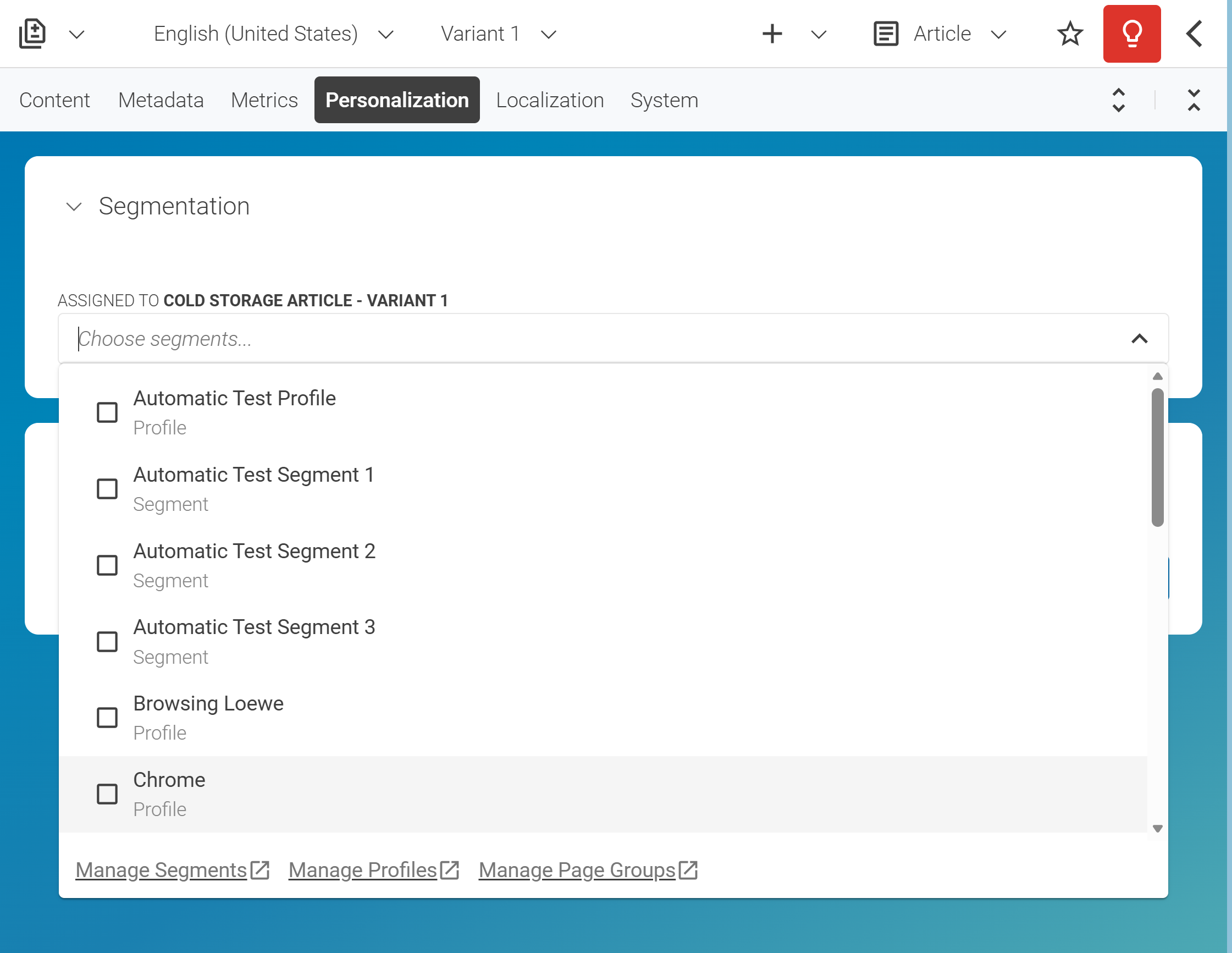
At the bottom of the dropdown, you find quick links to the Engagement Cloud to manage your Segments, Profiles, and Page Groups directly.

4. Set variant priority (on the baseline)
If you have multiple variants that target different segments, and a visitor could match more than one segment, you need to define which variant takes precedence.
-
Open the baseline content item.
-
Navigate to the Personalization tab.
-
In the Variants Priority section, drag and drop variants to reorder them. The priority is determined by the position in the list and is shown in the Priority column. The variant at the top has the highest priority (1).
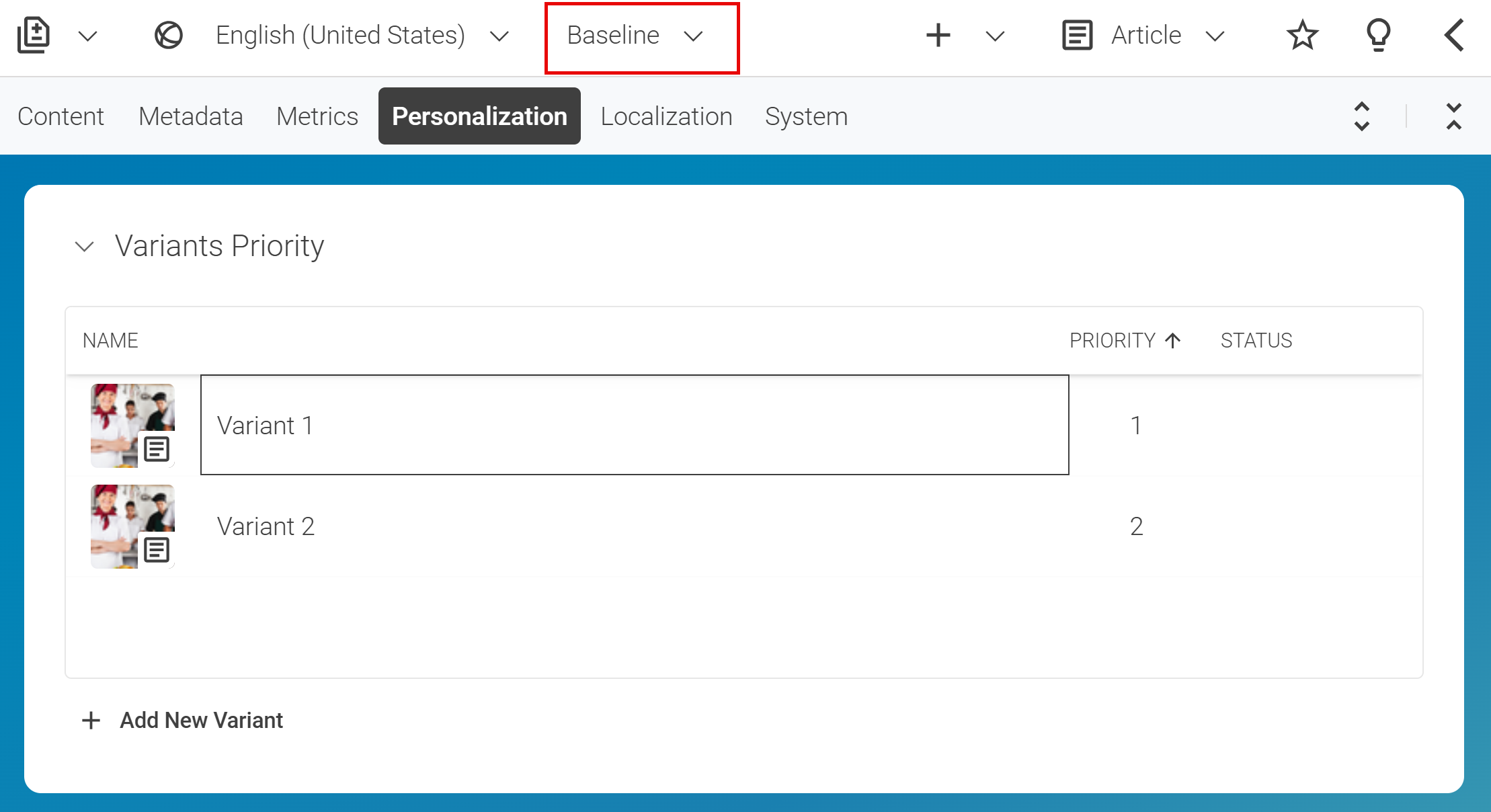
Changing the variant priority does not change the state of the baseline content item. You do not need to check in or publish the baseline after reordering variants.

Result
After saving, visitors who belong to the assigned segment see the variant instead of the baseline. If a visitor matches multiple segments assigned to different variants, the variant with the highest priority (as defined on the baseline) is shown.
Tip: You can reassign or remove segments from a variant at any time by returning to the Personalization tab and modifying the segment assignment.