Running A/B Tests for Segments
Learn how to run an A/B test only for the visitors in selected segments.
A regular A/B test splits all visitors of a page between the baseline and the challengers. A segmented A/B test runs only for the visitors who belong to the segments you assign to the test. All other visitors are not part of the test and see the same content as before.
|
Segmented A/B tests are available as of version 2.2.0 of the Personalization plugin. You can restrict an A/B test to segments only, not to profiles. |
Use Cases
Testing New Content for a Segment
You want to find out whether new content works better for a segment than the content this segment sees today. For example, you want to show newsletter subscribers a new hero teaser and compare it with the regular article.
-
None of the baseline’s other variants has one of the test’s segments.
-
The baseline is the control. Visitors in the segments see either the baseline (control group) or the challenger.
-
If the challenger wins, it receives the test’s segments and serves these visitors from then on.
Optimizing a Personalized Variant
A variant already serves a segment, and you want to improve it. For example, the variant Barbecue Guide - Subscribers is shown to the Newsletter Subscriber segment, and you want to test a new version against it.
-
One existing variant of the baseline has all segments of the test.
-
This variant is the control. Visitors in the segments see either this variant (control group) or the challenger. Content Studio marks it with an info icon, see 3. Check the control.
-
If the challenger wins, the segments move from the existing variant to the challenger.
In both cases, the baseline keeps serving all visitors outside the test’s segments, and the winner handling never changes the baseline.
Prerequisites
-
Have a baseline with at least one variant that serves as challenger. A challenger must not have segments of its own. See Creating Variants.
-
Have the segments defined in the Engagement Cloud. See Creating Segments with Rules.
Steps
1. Create the A/B test
Create the A/B test and assign the challenger as described in Creating A/B Tests.
2. Assign segments to the A/B test
-
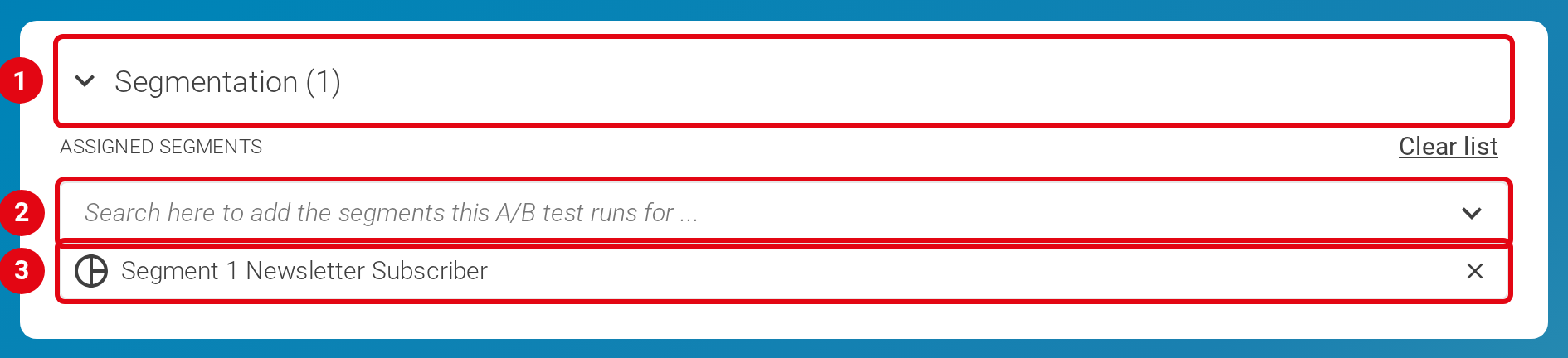
In the A/B test form, expand the Segmentation section (1). It is the last section of the form and is collapsed as long as the test has no segments.
-
Type in the search field (2) or open the dropdown, and select one or more segments.
-
The assigned segments are listed below the search field (3). The section title shows how many segments are assigned, for example Segmentation (1).

You can change the segments only while the A/B test is a draft. The segments are stored in the Engagement Cloud, so you do not need to publish anything after changing them.
3. Check the control
The Control test case in the A/B Test Cases section always lists the baselines. If an existing variant of a baseline has all segments of the test, this variant is the actual control, and an info icon appears in the row of the baseline. Hover over the icon to see which variant it is.
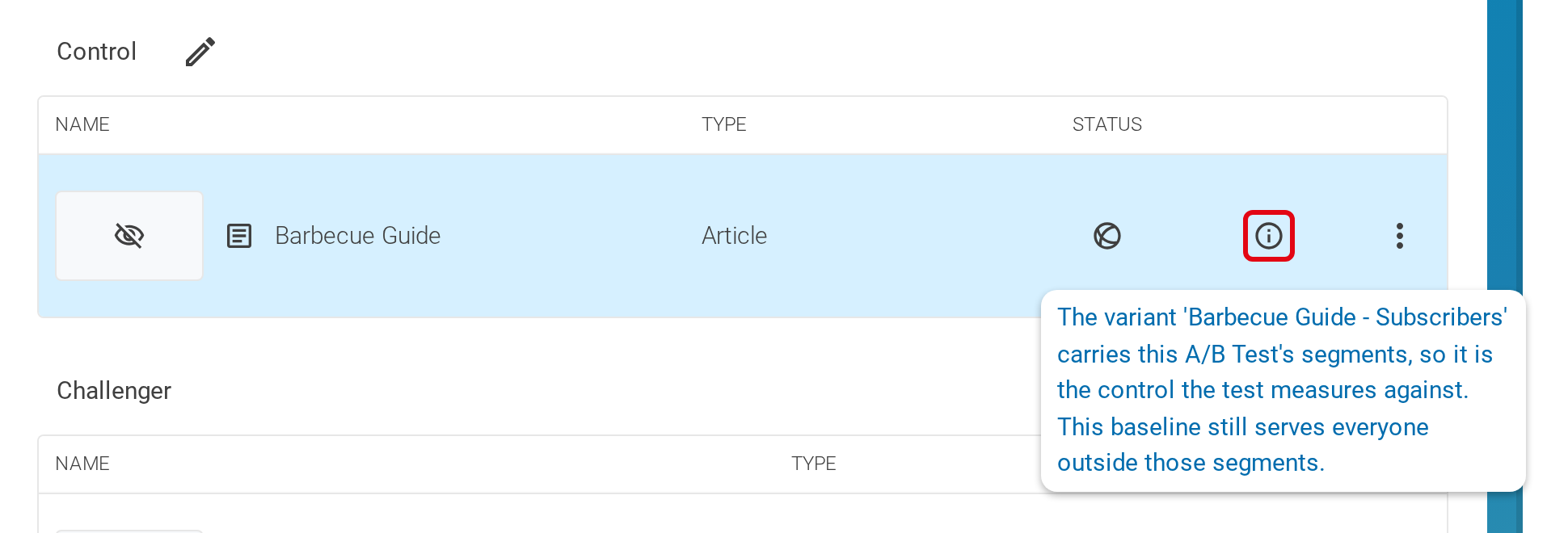
If no icon appears, the baseline is the control.
4. Check the order of the variants
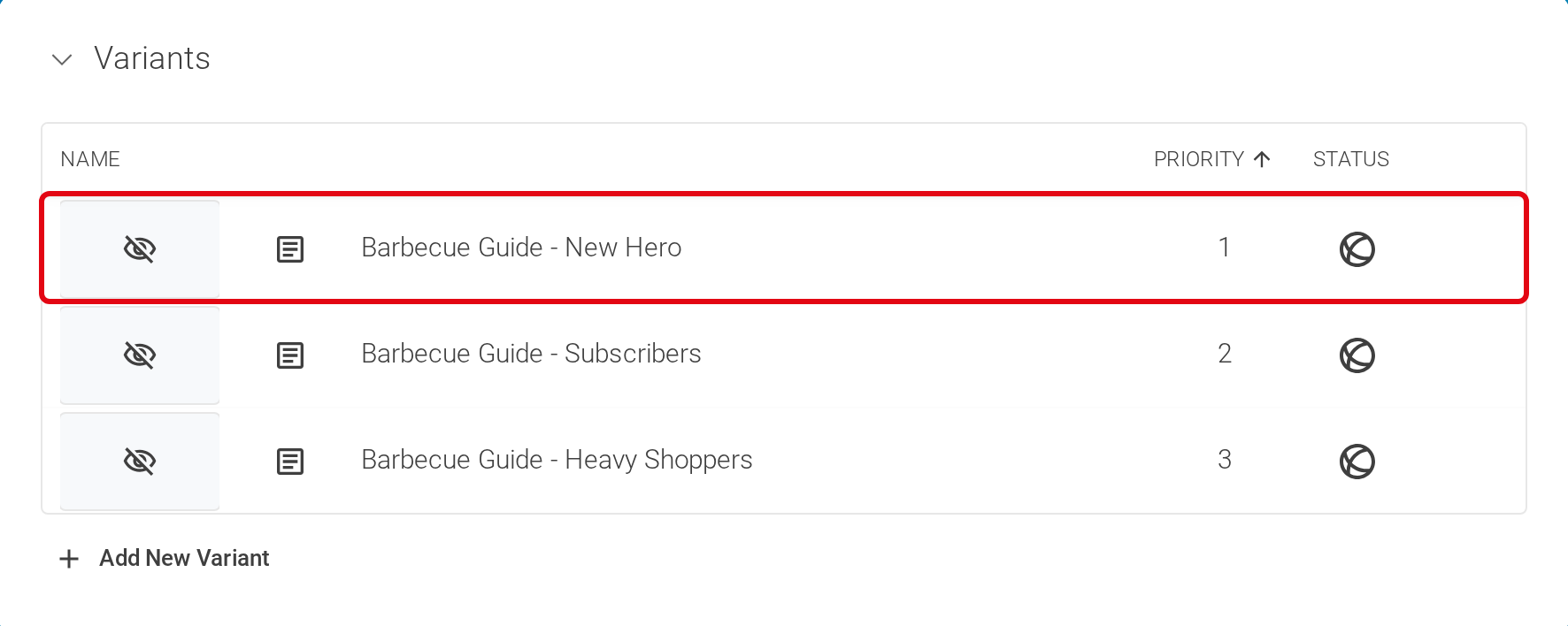
A visitor sees the first variant in the baseline’s Variants list whose condition matches. If a variant with segments of its own is listed above a challenger, visitors in these segments see this variant in both the control group and the challenger group, and the test measures nothing. The variants of an A/B test therefore have to be listed above all variants that have segments of their own. This applies to all A/B tests, not only to segmented ones.
When you assign a variant to an A/B test, Content Studio moves it above the variants that have segments of their own.
-
Open the baseline and select the Personalization tab.
-
In the Variants section, check that the challenger is listed above the variants with segments. Drag and drop the variants to change the order if needed.
-
If the order changed, publish the variants whose position changed.

5. Publish and start the A/B test
-
Publish the baseline, the challengers, and every variant whose segments or position you changed.
-
Click Run A/B Test.
If the A/B test violates one of the Rules for A/B Tests, the button is disabled and a red indicator (1) appears next to it. Click the indicator to see the errors (2).


Rules for A/B Tests
Content Studio checks the following rules before you start an A/B test. It checks the published versions of the contents, because that is what your website shows. Changes that you have not published yet do not block the start, and fixes only count once they are published.
| Rule | Error message (excerpt) | How to fix it |
|---|---|---|
Segmented A/B tests: A challenger has no segments of its own. |
In their published version, these variants take part in this A/B Test and have segments of their own |
Remove the segments from the variant and publish it. |
Segmented A/B tests: Each baseline has exactly one control. Either none of the baseline’s other variants has one of the test’s segments, or one of them has all of them. |
In their published version, these variants cover the segments of this A/B Test only partly, so there is no clear control |
Assign all segments of the test to one of the listed variants, or remove them from all of them. Publish the changed variants. |
All A/B tests: The variants of the A/B test are listed above all variants that have segments of their own. |
These variants have segments of their own and are shown instead of the variants taking part in this A/B Test |
Move the variants of the A/B test above the listed variants in the Variants list of the baseline and publish the change. |
All A/B tests: A baseline can be part of only one active A/B test. |
These baselines are already part of the active A/B Test |
Archive or delete the other A/B test first. |
All A/B tests: The assignment of a content to the A/B test is published. |
Test case '…' has contents whose assignment to it is not published yet |
Publish the listed contents again. |
While the A/B Test Is Active
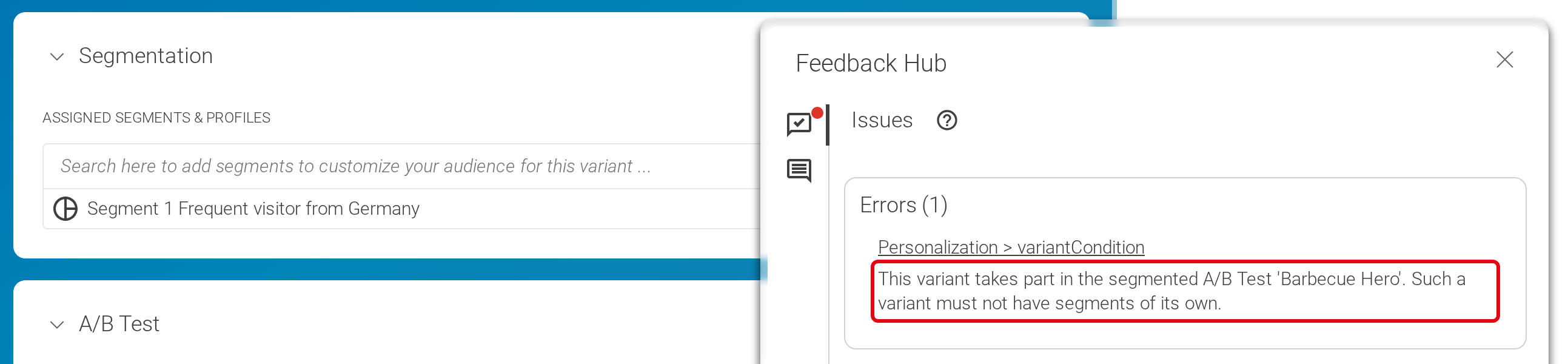
An A/B test is active from the moment you start or schedule it until it is archived. While it is active, Content Studio also checks every change to its variants against the first three rules. If a change violates one of them, for example, because you add a segment to a challenger, the variant shows an error in the Feedback Hub, and you cannot publish it until you fix it.
Handling the Winner
After the A/B test has finished and a winner has been selected, click Handle winner. See Selecting a Winner for an A/B Test.
If a challenger wins, the dialog Assign segments to winner and archive A/B Test opens.
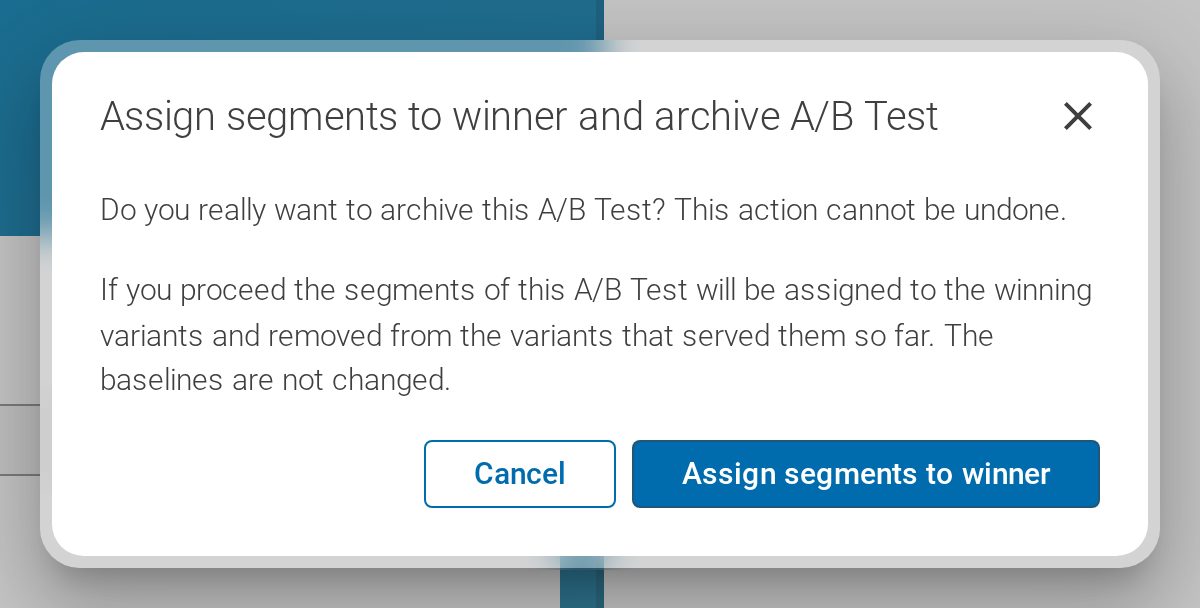
When you confirm the dialog, Content Studio does the following:
-
It removes the test’s segments from the variant that served them so far.
-
It assigns the test’s segments to the winning variant.
-
It does not change the baselines and the losing challengers.
-
It archives the A/B test.
If the control wins, Content Studio changes no content and only archives the A/B test.
The action is available only if Content Studio can edit all affected variants, for example, if no other user has checked one of them out. In addition, the current versions of the variants have to meet the two rules for segmented A/B tests. If they do not, an indicator next to the button lists the errors.
|
Content Studio checks the changed variants in but does not publish them. Publish the winning variant and the variant that served the segments before, so that your website shows the result. If the variant that served the segments before has no segments left, it is no longer shown to any visitor. Content Studio then reports an error for it, because a variant needs segments or an A/B test. Delete the variant or assign other segments to it. |