Creating an Aggregation Panel
Learn how to create and configure with metrics an aggregation panel inside a dashboard.
Learn how to create and configure with metrics an aggregation panel inside a dashboard.
Prerequisites
-
Have a user with permissions to use CCAS.
-
Have, at least, created one Dashboard.
Steps
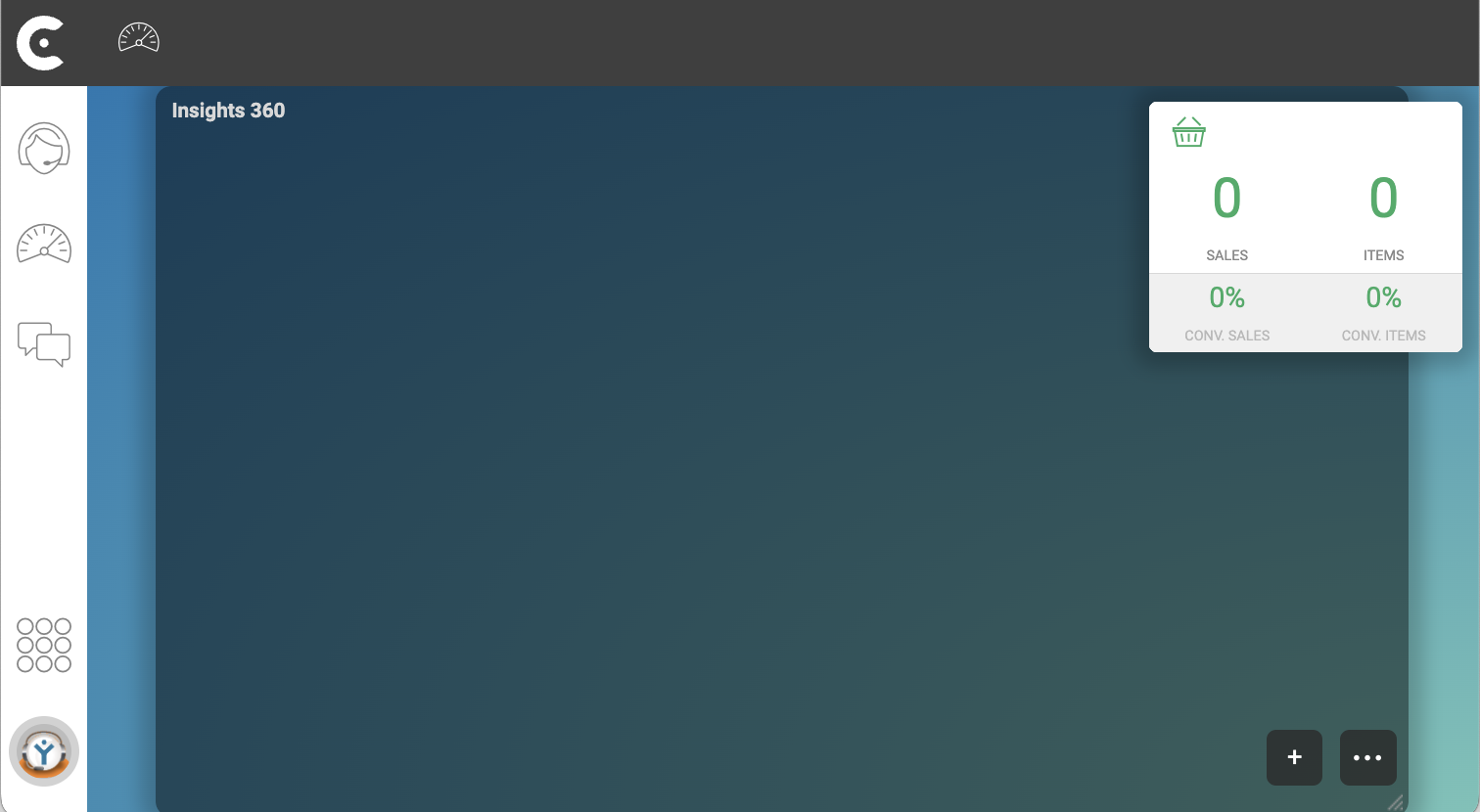
1. Add a new panel to the dashboard
-
In bottom right corner of a dashboard, click button plus
 .
. -
In window Add Panel, select Aggregation Panel.

2. Configure the aggregation panel
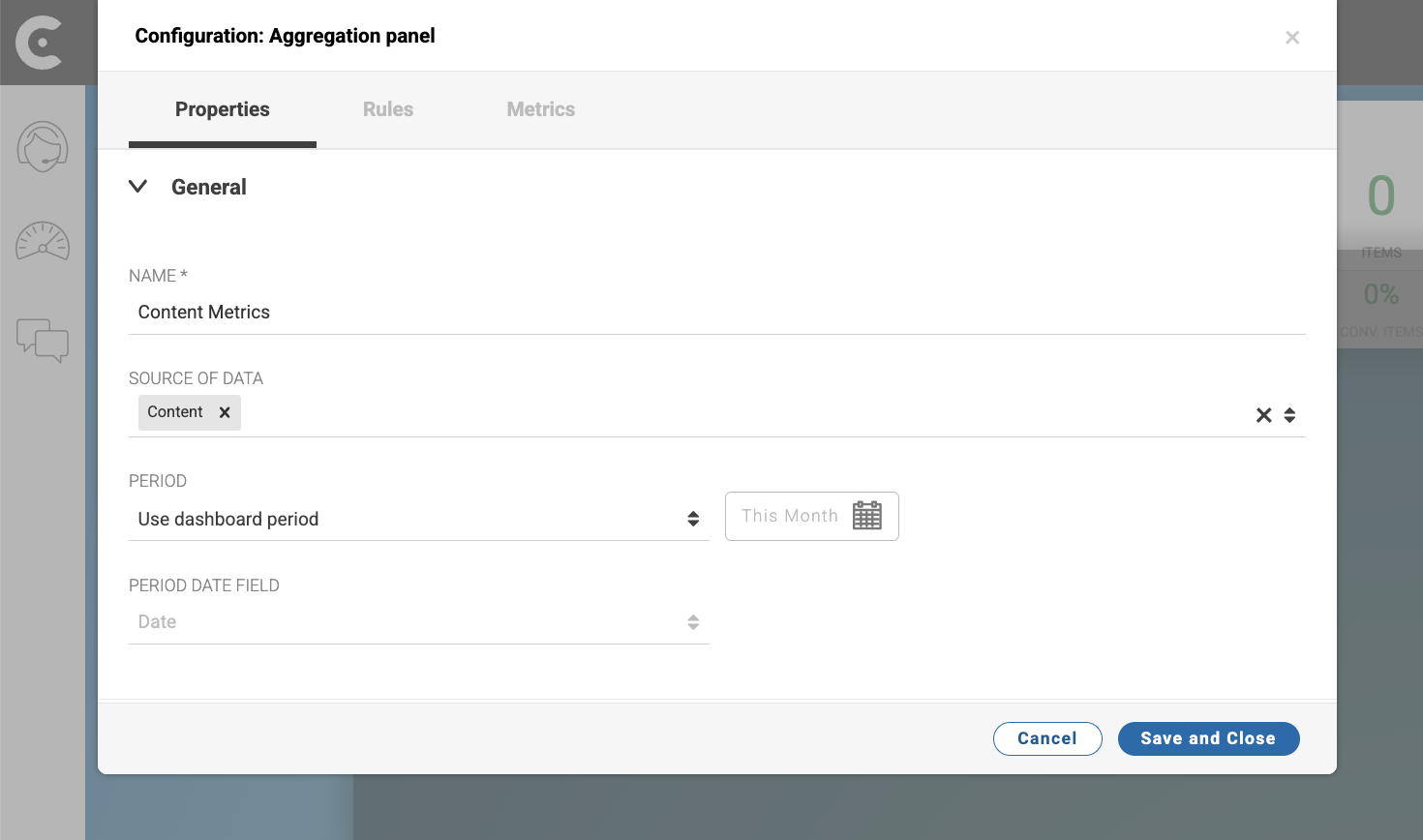
In tab Properties of window Configuration: Aggregation panel, configure the panel:
-
NAME: Name for the panel. For example,
Content Metrics. -
SOURCE DATA: Select the data source that you want to view in the panel. For example,
Content.
You can select more than one data source. CCAS show the join of the combined panels. -
PERIOD: Define the period for the data.
Note that, by default, the panel inherits the period defined in the dashboard.
Click button Save and Close
Result
After you finish the previous steps, the created panel appears in your dashboard.
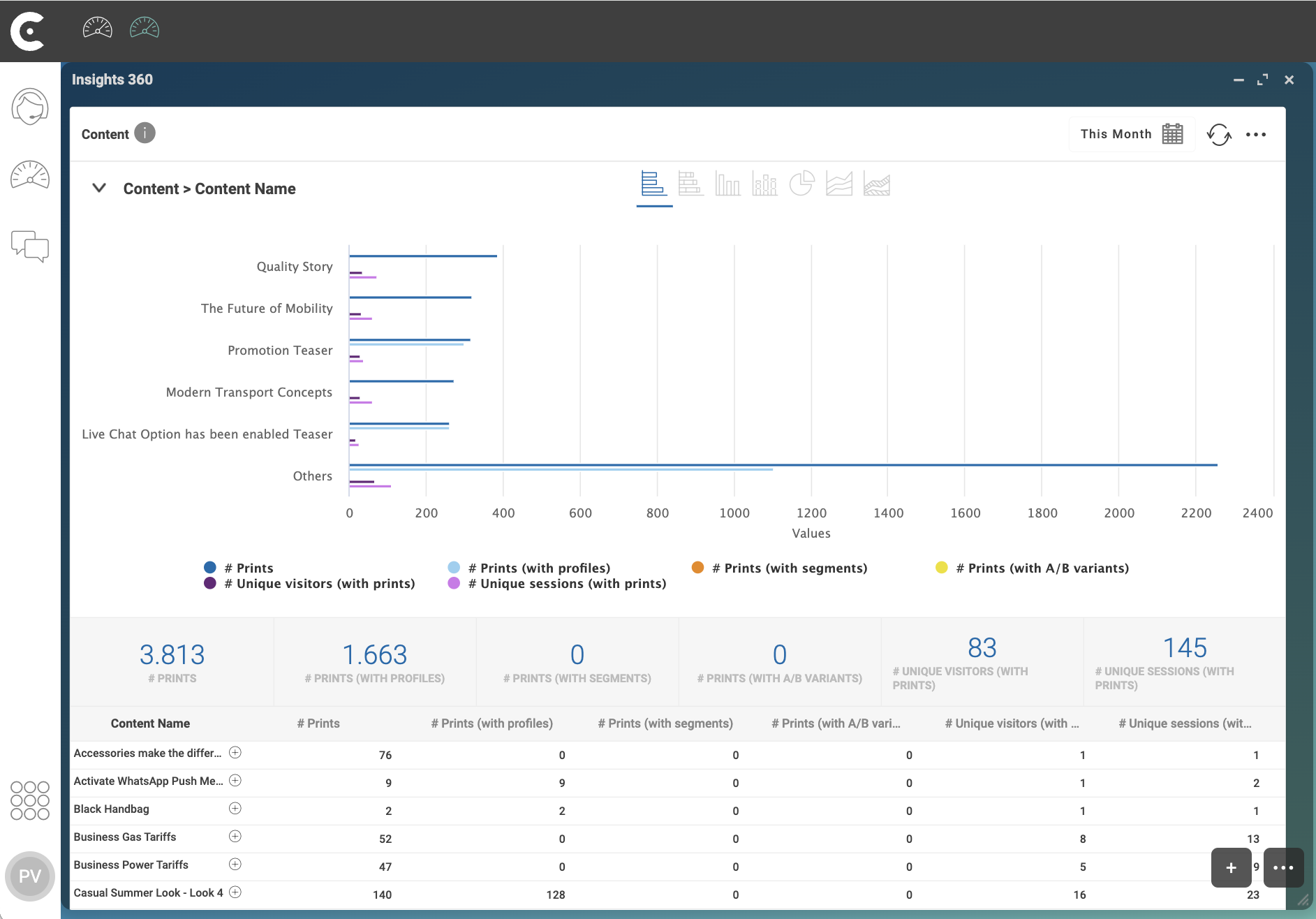
Aggregation panels show metrics about data using graphics and metrics. You can:
-
Select the type of graphic.
-
Use rules to filter metrics.
-
Select more fields to group column values.
-
Add more metrics.