Monitoring Chats
Use the Chat App to monitor chats in Engagement Cloud.
Prerequisites
-
Ensure the user has:
-
Permissions to use the Contact Center and Analytics Studio (CCAS).
-
Group Supervisor or Manager role.
-
-
Ensure the user is logged in to the CCAS.
TIP: Open the CCAS while following this how-to guide.
Steps
1. Open the Chat app
-
Click the app icon (
 )
in the bottom left corner of the CCAS desktop.
)
in the bottom left corner of the CCAS desktop. -
Scroll down until you see the Contact Center section.
-
Select Chat to open the Chat app.
2. Monitor chats
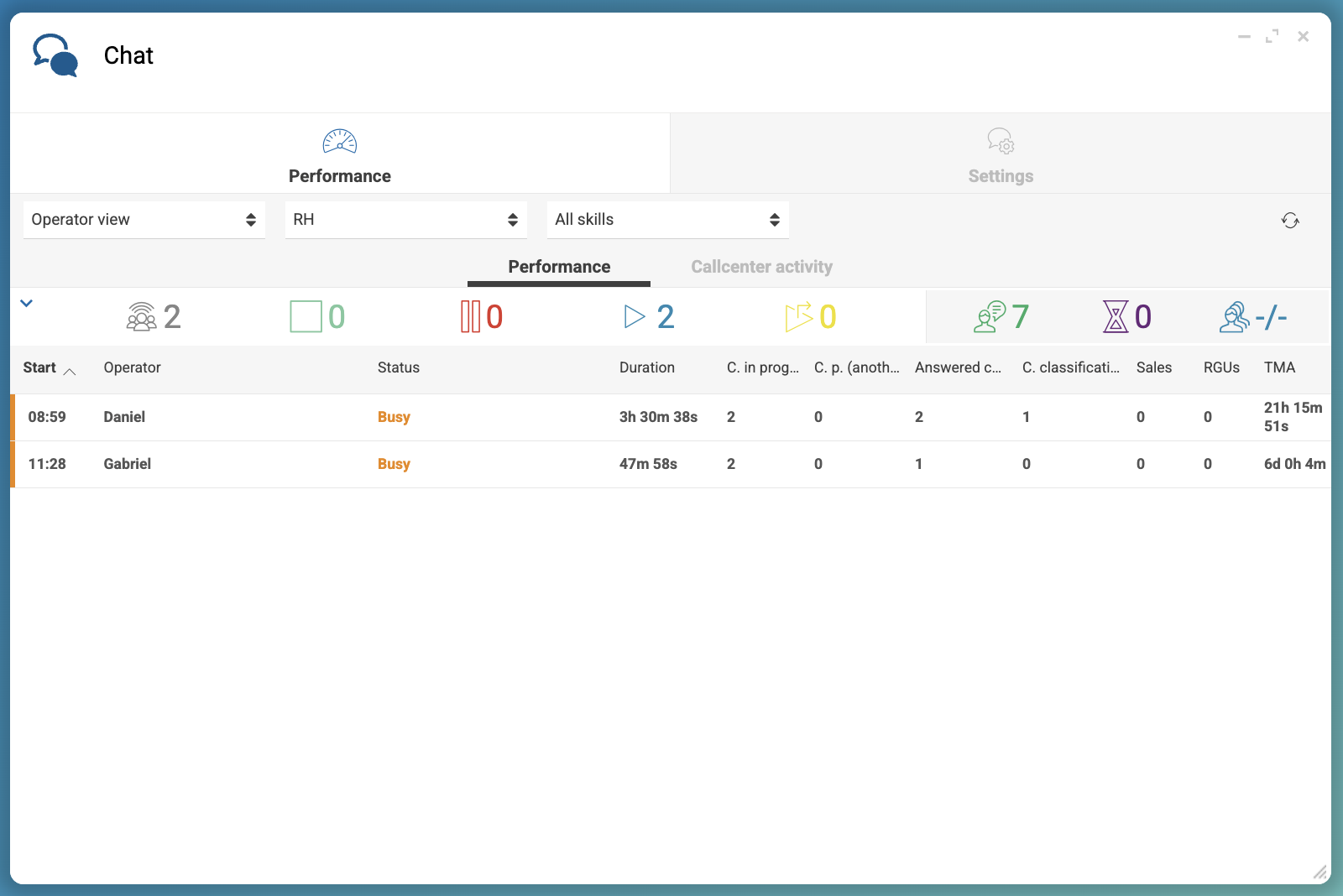
In the Performance tab, you can monitor operators’ status and session duration, including how long operators have been logged in and how long they remain handling chats. You can also view the number of sales and RGUs each operator has generated.
Reference: Chat App Reference
3. Monitor chat center activity
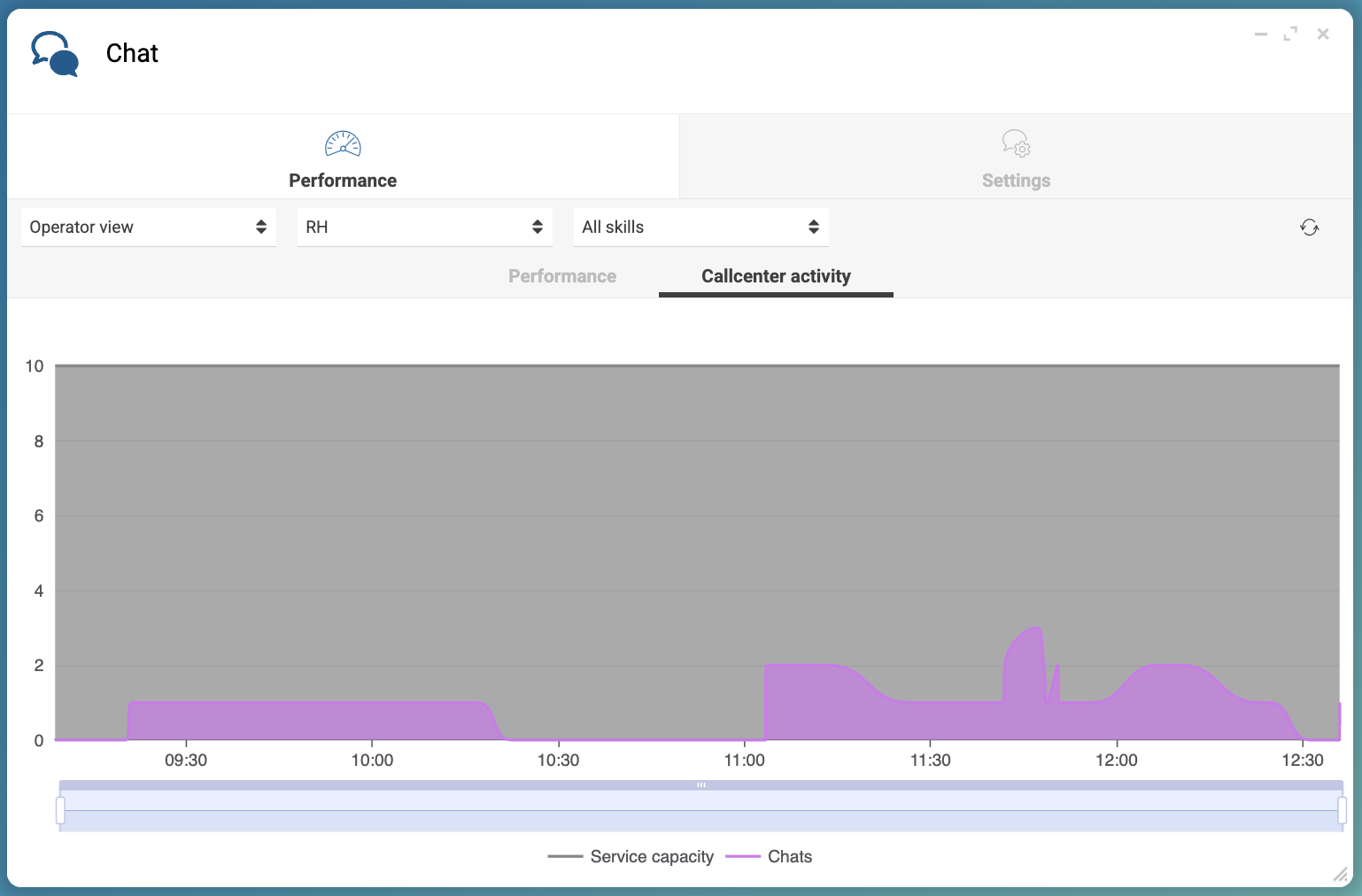
In the Chat Center Activity tab, you can monitor operators’ activity through the graph. You can select the period to analyze, from today to the last 7 days. You can also define custom periods.
In the graph, you can see the number of active chats (pink) and the capacity of the call center to handle chats (gray).