Adding a Skill with Message Templates
Use message templates in skills to easily manage customer interactions.
Prerequisites
Before you start:
-
Make sure you have permissions to use the Contact Center and Analytics Studio (CCAS).
-
Log in as a Group Supervisor or Manager.
-
Log in to CCAS.
-
Activate the chat skill type for your team.
-
Set up your Facebook business account.
-
Request customer support to connect your webcare to your Facebook business account.
-
Get message templates approved by Meta or a Meta partner.
TIP: Open the CCAS while following this how to guide.
Steps
1. Open the Teams app
-
Click
 in the bottom left corner of the CCAS desktop.
 -
Scroll down to the Management section.
-
Select Teams to open the Teams app.
-
Click the team you want to edit. For example,
CoreMedia [Demo].
2. Create the skill
-
Select Skills at the top of the Teams app window.
-
Click Create new skill in the top right corner.
-
Enter the skill information:
-
NAME: Enter a name for the skill. For example,
Customer SUPPORT - EN. -
TYPE: Select
Chatas the skill type.
-
-
Click Save in the top right corner.
3. Allow operators to send messages
-
Scroll down to the OPERATOR CAN SEND MESSAGES section.
-
Click Team settings.
-
Select Yes from the dropdown menu.
The PHONE NUMBER field appears. -
Select the phone number associated with your Facebook business account from the dropdown menu. For example,
COREMEDIA - DEMO HUNTERS.
The Add HSM button appears below Yes.
4. Add message templates
-
Click Add HSM.
-
Enter the message template information:
-
HSM: Select the message template. For example,
coremedia_msd_test. -
Description: Enter a description for the message template. For example,
Missing documents. -
Skill: Select the skill you are creating. For example,
Customer SUPPORT - EN.
-
-
Click Save in the top right corner.
5. Configure the message template parameters
-
Click Configurable parameters.
A preview of the message template text and parameters appears. -
For each parameter, enter the following information:
-
Data source: Select the data source for the parameter. For example,
Name. The Teams app fills the parameter with the visitor name. -
Editable: Choose whether the operator can edit the parameter.
-
-
Click Save.
Result
When you click Save, the Teams app adds the message template to the skill.
In this example, we added the following message template to the
Customer SUPPORT - EN skill:
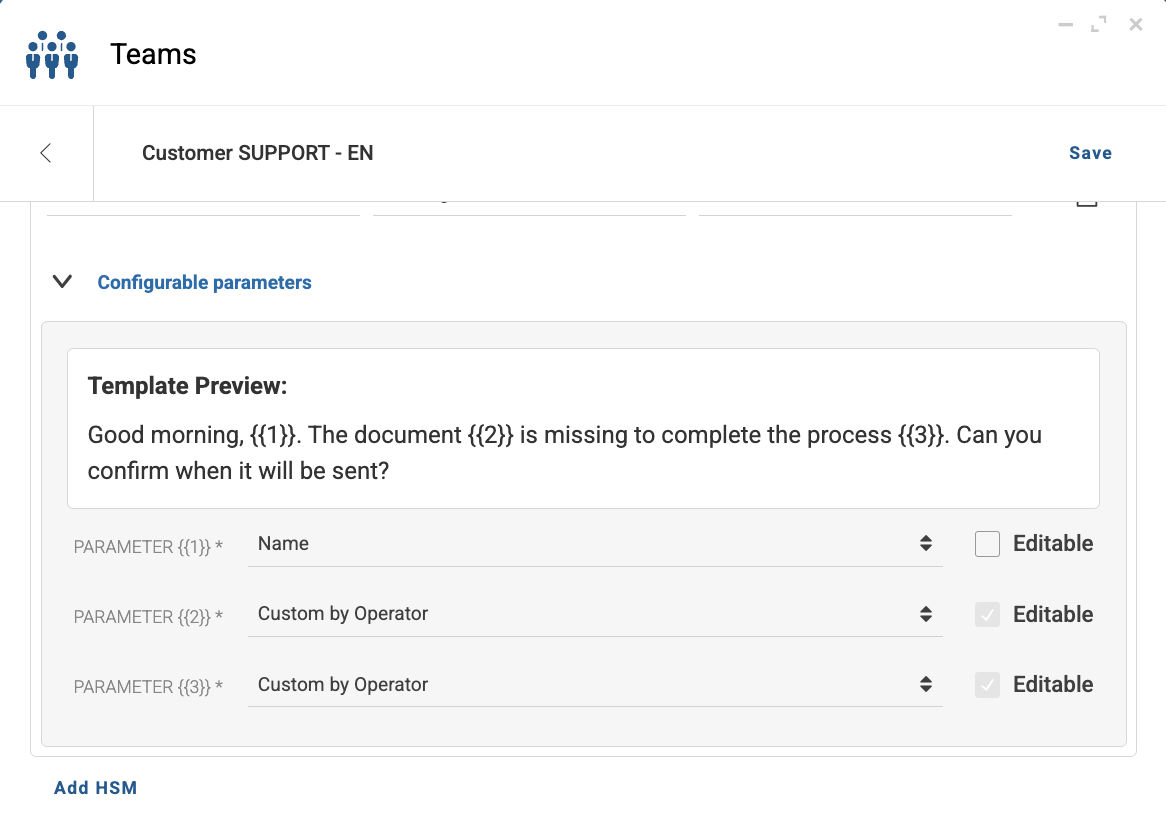
Field {{1}} is the name of the visitor and is retrieved from a
contact list. Fields {{2}} and {{3}} are the name of the
document and the number of the process, respectively, and the operator
has to fill them manually.