Configuring In Queue Position
Learn how to configure in queue position feature in a skill type.
Prerequisites
-
Have a user with:
-
Permissions to use the Contact Center and Analytics Studio (CCAS).
-
Group Supervisor or Manager.
-
-
Have the user logged to the CCAS.
-
Have created, at least, a team.
-
Have activated a Voice Skill Type with CONNECTION TYPE =
Cloud Contact Center
TIP: Open the CCAS while following this how to guide.
Steps
1. Open the Teams app
-
In the bottom left corner of the CCAS desktop, click the icon App (
 )
) -
Scroll down until you section section Management.
-
Select Teams to open the Teams app.
2. Edit the team
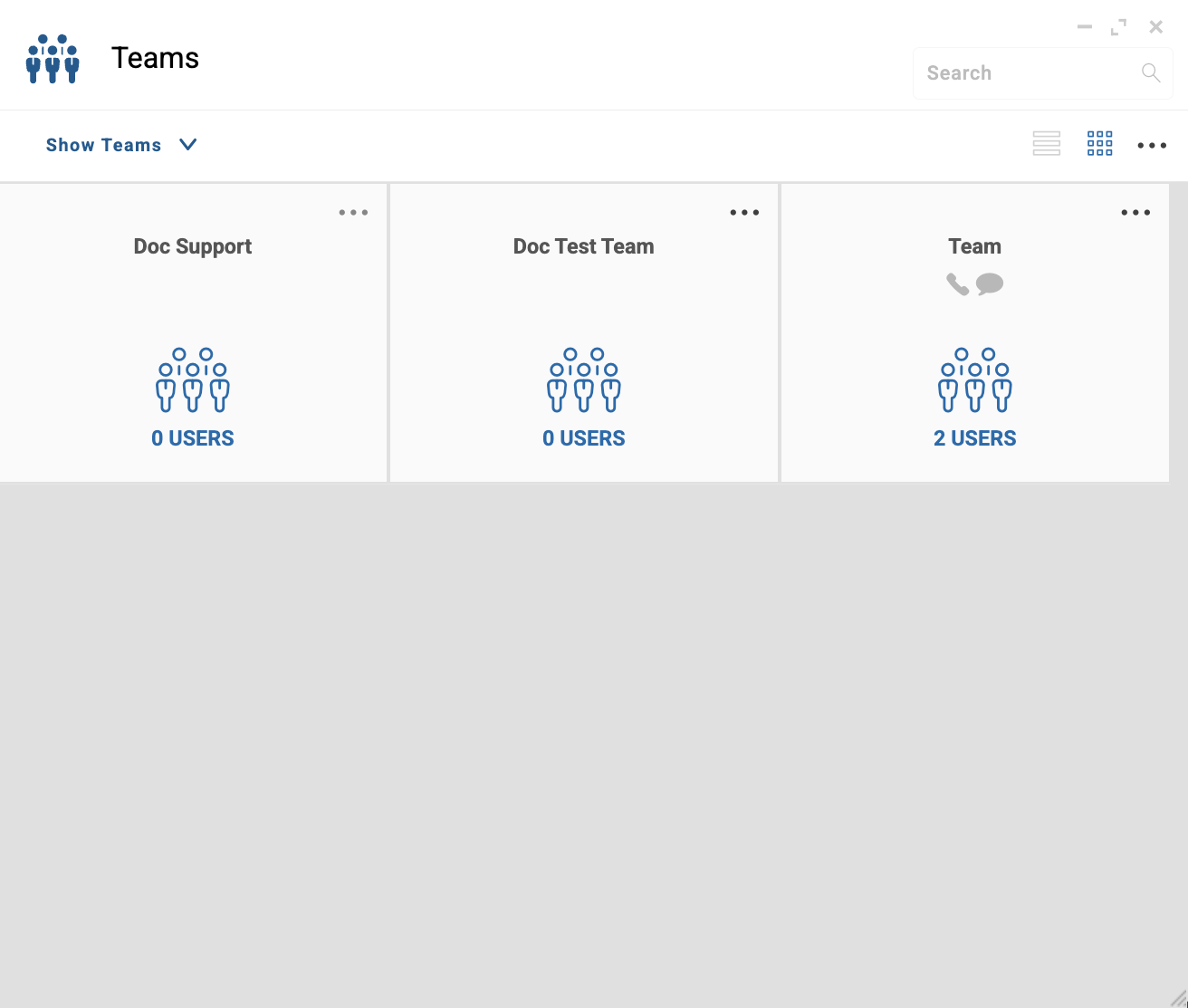
In the Teams app screen, proceed as follows:
-
Locate the team you want to edit. For example,
Doc Support. -
In the top right corner of the team tile, click ….
-
From the dropdown menu, select EDIT.
3. Configure the voice skill type
-
In the top of the selected team screen, select Skill Types.
-
Click the voice skill type to open the accordion.
-
Scroll down until you find the QUEUE POSITION & ESTIMATE WAIT TIME separator.
-
Fill the following fields:
-
ALLOW QUEUE POSITION & ESTIMATIVE TIME ANNOUNCEMENT: Select the type of announcement that you want to play for your customers. For example,
Position & Time. -
ANNOUNCEMENT INTERVAL: Define the time in seconds between announcements. For example
30for Engagement Cloud to play the announcement every 30 seconds. -
ANNOUNCE POSITION LIMIT: Select
Yesto define a limit number to the calls that can hear the announcement. -
LIMIT CALLS: Define the number of calls. For example,
5. In this example, only the first five calls hear the announcement of the position and time in a message such asWe are currently busy. There are currently 3 callers ahead of you. Our estimated waiting time is approximately 10 minutes.
-
-
In the top right corner, click
Save.
Result
After clicking Save, callers in the top five positions will hear the message announcing the position and the waiting time.