Creating a New Skill
Learn how to create a skill and assign operators to the skill.
Prerequisites
-
Have a user with:
-
Permissions to use the Contact Center and Analytics Studio (CCAS).
-
Group Supervisor or Manager.
-
-
Have the user logged to the CCAS.
-
Have created, at least, a team with, at least, an activated skill type.
TIP: Open the CCAS while following this how to guide.
Steps
1. Open the Teams app
-
In the bottom left corner of the CCAS desktop, click the icon App (
 )
) -
Scroll down until you see the Management section.
-
Select Teams to open the Teams app.
2. Edit the team
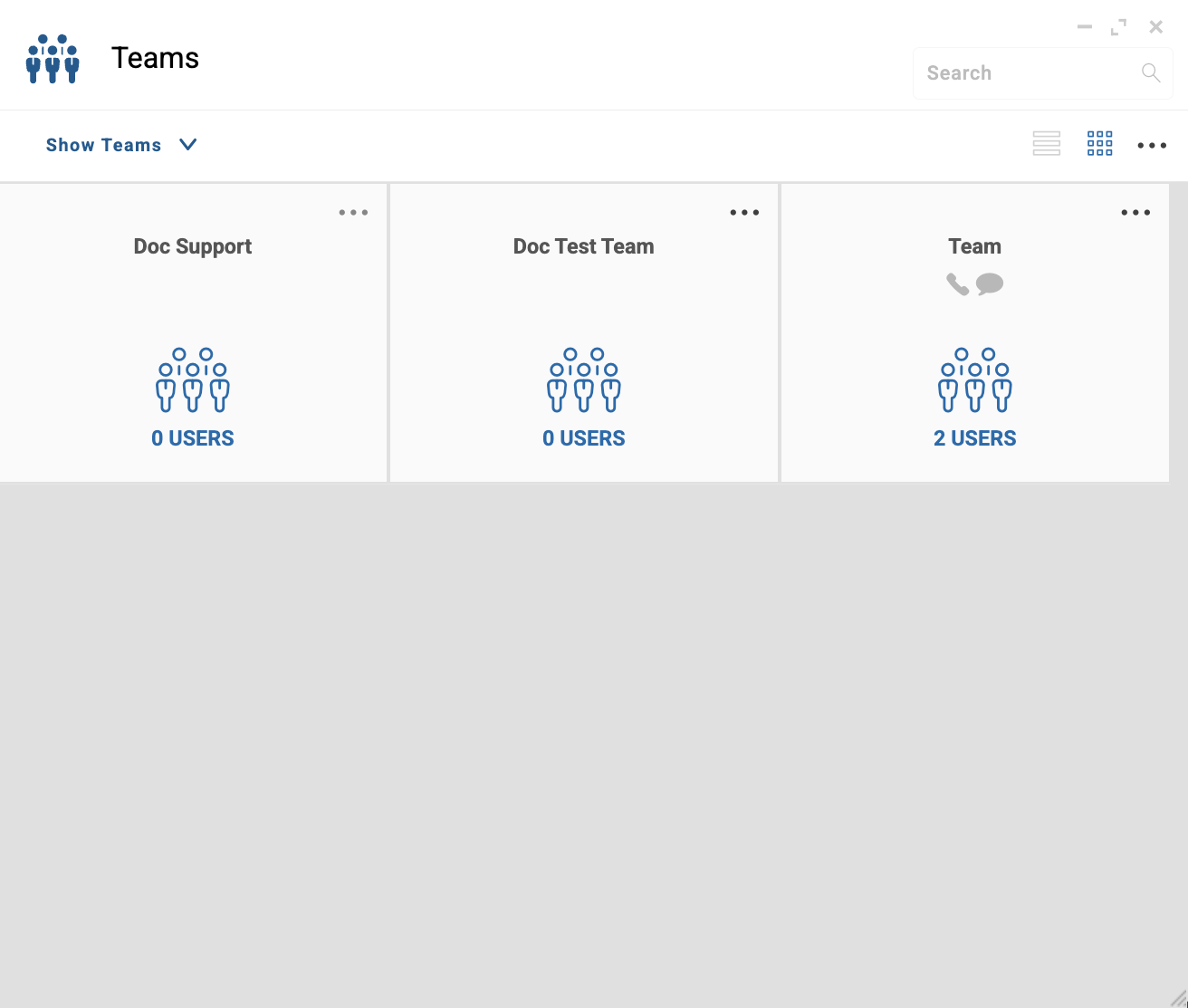
In the Teams app window, proceed as follows:
-
Locate the team that you want to edit. For example,
Doc Support. -
In the top right corner of the team tile, click ….
-
From the dropdown menu, select EDIT.
3. Create the skill
-
In the top of the selected team window, select Skills.
-
In the top right corner, click Create new skill.
-
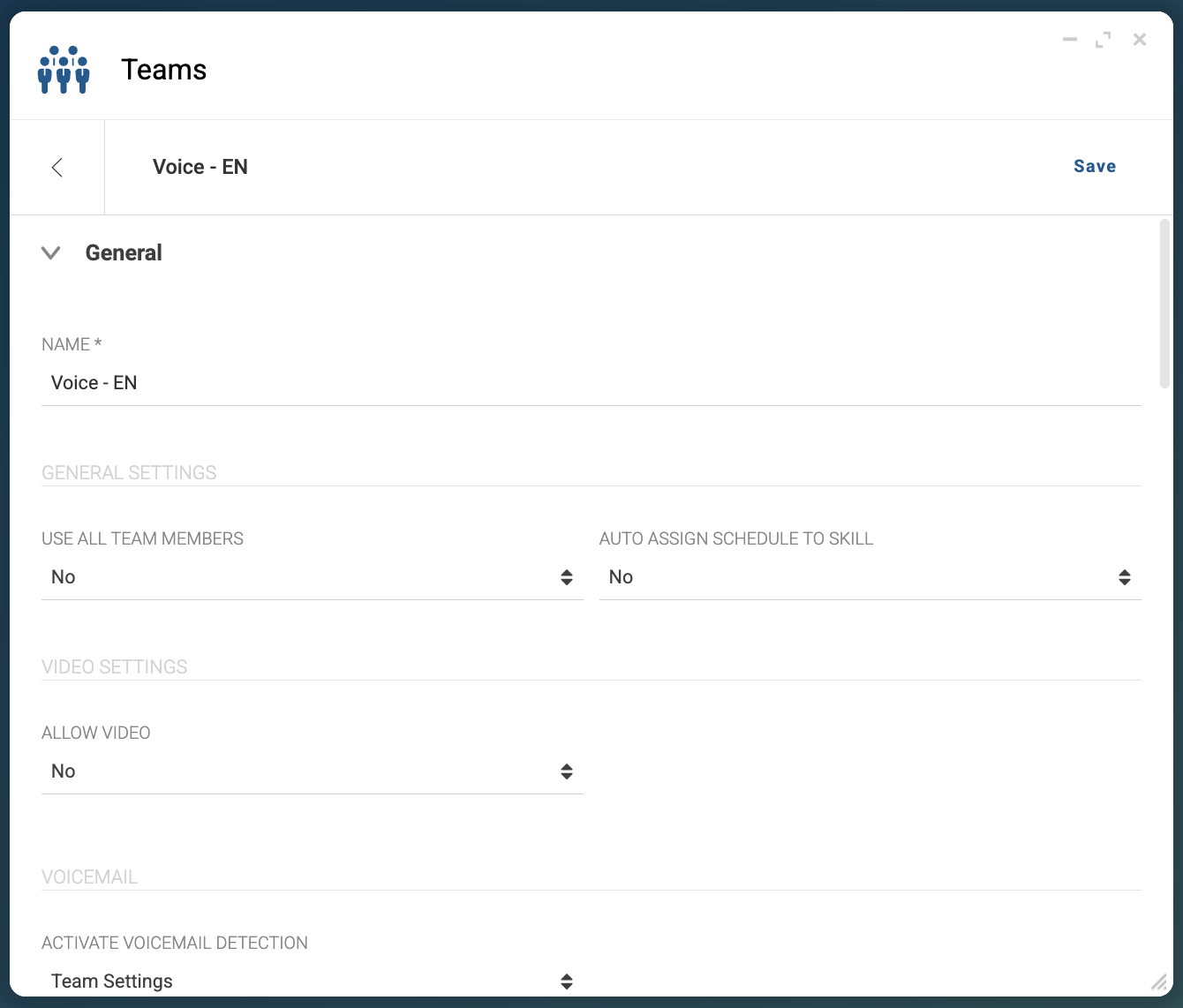
In the Configuration window, fill the following fields:
-
NAME: Give a name to the skill. For example,
Voice - EN. -
TYPE: Select the skill type for the skill. Only activated skill types appear in the dropdown menu. For example,
Voice.
-
-
In the top right corner, click Save.
After clicking Save, the new skill configuration window appears and
you can continue configuring the skill and add users to it.
4. Edit the user
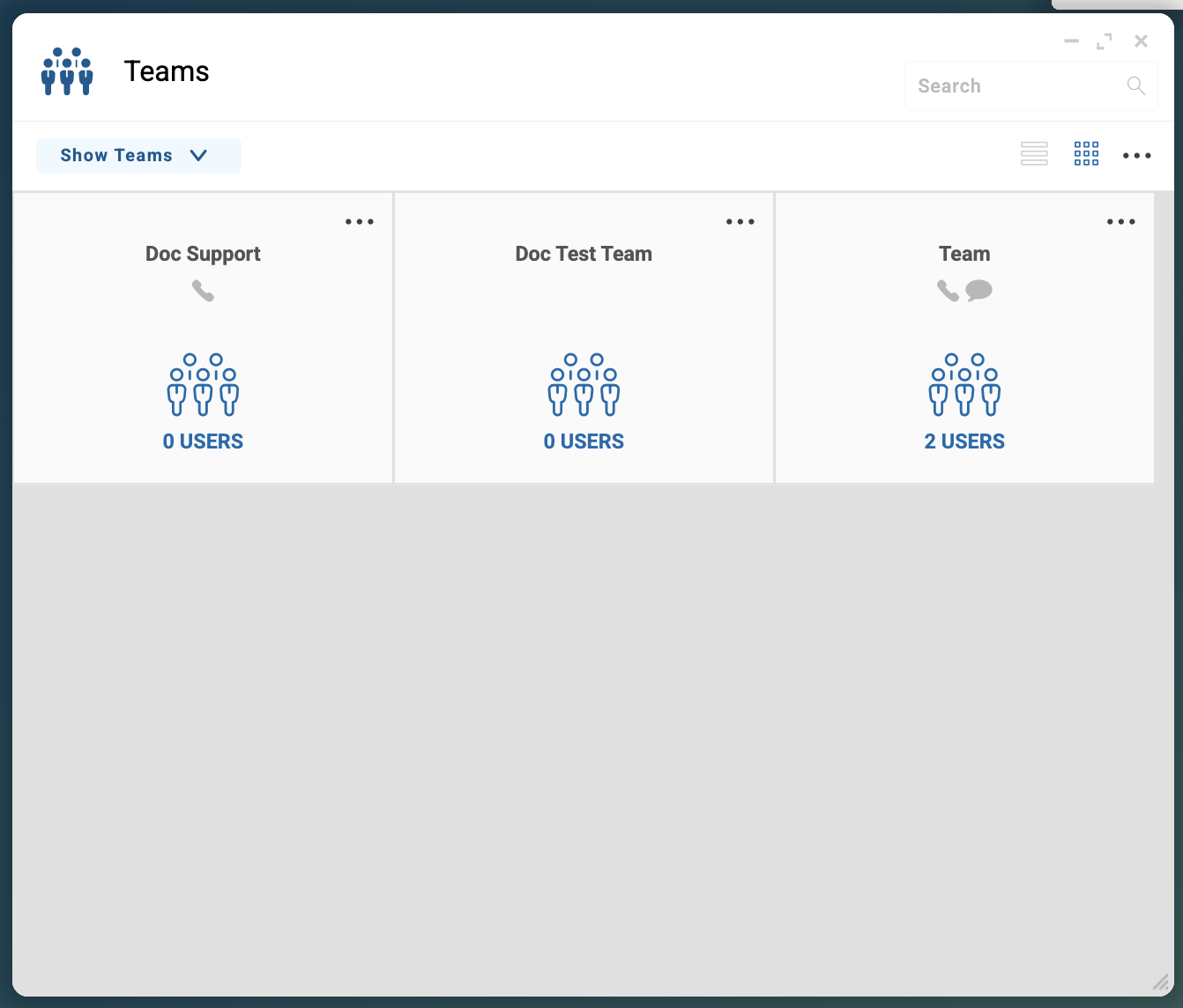
In the Teams app window, proceed as follows:
-
On the top left corner, click Show Teams
-
From the dropdown menu, select SHOW USERS.
-
Locate the user you want to assign to the created skill. For example,
John Smith. -
On the top right corner of the user tile, click ….
-
From the dropdown menu, click EDIT.
Note that
John Smithmust be assigned to theDoc Supportteam and must be a supervisor or an operator.
5. Assign the user to the skill
-
In the top of the user window, click Skills.
-
Select the skill you want to assign to the user. For example,
Voice - EN. -
In the top right corner, click Save.
The name of the skill will appear below the picture of the user.
Result
After clicking Save, CCAS assigns the user to the skill.
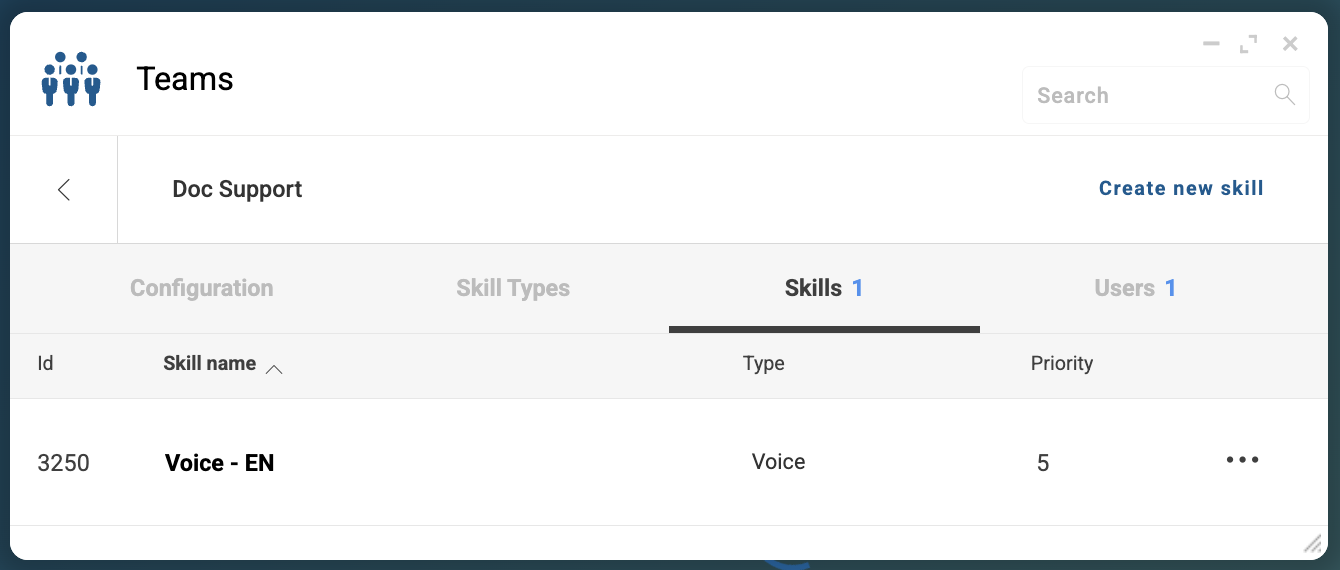
In the top of the Skills tab, you will see a 1 next to the word
Skills indicating that the team has 1 user with, at least, a skill.