Creating a New Team
Learn how to create a team with voice skill type.
Prerequisites
-
Have a user with:
-
Permissions to use the Contact Center and Analytics Studio (CCAS).
-
Group Supervisor or Manager.
-
-
Have the user logged in to the CCAS.
TIP: Open the CCAS while following this how to guide.
Steps
1. Open the Teams app
-
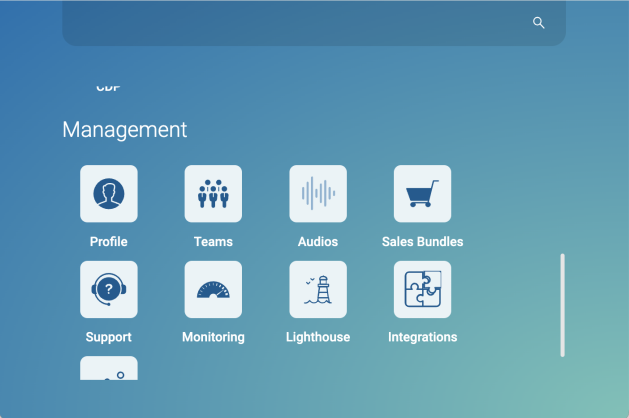
In the bottom left corner of the CCAS desktop, click the icon App (
 )
) -
Scroll down until you see section Management.
-
Select Teams to open the Teams app.
2. Open the new team window
-
In the top right corner of the Teams app, click menu ….
-
From the dropdown menu, select NEW TEAM.
The new team window drops down.
3. Enter the new team information
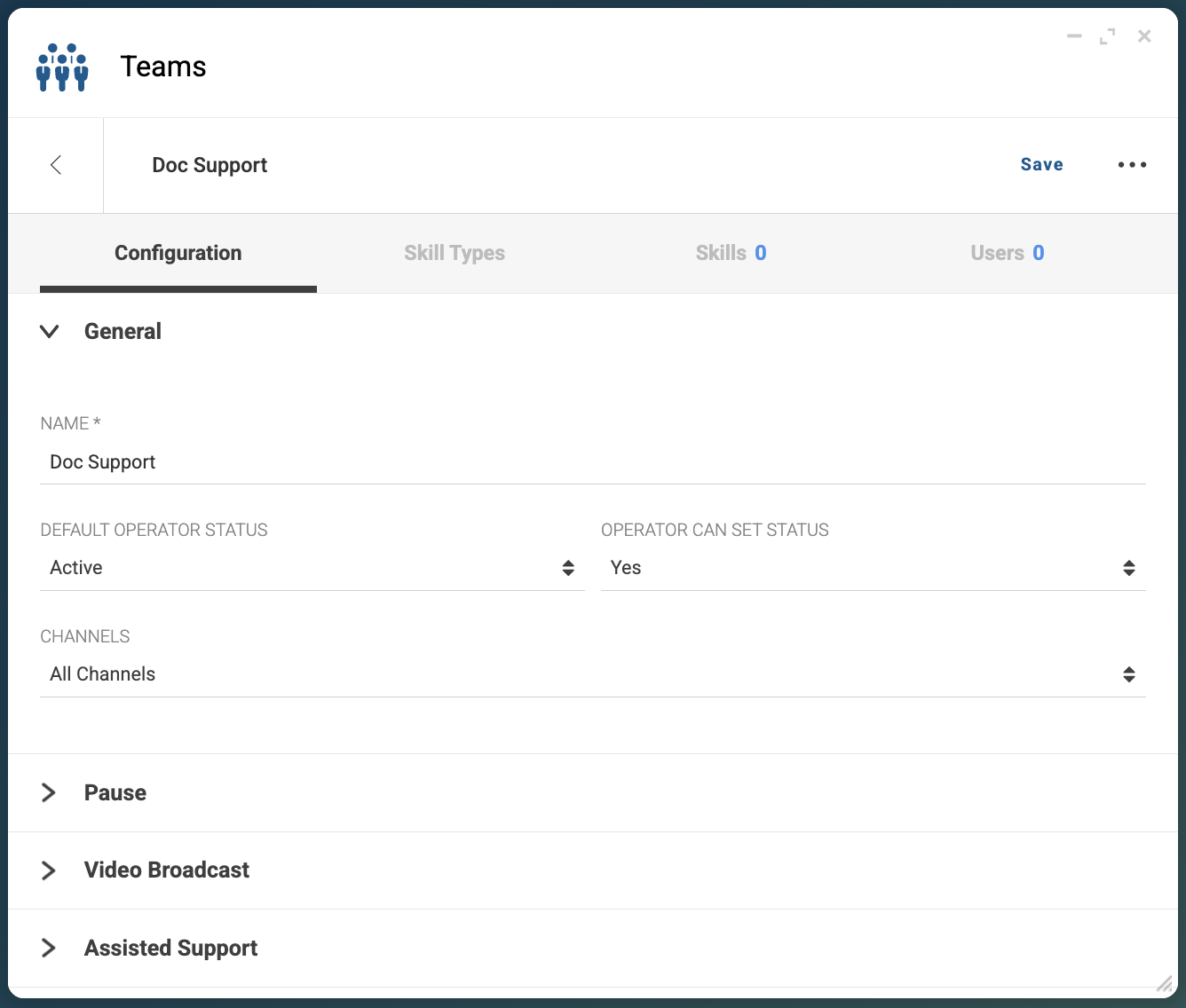
On the New Team window, fill the following fields:
-
NAME: Write the name of the team. For example,
Doc Support. -
DEFAULT OPERATOR STATUS: Define the status of operators when operators login. For example, select
Active. In this case, when operators login, they automatically become ready to handle interactions. -
OPERATOR CAN SET STATUS: Define if the operator can change the operator status. For example, select
Yes. In this case, the operator can change the operator status betweenActiveandPause.
In the bottom right corner of the New Team window, click Create.
Result
CCAS creates the new team named Doc Support and opens the
Configuration tab for additional configurations.