Activating a Campaign
Learn how to activate your outbound email campaign.
Prerequisites
-
Make sure the user has:
-
Permissions to use the Engagement Studio.
-
Group Manager role.
-
-
Make sure the user logs in to the Engagement Studio.
TIP: Keep the Engagement Studio open as you follow this guide.
⚠️ Activating a campaign will send the email to all contacts in the contact list associated with the campaign. You cannot use the same campaign to send another email.
If you want to send another email, you need to create a new campaign. Typically, duplicate the campaign you just created, change the email body, and use the same contact list.
Note that Engagement Cloud loads contacts in batches. If the contact list is not the correct one or the email body contains wrong content, you cannot stop the campaign before Engagement Cloud finishes sending the batch. Make sure to validate all settings before activating the campaign.
Steps
1. Open the New campaigns window
-
Click the icon
 in the left side menu of Engagement Studio.
 -
Select Campaigns from the left side menu to open the Engagement page.
-
Click the name of the campaign that you want to activate. For example,
EC Updates - April.
2. Activate the campaign
Validate all the settings, especially the email body and the contact list, to make sure they are correct before activating the campaign.
⚠️ Engagement Cloud is able to send around 3500 emails per minute. If the email body contains wrong content or the contact list is not the right one, Engagement Cloud can send a large number of wrong emails before you can stop the campaign.
-
Click the activation button in the Campaign information window.
-
Click Accept in the confirmation dialog.
Result
After clicking Accept, Engagement Cloud activates the campaign and
starts sending the email to contacts in the contact list. For each
contact, Engagement Cloud retrieves the name from the Name and
Email of the contact from the contact list.
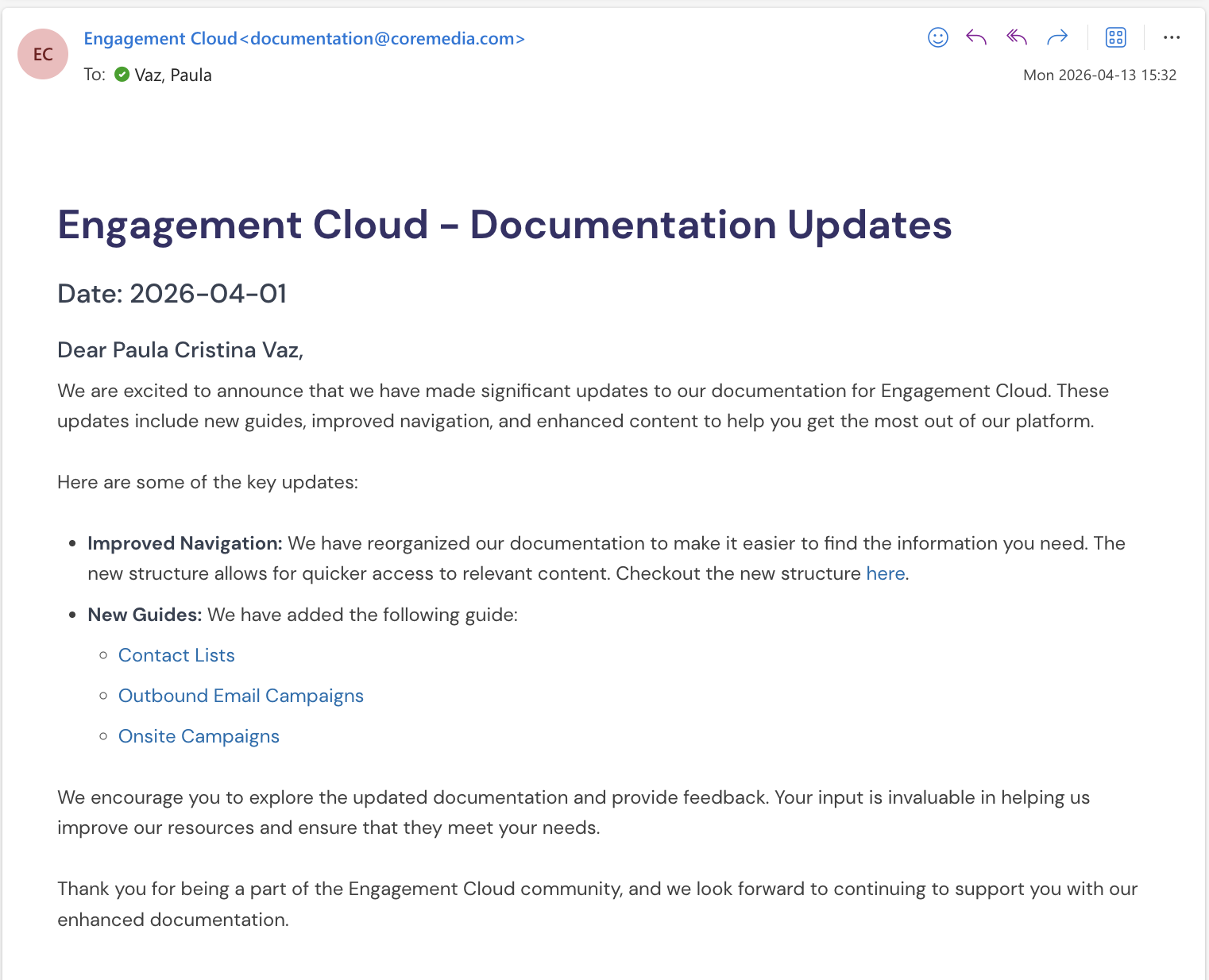
Engagement Cloud uses the email address to send the email and the name
to personalize the email body. Below is an example of an email that a
contact in the contact list receives. Engagement Cloud personalizes the
email body with the contact’s name, which is Paula Cristina Vaz in
this example.