Creating an Outbound SMS Campaign with Callback
Learn how to create an outbound SMS campaign with callback to allow users to contact a skill.
Prerequisites
-
Make sure the user has:
-
Permissions to use the Engagement Studio.
-
Group Manager role.
-
-
Make sure the user logs in to the Engagement Studio.
TIP: Keep the Engagement Studio open as you follow this guide.
Steps
1. Open the New campaigns window
-
Click the icon
 in the left side menu of Engagement Studio.
 -
Select Campaigns from the left side menu to open the Engagement page.
-
Click ➕ Add in the top right corner of a Campaign list panel.
2. Fill in the campaign information
-
Fill in the campaign information in the New campaign window:
-
Name: Enter a name for the outbound SMS with callback campaign. For example,
EC Support. -
Type: Select
OffsiteandSMS with Callback. -
Contact list: SMS with Callback campaigns must be associated with a contact list. Select
-new contact list-to create a new contact list or select an existing contact list from the dropdown menu. If you select-new contact list-, Engagement Cloud will create a contact list with the same name as the campaign. -
From: Enter the sender’s name or phone number that will appear in the SMS. For example,
CoreMedia. -
Message: Enter the SMS content to send to contacts. For example,
Hi [[[name]]], click [[[CALLBACK_URL]]] to request a call from our support team.
-
-
Click Accept on the bottom right corner of the New campaign window.
-
Click Save campaign on the top right corner of the Campaign information window.
⚠️ The
Messagefield has a character limit of 160 characters. If the message exceeds this limit, Engagement Cloud splits the message into more than one SMS message when sending to contacts, which can result in additional costs.
Note that the
Messagefield has personalization fields like[[[name]]]in the example above. When sending the SMS to contacts, Engagement Cloud replaces the personalization fields with the corresponding values in the contact list. If the name is long enough, it can cause the message to exceed the character limit.
If you use unicode, the character limit is reduced to 70 characters. If the message exceeds this limit, Engagement Cloud splits the message into more than one SMS message when sending to contacts, which can result in additional costs.
3. Validate the campaign and the contact list
-
Click Back to list.
-
View the campaign in the campaign list.
-
Verify if a contact list with the same name exists in the contact list panel.
Result
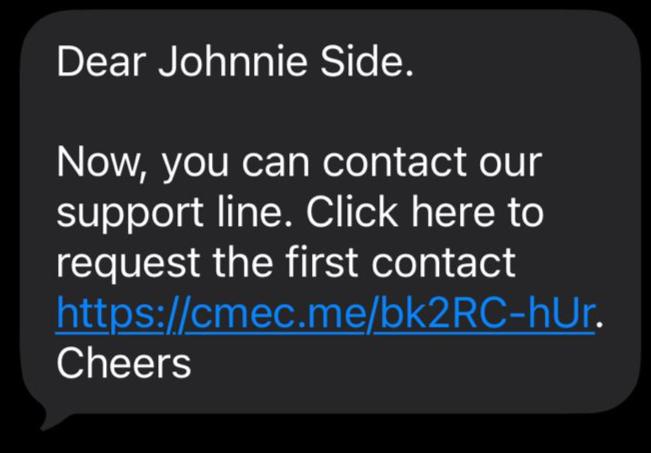
After clicking Save, Engagement Cloud creates the outbound SMS with callback campaign. You can click Back to list and see the outbound SMS with callback campaign in the list.
You can now upload contacts to the contact list associated with the
outbound SMS with callback campaign and compose the SMS message for the
outbound SMS with callback campaign. Note that all contacts should have
a valid phone number in the Phone column to receive the SMS. You can
also activate the outbound SMS with callback campaign to send an SMS to
contacts in the contact list.
If you include field [[[CALLBACK_URL]]] in the SMS message,
Engagement Cloud replaces this field with a unique callback URL for each
contact. When the contact clicks the callback URL, Engagement Cloud
registers the click and the Call Center can call the contact back to
provide assistance.