Creating a Push Notifications Campaign
Create a push notifications campaign to send notifications to your visitors and configure what the visitor will see in notifiation.
Prerequisites
-
Ensure the user has:
-
Permissions to use the Contact Center and Analytics Studio (CCAS).
-
Manager role.
-
-
Ensure the user is logged in to the CCAS.
TIP: Open the CCAS while following this how-to guide.
Steps
1. Open the Camapigns app
-
Click
 in the left sidebar of the CCAS desktop.
 -
Click
in the top right corner of the Campaigns menu.
2. Create a push notifications campaign
-
Click New campaign in the bottom right corner of the Campaigns window.
-
Select
Push notificationsas campaign type in the New campaign window. -
Click
Nextin the bottom right corner of the New campaign window. -
Enter the Name of the campaign. For example,
New documentation notification. -
(Optional) Add the campaign to a campaign group.
-
Click
Nextin the bottom right corner of the New campaign window.
3. Select the campaign audience
Create rules to define the audience of the campaign. For example, you can create a rule to send notifications only to visitors that have more than 3 visits.
Click Next in the bottom right corner of the New campaign window.
4. Configure the notification
-
Enter the notification information in the Configure notification window:
-
TITLE: Enter the title of the notification. For example,
Engagement Cloud. -
MESSAGE: Enter the message of the notification. For example,
Checkout the new documents in the Engagement section!. -
ICON: Upload the icon of the notification for MacOS users.
-
IMAGE: Upload the icon of the notification for Windows users.
-
URL: Enter the URL that visitors will open when they click the notification. For example,
https://documentation.coremedia.com/engagement-cloud/engagement/.
-
-
Click
Nextin the bottom right corner of the Configure notification window.
5. Schedule the campaign
Schedule the campaign to start immediately or at a specific date and time.
After the campaign starts, you cannot change or delete the campaign.
Result
Engagement Cloud creates the campaign and shows it in the campaign list in the Campaigns app. The campaign will start at the scheduled date and time and send notifications to visitors that match the audience rules.
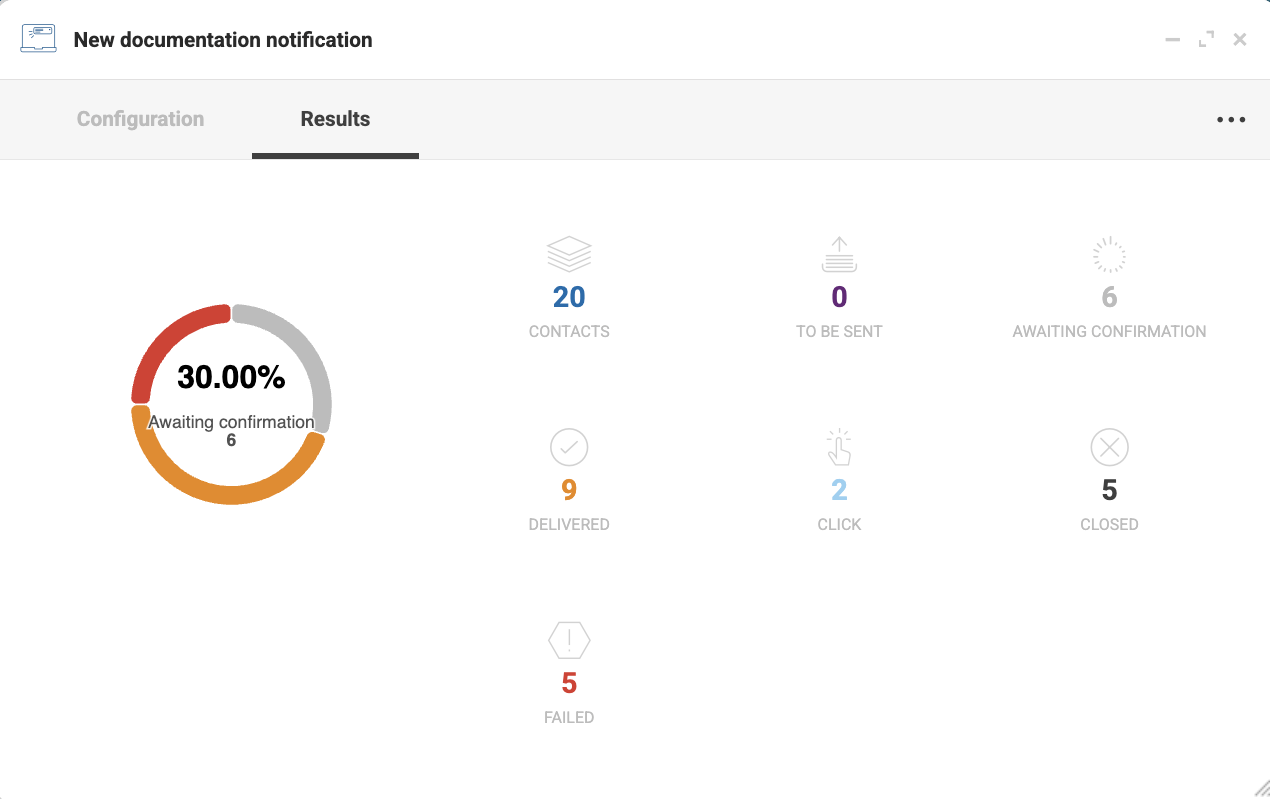
After the campaign finishes, open the campaign in the Campaigns app to check the results.