Creating Segments from a Template
Use pre-defined templates to segement visitors and create more personalized and effective marketing campaigns.
Prerequisites
Before you start:
-
Have a user with:
-
Permissions to use the Engagement Studio.
-
Group Supervisor or Manager.
-
-
Have a user logged in to Engagement Studio.
-
Open Engagement Studio while following this how to guide.
Steps
1. Open the segment management window
-
Click on the Settings icon (
 )
in th left side menu of Engagement Studio menu.
)
in th left side menu of Engagement Studio menu. -
Select Segmentation.
-
Select Segments.
The Settings - Segmentation page opens with a Segments management panel.
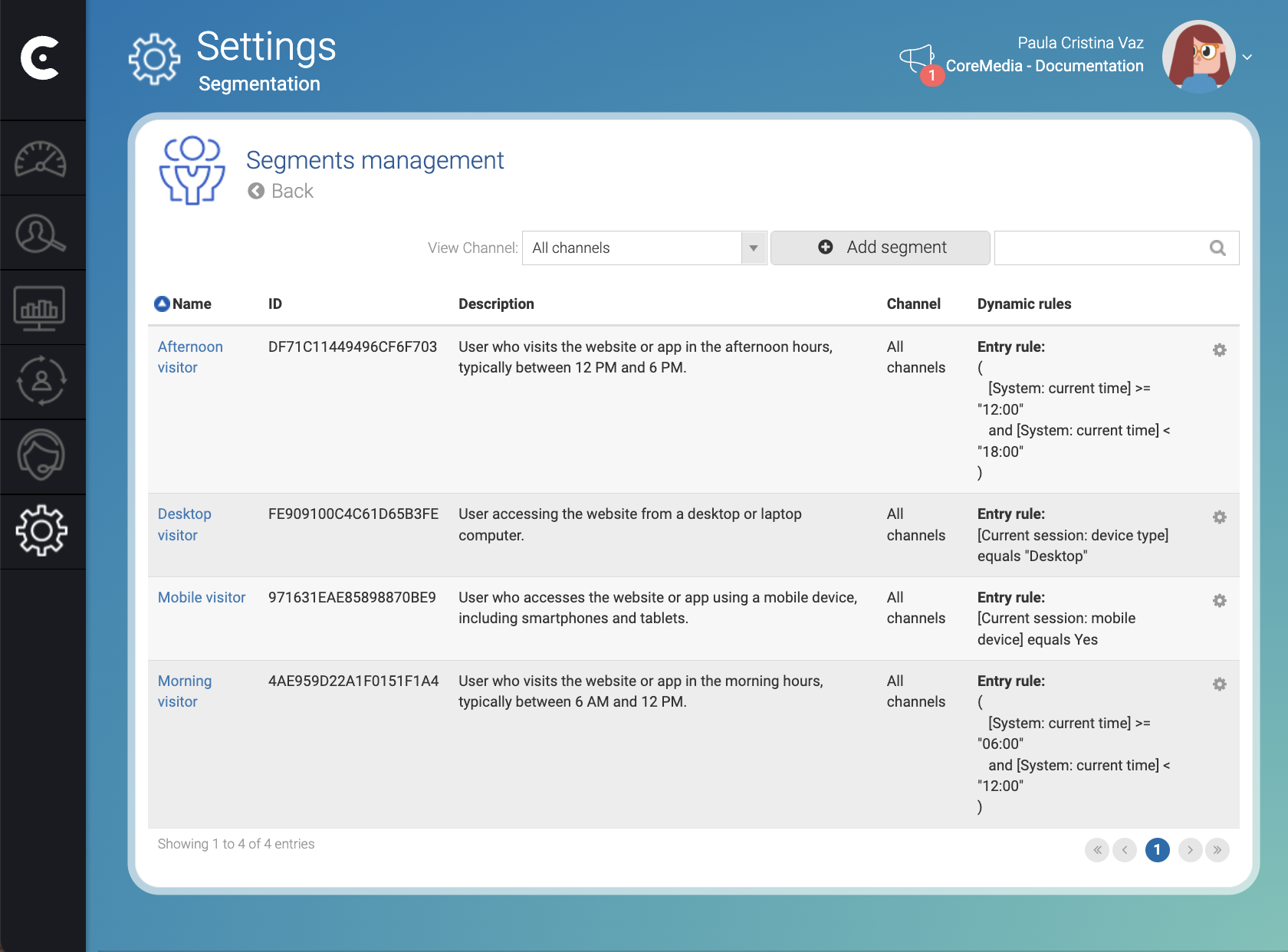
2. Add a new segment
-
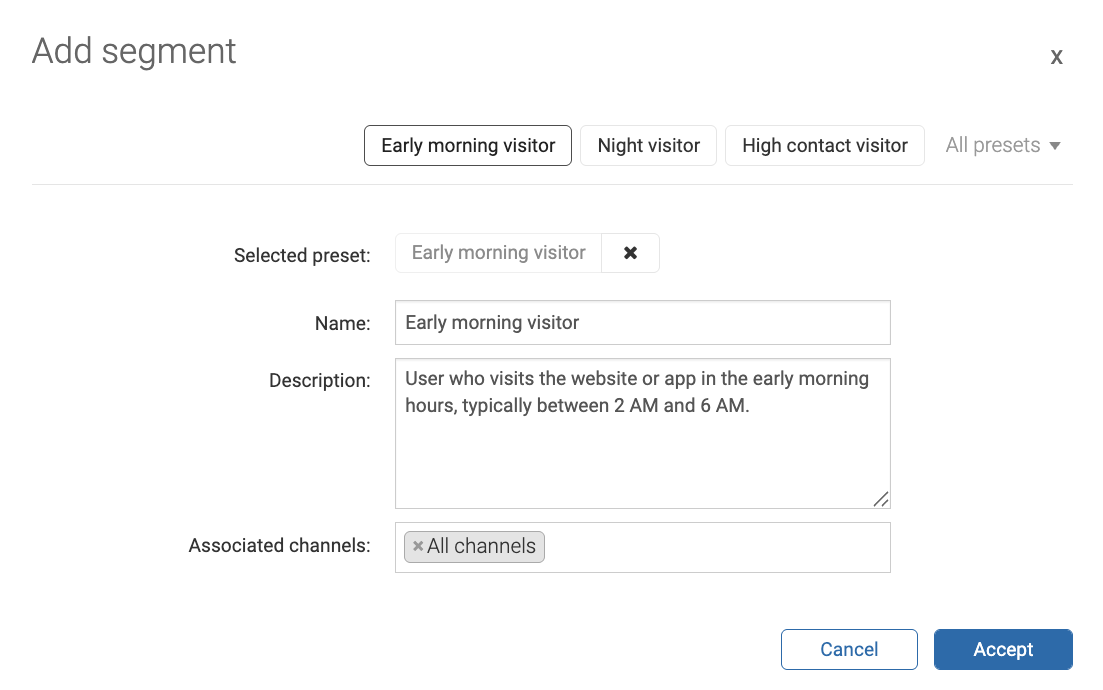
In the top right corner of the Segments management panel, click Add Segment.
-
In the Add segment window, click Presets to select a template. For example,
Early morning visitor. -
In the bottom right corner of the Add segment window, click Accept.
-
Adjust the conditions in the Entry rule and Exit rule tabs.
-
In the top right corned of window Edit segment, click save.
Related link: Segment Presets
Result
After you click Save the Engagement Cloud creates the segment and starts collecting visitors that match the entry rule conditions.
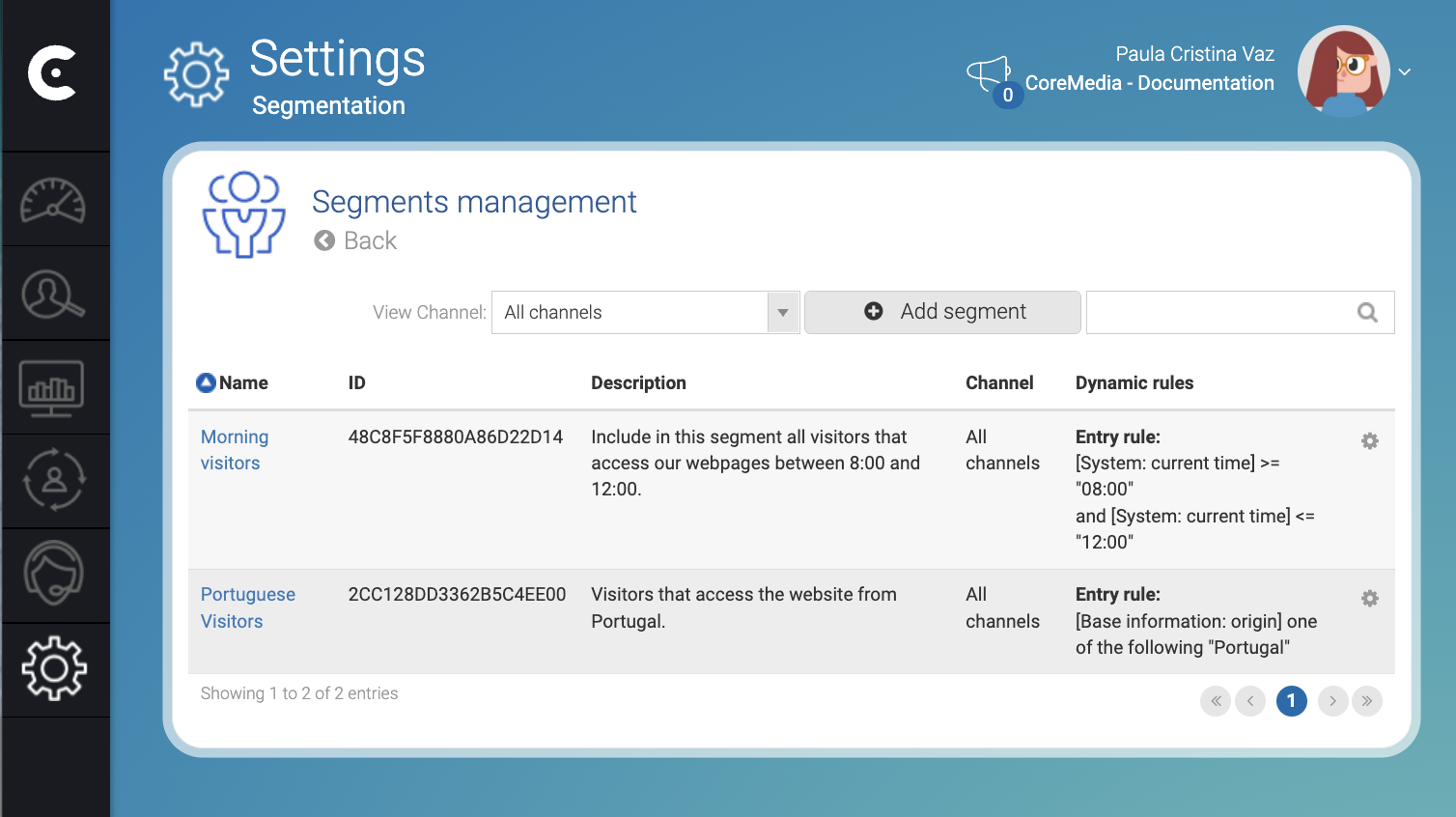
In the Edit segment, click Back to list (top left corner) to view the list of existing segments. You can now target the segment in campaigns.
Wait a few minutes, then create a Visitors listing panel in the
Contact Center and Analytics Studio. Add the segment columns to the
panel to view which visitors were associated with each segment.
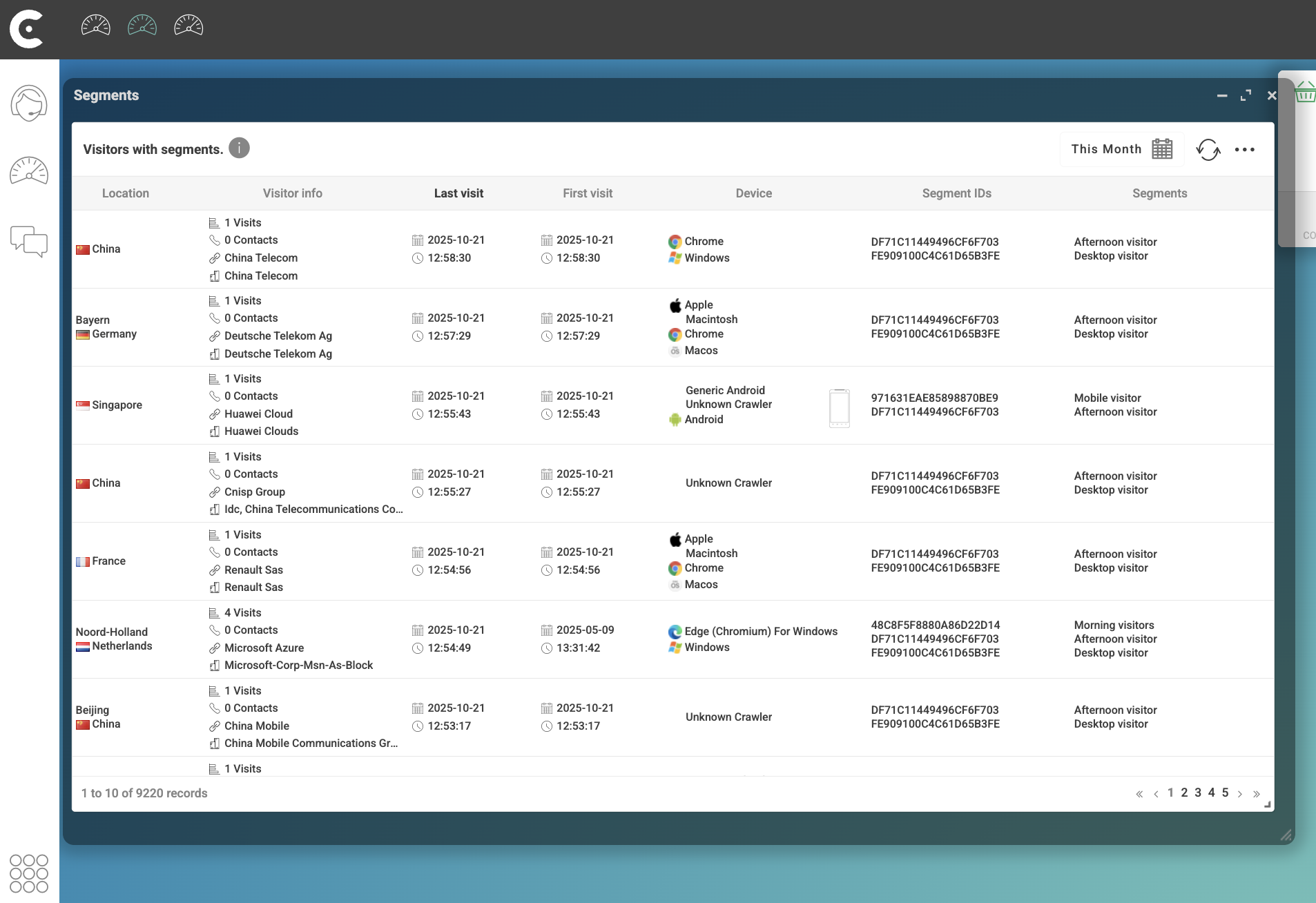
Visitors might not appear in segment panels right away. Engagement Cloud may take a few minutes to update the display.