Adding Aggregation Fields to an Aggregation Panel
Learn how to group metric values by value in a aggregation field in an aggregation panel.
Overview
Use aggregation fields to group metric values.
Prerequisites
-
Have a user with permissions to use Contact Center and Analytic Studio (CCAS).
-
Have a user with permissions to manage panels.
-
Have created, at least, a dashboard and an aggregation panel.
Steps
1. Edit the aggregation panel
-
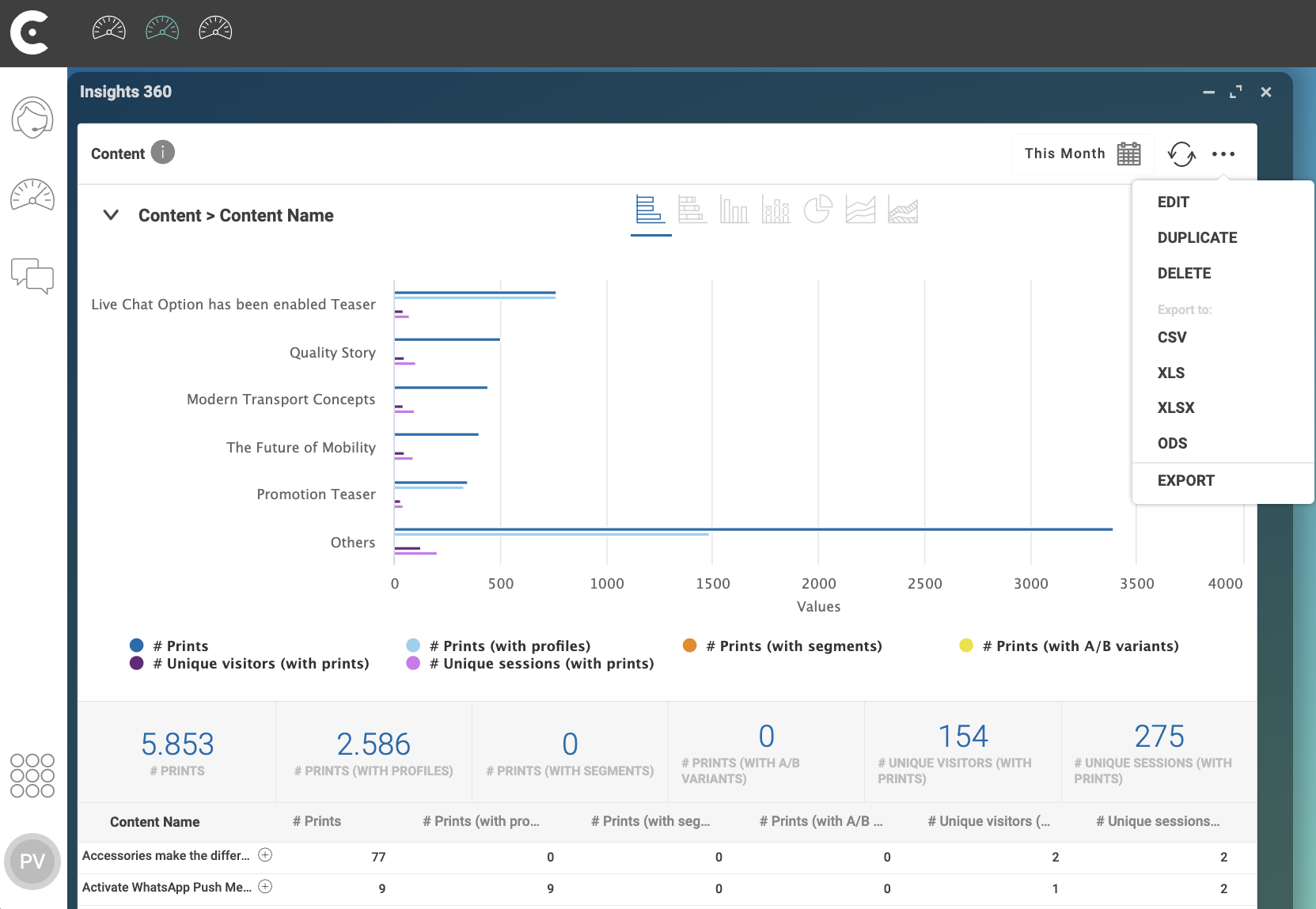
In the top right corner of the aggregation panel, click menu …
-
In the dropdown menu, select EDIT.
-
In window Configuration: Aggregation panel, select tab Metrics.
2. Select the aggregation field
-
In the top right corner of tab Metrics, click button Add.
-
In the dropdown menu, select AGGREGATION FIELD.
CCAS adds a new aggregation field to panel with the name of the first row in the aggregation field list. For example, for panel Content, the name of the added aggregation field is A/B Test ID.
-
Click on the name of the added aggregation field to open the available aggregation fields list.
-
Proceed as follows:
-
Start writing the name of the aggregation field that you want to add.
-
Browse the list of available aggregation fields.
-
-
Select the aggregation field. For example,
Content Type. -
Click button Save and Close.
Result
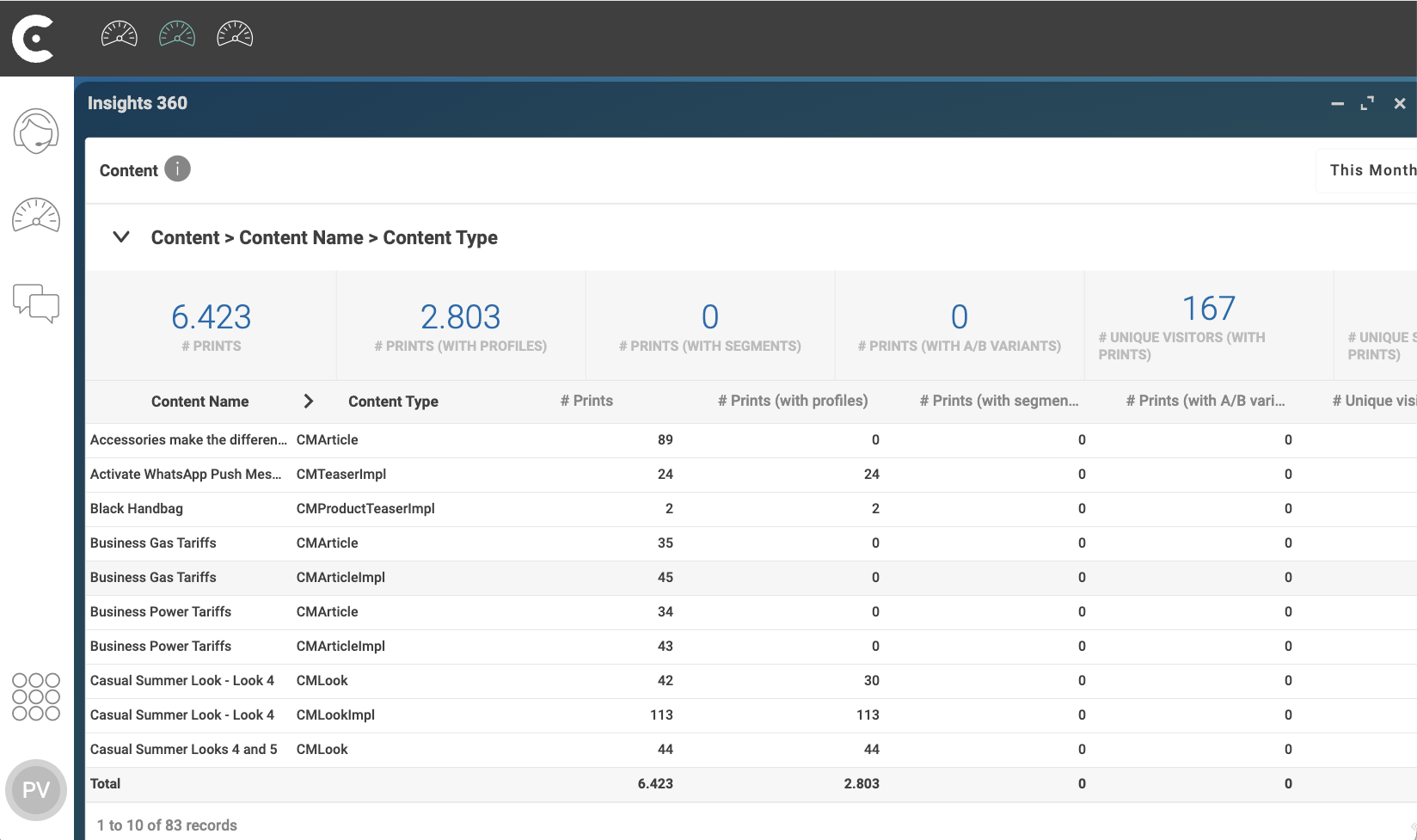
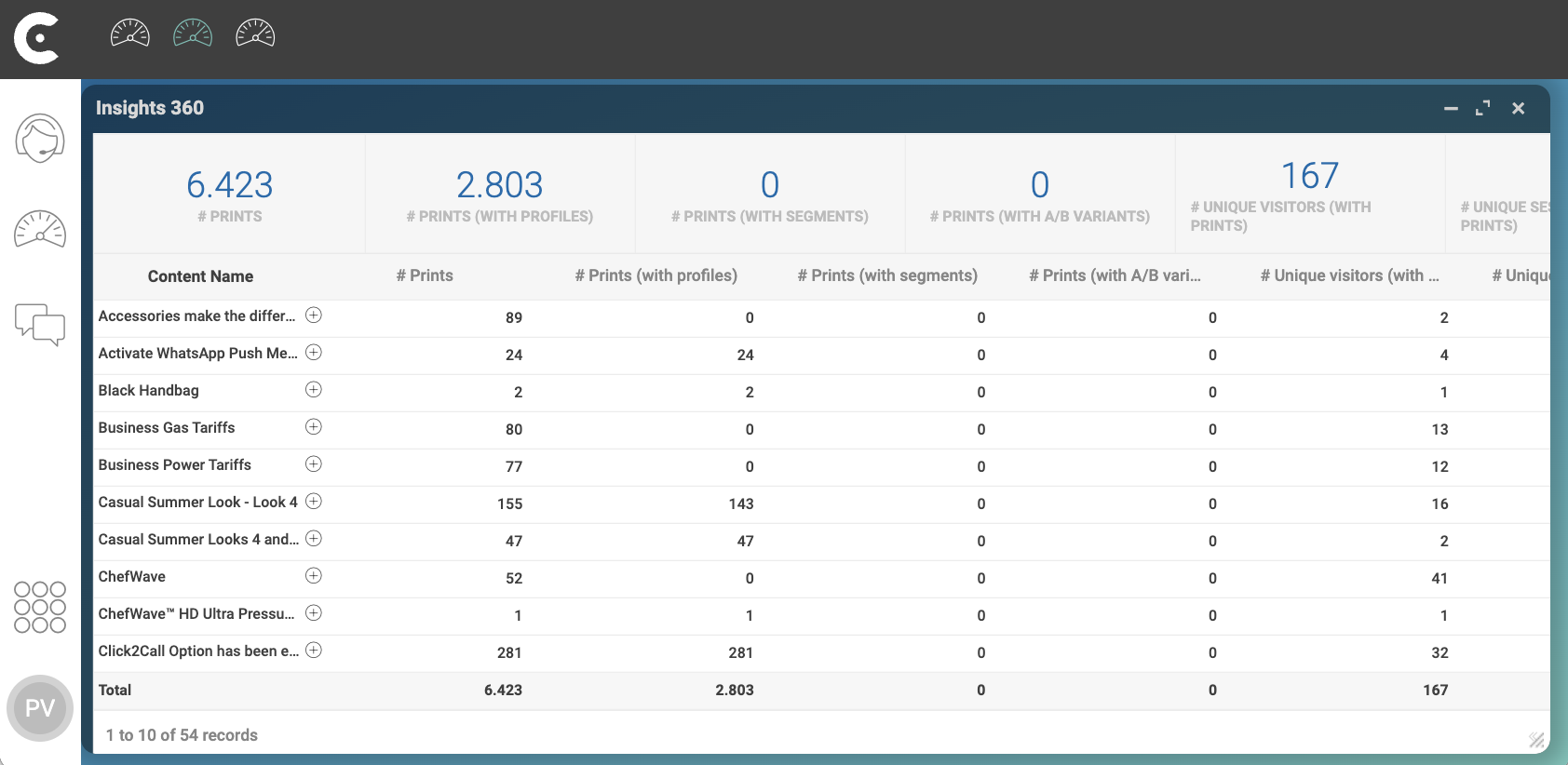
Before adding the new aggregation field, CCAS was using the Content Name to group metric values. For example, content Business Gas Tariffs had a total of 80 prints and Business Gas Power had a total of 77 prints.
After clicking button Save and Close, CCAS starts using also the Content Type to group metric values. For example, both Business Gas Tariffs and Business Power Tariffs have content of types CMArticle and CMArticleImpl with the following values:
-
Business Gas Tariffs
| Content Type | # Prints |
|---|---|
|
35 |
|
45 |
Total # Prints: 35 + 45 = 80
-
Business Power Tariffs
| Content Type | # Prints |
|---|---|
|
34 |
|
43 |
Total # Prints: 34 + 43 = 77