Adding Calculated Metrics to an Aggregation Panel
Learn how to calculate new metrics by row.
Prerequisites
-
Have a user with permissions to use Contact Center and Analytic Studio (CCAS).
-
Have a user with permissions to manage panels.
-
Have created, at least, a dashboard and an aggregation panel.
Steps
1. Edit the aggregation panel
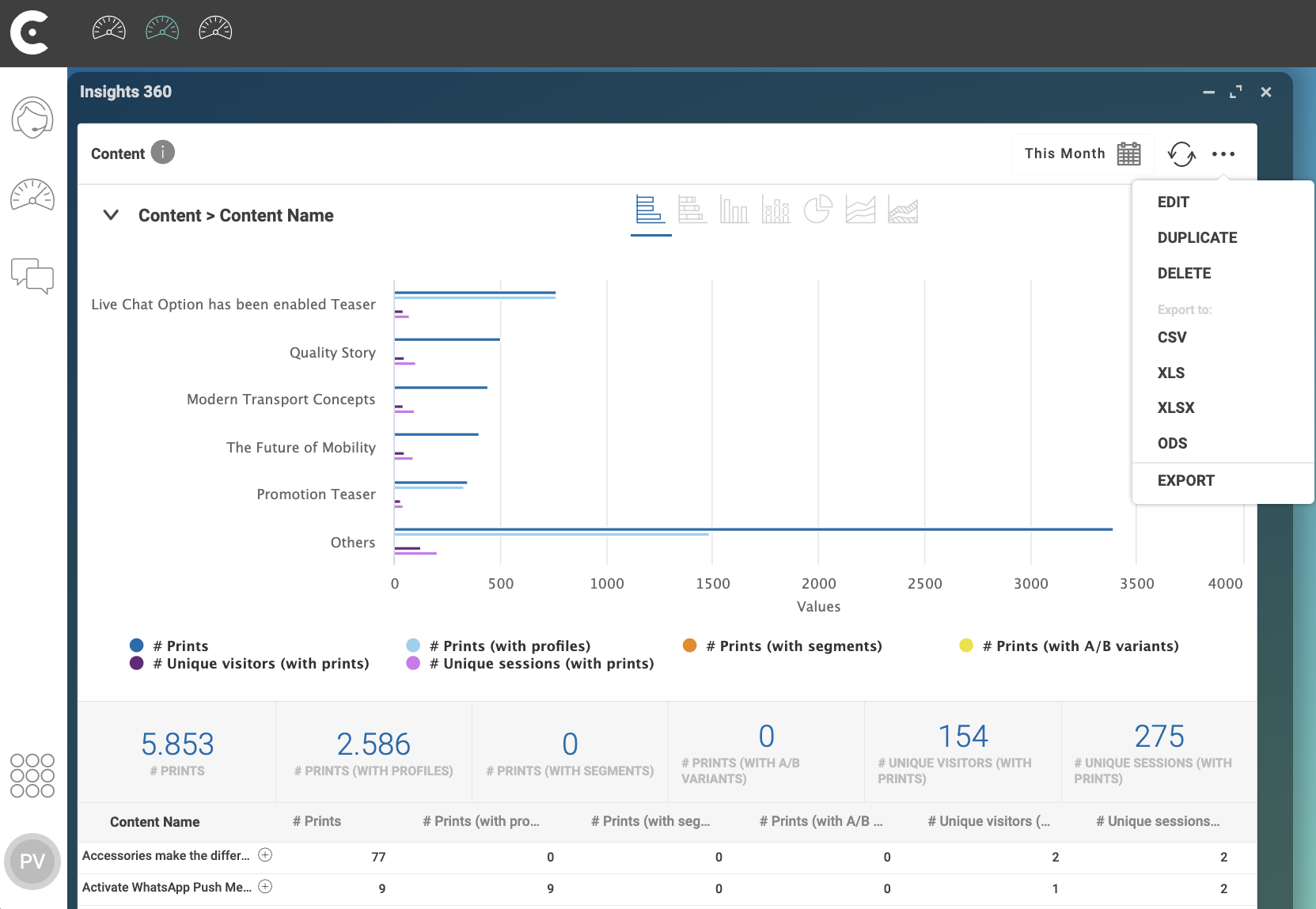
-
In the top right corner of the aggregation panel, click menu …
-
In the dropdown menu, select EDIT.
-
In window Configuration: Aggregation panel, select tab Metrics.
2. Open the editor
-
In the top right corner of tab Metrics, click button Add.
-
In the dropdown menu, select CALCULATED METRIC.
-
Use the editor to compose the metric.
-
Click button Save.
TIP:
To edit the name of the calculated metric, click Calculated Metric and write the new name.
The calculated metric appears in the list of metric in tab Metrics.
Click button Save and Close
Result
After clicking button Save and Close, you can view the calculated metric in the panel. Note that calculated columns present results by row.

NOTE:
Prints are also called Impressions in the CCAS UI.