Adding Metrics to an Aggregation Panel
Add more metrics to aggregation panels to have more information about your data and the performance of your business.
Prerequisites
-
Have a user with permissions to use Contact Center and Analytic Studio (CCAS).
-
Have a user with permissions to manage panels.
-
Have created, at least, a dashboard and an aggregation panel.
Steps
1. Edit the aggregation panel
-
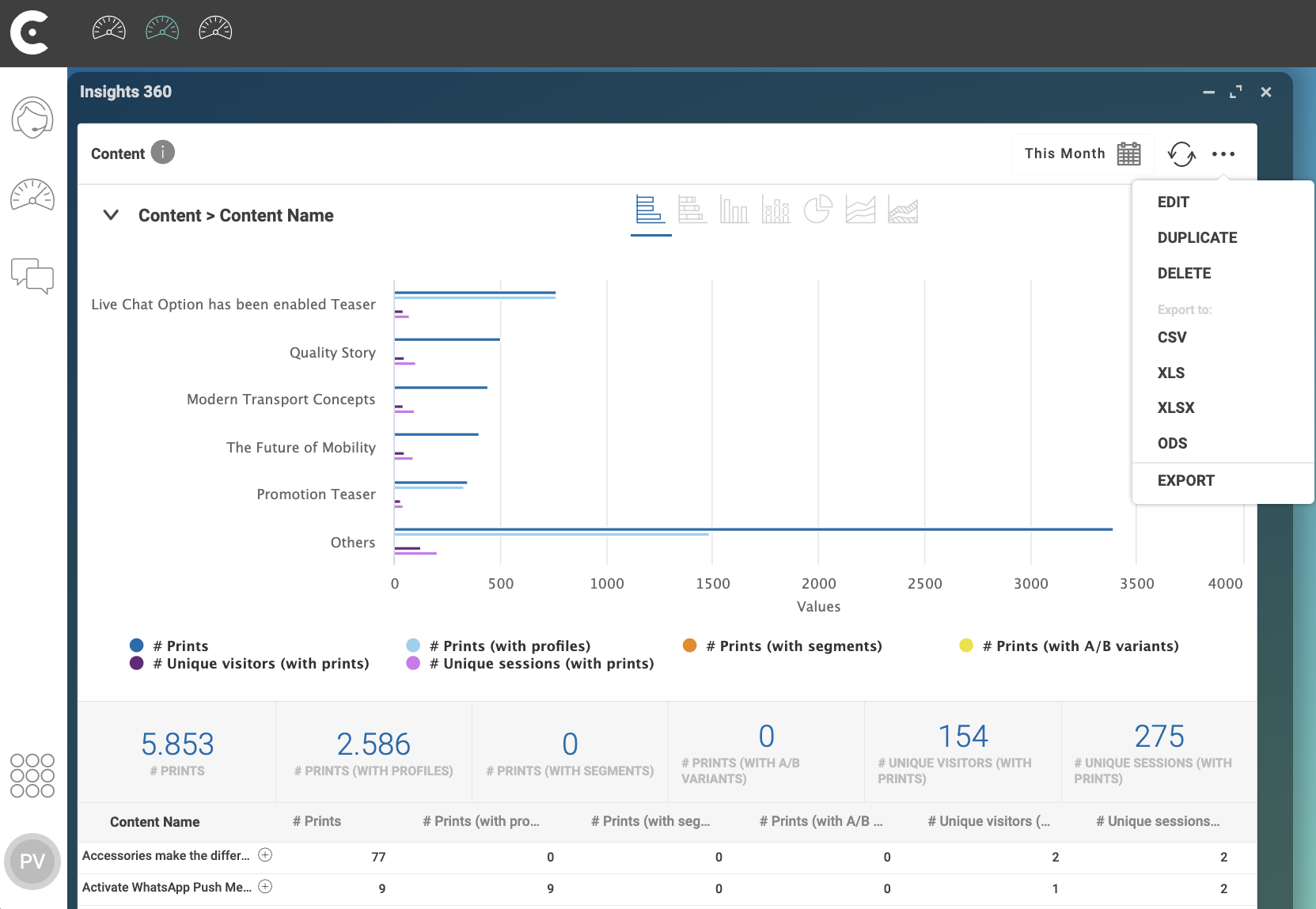
In the top right corner of the aggregation panel, click menu …
-
In the dropdown menu, select EDIT.
-
In window Configuration: Aggregation panel, select tab Metrics.
2. Select the metric
-
In the top right corner of tab Metrics, click button Add.
-
In the dropdown menu, select METRIC.
-
In the top right corner of window Add Metric, use the search box to start writing the name of the metric that you want to add. For example,
unique. -
Select the metric. For example, click
#ofUnique contentsto have the total number of of unique content by content name. -
Click button Add.
-
If you have defined rules, select rules to apply to the metric.
-
Click button Add.
3. Position the metric
After clicking button Add, the added metric appears at the end of the metric list.
-
With your mouse, grab the three horizontal lines (
 ) at the left of the metric name.
 -
Drag and drop the metric to the position where you want it to appear in the panel. For example, drag
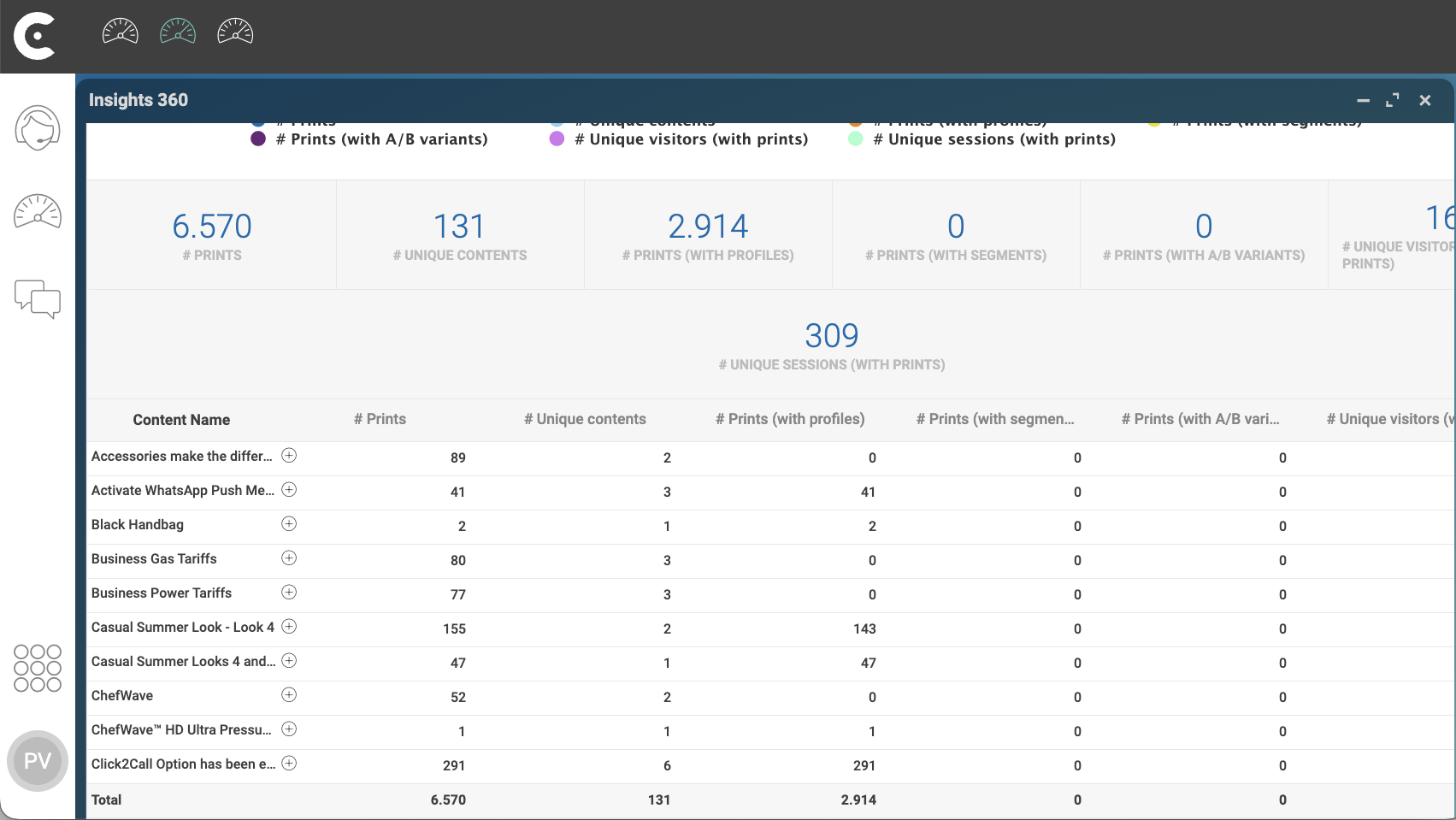
# Unique contentsand place it between metrics# Printsand# Prints (with profiles). -
Click button Save and Close.
If you get an error when trying to save and close, verify if you don’t have any group field empty. Group fields must have at least one metric.
Result
After clicking button Save and Close, CCAS shows the added metric in the chosen position.