Adding Rules to a Metric Panel
Add rules to dimensions in metric panels to filter information that appears in the panel.
Prerequisites
-
Have a user with permissions to use Contact Center and Analytic Studio (CCAS).
-
Have a user with permissions to manage panels.
-
Have created, at least, a dashboard and a metric panel.
Steps
1. Edit the metric panel
-
In the top right corner of the metric panel, click menu …
-
In the dropdown menu, select EDIT.
-
In window Configuration: Metric Panel, select tab Rules.
2. Define the rule
-
In the top write corner of tab Rules, click button Add to add a new rule.
-
Click button Add condition.
CCAS adds a form with dropdonws that allows you to define the conditions of the rule.-
In the 1st dropdown, select the operation to combine more than one conditions. For example,
And. -
In the 2nd dropdown, select the field to apply the condition. For example,
Contact type.
To find fields, start writing the field name. CCAS filters the list of fields with accordance to your input. -
In the 3rd dropdown, select a comparison operator. For example,
Contains. -
In the 4th dropdown, select a value to compare the content of the field. For example,
Chat.
-
TIP: Click on the rule name and write a new name for the rule.
Use meaningful names. For example,
Rule Chat.
3. Apply the rule to one or more metrics
-
In window Configuration: Metric Panel, select tab Metrics.
-
In tab Metrics, select the metric to apply the rule. For example, # Contacts and # Success.
-
Click the dropdown below the metric name.
-
Select the rule. For example,
Rule-A. -
Click button Save and Close.
Result
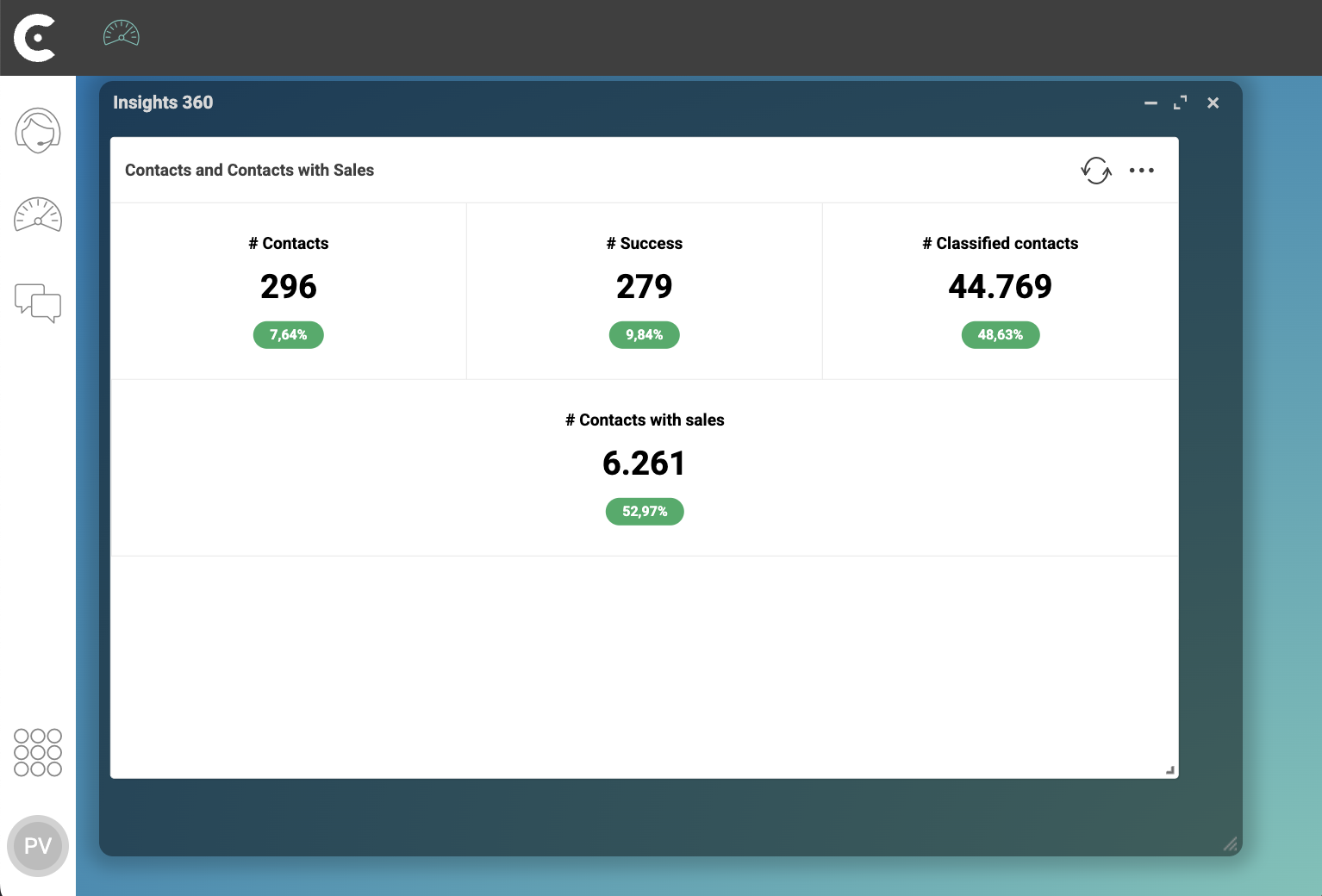
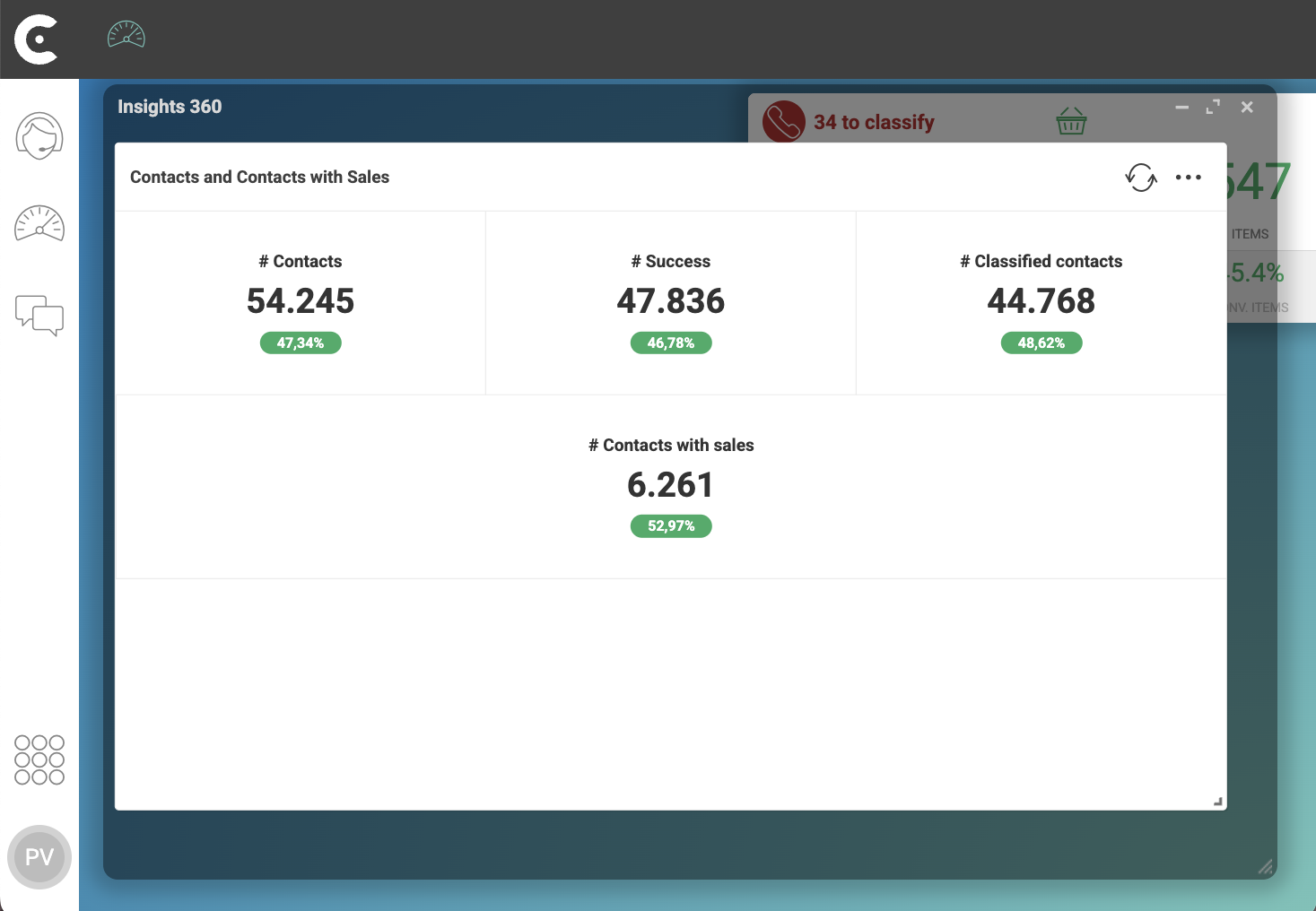
Before applying Rule-A, CCAS shows metrics for all rows.
After applying Rule-A to metrics # Contacts and # Success, CCAS shows the # Contacts and # Contacts just for contacts of type Chat.
For all other metrics, CCAS continues to show values for all types of contacts.