


Studio User Manual / Version 2512.0
Table Of ContentsThe Library gives you several options to find the content items you are looking for:
Navigating using the tree view
Finding content in the recycle bin
Sorting content in columns
Hiding columns
Full-text search of specific content types and semantic search as described in Section 4.3.2, “Searching in the Library”.
Hiding columns
In order to get a better overview, you can hide columns from the content lists in the Library.
To do so, hover over a column head. An arrow appears on the right side of the head. Click the arrow and a menu opens up. Select and uncheck the columns you want to hide.
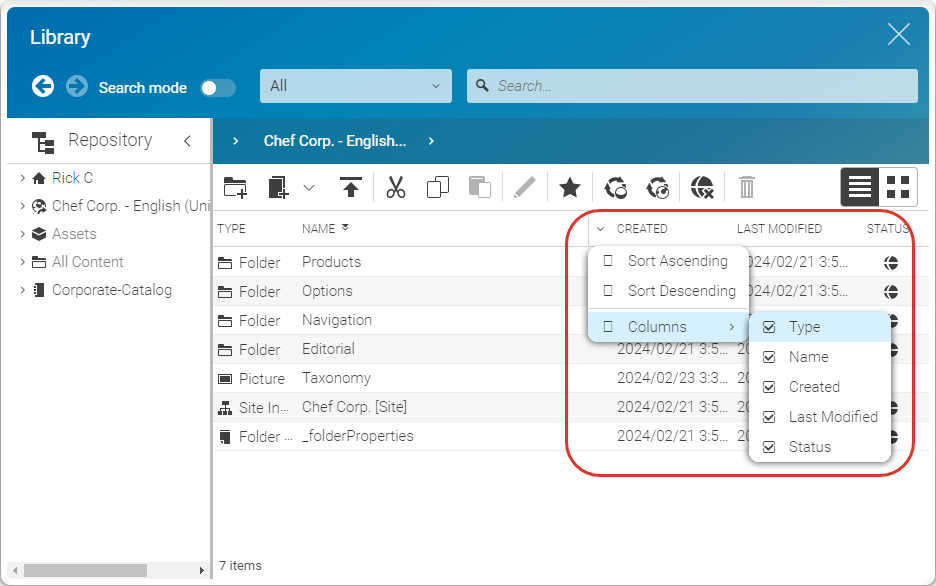
Sorting by column
You can sort your lists in the Library or change the order by clicking a table header.
Using the browse mode to navigate
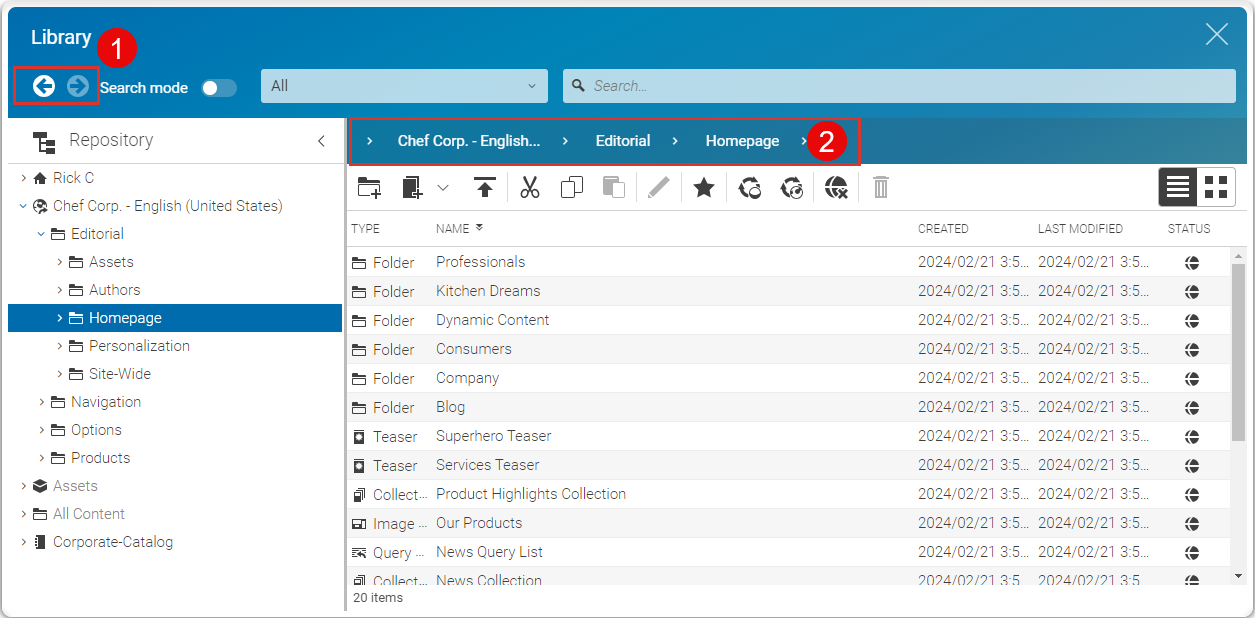
The tree panel in the library mode displays all the CMS content that matches your permissions. Navigating in the view is like Windows Explorer. You can use the arrows (1) to browse in the navigation history. You can also use the breadcrumb navigation to navigate through the folders. The content type selected in the search and navigation bar has no effect while navigating in library mode.

Note
If a folder name is prefixed with an ">" icon, this usually indicates that the folder has subfolders. However, note that the system initially shows all folder names prefixed with an ">" icon to save time. A check for subfolders is made only when the folder is opened.
