


Studio User Manual / Version 2512.0
Table Of ContentsUse the CoreMedia Content Hub to browse, search, preview, and import content from external systems.

Note
For step-by-step instructions, see the Content Hub How-To Guide.
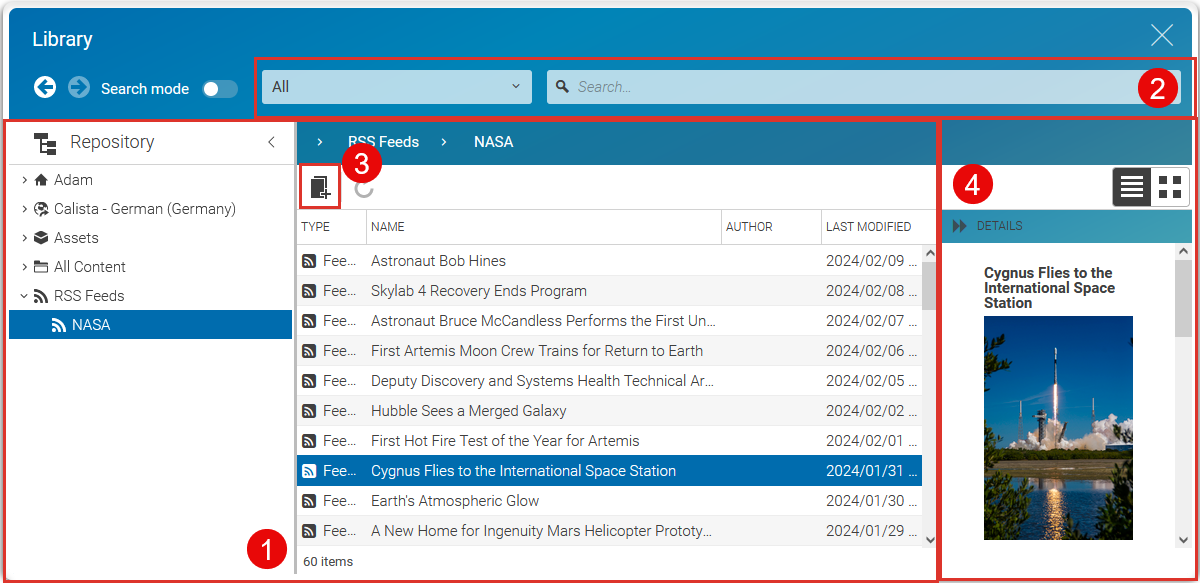
The Content Hub displays each configured external system on the left side of the library tree. You can navigate within the external system and, if the search bar is enabled, search for content. Depending on the external system, searching within subfolders may not be supported.
The following table provides an overview of the Content Hub feature set:
| Feature | Description |
|---|---|
| Browsing | The external system can be browsed via the library tree or by navigating through the folders in the main section of the library |
| Search | If the search bar is not disabled when selecting a folder in the left library tree, it is possible to search within the external system. Some systems do not offer a search below a specific folder. If that is the case, the breadcrumb of the search will indicate it. |
| Content Import | With the Content Hub, you can import content from an external system into CoreMedia by simply dragging it into a CoreMedia folder. Content can also be imported using the Create new content button in the Library toolbar. |
| Preview | The Content Hub defines a new preview panel on the right site of the library. This preview panel offers a detail view of the selected Content Hub item or folder. The details that are shown need to be configured according to the Studio Developer Manual (Section Content Hub). |
Table 2.3. Content Hub Feature Set
