


Studio User Manual / Version 2512.0
Table Of ContentsThe Library gives you several options to find the content items you are looking for:
Full-text search of all content items in the CMS and the eCommerce catalogs.
Full-text search of specific content types
Full-text search below a specific folder
- Semantic search which does not search for exact keywords but for content which matches the meaning of your search terms. So, when you search for "kitchen scenes", you will get content items which are related to kitchen scenes, even when the word "kitchen" or "scene" is not explicitly mentioned in the content item. This does not only search in text content but also in pictures!
Filtering results by status and the content item's last editor, for example.
Search in the Library
In the Library, you can either perform a full-text (keyword) search or a semantic (based on the meaning) search. With full-text search, you can search for a specific keyword or phrase in the name and all fields of all selected content items. When you know the keyword, this is the fastest way to find content items. With semantic search, you can search for content items that are related to a specific topic, for example. This is useful when you do not know the exact keyword, but you know the context of the content item you are looking for.
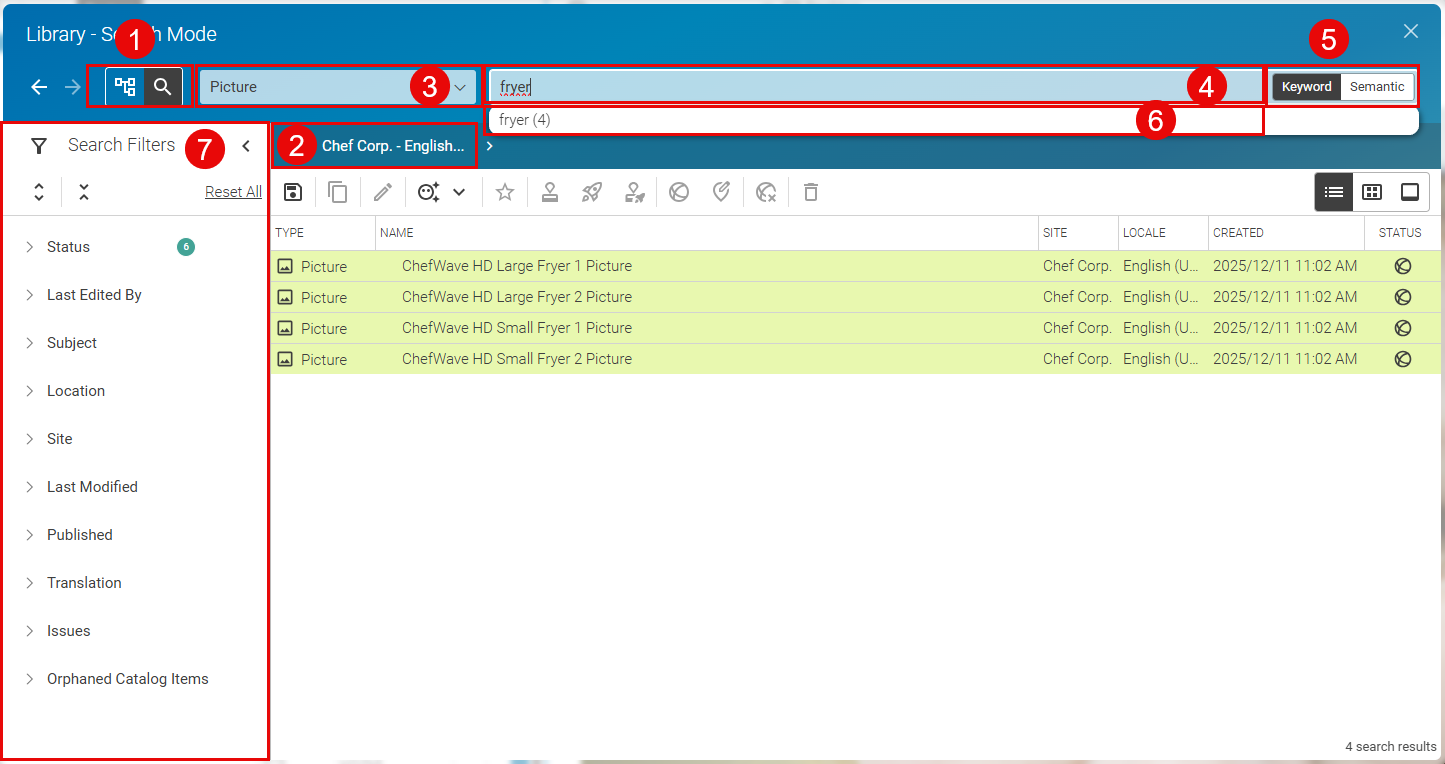
Conceptually, a search consists of two parts:
Defining the search scope by selecting the folder (2) in which you want to search, the content type (3) you want to search for and more search filters from (7) if required. This limits you search to specific parts of the content in the repository.
The actual search where you enter your search term(s) in the search box (4) and choose the search mode (5).
You do not have to start with defining the search scope. You can also directly enter your search term in the search box (4) and start your search by pressing the <Return> key. Then you can limit your scope afterward by selecting the folder (2), content type (3) and filters (7) (see Section “Filtering the results” for details about the filters).
Here is a description of the UI elements you can use for your search:
| Search Element | Function |
|---|---|
| (1) Library Mode Switcher |
Use this switcher to change between the Browse mode and the Search mode of the Library. The Library automatically switches to Search mode, when you select a content type (3) or when you carry out a search by entering a term in the search box (4) and pressing <Return> on your keyboard. |
| (2) Breadcrumb Navigation |
Use this breadcrumb navigation to select the folder below which you want to search. You can also use it to navigate to specific folders when you are in Browse mode. |
| (3) Content Type Chooser |
Use this dropdown box to select the content type you want to search for. By default, all content types are selected. The Library automatically switches to Search mode, when you select a content type. Semantic search does not support all content types. Catalog items, for example, are not supported. |
| (4) Search Field |
Enter your search term(s) into this field. The syntax differs between full-text and semantic search. See the Search Mode Switcher description below, for more details. |
| (5) Search Mode Switcher |
Use this switcher to choose between full-text search ( [Keyword] ) and semantic search ( [Semantic] ). The chooser appears only, when you are in Search mode. Full-text SearchFor a full-text search enter the keyword or phrase you are looking for in the search field. The search will return all content items containing this keyword or phrase in any of its fields. You can use some operators to improve your search:
Semantic Search
In semantic search enter the terms for which you want to get related content. For example, in our ChefCorp
example content, you might enter  Note Semantic search prioritizes what you want to find, not what you want to exclude. Therefore, it does not work with negating terms, for example, "not", "without", or "excluding". So, searching for "Pictures without people", would not work properly. Also keep in mind, that semantic search does not know about the content type model. So, "Show me articles of kitchen scenes" would not only return articles, but also images or other content items related to kitchen scenes. You have to use the content type filter (3) to restrict the search to specific content types and can simply search for "kitchen scenes" then. |
| (6) Search Recommendations |
When you are in full-text search mode, and you enter a search term in the search field (4), the system automatically shows suitable extensions to your search term beneath the search box. The figure in brackets shows the number of content items found for this search term. Clicking on a recommendation extends your search term accordingly and starts the search. Semantic search does not provide search recommendations. |
| (7) Filter |
With this filter options you can filter, for example, for the state of a content item or the last modification date. See Section “Filtering the results” for a description of all options. |
Table 4.2. Search Elements
Filtering the results
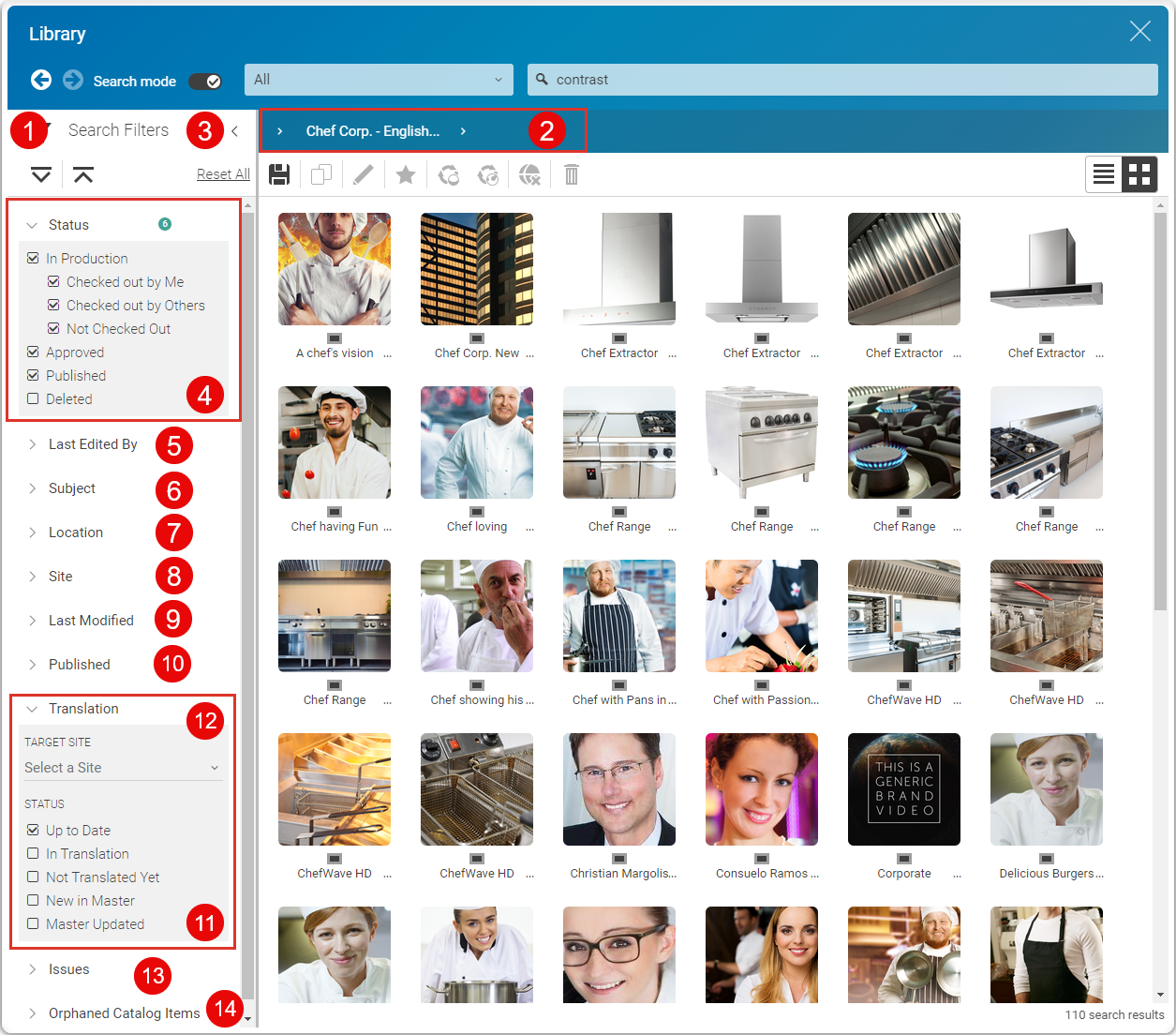
Open the filter panel with the arrows (3). In the filter panel (1) and the breadcrumb navigation (2), you can filter the displayed results by several criteria. Modules of CoreMedia Content Cloud might introduce additional filters, which are not described here. Keep in mind that filtering can only be applied to CMS content.
The folder (2)
The editing state (4)
The last editor (5)
Subject keywords (6)
Location keywords (7)
The preferred site or all content (8)
The last modification date (9)
The last publication date (10)
The translation state (11)
If the content has issues (13)
Orphaned entries of the local catalog (14)
Select the folder in which you want to search with the breadcrumb navigation.
Mark your chosen state in the filter box. With In production, you can also choose whether the content item is currently being edited by you, by somebody else or by nobody.
With Deleted you can search content items that have been deleted. Deleted content stores its last folder location, so you can search for deleted content items below the folder where they once were located. In reverse, that means that you will not find content that was located in other folders, when you select a specific search folder in the breadcrumb navigation.
Then choose the "Last editor", if required.
Then choose the "Last modified" date, if required.
Then choose specific location or subject keywords.
Then choose the "Published" date to determine, when the content has been published.
Then choose the site in which you want to search, if required.
Then choose the translation state, if you want to search for content items that have or have not been translated in a given derived site.
You can select the derived site. Contents from the master site will be displayed in the search result. Keep in mind that the folder selected in the breadcrumb, if any, must also be chosen from the master site to see any results. Mark your chosen translation status in the status boxes, for example restricting the search to new content that has not been translated yet.
Then select an issue category and severity from the "Issues" filter, if you want to search for content items with issues. By default, you can choose from two categories: "All Categories" and "Localization". You can also choose an issue type severity like "Errors" or "Warnings". Note however, that search results cannot always be up-to-date for all issue types, and that this filter only appears if indexing has been enabled for errors and warnings. The correct state for a content item is always visible when it is opened in the Form View.
The filtered content items are now displayed. The number in the blue circle (15) indicates the number of selected settings. You can use the curved arrow icon (12) to restore the default setting.
