


Solution Overview for Business Users / Version 2512.0
Table Of ContentsIn the bottom right corner of CoreMedia Studio you will find the round KIO icon, which opens KIO Co-Pilot.
You can open or close the KIO chat window by clicking the KIO icon or using the keyboard shortcut Ctrl + Alt + Shift + K on Windows/Linux, or Cmd + Option + Shift + K on macOS.
The KIO shortcuts are listed in the User Studio Preferences under the section Preferences > Shortcuts > KIO.

Note
The provided shortcut might not be available due to conflicts with browser shortcuts, browser extensions, or your specific browser and operating system.
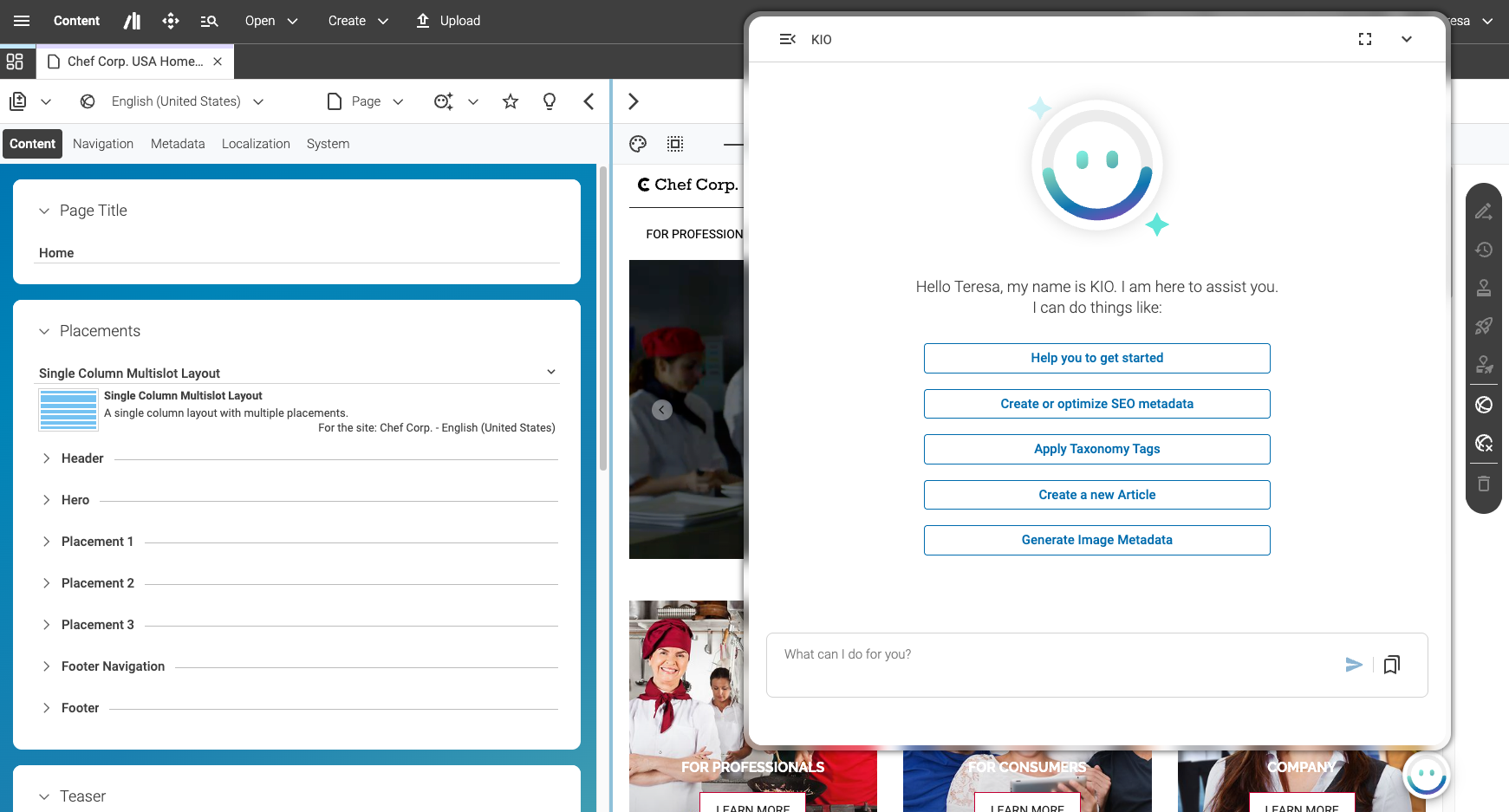
You can start by asking KIO anything. Or you can refer to very specific content in your CMS.
KIO can use Tools to interact with other systems. By default, it is equipped with a set of Tools that enable it to interact with Content Cloud and Engagement Cloud. Just ask KIO Which tools are available? and KIO will list all available tools and what they can do.
Tools are small applications tailored towards a simple task, such as reading, writing, or copying content, interpreting images, and so forth. KIO is also aware of content metadata, such as content and property types, which gives it the necessary context to perform content operations on behalf of the logged-in user.
You can simply enter a prompt yourself or click on a few ready-made prompts. Not sure where to begin? Just ask KIO anything that comes to your mind, or click on Help you to get started.
In the following, you'll find helpful topics that explain the core concepts behind KIO, what it knows, what it can and cannot do, and tips for navigating the interface and using it effectively.
