


Solution Overview for Business Users / Version 2512.0
Table Of ContentsThe KIO Co-Pilot window includes a sidebar with a settings menu that allows you to configure user-specific preferences directly within the KIO interface.
To open the sidebar, click the sidebar icon (hamburger menu) in the top-left corner of the KIO Co-Pilot window.
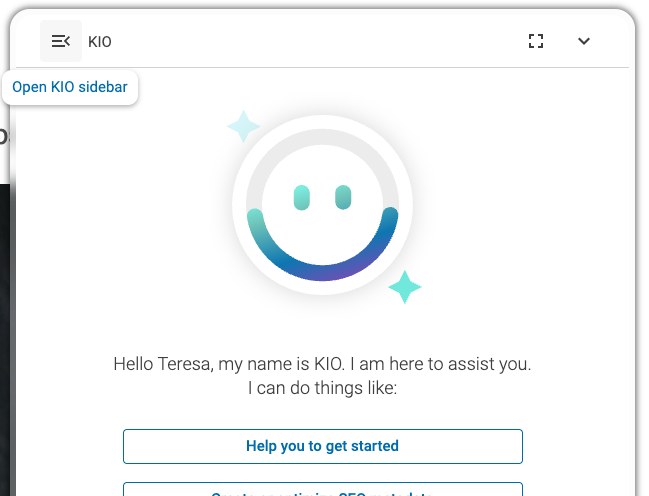
The sidebar provides two navigation items:
Chat: Returns to the KIO chat view.
Settings: Opens the settings page where you can configure general copilot behavior and preferences.
The settings page shows a General section with the following options:
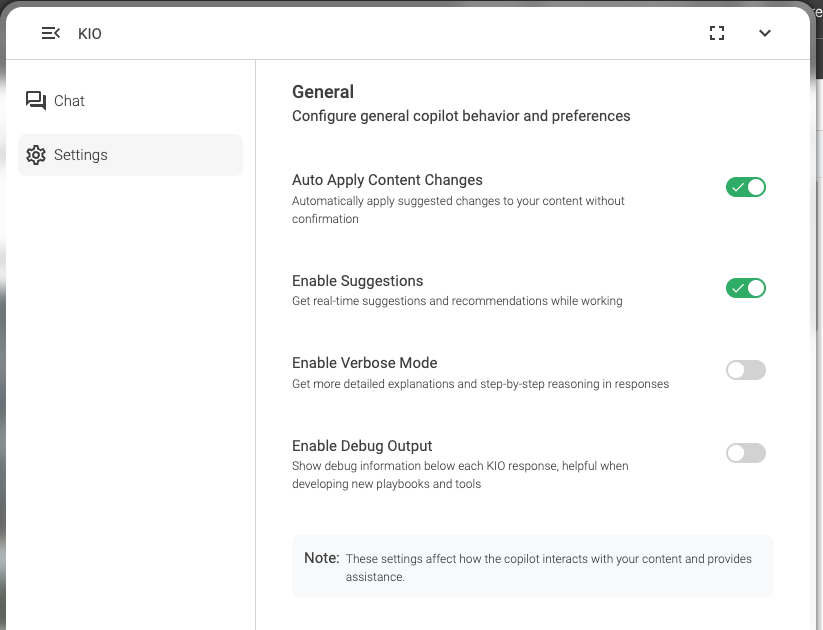
Auto Apply Content Changes: Automatically apply suggested changes to your content without confirmation. When enabled, KIO will create or change content immediately. When disabled, KIO will ask for your confirmation before making any changes. Default: enabled.
Enable Suggestions: Get real-time suggestions and recommendations while working. Disabling this option saves AI resources (tokens, time). Default: enabled.
Enable Verbose Mode: Get more detailed explanations and step-by-step reasoning in responses. Default: disabled.
Enable Debug Output: Show debug information below each KIO response, helpful when developing new playbooks and tools. Default: disabled.

Note
These settings affect how the copilot interacts with your content and provides assistance.
Changes made in the KIO Settings menu are stored per user and take effect immediately.
