


Solution Overview for Business Users / Version 2506.0
Table Of ContentsRules define the rights on CoreMedia resources, that is content and folders.
Adding Rules
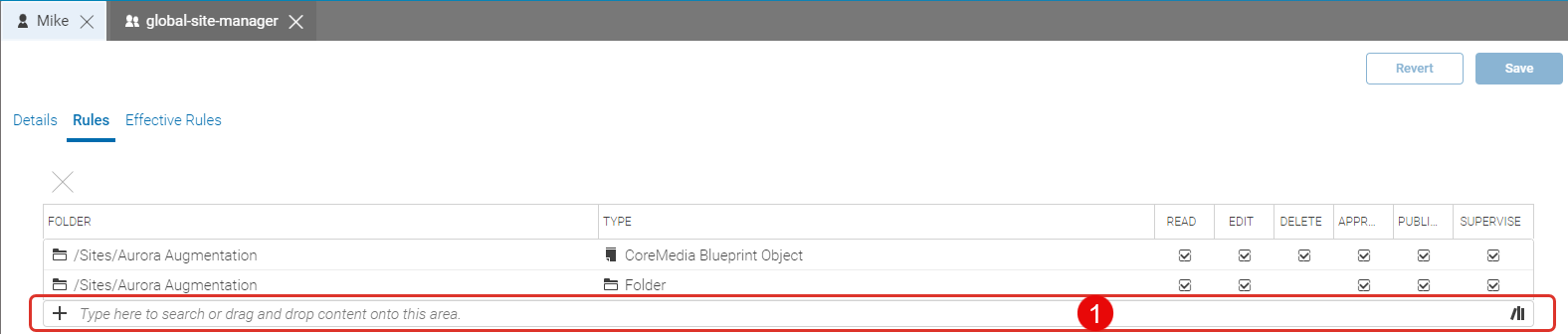
Open the Rules tab of a group in the User Manager.
Rights are always defined below a specific folder. In order to select a folder for which you want to define a rule start typing in field (1) or click the library icon and drag a folder onto the field. The new rule is added to the list.
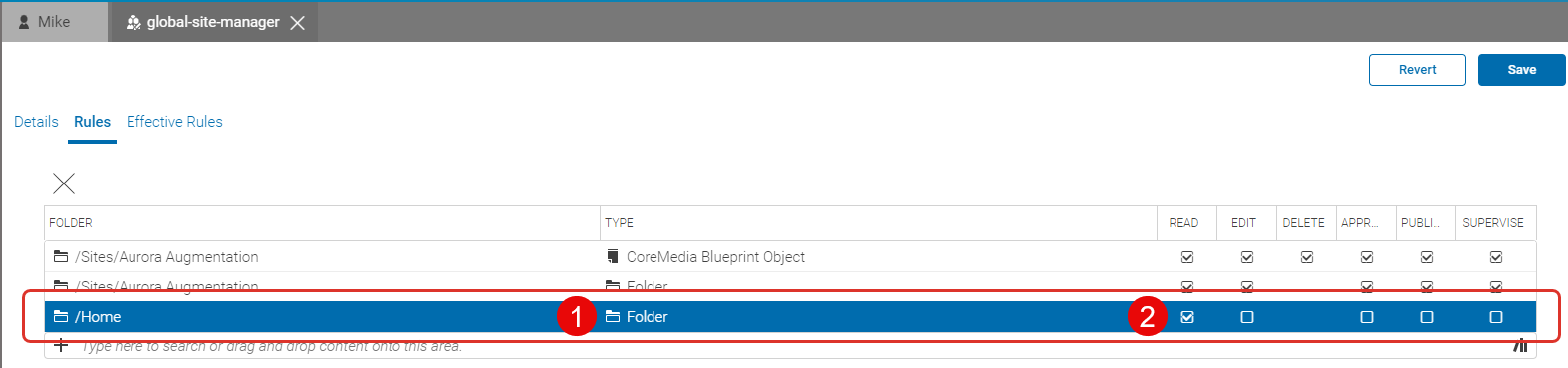
You can now edit the new rule. Click on the TYPE field to select the resource type (1) to which you want to apply the rule.
Now, you can attach rights. Check the checkbox (2) for the rights you want to grant.
If you want to check the effective rules for this group, open the Effective Rules tab.
Click [Save] to save your changes.
Deleting Rules
Open the Rules tab of a group in the User Manager.
Select the rule you want to delete.
Click the "X" icon above the link list. The rule is deleted without any check.
If you want to restore the deleted rule, click [Revert] , otherwise click [Save] in order to save your changes.
Now, you have deleted the rule.
