


Solution Overview for Business Users / Version 2506.0
Table Of ContentsWhen you have created a new article with CoreMedia Studio which should be sent to another editor for review who will then forward it to publication to a third editor, you can use the three-step publication workflow from the three-step publication workflow extension.
Start the Workflow
After having completed a new article you can start publication workflows using the context menu on the content item as shown here:
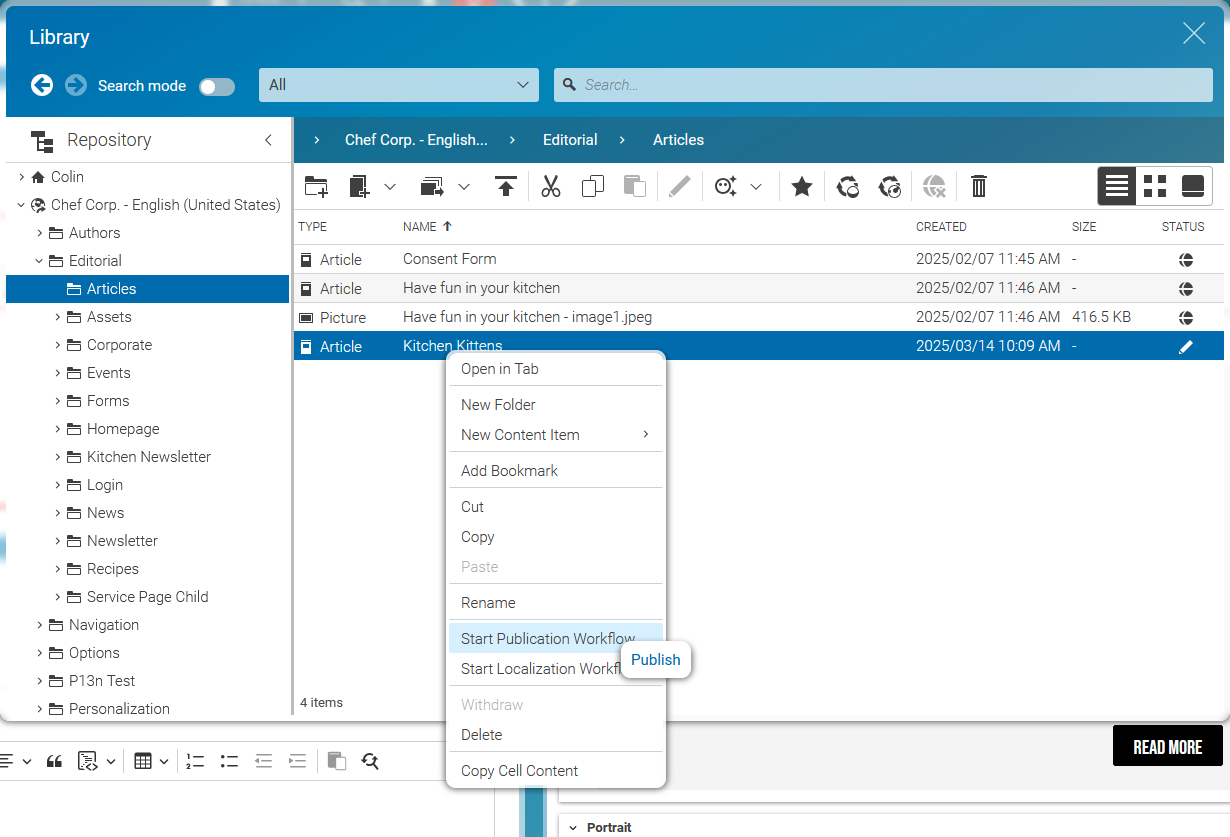
Start the Three-Step Publication Workflow
Choose Reviewed and Confirmed Publication from the Workflow Type list.
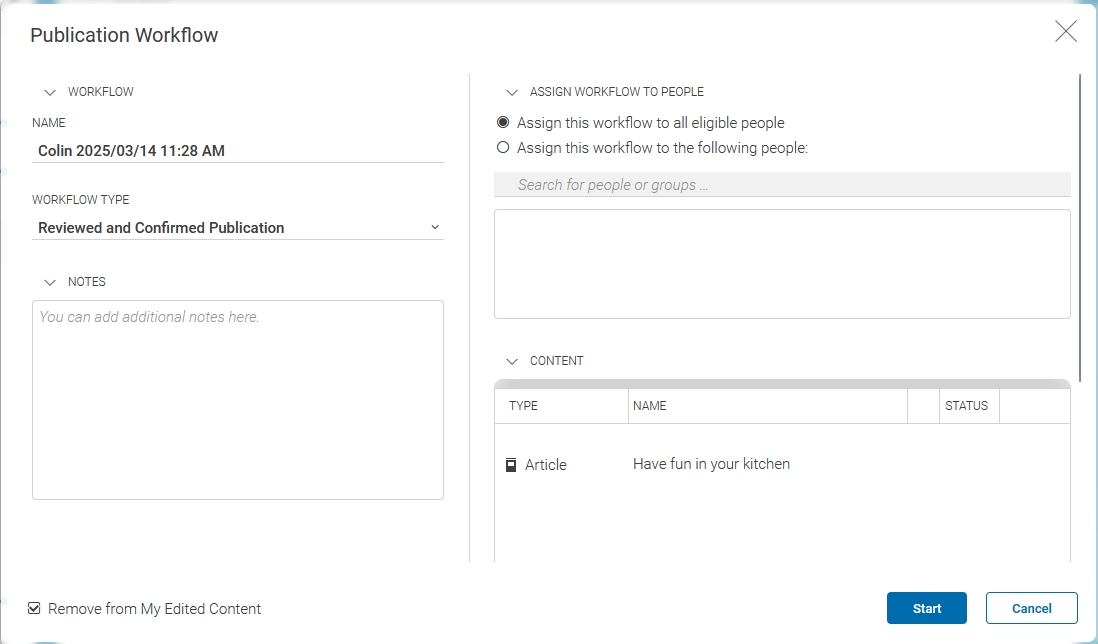
Assign Workflow To People
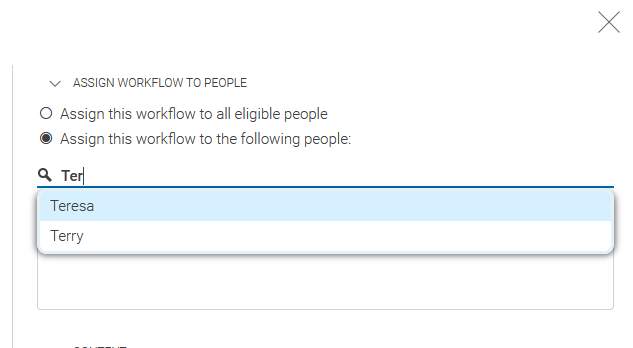
Assign the task of approving the content item to all other editors by simply selecting the option All Eligible People or by specifying one or more editors:
Click [Start] to start the workflow instance.
Monitor the Three-Step Publication Workflow
While the three-step publication workflow is yet pending, it is listed under the pending workflows. Notice that as long as it is pending, the content item is locked so that it cannot be edited.
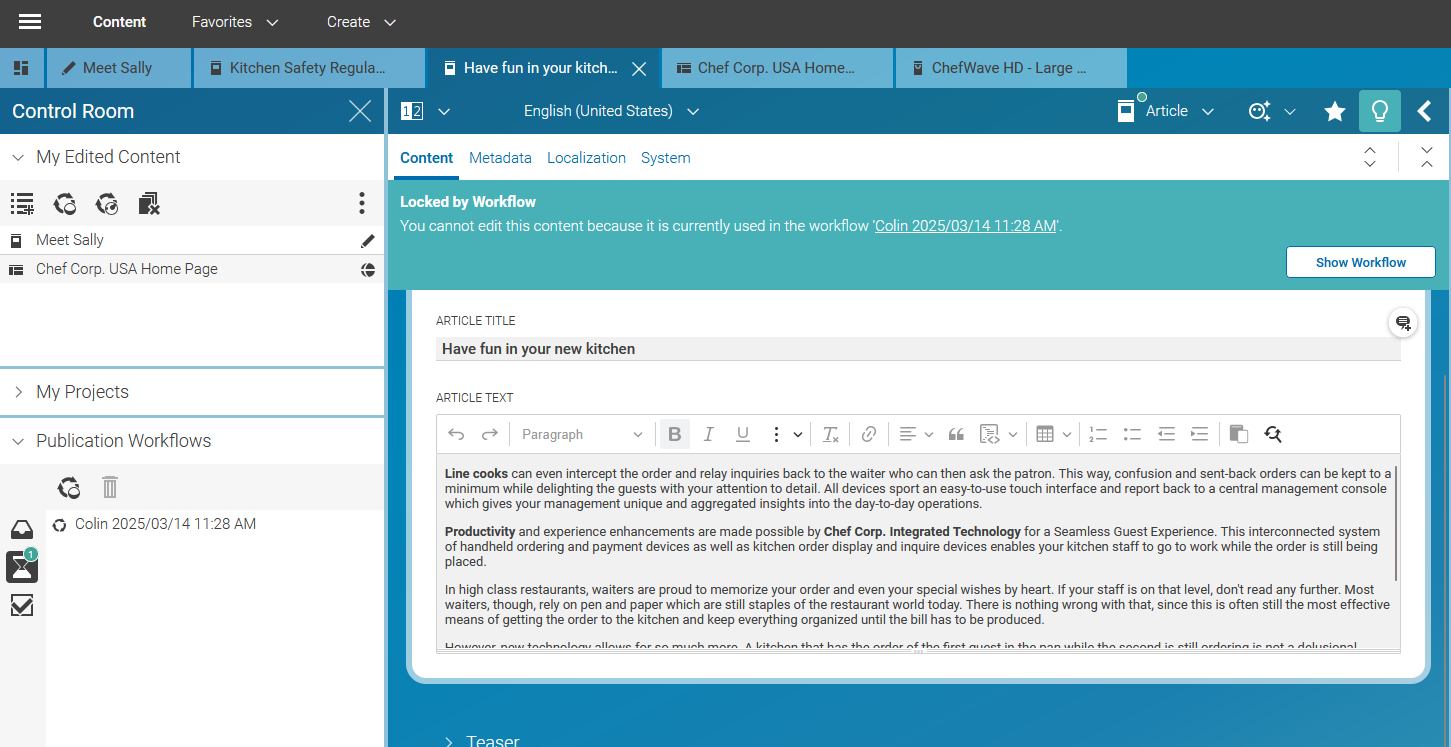
By double-clicking on the workflow instance it opens in the Workflow App. Here you get the details of the workflow. Most important, you can see the editors the workflow instance is assigned to.
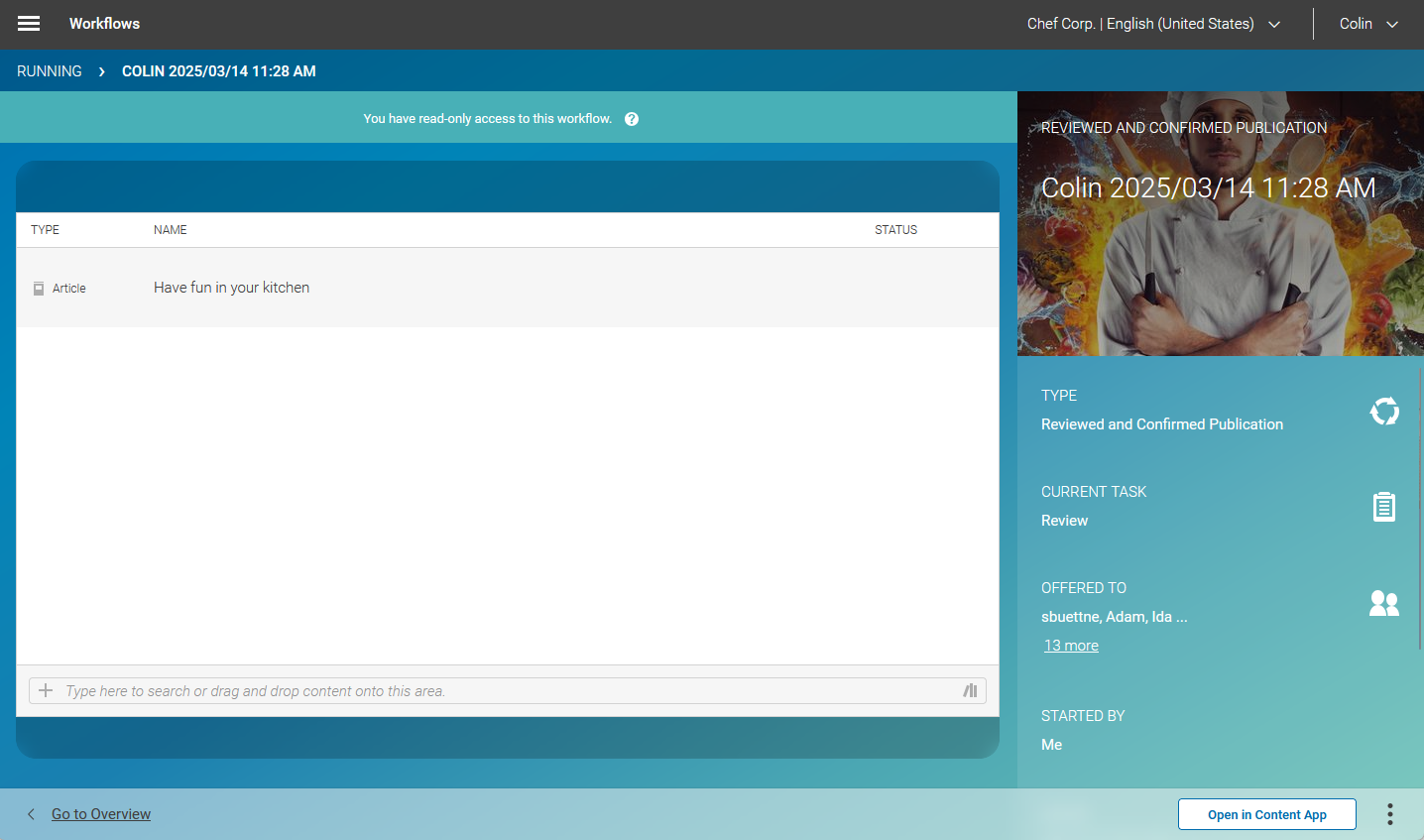
Approve Step of the Three-Step Publication Workflow
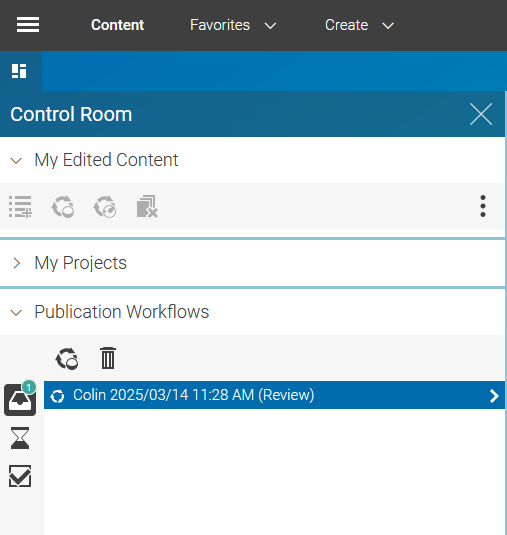
For editors who the workflow instance is assigned to, it is now listed under the inbox of workflows. Note that the instance's title contains Review as the task to be performed.
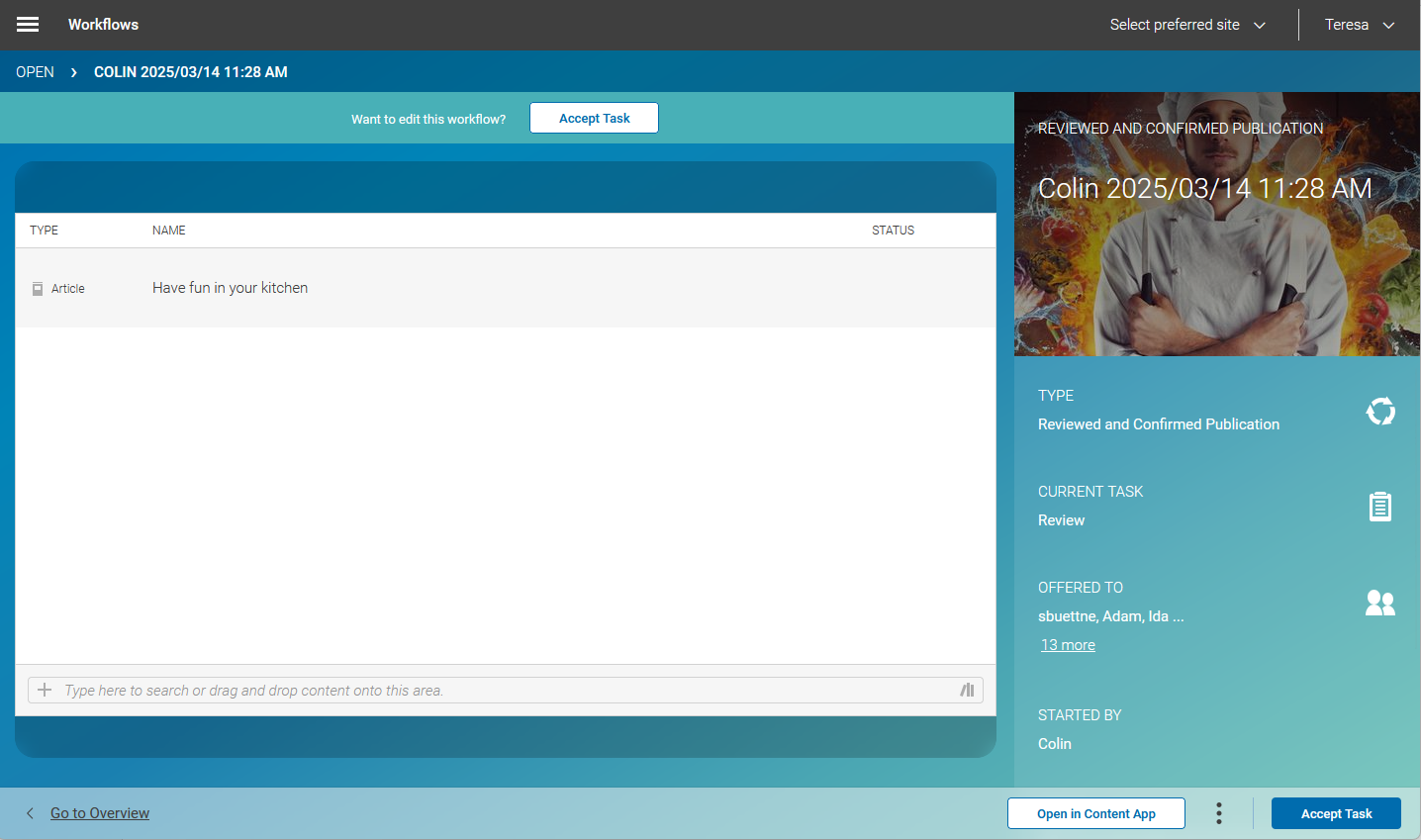
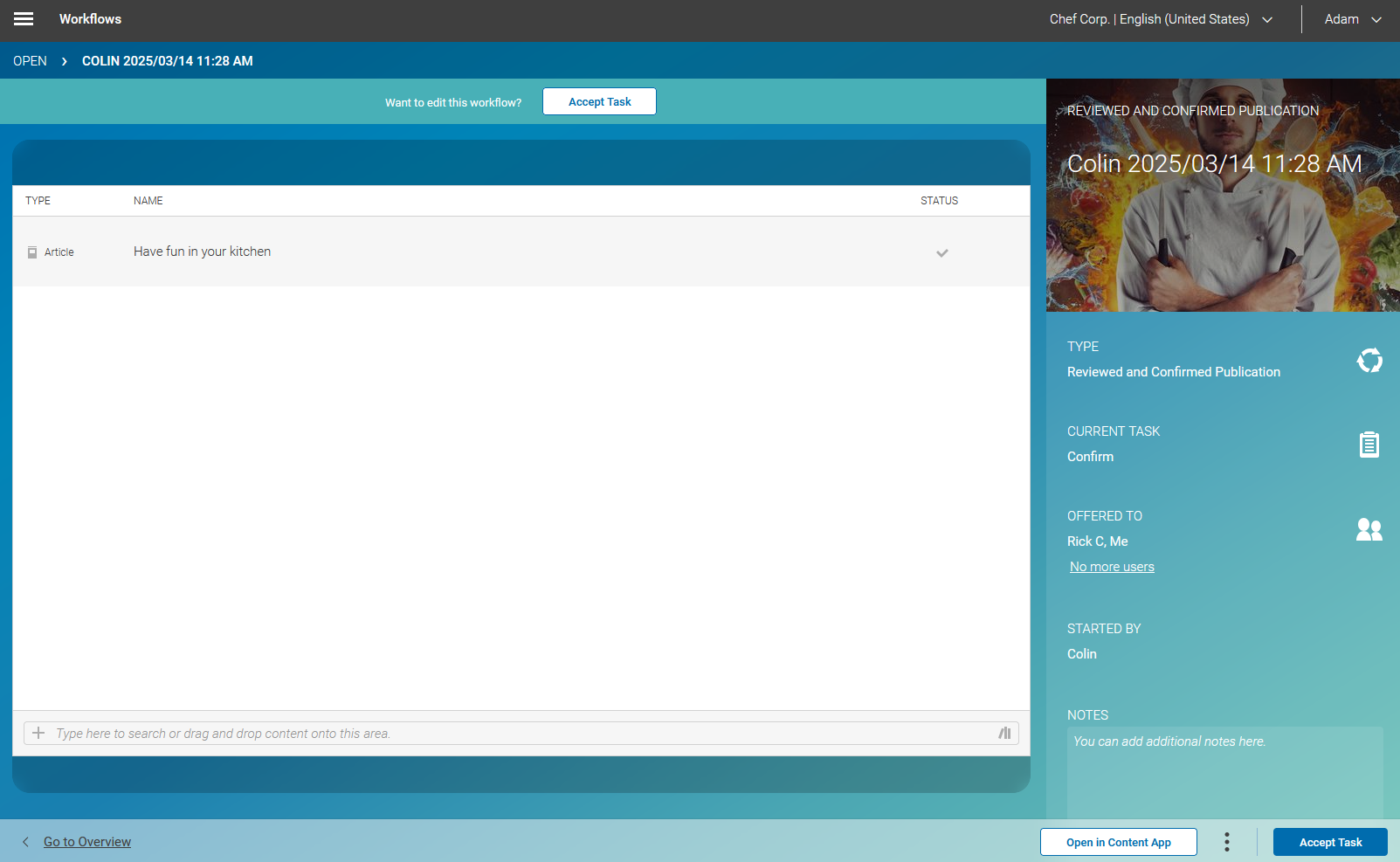
By double-clicking on the workflow instance it opens in the Workflow App. You see the workflow details, that is, who has started the workflow and which content item has to be reviewed. Accept the task when you are ready to review and approve the content item.
You can now review the content item. When everything is fine select [Confirm] as the next workflow step and assign the task to yet another editor like Adam in this example.
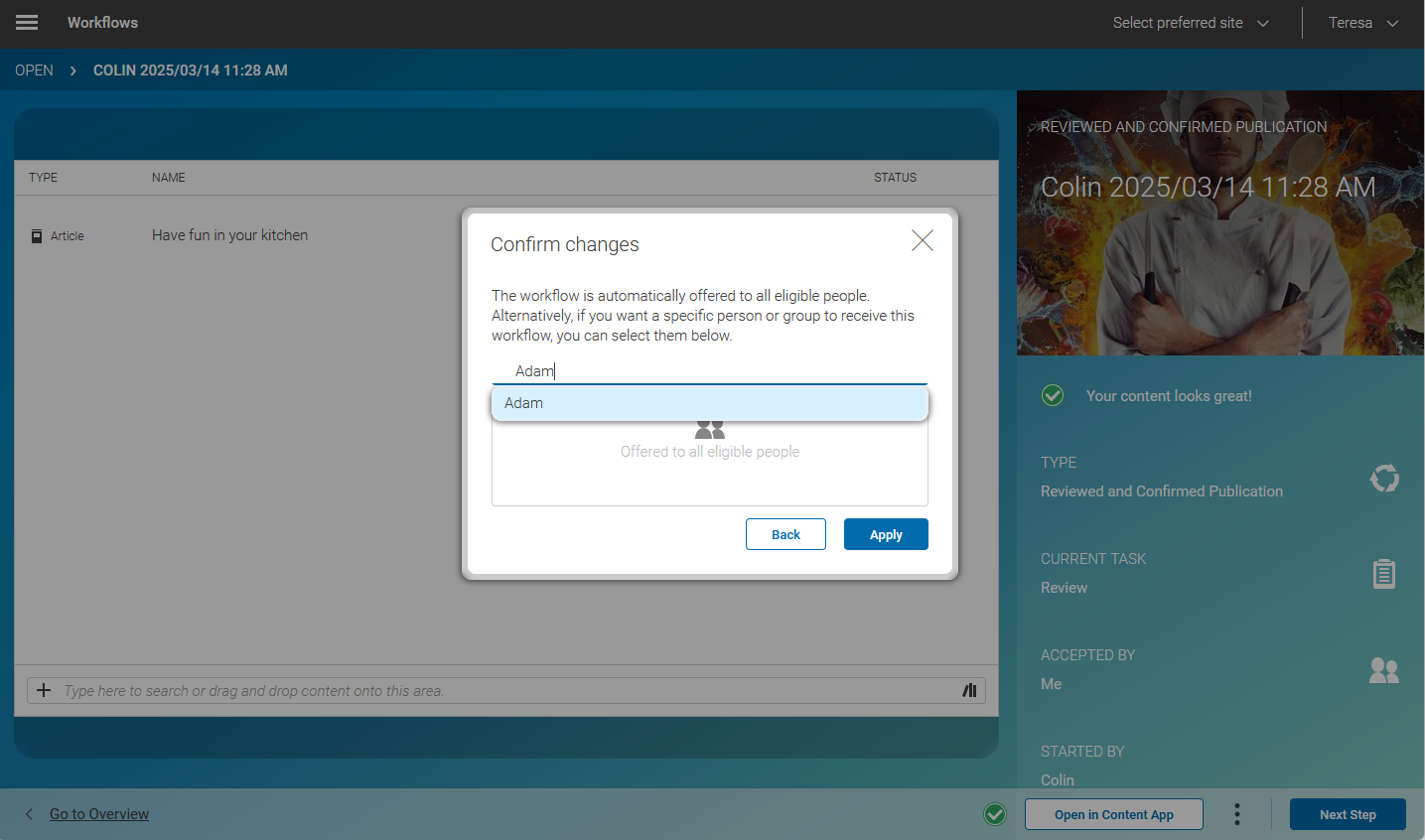
Click [Apply] ; the workflow instance moves from the inbox to the pending list.
Publish Step of the Three-Step Publication Workflow
Editors who the workflow instance is assigned to - Adam in this example - see the workflow now in the inbox of workflows. Note that the instance's title contains Confirm as the task to be performed.
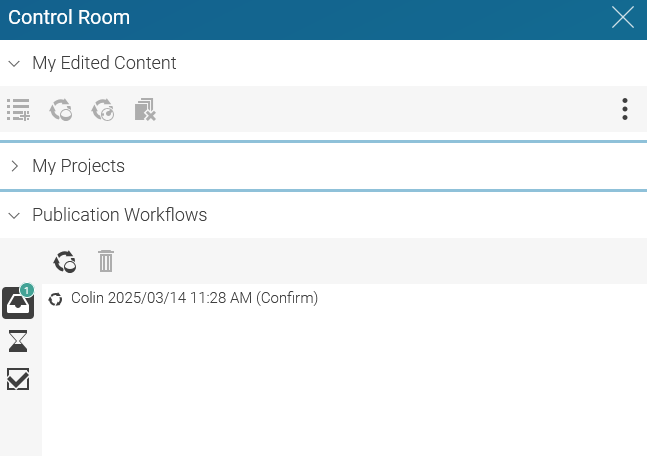
By double-clicking on the workflow instance it opens in the Workflow App. You see the workflow details, that is, who has started the workflow and which content item is to be published. Accept the task when you are ready to review and publish the content item.
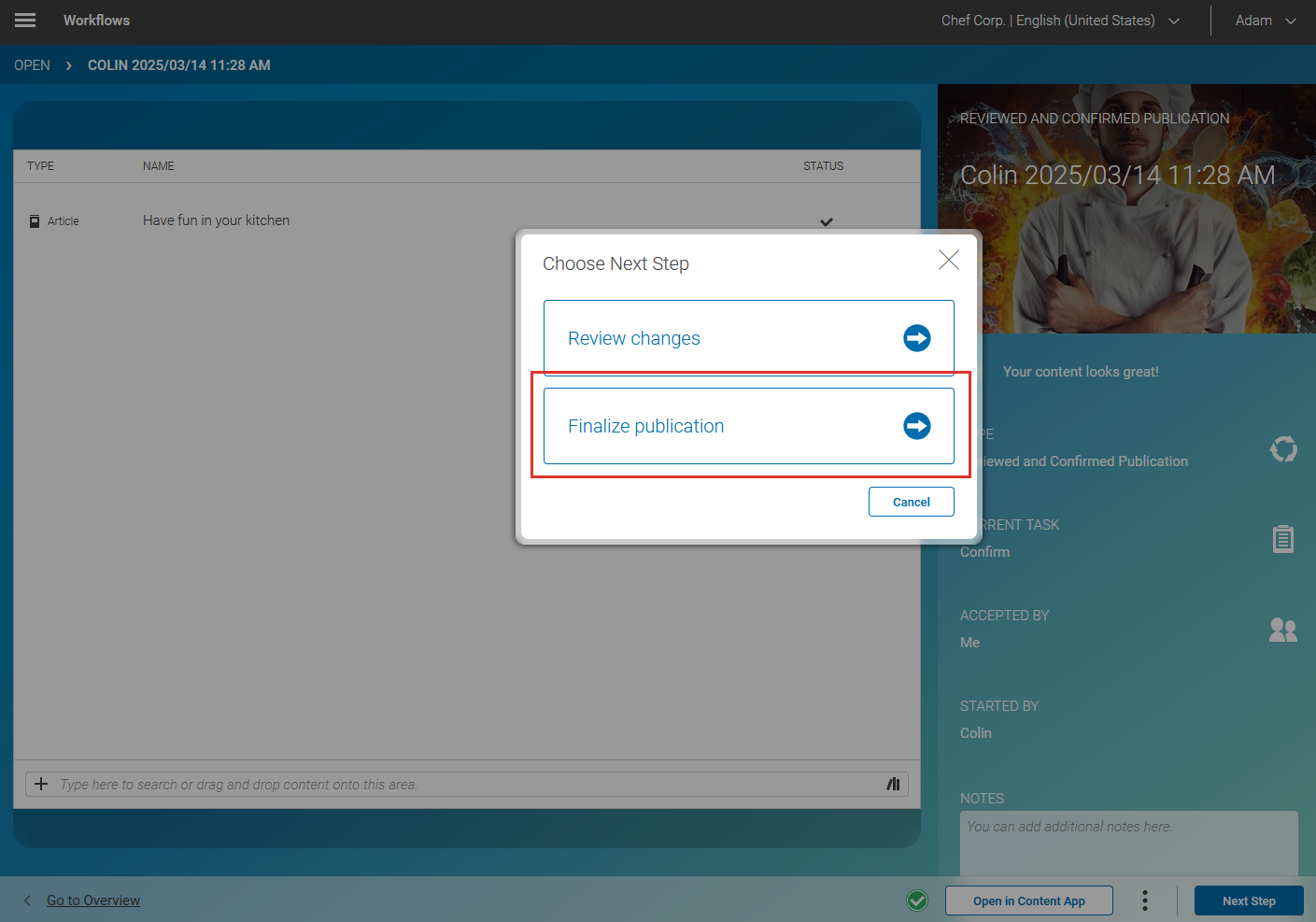
When everything is fine, and the content item can be published, click [Next Step] . Click Publish and confirm with [Yes, continue] to publish the content item.
Now, the content item is published.
