


Solution Overview for Business Users / Version 2506.0
Table Of ContentsThis open-source workspace enables CoreMedia CMS to communicate with GlobalLink Connect Cloud (GCC) REST API in order to send contents to be translated, query the translation status and to update contents with the received translation result eventually.
Assuming that you are familiar with the CoreMedia Studio and that you created a new campaign in the English master site that has now to be translated into French, German, and Spanish. This guide shows how this task can be accomplished by means of the GlobalLink Connect Cloud connector.
The connector adds the following functionality to CoreMedia Studio:
Send content to GlobalLink for translation into one or multiple languages with individual due dates in one or multiple workflows.
Retrieve content from GlobalLink once the translation is finished.
Automatically detect cancellations of submissions at GlobalLink and cancel the translation workflow in CoreMedia Studio.
Configure the connection to GlobalLink per site hierarchy.
Show additional information like the translation status from GlobalLink in CoreMedia Studio.
Download XLIFF files and import log files in CoreMedia Studio if an error occurs during import.
Editors in CoreMedia Studio are notified about completion, cancellation, and import and communication errors of a translation workflow with GlobalLink.
Send Content to GlobalLink
Once finished working on the campaigns content, open the Control Room and click the [Start a localization workflow] button in the toolbar of the Localization workflows.
In the Start Localization Workflow window , select the workflow type Translation with GlobalLink, set a self-describing name, a due date, drop the to-be-translated content, and set the target locales.
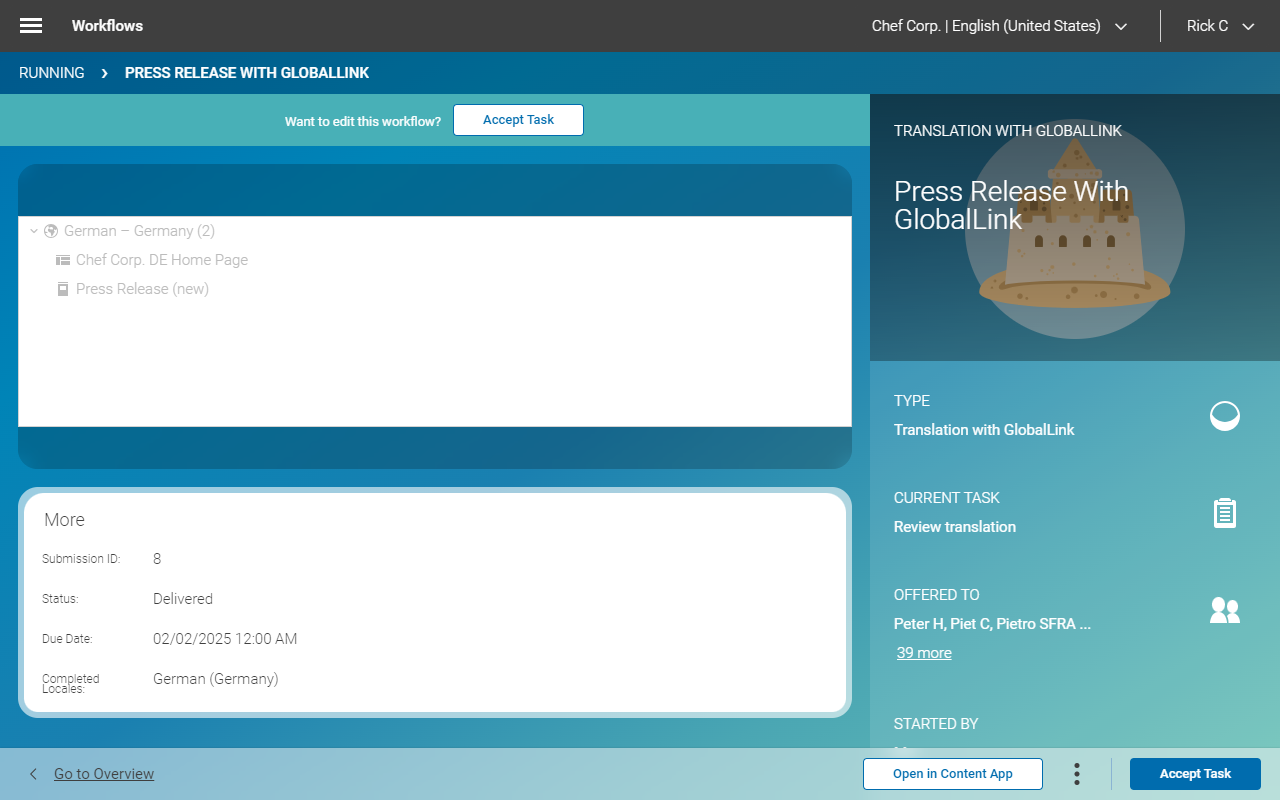
After having started the workflow, it is shown in the pending workflow section. Double-click the workflow to open it in the detail view in the Workflow App. Here, you will see the submission state, the ID and other information available.
In case an error occurs, it is shown in your inbox and you can select to cancel the workflow or you can try to fix the problem and retry.
After the translation is finished, you will receive a notification. The workflow is shown in the inbox and once accepting the task, you can review the content and finish it.




Configure Connection to GlobalLink Connect Cloud
If the connection is not set up yet, go to create a Settings content called GlobalLink and add it to the Linked Settings property of the master site's homepage.

Setup of GlobalLink Connect Cloud
There is some mandatory configuration required in GlobalLink Connect Cloud so that the integration between both systems runs smoothly:
The connector uses the XLIFF file format to exchange translatable texts with GlobalLink. Make sure that your GlobalLink instance is configured accordingly and request the file format identifier from your contacts at Translations.com.
The connector automatically detects submissions that have been cancelled in GlobalLink and shows this state to editors in CoreMedia Studio. Canceling individual jobs of a submission is not supported yet and will most likely yield unexpected results. To prevent this from happening, make sure that GlobalLink Cloud Connect only allows the cancellation of submissions.
Re-opening of submissions is not yet supported by the connector. Ask your contacts at Translations.com to disable this functionality in GlobalLink Connect Cloud to avoid misunderstandings.
For more details, see here: https://github.com/CoreMedia/coremedia-globallink-connect-integration
