


Solution Overview for Business Users / Version 2506.0
Table Of ContentsCoreMedia Content Cloud integrates with SAP Hybris Commerce. In the following it is simply called the "commerce system" or "the shop".
Each content site can be configured with a specific shop instance to deliver content pages mixed with Commerce catalog items. The term "Commerce catalog items" means all items that live only in the commerce catalog. Nevertheless, these elements are to be interwoven with content on mixed pages.
From classical shop pages, like a product catalog ordered by categories or product detail pages up to landing pages or homepages, all grades of mixing content with catalog items are conceivable. The approach followed in this chapter, assumes that items from the catalog will be linked or embedded without having stored these items in the CMS system. Catalog items will be linked typically and not imported (importless integration).
Catalog View in CoreMedia Studio Library
When the connection to a Hybris Commerce system and a concrete shop for a content site are configured the Studio Library shows the commerce catalog to browse product categories and products in the commerce catalog and to search for products and product variants. After the editor has selected a preferred site with a valid store configuration the catalog view will be enabled and the catalog will be shown in the Library:
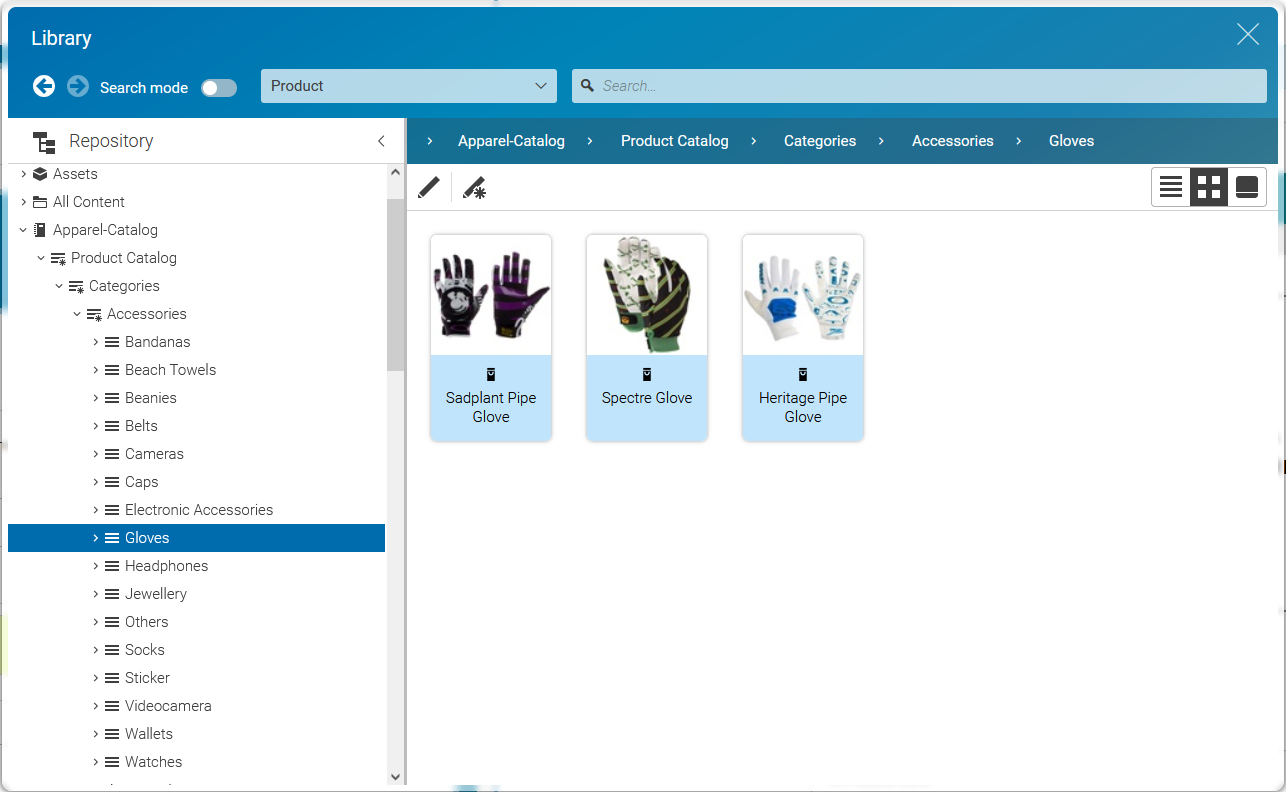
In some catalogs it is possible to put a category on multiple places within the catalog tree. But the Commerce Hub ensures that a category can only have one home (a unique parent category). All additional occurrences of a category are shown as a link in the tree. If you click on such a link node you will automatically end up at the place in the tree where the category is actually at home.
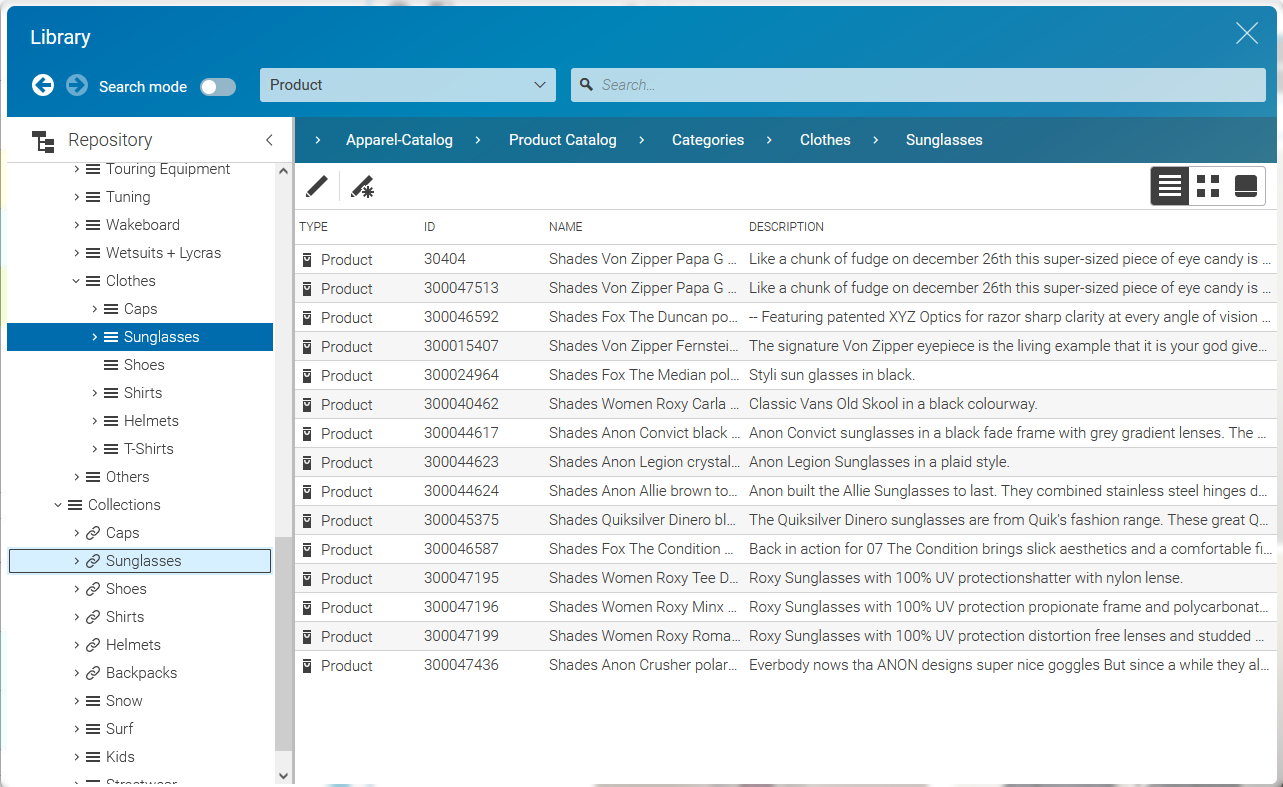
These catalog items can be accessed and assigned to various places within your content. For example, an eCommerce Product Teaser content item can link to a product or product variant from the catalog. The product link field (in eCommerce Product Teaser content items) can be filled by drag and drop from the library in catalog mode.
Linking a content (like the eCommerce Product Teaser) to a catalog item leads to a link that is stored in the CMS content item and references the external element. Apart from the external reference (in the case of the commerce system it is typically a persistent identifier like the product code for products) no further data will be imported (importless integration).
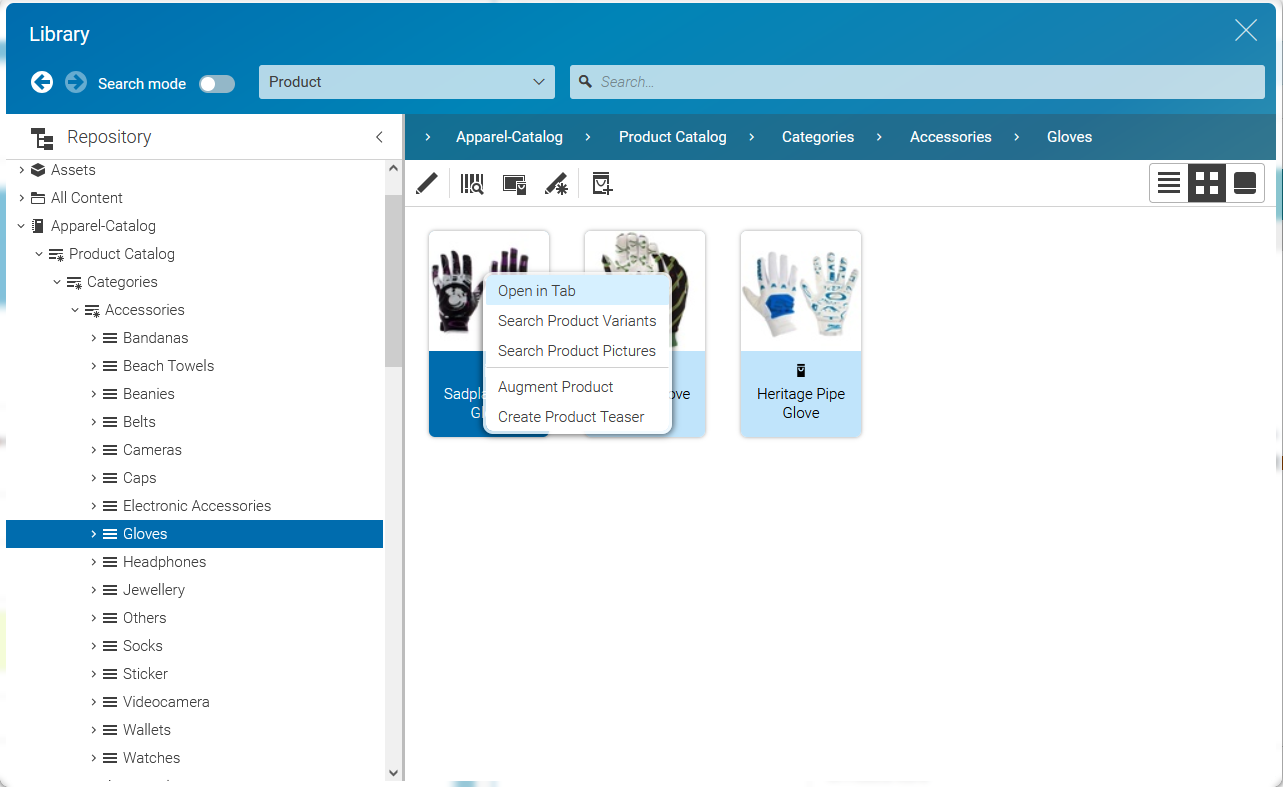
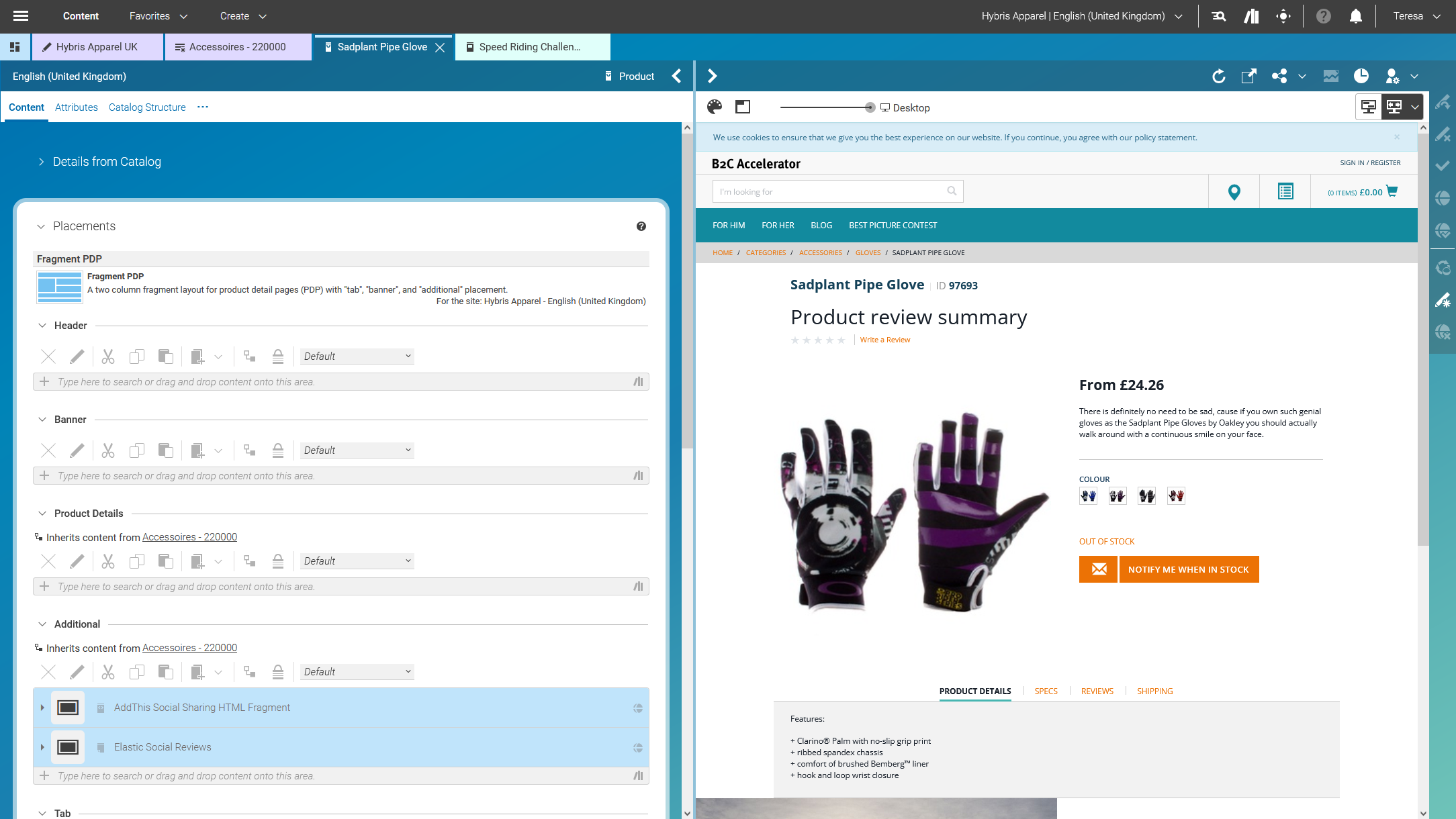
While browsing through the catalog tree you can also open a preview of a category or a product from the library. Simply double-click on a product in the product list or use the context menu on a product or a category and choose the entry from the context menu as shown in the pictures below.
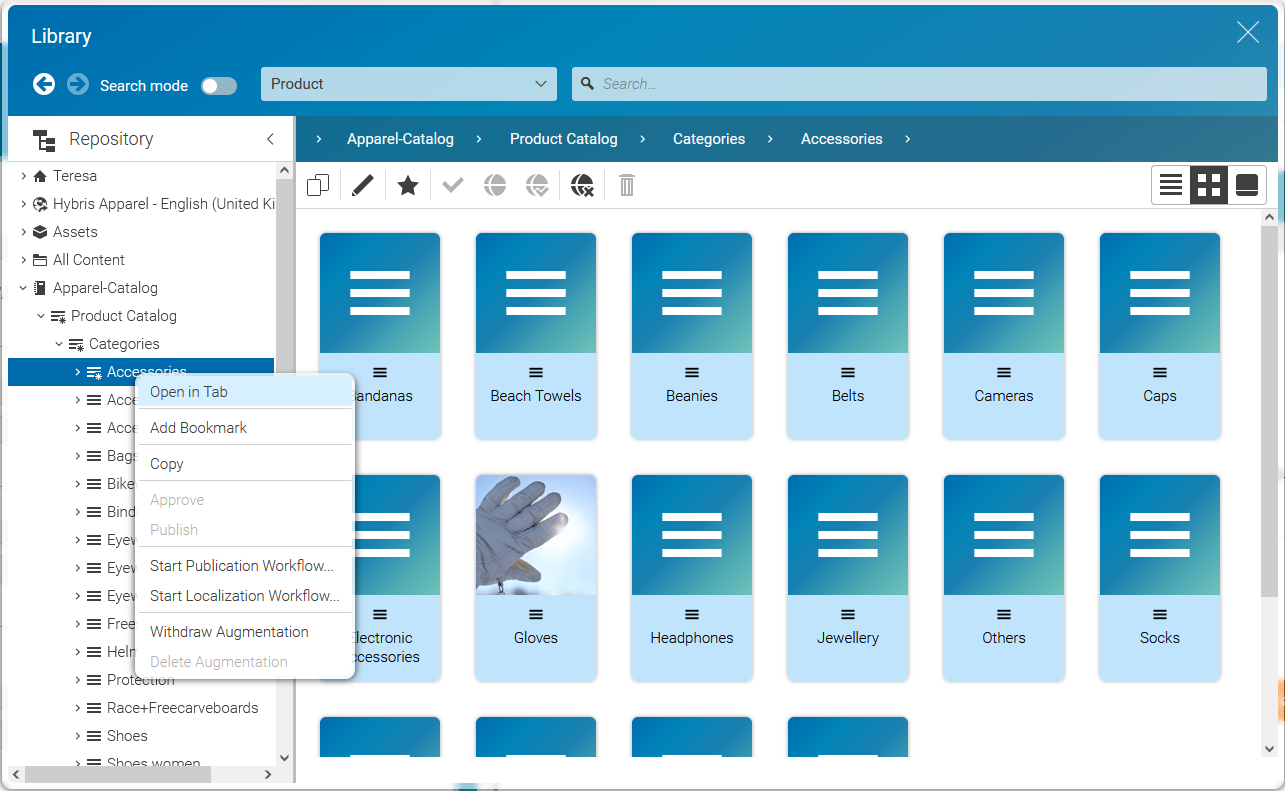
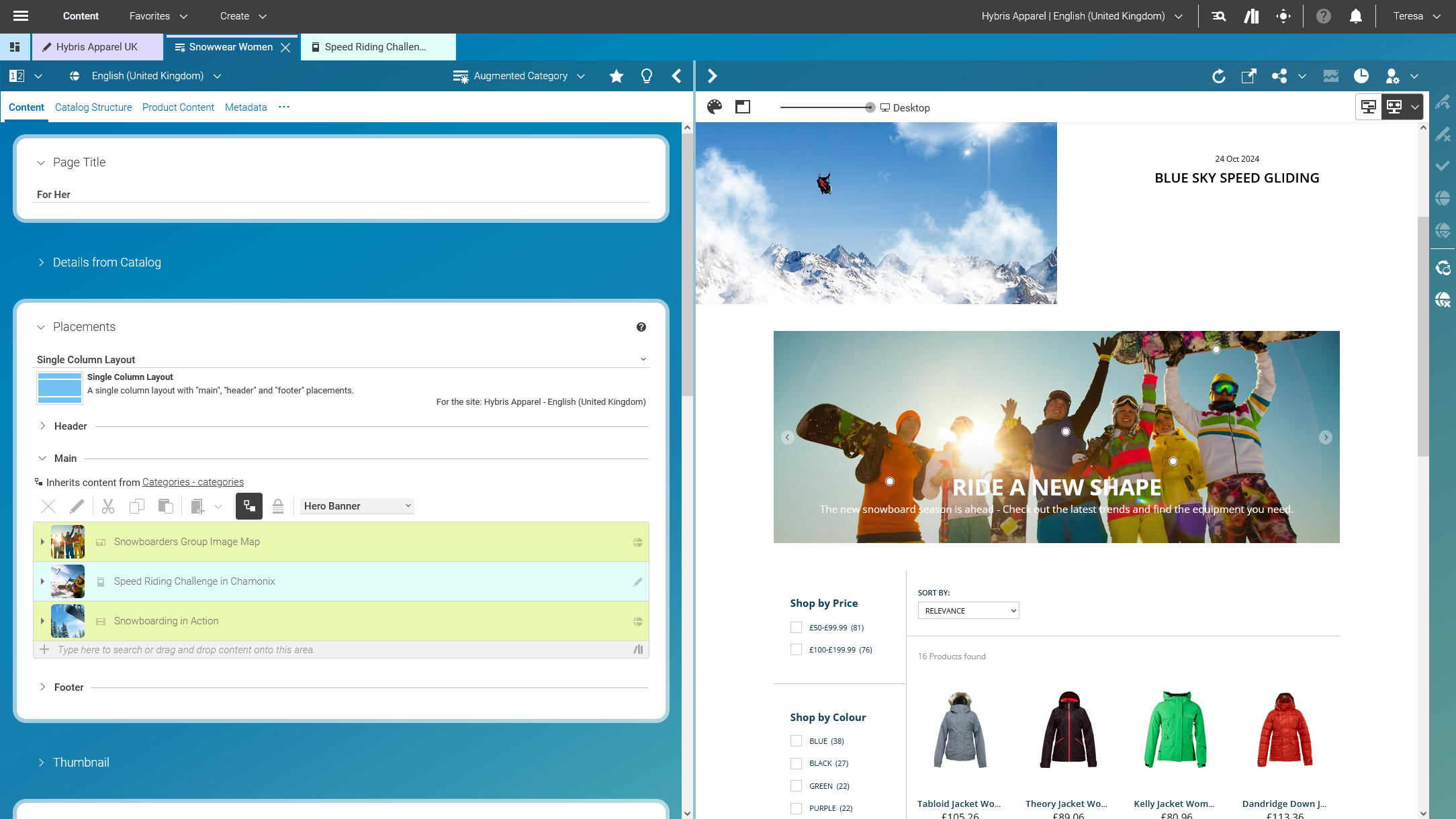
In addition to the ability to browse through the commerce catalog in an explorer-like view it is also possible to search for products and variants from catalog. As for the content search if you are in the catalog mode and you type a search keyword into the search field and press Enter, the search in the commerce system will be triggered and a search result displayed.
Commerce related Preview Support Features
CoreMedia Studio supports a variety of commerce preview functions directly:
Time based preview (time travel)
When a preview date is set in CoreMedia Studio, it sets the virtual render time to a time in the future. If the currently previewed page contains content from Hybris Commerce, it is desirable that also these content reflects the given preview time. That could be a certain validity period of a product a another display rule that influences the displayed catalog items.
If such preview is requested from Hybris Commerce the preview date is also sent to Hybris Commerce as part of the cmsTicket parameter. The Hybris Commerce recognizes the transmitted preview date and renders the shop content accordingly.
Customer segment based preview
The feature segment based preview supports the creation of personalized content. In this case, content is shown depending on the membership in specific customer segments. In addition to the existing rules, you can define rules that are based on the belonging to customer segments that are maintained by the commerce system.
These commerce segments will be automatically integrated and appear in the chooser if you create a new rule in a personalized content. For a preview, editors can use test personas which are associated with specific customer segments.
The following figure shows an example where the test persona is female and has already been registered.
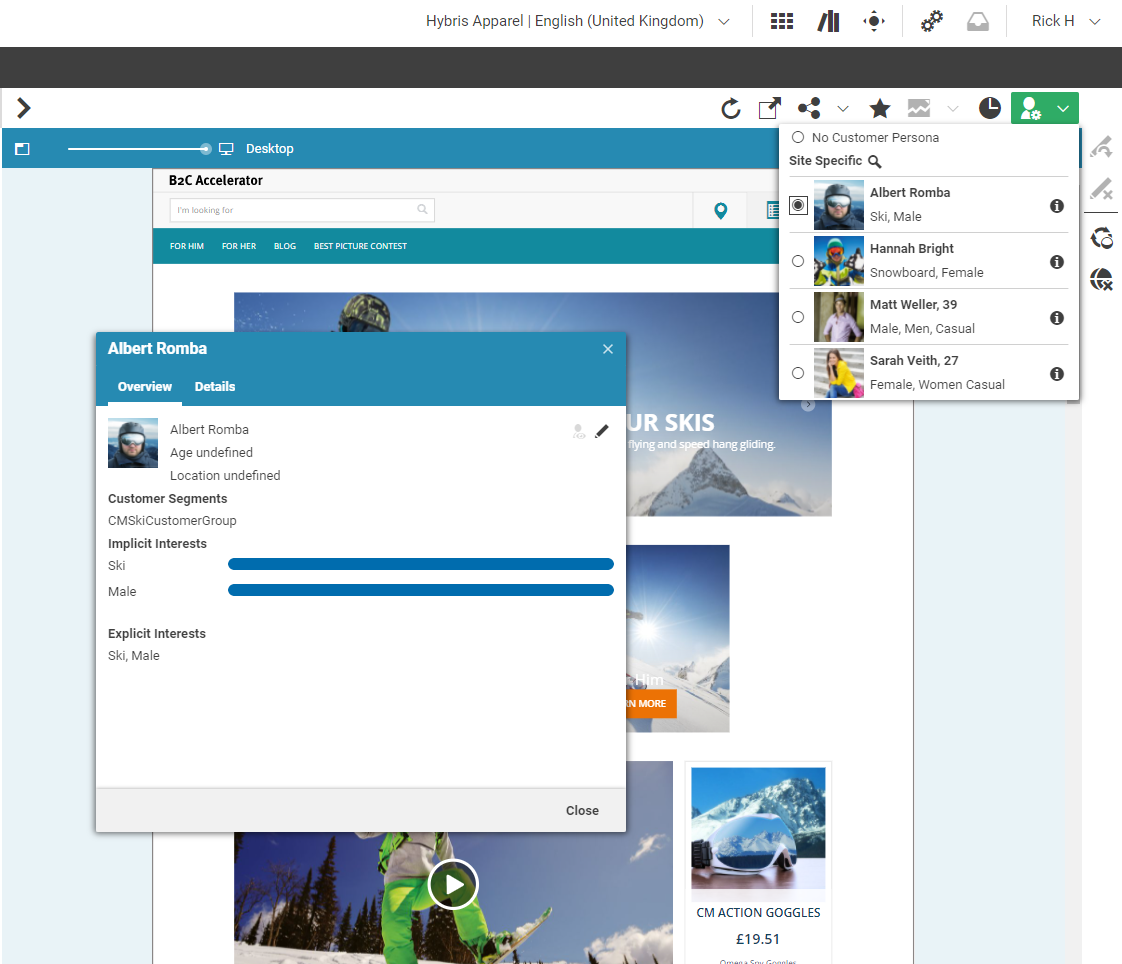
Such preview settings apply as long as they are not reset by the editor.
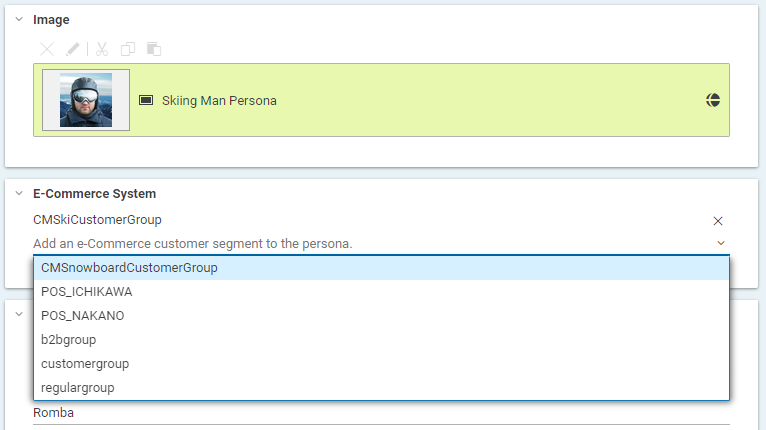
The test persona content item can be created and edited in CoreMedia Studio. The customer segments available for selection will be automatically read from the commerce system. By default all user segments available in the eCommerce system are displayed for selection. Under some circumstances it may be desirable to restrict the shown user segments, for instance for studio performance reasons or for better clarity for the editor. See Section 3.2.4, “Configuring The PersonaSelector” in Personalization Hub Manual.
The commerce segments that the current user belongs to are available during the rendering process within a CoreMedia CAE. Thus, content from the CoreMedia system can also be filtered based on the current commerce segments.
In the other direction, if the personalized content is integrated within a content fragment on a shop page, the current commerce user is also transmitted as a parameter. Thus, the CoreMedia system can retrieve the connected customer segments from the commerce system in order to perform commerce segment personalization within the supplied content fragments.
