


Solution Overview for Business Users / Version 2506.0
Table Of ContentsThe coremedia-contenthub-adapter is providing a browsable tree of the current (preferred) site. The image below shows the result after successfully configuring the adapter.
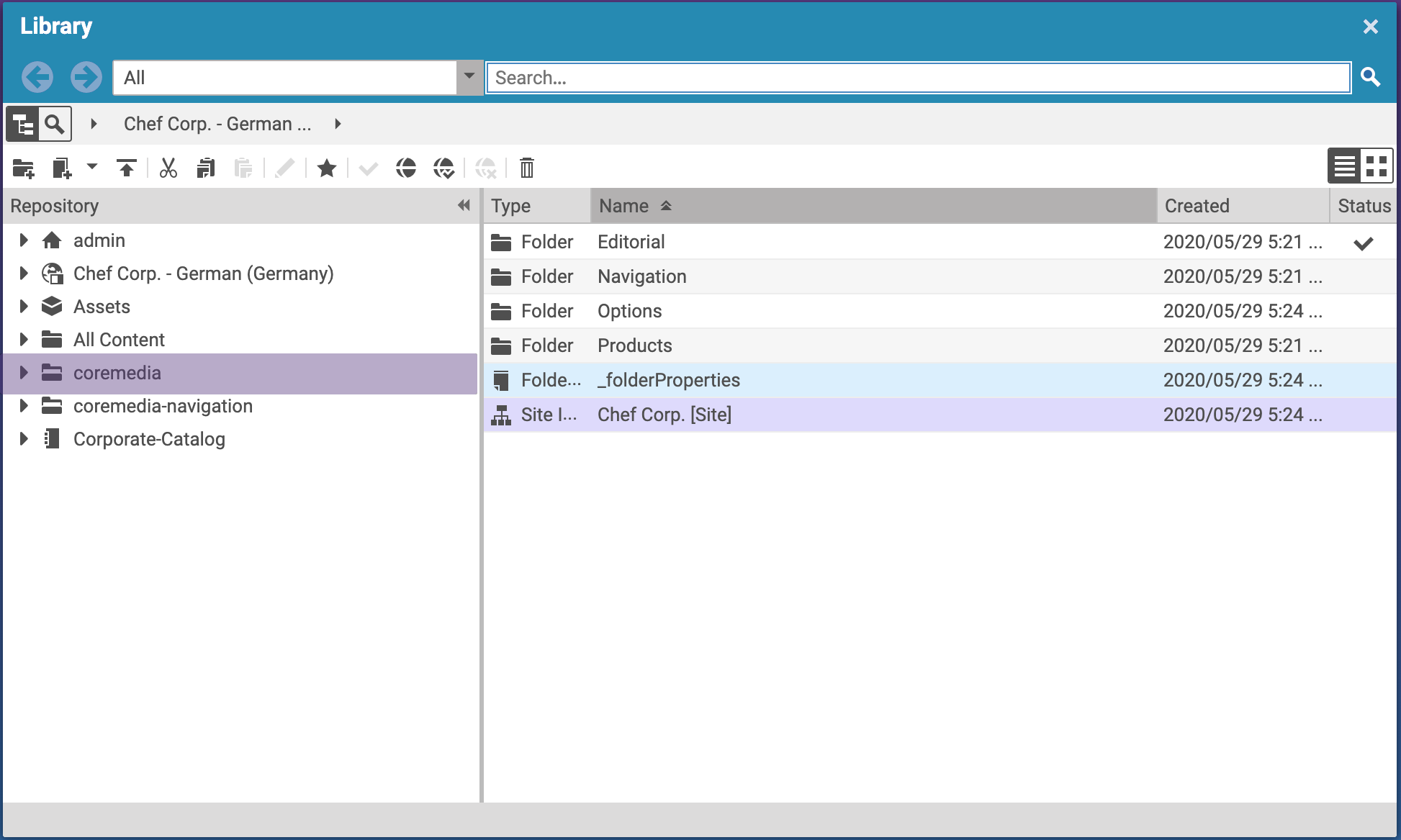
Basic Configuration
The navigation adapter is coming with some minor configuration options (basically the common).
Basic Adapter Configuration
This section covers the two possibilities to enable the content-hub-adapter-filesystem adapter. Please note that those options are valid for all Content Hub adapters. Before configuring the adapter, refer to the documentation Content hub configuration for preliminary steps.
To enable the content-hub-adapter-coremedia for all sites, create a CMSettings content
item at the contenthub.studio.global-configuration-path location.
For convenience reasons, it is recommended to name this content item "coremedia" (postfix of the extension name).
To enable the content-hub-adapter-coremedia for a single site, create a CMSettings content
item at the contenthub.studio.site-configuration-path location.
For convenience reasons, it is recommended to name this content item "Filesystem" (postfix of the extension name).
Detailed Adapter Configuration
The table below shows the initial toplevel entry for all content-hub-connector configurations.
After creation of the initial struct list called connections the next step is to create the first entry. This can be done in Studio with the struct editor by pressing add Item to ListProperty. The table below shows the entries which are common for all connectors.
| Key | Type | Value | Required |
|---|---|---|---|
| connectionId | String | <YOUR_CHOOSEN_ID> | Yes |
| factoryId | String | coremedia-navigation | Yes |
| enabled | Boolean | true or false | Yes |
| settings | Struct | Yes |
Table 17.8. Entries for all connectors
