


Solution Overview for Business Users / Version 2506.0
Table Of ContentsRequirements
For a good user experience a website should not layout each and every page in a different fancy manner but limit itself to a few carefully designed styles. For example, most pages consist of two columns of ratio 75/25, where the left column shows the main content, and the right column provides some personalized recommendations.
In the best case an editor needs to care only for the content of a page, while the layout and collateral contents are added automatically, determined by the context of the content. However, there will always be some special pages, so the editors must be able to change the layout or the collateral contents. For example for a campaign page which features a new product they may omit the recommendations section and choose a simple one-column layout without any distracting features. In order to preserve an overall design consistency of the site, editors are not supposed to create completely new layouts. They can only choose from a predefined set.
Solution
CoreMedia Blueprint addresses these requirements with the concept of a page grid and placements.
The page grid does not handle overall common page features such as navigation elements, headers,
footers and the like. Those are implemented by Page templates with special views. Neither does
the page grid control the layout of collections on overview pages. This is implemented by
CMCollection templates with special views and view types.
You can think of a page grid as a table which defines the layout of a page with different sections. Each section has a link to a symbol content item which will later be used to associate content with the section. Technically, the layout of a page is defined in form of rows, columns and the ratio between them. A page grid contains no content and can be reused by different pages. So you might define three global page grids from which an editor can select one, for instance.
The content for the page grid on the other hand, is defined in a CMChannel content item
in so called placements, realized as link lists in structs. Each placement is associated with a
specific position of the page grid through a link to a symbol content item. The editor can add
content to the placement, collections for example, which will be shown at the associated
position of the page grid.
Placements can also be shared between channels because a child inherits the placements of its parent. A prerequisite for inheritance is that the page grids of the parent and child page must have sections with the same name. For example, the parent channel has a two-column layout with the sections "main" and "sidebar". The child channel has a three-column layout with the sections "main", "sidebar" and "leftcolumn".
For the placements this means:
The child must fill a placement with content for the "leftcolumn" section, because the parent has no such section.
The child will override the placement for the "main" section with its content. Inheritance makes no sense for the "main" section.
The child does not need to declare a "sidebar" placement but can inherit the "sidebar" placement of the parent, even though it uses a different layout.
Before going into the implementation details of the page grid, you will see how to work with page grids in CoreMedia Studio.
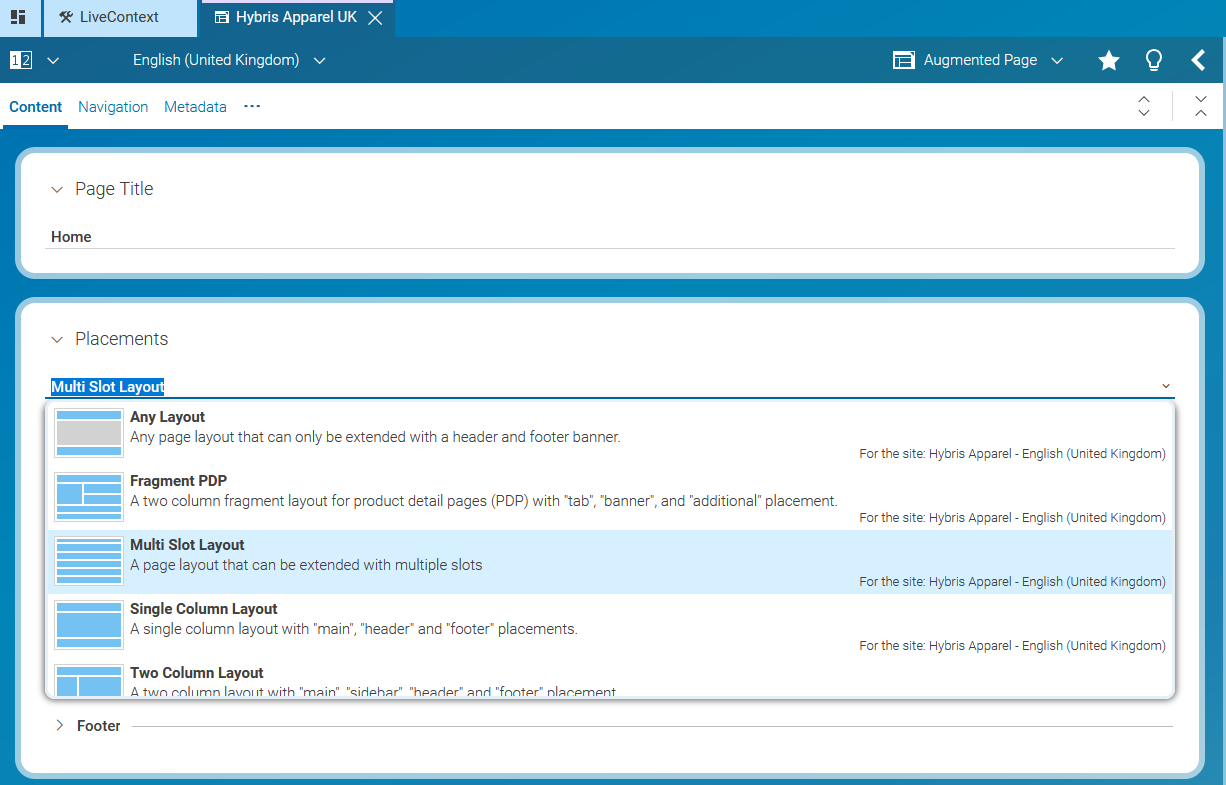
Editors can manage pages directly by editing the "placements" in the page grid in
CMChannel content items (localized as Page in CoreMedia
Studio). A placement is a specific area on a page such as the navigation bar, the
main column or the right column.
A CMChannel can inherit page grid placements of
its parent channel. For example, the Sports/Football section of a site can inherit the right
column from the Sports section. Editors can also choose to "lock" certain placements and thus
prevent subchannels from overwriting them. Each page grid editor provides a combo box to choose
between different layouts for a page. Depending on the selected layout, placement may inherit
their content if the same placement is defined in the layout of the parent page.
Each placement link list can configure a view type. The view type determines how the placement is rendered.
To define which placement view types are available for a page in some site, view type
(CMViewtype) content items are placed in view type folders under a site-relative path
or at global locations. The default paths are the site-relative path
Options/Viewtypes/ and the absolute path
/Settings/Options/Viewtypes/. This can be configured via the application
property pagegrid.viewtype.paths, which contains a comma-separated list of
repository paths. Each path may start with a slash ('/') to denote an absolute path
or with a folder name to denote a path relative to a site root folder. When changing these
values, please make sure that the existing view type content items are moved or copied to the new
target location.
Web pages are represented in the CAE using the
com.coremedia.blueprint.common.contentbeans.Page object which consists of
two elements: the content to be rendered and the context in which to render the content.
Pages where the content to be rendered is the same as the context (for example, section overview) display the page grid of the context. Pages where content items (such as Articles) are displayed within a context use display the context's page grid but replace the "main" placement with the content item.
Each placement contains a link list and several additional buttons on top of it. The order of the linked elements can be modified using drag and drop.
The layout of a parent page grid may be changed so that it does not fit anymore with the layout of a child page which inherits some settings. A child may use a three-column layout and inherit most of its content from its parent page that also uses a three-column layout. Then, the layout of the parent may be changed to another layout with a single column that doesn't contain any of the needed layout sections. The child configuration is invalid in this case and the user has to reconfigure all child pages.
<Struct xmlns="http://www.coremedia.com/2008/struct" xmlns:xlink="http://www.w3.org/1999/xlink">
  <IntProperty Name="colCount">2</IntProperty>
  <IntProperty Name="rowCount">1</IntProperty>
  <BooleanProperty Name="disableInheritance">true</BooleanProperty>
  <StructListProperty Name="items">
  <Struct>
  <LinkProperty Name="section" xlink:href="coremedia:///cap/content/550" LinkType="coremedia:///cap/contenttype/CMSymbol"/>
  <IntProperty Name="row">1</IntProperty>
  <IntProperty Name="col">1</IntProperty>
  <IntProperty Name="height">100</IntProperty>
  <IntProperty Name="width">75</IntProperty>
  <IntProperty Name="colspan">1</IntProperty>
  </Struct>
  <Struct>
  <LinkProperty Name="section" xlink:href="coremedia:///cap/content/544" LinkType="coremedia:///cap/contenttype/CMSymbol"/>
  <IntProperty Name="row">1</IntProperty>
  <IntProperty Name="col">2</IntProperty>
  <IntProperty Name="height">100</IntProperty>
  <IntProperty Name="width">25</IntProperty>
  <IntProperty Name="colspan">1</IntProperty>
  </Struct>
  </StructListProperty>
  <StringProperty Name="name">2-Column Layout (75%, 25%)</StringProperty>
  <StringProperty Name="description">Two column layout with main and sidebar sections</StringProperty>
  </Struct>
