


Solution Overview for Business Users / Version 2506.0
Table Of ContentsWith the Scheduled Publication Workflow you can simply publish content at a certain time in the future. The following instructions show how this task can be accomplished by means of the publication workflow extensions.
Start the Workflow
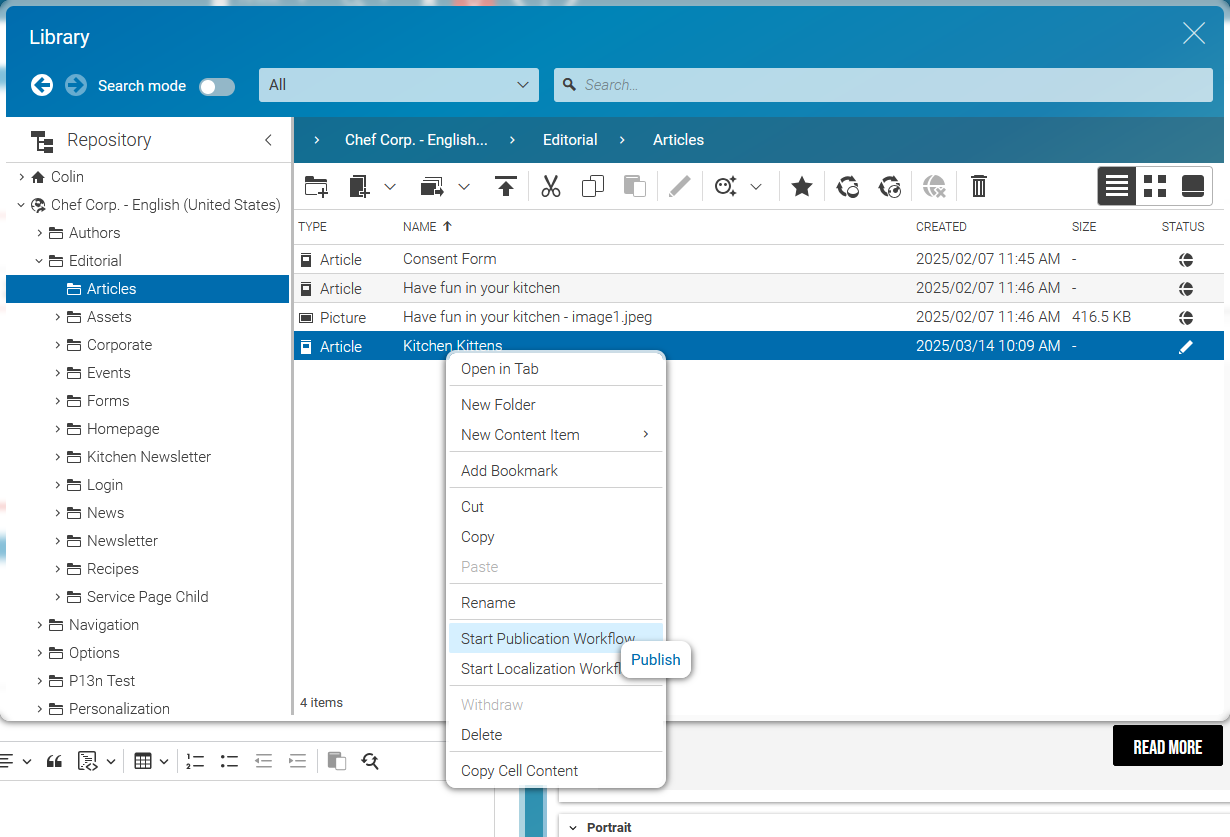
After having completed a new article, you can start publication workflows using the context menu on the content item in the library, as shown here:
Schedule the Publication
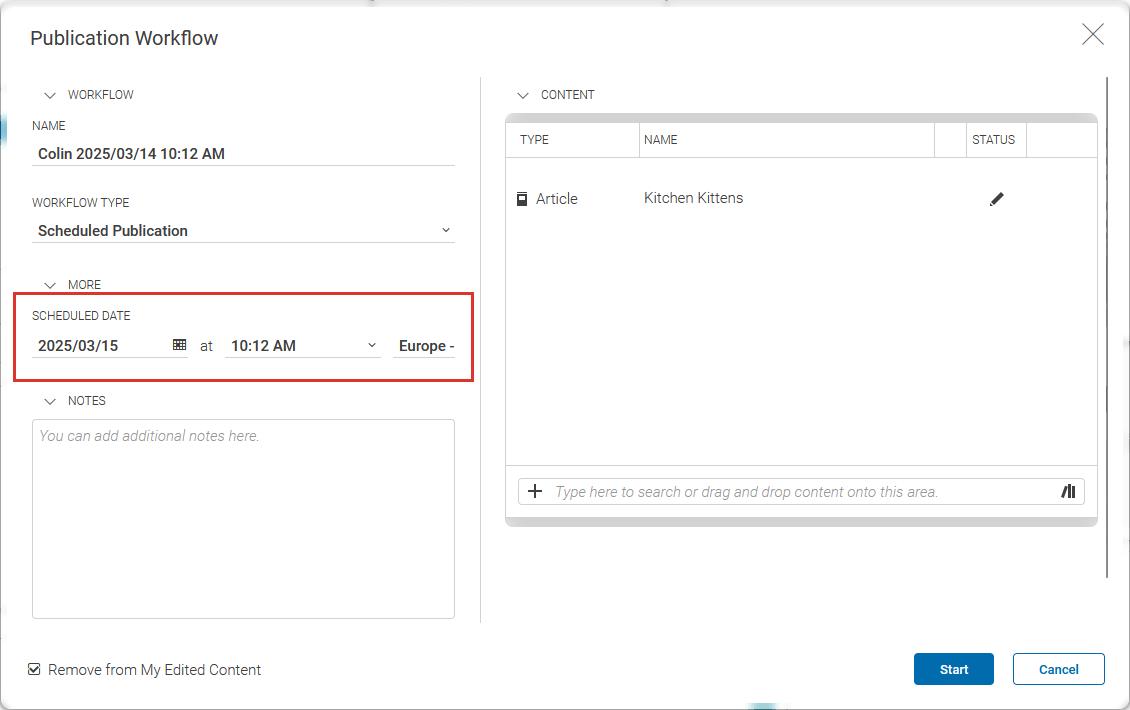
Choose Scheduled Publication from the Workflow Type dropdown, and select the Scheduled Date. Click on Start to start the workflow instance.
Monitor the Scheduled Publication
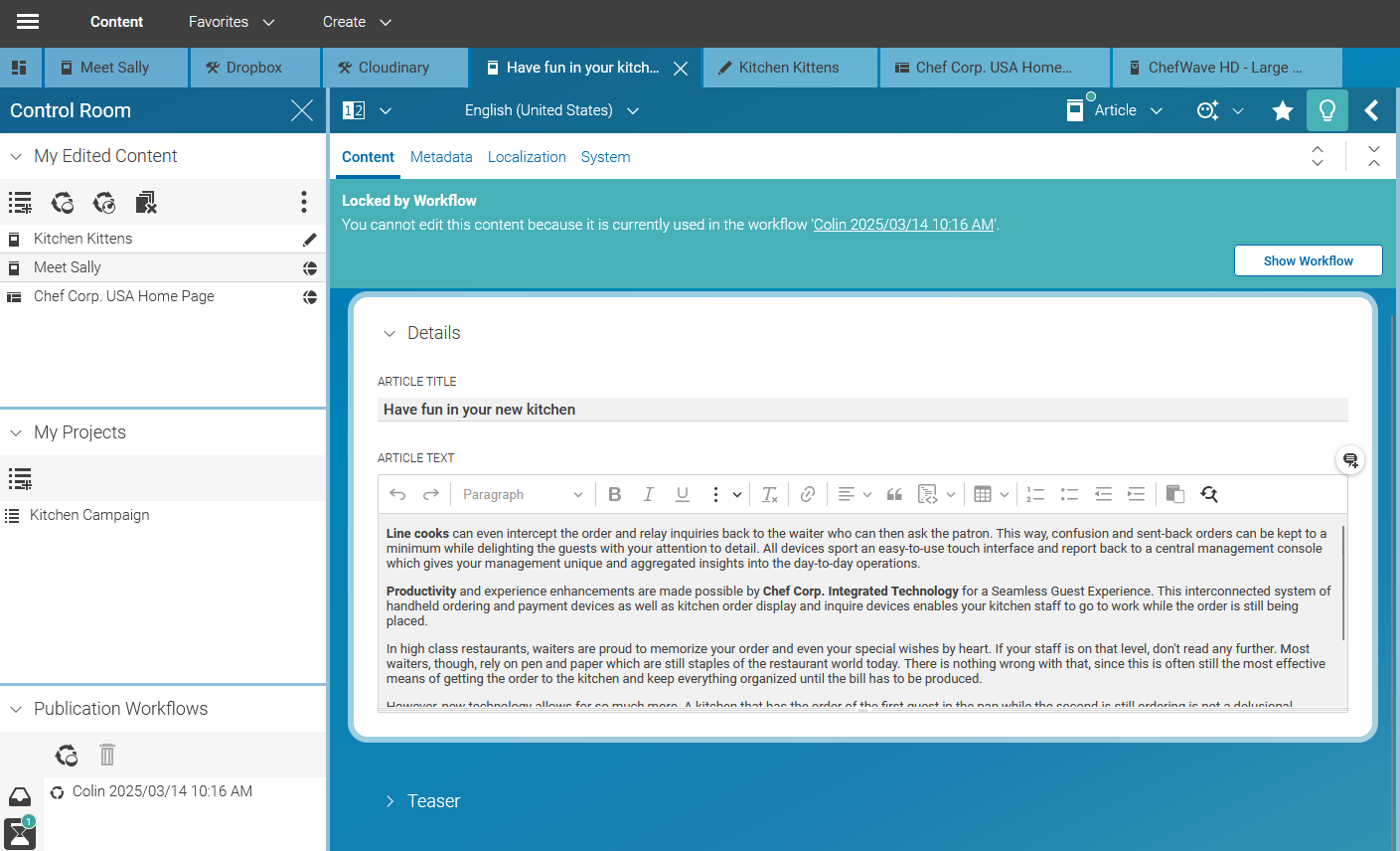
While the scheduled publication is still pending, it is listed under the pending workflows. Notice that as long as it is pending, the content item is locked so that it cannot be edited.
By double-clicking on the workflow instance it opens in the Workflow App. Here you get the details of the workflow. Most importantly, you can see the scheduled date of the publication.

Completion of the Scheduled Publication
When the scheduled date of the publication expires, the content item will be automatically published. The workflow instance is no longer pending and is now listed under the finished workflows:

Notice that the content item is no longer locked and can be edited.
Well done. The content item is now published!
